
Product Photography Using Phone: A Complete Guide for 2026

Ryan Bennett • October 19, 2026
Learn product photography using phone with proven techniques for lighting, composition, and editing that small businesses can apply today.
A candle is sitting on your kitchen table, your phone is in your hand, and the marketplace listing still needs photos that look sharp and honest. You don't need a studio to make a useful product image. You need a steady setup, controlled light, and a plan for creating a set of images you can adapt for listings, social ads, and packaging.
A phone already combines capture, image processing, editing, storage, and publishing. By 2017, smartphones accounted for approximately 85% of photographs captured worldwide, a shift that helped make the phone a practical production tool, not just a substitute for a dedicated camera (SIAM's history of smartphone photography). With a repeatable workflow, you can get clearer labels, more faithful colors, and a reusable catalog library. If you're preparing marketplace listings, this Amazon product photography guide offers useful context on image requirements and presentation.
Why Your Phone Is Enough for Product Shots
The phone camera doesn't need to outperform a professional camera in every situation. It needs to deliver clear, consistent images that show the product accurately at the size customers will view them. For a small shop, that often means a sharp front view, useful details, honest color, and crops that fit the places you plan to publish.
Modern phones handle a lot of image processing automatically. HDR and night modes can help with difficult light, but they can also change how a surface or color appears. The practical advantage is convenience: you can capture, review, edit, and publish from one device. The practical limitation is that automation won't fix a shaky phone, a distracting background, or light that gives a white label a yellow cast.
Think in terms of a reusable source library, not one perfect hero shot. A candle shop might need a clean listing image, a close-up of the wax and label, a scale reference, and a lifestyle frame for a social post. Taking those views in one organized shoot saves the trouble of rebuilding the setup every time another channel needs a crop.
Working rule: Spend effort on clean light, stable framing, and faithful color before buying more camera gear.
The sections that follow focus on the decisions that make the biggest difference on a budget: locking the camera controls, shaping light, keeping colors honest, and leaving enough space in the frame for later crops.
Phone Camera Settings Worth Locking In
Start with the main rear camera. It generally gives you a more dependable view than the selfie camera, and it avoids the perspective and quality trade-offs that can come with switching to a secondary lens. Don't pinch to zoom. Digital zoom crops away image detail, so move the phone closer or crop the full-resolution image later.
Set the phone on a tripod or a stable support before you adjust the product. A small tabletop tripod with a phone clamp is handy, but a timer or remote shutter also helps prevent movement when you tap the screen. Clean the lens before a batch and again if you touch it. Fingerprints can soften detail and create haze that's easy to mistake for poor focus.
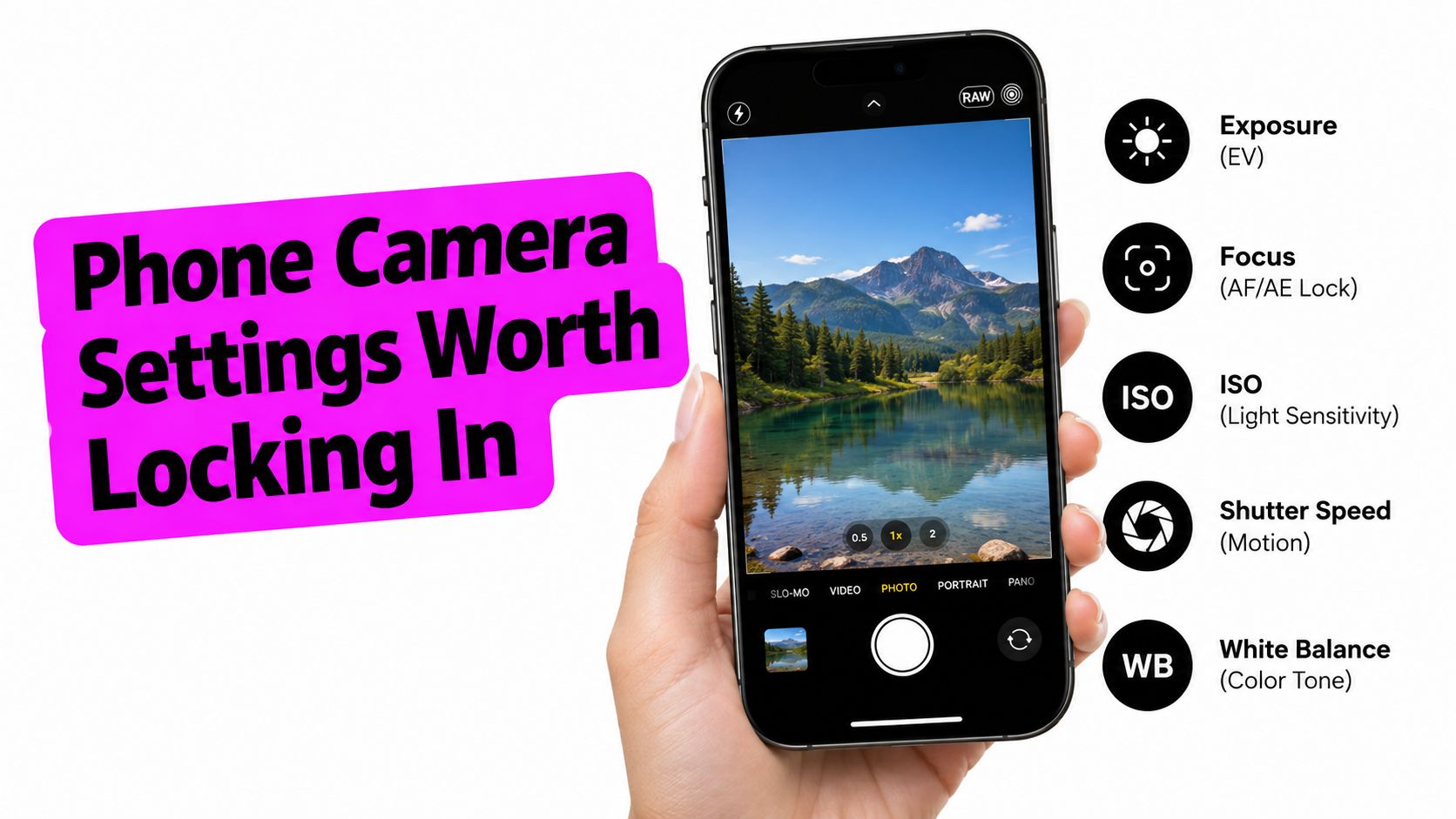
Tap the product to set focus and exposure. If your camera app allows it, lock them once the framing is right, then avoid changing the phone's position mid-batch. Computational photography has shifted image quality beyond lens hardware alone, so focus, exposure, and white balance can matter as much as megapixel count (a history of photography and computational imaging).
Use the highest-quality capture option your phone supports when you expect to crop or need fine detail. For clean catalog shots, turn off portrait effects that blur product edges, especially on glass, fine lettering, or reflective objects. HDR can be helpful when a scene has both bright and dark areas, but compare it with a standard capture if it makes packaging look unnaturally bright or changes a finish.
Before you start shooting, check:
- Camera: Main rear lens, no digital zoom.
- Stability: Tripod or firm support, with a timer or remote.
- Focus and exposure: Set on the product and lock if available.
- Capture quality: Choose the best practical setting for the intended crop.
- Lens: Clean, with no fingerprints or dust.
Lighting and Color Reference That Actually Work
Place the product near a large window or softbox, with the light coming from roughly 45 degrees to one side and slightly above. A broad light source creates gentler reflections than a small bare lamp. Put white foam board on the opposite side to bounce light back into shadow areas. If the image looks flat, move the board farther away rather than immediately adding another light.
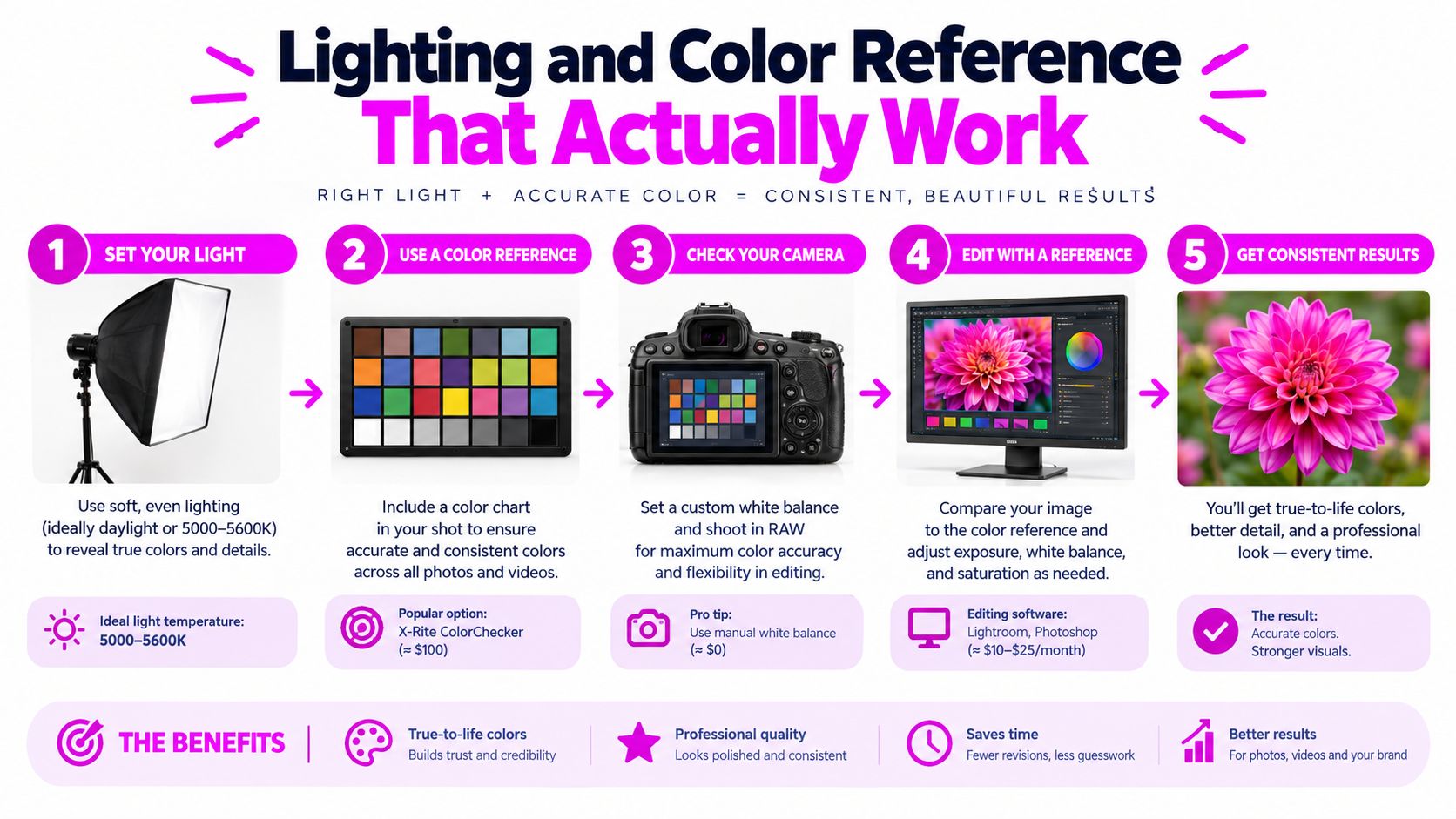
Color is where a polished-looking phone image can still mislead. Photograph near a neutral gray or white reference, then lock white balance and exposure after composing. Avoid mixing window light with household LEDs, which can give different parts of the same product competing color casts. For reflective packaging, enlarge or diffuse the light source instead of increasing brightness. More intensity can create hard hotspots without making the surface easier to judge.
A color reference won't calibrate every screen, but it gives you a consistent point of comparison. Check the result on a desktop display and a phone, and compare it with the actual item before publishing. Industry survey summaries report that 22% of ecommerce returns occur because products look different in person than in their photos (ecommerce product photography guidance)). For a seller, that makes honest color and surface texture more valuable than aggressive saturation or sharpening.
For reflective products, such as jewelry, lighting placement and reflections need extra care. This JewelryBuyDirect jewelry photography advice is a useful reference for thinking through lighting choices. For more setup ideas, see this guide to product photography lighting.
Planning One Shoot for Every Crop You Ship
A tight hero image may look strong on one product page and become unusable when a marketplace, social platform, or packaging layout crops it differently. Plan the composition backward from where the images will appear. Leave negative space around the product, keep its size consistent within the frame, and avoid placing important details right at the edges.
Fix the camera height and distance, then capture a useful sequence: front, back, sides, detail, scale, and in-use views. The scale image should help a shopper understand the item's size, while a lifestyle image can show how it fits into a room or routine. A neutral background usually makes the catalog easier to scan; a styled background can add context, but it shouldn't obscure the product.
This broader library matters because shoppers want more than one polished front view. One cited shopper study reports that 33.16% prefer multiple product photos, while roughly 60% prefer a 360-degree view; it also reports that 42% try to infer product size from images (product image statistics). A set of consistent angles gives customers more evidence to judge shape, finish, and scale.
Leave breathing room when you capture. It's easier to crop a spacious frame for different placements than to recover a label or edge that was cut off in camera.
Keep a reusable master image, then export versions suited to each destination instead of trusting automatic cropping. Different aspect ratios change how much of the product and background remain visible, so a guide to changing image aspect ratios can help when adapting the same source set for different layouts.
Quick Batch Editing and Background Removal
Editing should make the catalog consistent, not make every product look more dramatic than it does in real life. Import a batch into one editing workflow, apply the same crop and restrained color adjustments, then remove backgrounds where a clean catalog image needs one. Keep a reference image nearby so you can compare each edited frame against the actual product and the rest of the set.
Use background removal selectively. It can create a tidy marketplace image, but it can also cut into clear glass, soft edges, or fine details. Inspect labels, product outlines, and shadows before exporting. Keep saturation, sharpening, and background treatment consistent; uneven edits make items photographed in one session look like they belong to different catalogs.
Export platform-ready versions from the original captures rather than repeatedly resizing an already compressed file. Review the finished images on both desktop and mobile, then organize them by product and view. If your volume makes manual editing cumbersome, a batch photo editor workflow can help you think through repeatable processing steps.
Troubleshooting and a Repeatable Operator Routine
When a frame fails, correct the cause instead of trying to rescue it with stronger edits. Motion blur calls for a steadier phone and a timer. Clipped highlights need softer or repositioned light. A color cast needs a more consistent light source and a fresh white-balance check. Weak edges after background removal call for closer inspection before export.
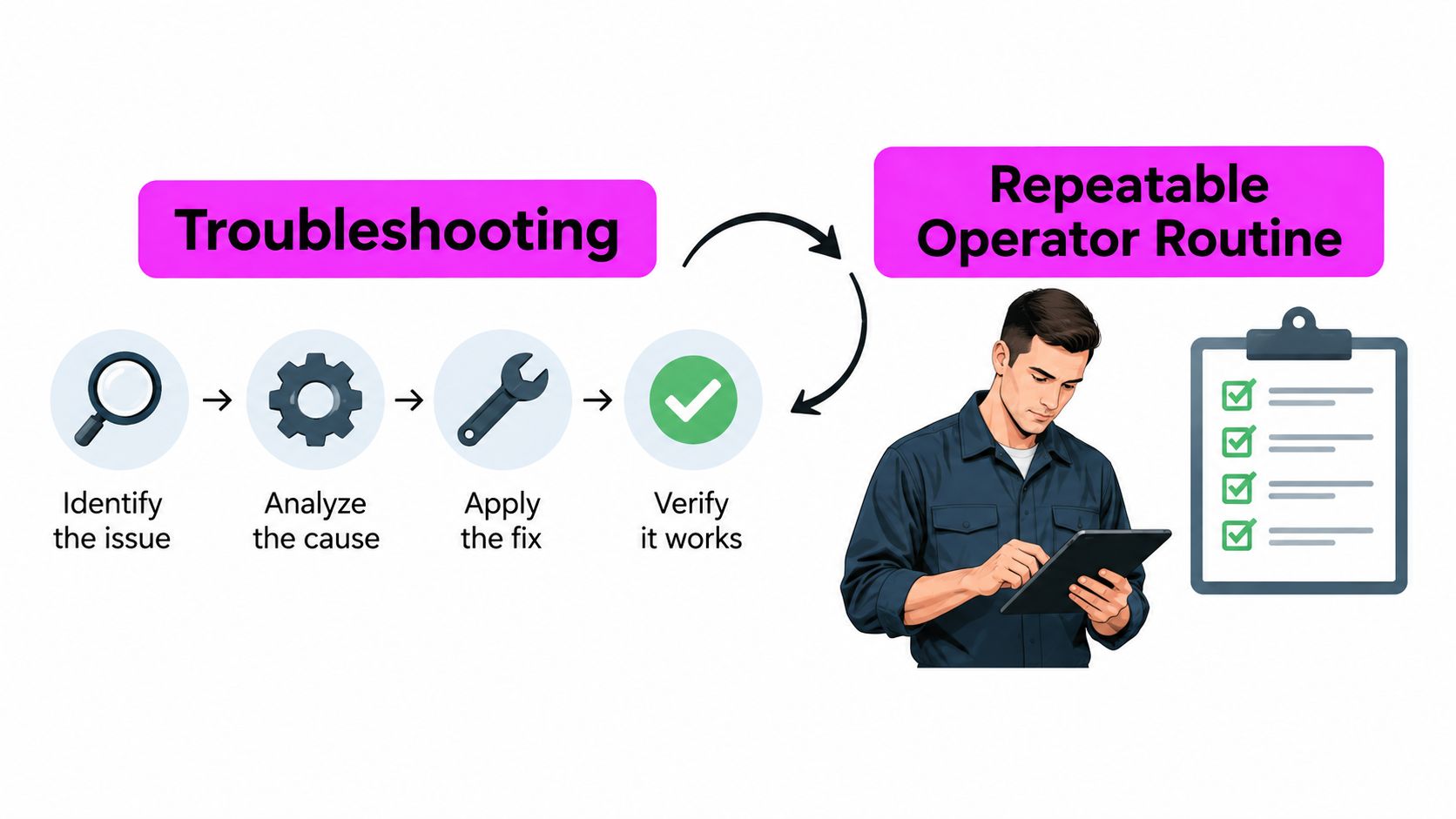
Keep a simple rejection log by cause: focus, exposure, color, reflection, framing, or contamination. Patterns show whether the fix belongs in the camera setup, lighting, cleaning, or editing routine.
Before each shoot, clean the product and lens, stabilize the phone, set the light and reference, lock camera controls, capture the full view set, then edit and review on two screen types. Start with one product today, build a reusable image library, and refine the checklist whenever a frame fails. For larger catalogs, Bulk Image Generation offers bulk image creation and batch-editing tools, including background removal, resizing, and enhancement, to help streamline the post-production workflow.