Master Your Workflow with a Batch Photo Editor

Ryan Bennett • September 28, 2026
Discover how a batch photo editor can save you hours. Learn to resize, remove backgrounds, and streamline your photo editing for business or creative projects.
If you've ever found yourself mind-numbingly editing product shots one by one, you know the pain. It's that feeling of an entire afternoon evaporating while you apply the same crop, filter, and watermark to a mountain of images. A batch photo editor is what gives you those hours back, letting you process hundreds of photos in the time it usually takes to finish just one.
Why Batch Editing Is a Workflow Game Changer
Picture this: you’re launching a new product line. You've got 200 photos that all need to be resized for your website, cropped square for Instagram, and watermarked for Pinterest. Doing that manually isn't just a drag—it’s a genuine bottleneck that can stall your entire marketing launch. Batch editing tools completely demolish that roadblock.
The magic is in the workflow automation. You set up a "recipe" of edits—say, remove the background, resize to 1000px, and add a subtle shadow—and the software applies it to your entire folder of images. This is where you see the real-world impact, saving creative pros and e-commerce owners from hours of tedious, repetitive work.
Achieve Perfect Brand Consistency
A solid batch photo editor is your secret weapon for making sure every single image perfectly reflects your brand's look and feel. Whether it's for an e-commerce catalog or a social media campaign, that visual consistency is what builds trust and makes your brand instantly recognizable.
- Uniform Sizing: Every product photo on your site will have the exact same dimensions. No more wonky grids.
- Consistent Branding: Slap your logo or watermark on an entire photoshoot's worth of images in one go.
- Cohesive Aesthetics: Make sure every photo in a campaign shares the same color grade, contrast, and style.
The demand for this kind of efficiency is exploding. The photo editing software market is expected to rocket from USD 0.37 billion in 2025 to USD 3.29 billion by 2032, and a huge part of that growth comes from AI-powered automation and cloud tools that make batch processing easier than ever. You can dig into the numbers yourself in these recent market analyses.
Pro Tip: I live by presets. Seriously. I have a "Blog Post" preset that resizes images to 1200px wide and a "IG Story" preset that crops them to a 9:16 aspect ratio. What used to be a five-step process is now literally a single click.
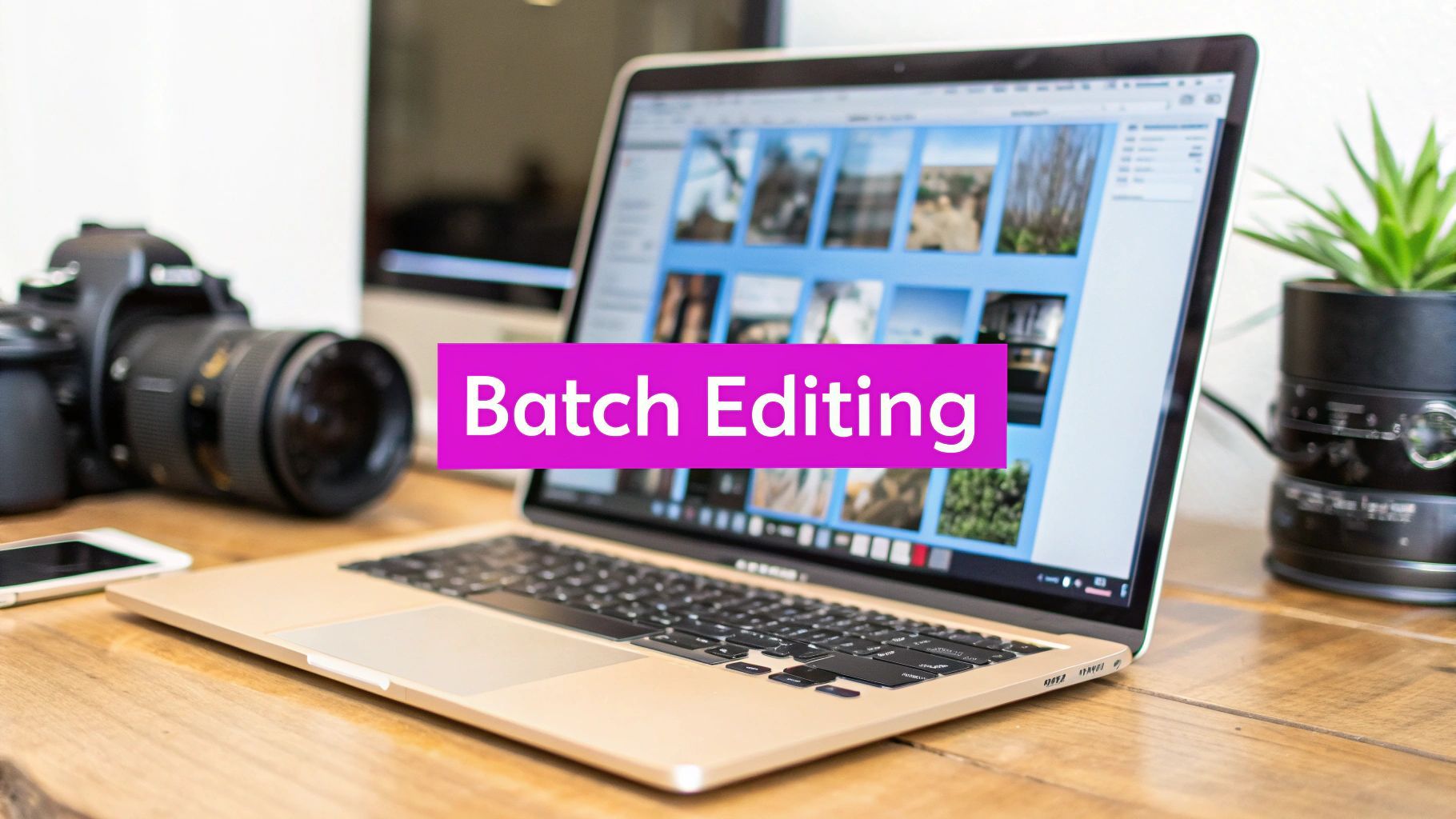
Here’s a great example of what a modern batch editor interface looks like. It’s clean, simple, and gets the job done.
See how it lets you dump a bunch of files in at once? From there, you can apply edits like background removal and resizing to the entire group instantly. That’s the power we're talking about.
For anyone still on the fence, the difference between tackling photos one at a time versus all at once is night and day. It’s not just about speed; it's about freeing up your brainpower for more important creative work.
Manual Editing vs Batch Photo Editor at a Glance
| Metric | Manual Editing | Batch Photo Editor |
|---|---|---|
| Time Investment | Hours or days per project | Minutes per project |
| Consistency | Prone to human error and variation | Perfectly uniform results every time |
| Scalability | Poor; workflow breaks down with volume | Excellent; handles hundreds of images easily |
| Focus | On repetitive, low-value tasks | On creative strategy and high-level decisions |
Ultimately, choosing a batch photo editor isn't just a small workflow tweak. It's a fundamental shift in how you handle visual content, allowing you to scale your output without sacrificing quality or your sanity.
How to Choose the Right Batch Editing Tool
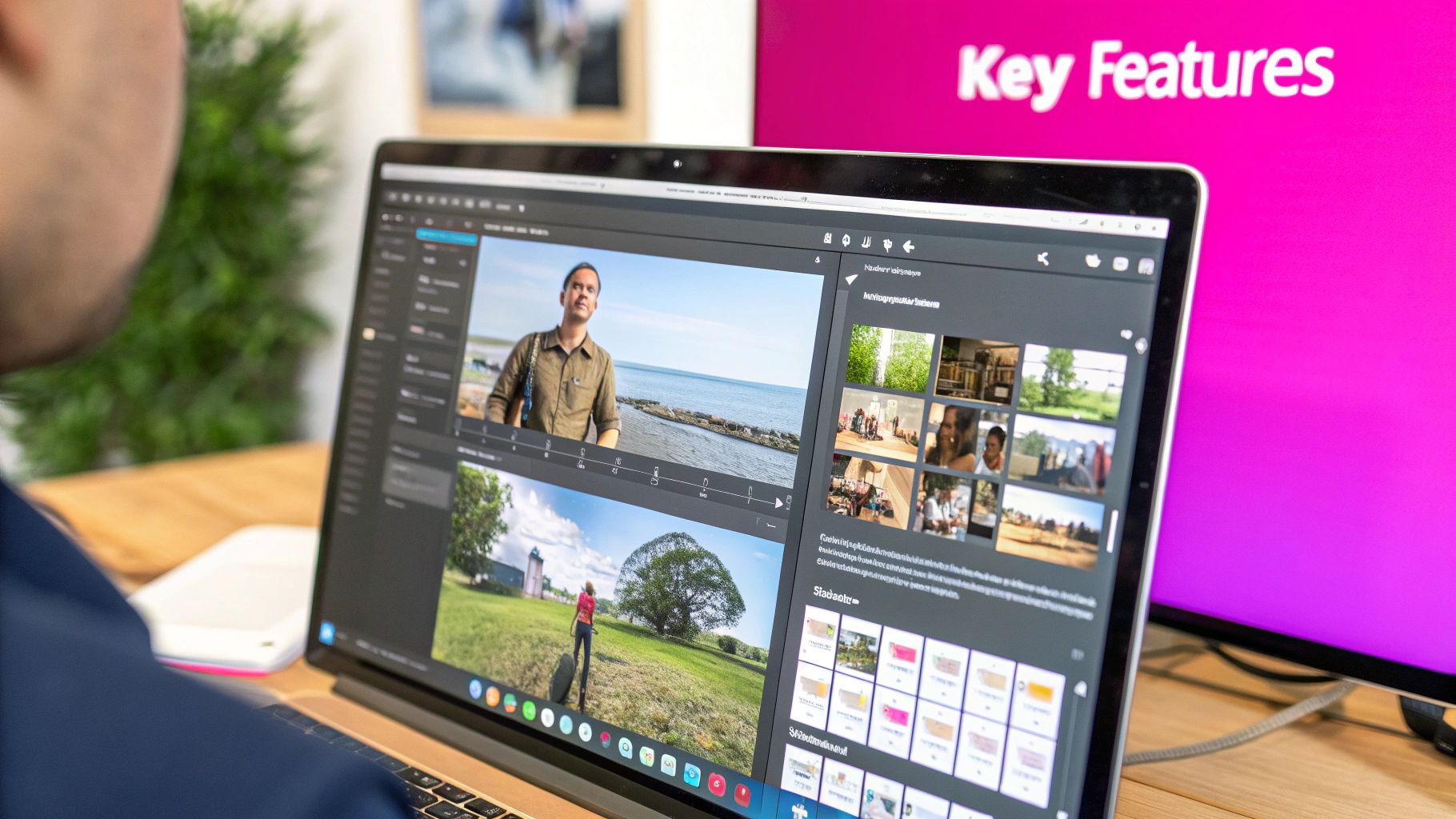
Picking the right batch photo editor isn't about chasing the one with the longest feature list. It's about finding the tool that clicks with your actual, day-to-day workflow. The first big fork in the road is deciding between a cloud-based service and traditional desktop software.
I've seen this play out time and again. An e-commerce team, for instance, thrives with a cloud-based editor. They need to collaborate on product shots from different locations, making quick work of tasks like background removal and resizing. On the other hand, a professional photographer I know, who lives and breathes RAW files, needs the sheer horsepower of desktop software like Adobe Lightroom or Capture One. These programs are built for huge files and offer surgical control, all without demanding a constant internet connection.
Core Features to Evaluate
Once you've chosen your platform, it's time to get into the weeds. A pretty interface is nice, but it's worthless if the tool can't handle your most common tasks efficiently.
Here’s what I always tell people to look for:
- File Format Support: This sounds basic, but it’s critical. Make sure it handles your go-to formats, whether that's standard JPGs and PNGs or newer types like HEIC and WebP. For any serious photographer, RAW file support is a deal-breaker.
- AI-Powered Tools: I'm not talking about gimmicks. I mean genuinely useful AI features like one-click background removal or intelligent upscaling that can literally cut your editing time in half.
- Processing Speed: Some tools will chug along miserably, while others can chew through a batch of 50+ images without breaking a sweat. Always run a trial with a large folder of your own photos to see how it performs under real-world pressure.
- Custom Presets: This is a huge one. The ability to save a series of your favorite edits as a reusable "profile" or "action" is one of the biggest productivity hacks you can have.
The best batch photo editor for you will feel like a natural extension of your process. It shouldn't force you into a new, complicated system but rather streamline the one you already have. Prioritize usability and the specific features that solve your biggest time-wasting problems.
Perfecting Product Shots with AI Background Removal
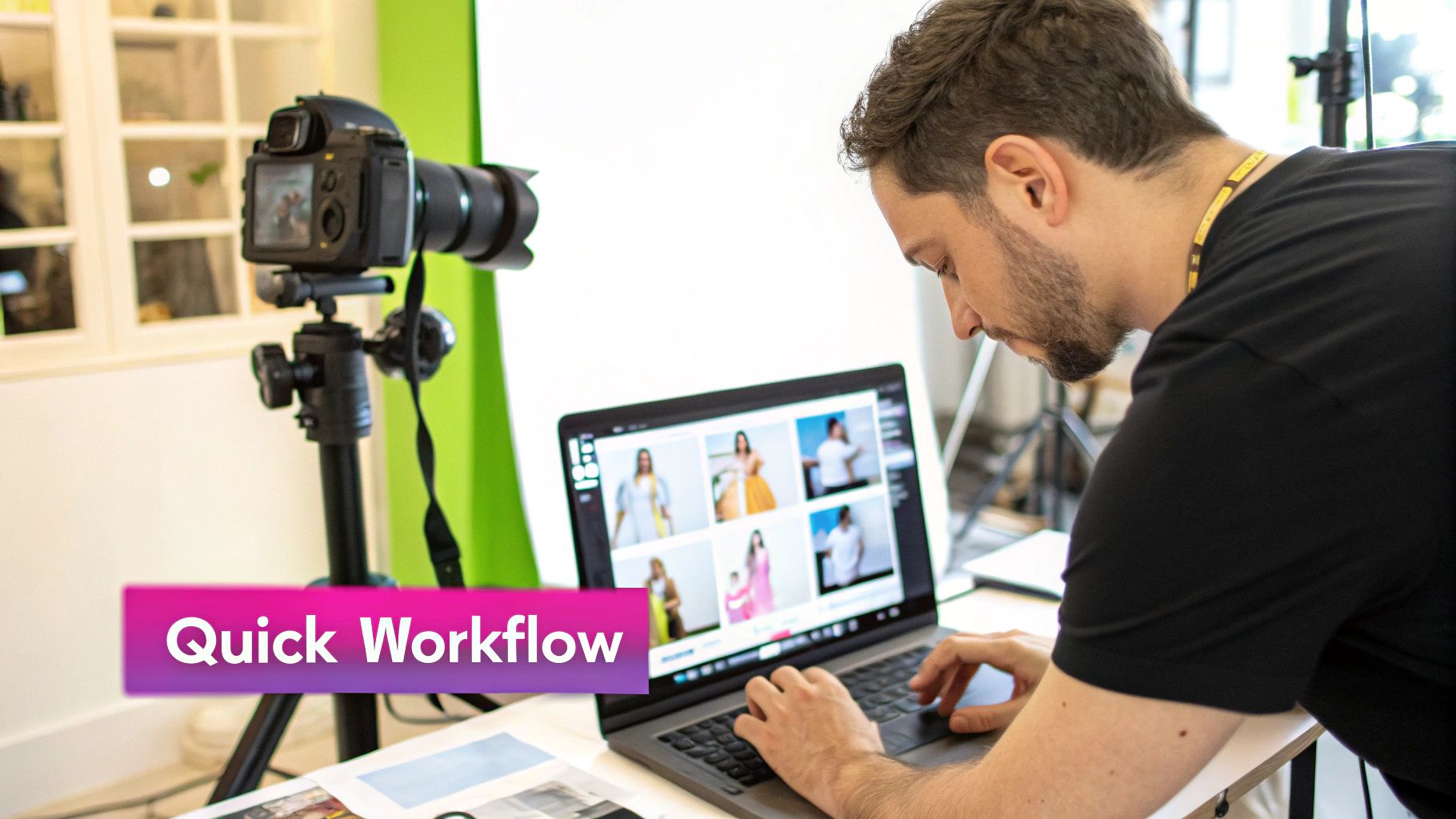
For any e-commerce brand, your storefront's first impression starts with the product photos. Inconsistent backgrounds can make a site feel cluttered and unprofessional, but manually cutting them out is a well-known time-waster. This is exactly where a modern batch photo editor armed with AI completely changes the game.
Let's say you're launching a new handbag collection. You've got 50 unique product shots, but each one has a slightly different background from the photoshoot. Instead of spending hours tracing pixels in Photoshop, you can just drop the entire folder into an AI-powered editor.
With a single click, the tool's AI scans every image, identifies the subject, and removes the background from the entire batch. It’s unbelievably fast and surprisingly accurate, even with tricky details like thin handbag straps or complex fabric textures.
Applying Uniform Backgrounds in Bulk
Once the old backgrounds are gone, the real fun begins. You can now apply a new, perfectly consistent background across your whole collection.
- Clean White: The classic e-commerce choice for a minimalist, distraction-free look.
- Branded Colors: Instantly apply your brand’s signature hex code for a cohesive and vibrant storefront.
- Transparent PNGs: Export your images with no background at all, making them perfect for marketing materials, social media graphics, and lookbooks.
This workflow guarantees every product shot looks like it belongs to the same polished, professional family. To see this in action, check out our in-depth guide to AI product photography. It's not just about saving time; it's about building a brand identity that turns visitors into loyal customers.
The growth in this space is pretty staggering. The AI image editor market, valued at around USD 80.3 million, is on track to nearly triple to USD 219.9 million. This isn't just hype—it's driven by real adoption, with 58% of photo editors already using AI tools to slash their editing time. You can dig into more of these AI image editing statistics.
By bringing an AI batch editor into your process, tasks that used to eat up entire days can now be finished in minutes. That frees you up to focus on the things that actually grow your business.
Resize and Rename Images for Web and Social Media
If you've ever managed content for more than one digital platform, you know the drill. You prep one set of photos for your website, crop another version for Instagram, and then create a whole new batch for Pinterest. It's a massive time sink and, frankly, a headache.
This is where a good batch photo editor completely changes the game. Instead of resizing images one by one, you can create and save dimension presets for every channel you use. Think about having ready-to-go profiles like "Website Hero (1600x900px)," "Instagram Post (1080x1080px)," and "Pinterest Pin (1000x1500px)." You just run an entire folder of images through these presets and get perfectly optimized files for every platform in seconds. This is especially useful for visual-heavy platforms; using a free Pinterest image resizer tool to optimize your pins is a smart move to make sure your content looks its best.
Here’s a quick look at how this streamlined workflow can slash your editing time.
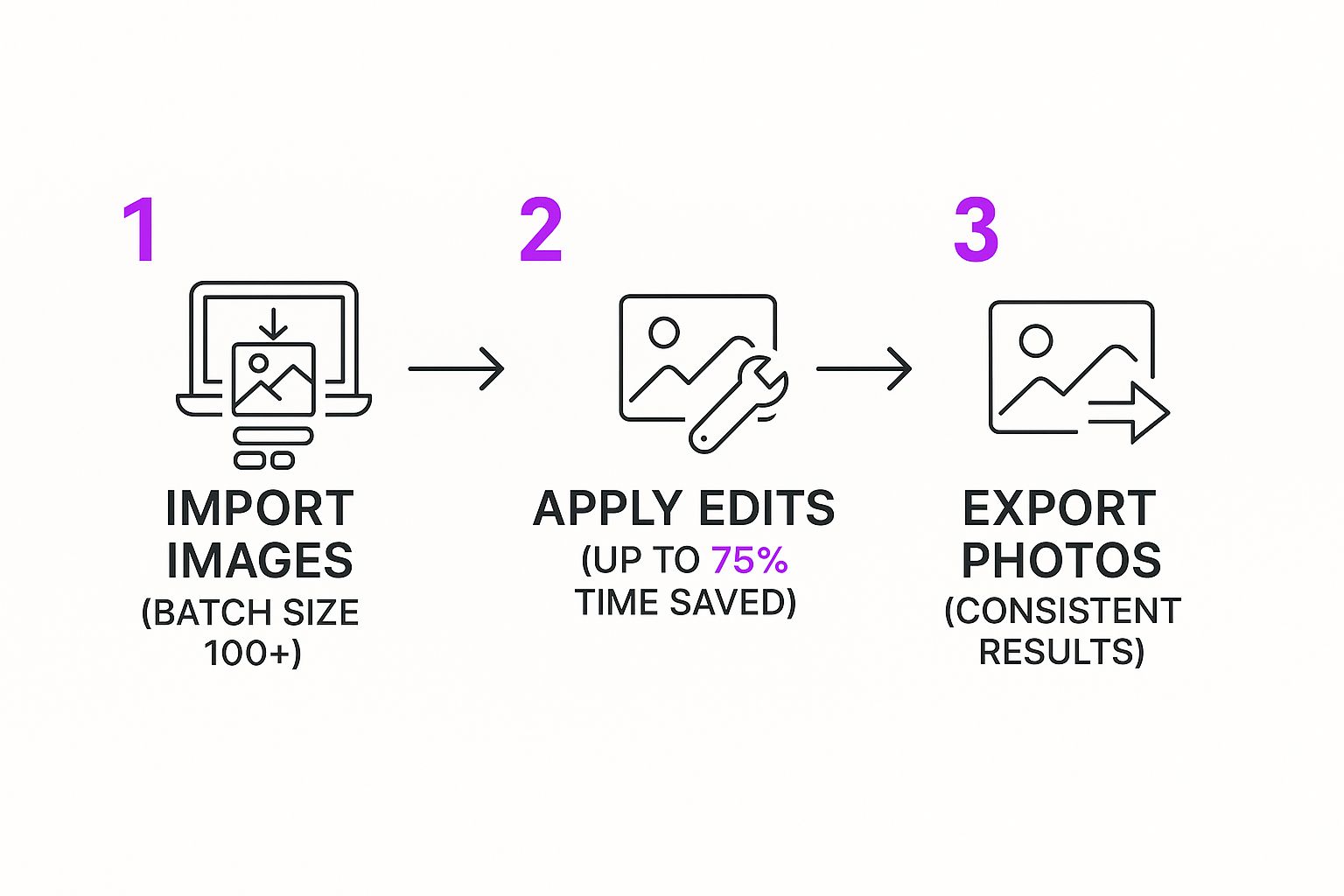
From my own experience, once you get a rhythm going, this kind of process can easily cut down your image prep time by up to 75%. It's a huge efficiency boost.
Tidy Up Your Files (and Boost Your SEO)
Beyond just getting the sizes right, renaming your files is one of those small tasks that pays off big time. It's not just about organization; it’s a simple SEO win that most people overlook. A batch editor lets you ditch generic names like "IMG_7891.jpg" and apply a logical naming convention to hundreds of files at once.
For instance, you could set up a simple rule like
brand-product-##. This would automatically rename your images toacme-handbag-01.jpg,acme-handbag-02.jpg, and so on. Now, you have a clean, web-ready asset library that's searchable and makes sense to both you and Google.
This kind of efficiency is exactly why the photo editing software market is booming. In North America alone, the market was valued at USD 1,027.48 million and claimed over 40% of the global revenue. The demand for tools that save time and effort just keeps growing. If you want to see these features in action, you can test drive a bulk image resizer and get a feel for how it works.
Unlock Pro-Level Editing Workflows
Once you're comfortable with the basics like resizing and removing backgrounds, it's time to start thinking like the pros. Power users don't just apply one-off edits; they build custom ‘actions’ or ‘recipes’ that chain multiple adjustments together. This is really where a solid batch photo editor starts to shine.
Think about it: a single saved action that automatically crops your photos to a 4:5 aspect ratio, brightens them by 10%, throws on a subtle vintage filter, and adds your watermark. This isn't some far-off fantasy; it's how efficiency-minded creators process entire photoshoots with a single click. You put in the work to create the recipe once, then apply it to hundreds of future images, guaranteeing absolute consistency every single time.
Automate Your Brand Protection
One of the most tedious tasks is protecting your images. Nobody wants to spend hours dragging and dropping a logo onto every single photo. A batch editor handles this beautifully. You can set up a bulk watermarking process that strategically places your logo with the exact opacity and position you want across an entire folder of images.
- Set It and Forget It: Define your watermark's size, transparency, and location (like the bottom right corner).
- Apply to Batches: Run hundreds of images through the process in minutes, securing your work before you share it anywhere online.
This does more than just protect your assets—it reinforces your brand identity with every single photo you publish. To take this a step further and streamline your entire content pipeline, it's worth digging into the principles of batch content creation.
Here’s another pro-level move: applying a consistent color grade. If you shot a product line under slightly different lighting, you can perfect the color balance on one key image and then sync those exact settings across the rest of the shoot. The result is a cohesive, high-end look that feels completely intentional.
These automation principles aren't just for traditional photos, either. If you work with AI-generated visuals, you can learn more about creating stunning digital product images that incorporate consistent styles right from the start. Mastering these workflows is what turns you from a casual user into a true production powerhouse, saving you massive amounts of time while elevating the quality of your work.
Common Questions About Batch Photo Editing
Jumping into any new workflow always brings up a few questions. I get it. When it comes to using a batch photo editor, most people I talk to are worried about the same things: quality, picking the right tool, and dealing with specific file types.
Let's clear up some of those common uncertainties so you can start editing with total confidence.
One of the biggest worries I hear is whether batch processing will hurt image quality. The short answer is no, but only if you're using a quality tool and the right settings. Professional batch editors are built specifically to preserve your photos' integrity.
The key is to always work from your high-resolution original files. When you export, a good program will let you specify the output quality, like saving a JPG at 90% compression or as a lossless PNG. Quality loss usually happens from repeatedly saving an already compressed file, not from the batch process itself.
Choosing the right software can also feel overwhelming, but it doesn't have to be.
Finding the Right Tool for You
If you're just starting, your best bet is often a cloud-based editor. I usually recommend tools like Canva or Fotor to beginners because their drag-and-drop interfaces make tasks like resizing and background removal incredibly simple. There's no installation, and they're great for learning the ropes.
For photographers or pros who need more granular control, desktop software is the way to go.
- Adobe Lightroom: A long-standing industry standard for a reason. It's fantastic for organizing and batch editing huge photo libraries, especially if you shoot in RAW.
- Luminar Neo: This one's known for its powerful AI-driven tools. It can automate complex edits like sky replacement and portrait touch-ups that used to take ages.
- Capture One: A favorite among many professional photographers for its superior color rendering and tethered shooting capabilities. It's a powerhouse.
These more advanced programs definitely have a steeper learning curve, but they offer unparalleled control over your final images.
Can I Edit RAW Camera Files in a Batch?
Yes, absolutely. In fact, this is a core function of any professional-grade batch editor.
Software like Lightroom, Capture One, and DxO PhotoLab are specifically built to handle various RAW formats (.CR2, .NEF, .ARW) from just about every camera out there.
They let you apply non-destructive edits—like adjusting exposure, white balance, and lens corrections—to hundreds of RAW images at once. After you've made your adjustments, you can then export them all to a universal format like JPG or TIFF for final use.
Ready to stop editing photos one by one and reclaim your time? The AI-powered tools at Bulk Image Generation are designed to automate your entire creative workflow, from generating images to batch editing them. Try it for free and see how much time you can save.