How to Make a Photo Grid Using Manual and Smart Tools

Ryan Bennett • October 21, 2026
Learn how to make a photo grid with manual editing, templates, aspect ratios, batch tools, and accessibility checks for polished results on any device.
You've got nine good photos from a launch, a client who wants them in one post, and a feed preview that keeps cutting off faces. You drag images into a template, export, and the result looks crowded, uneven, and forgettable. That failure rarely comes from the app. It comes from arranging pictures before you've decided what they're supposed to say together. Learning how to make a photo grid starts with that decision, not with tiles.
Understand the Photo Grid Basics
A photo grid is a controlled composition where separate photographs read as one visual statement. It's not a pile of thumbnails squeezed into a rectangle. Every image needs a role, whether it's the hero, a supporting detail, a step in a sequence, or a point of contrast.
That idea long predates phone editors. Oscar Gustave Rejlander's The Two Ways of Life in 1857 assembled approximately 30 separate photographic negatives into a single staged image through combination printing, as documented in the history of photomontage and combination printing. The Rijksmuseum dates widespread experimentation with photocollage and photomontage to roughly 1860 to 1940 in that same account. The tools changed. The design problem didn't.
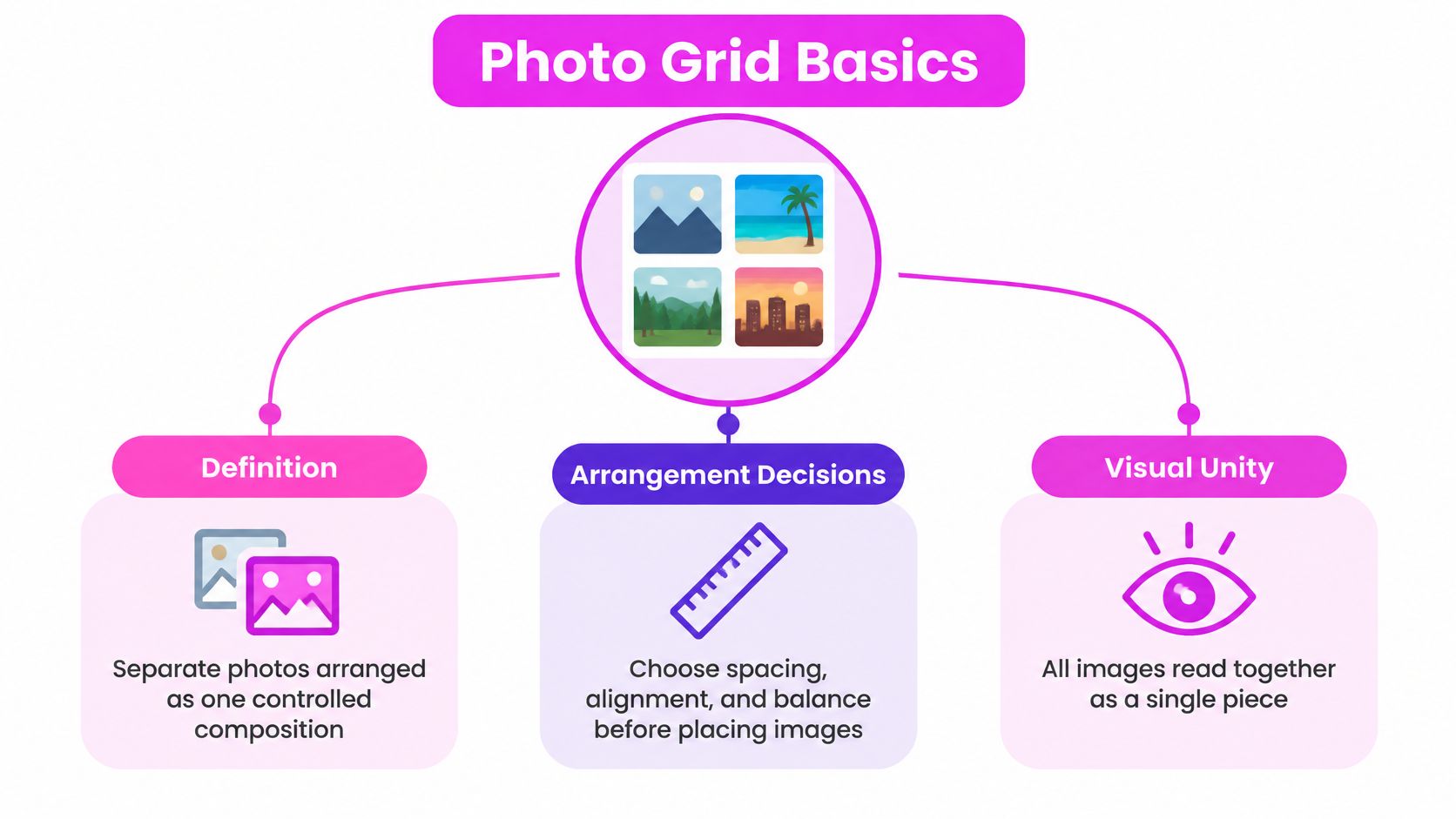
Before you open an editor, decide the final canvas, image order, cell shape, aspect ratio, gutters, and publishing context. A product lineup sorted by color wants consistency. An educational sequence sorted by process wants reading order. A social campaign wants repeatable rhythm across posts.
Choose the Right Grid Approach
| Approach | Best for | Main trade-off |
|---|---|---|
| Single flattened composite | One post, print, or presentation slide | You control everything, but you can't update one tile easily |
| Platform native multi-image post | Galleries where each photo deserves full size | Less control over how thumbnails crop together |
| Profile grid sequence | Campaigns viewed across several posts | Looks planned on the profile, weaker as single posts |
Practical rule: If removing one image wouldn't change the meaning, that image probably doesn't belong in the grid.
Choose a flattened composite when juxtaposition itself carries the message. Choose a native gallery when viewers need to inspect each photo at full size.
Choose a Layout That Fits Your Purpose
Random accumulation is the most common layout mistake. Photomontage became powerful because placement created meaning, not decoration. Tate dates the first use of photomontage as a Dadaist technique to 1915, when artists used assembled photographs in antiwar protests, according to Tate's definition of photomontage. John Heartfield later produced 240 photomontages from 1930 to 1938 criticizing fascism in that same reference. Juxtaposition argued a point.
Your grid should do the same, even for ordinary work. Pick one dominant organizing rule, such as time, color, subject, or product feature, and hold it across every cell.
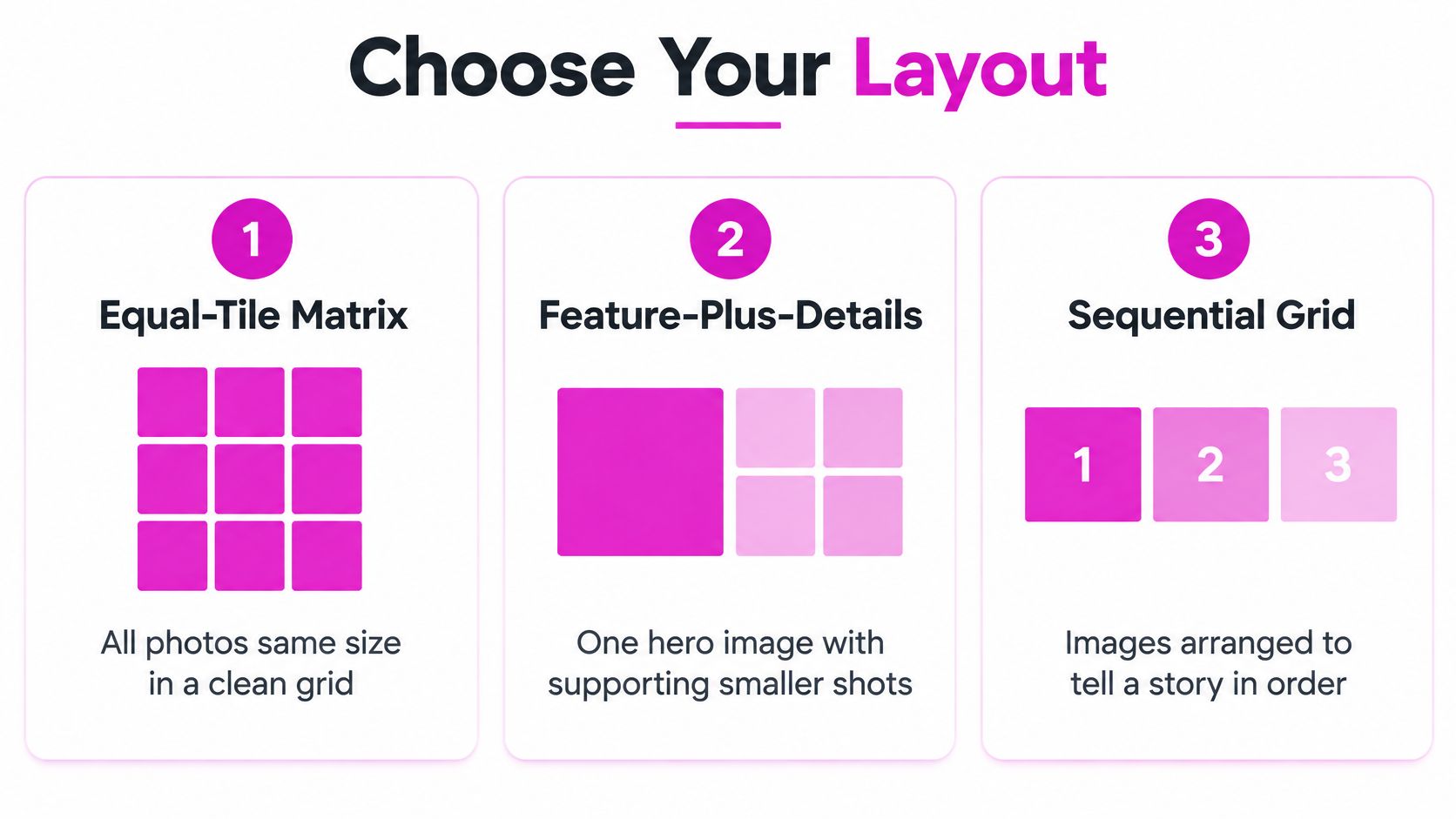
Layout Selection by Grid Purpose
| Purpose | Useful layout | Rule to preserve |
|---|---|---|
| Comparison | Equal tile matrix | Same cell size, crop, and lighting treatment |
| Story or process | Sequential grid | Clear left to right, top to bottom reading order |
| Product showcase | Feature plus details | One hero image, smaller supporting angles |
| Mood or campaign rhythm | Asymmetrical composition | Repeated alignment lines and consistent gutters |
| Platform profile | Repeatable tile pattern | Safe areas that survive thumbnail cropping |
Count your usable images before you commit. Designers often pick a handsome layout, then force weak photos into leftover cells. That reverses the job. If you've got five strong images, don't stretch them into nine cells with filler.
Reserve space for a headline or labels at this stage, not after placement. Text added late usually lands on busy areas or near edges. If no label is essential, leave it out and let order and grouping do the work.
An equal tile matrix is the safest default for comparisons because viewers assume equal size means equal importance. A feature plus details layout works better when one image must sell the set and the rest answer follow up questions. Asymmetry needs stricter alignment, not looser. Without shared edges, it just reads as a mistake.
Prepare Images and Set the Canvas
Preparation prevents most rework. Select images that belong together under your organizing rule, then normalize their color treatment so one warm, saturated photo doesn't dominate cooler, flatter neighbors. Decide a common crop logic, for example subjects centered at similar scale, or horizons aligned across a row.
Mark which images are non negotiable. Faces, logos, product edges, and instructional details set your crop limits. Everything else can flex around them.
Set the Canvas From the Delivery Context
Start from where the grid will be seen. For Instagram style publishing, use a 1080 × 1350 px portrait canvas as the default feed format and reserve a centered 3:4 region for the profile grid preview, following Hootsuite's social media image size guidance. Keep faces, headlines, and product edges inside that central safe area. The same discipline helps elsewhere, and it's worth reviewing aspect ratio choices for different social platforms before you lock dimensions. If you're repurposing the set for professional profiles, a practical resource to fix LinkedIn photo cropping issues can save you from rebuilding crops later.
Canvas Preparation Checklist
| Check | What to verify |
|---|---|
| Canvas size | Final pixel dimensions match the delivery context |
| Safe area | Faces, logos, and headlines sit inside the preview crop |
| Color treatment | All images share a consistent color space and grade |
| Focal points | Each crop follows the same focal point rule |
| Order | Files are named in intended reading sequence |
Name files in order, such as 01 hero, 02 detail, 03 result. It sounds fussy. It makes manual placement and batch work faster, and it stops you re-deciding the sequence every time you reopen the project.
Build the Grid Manually
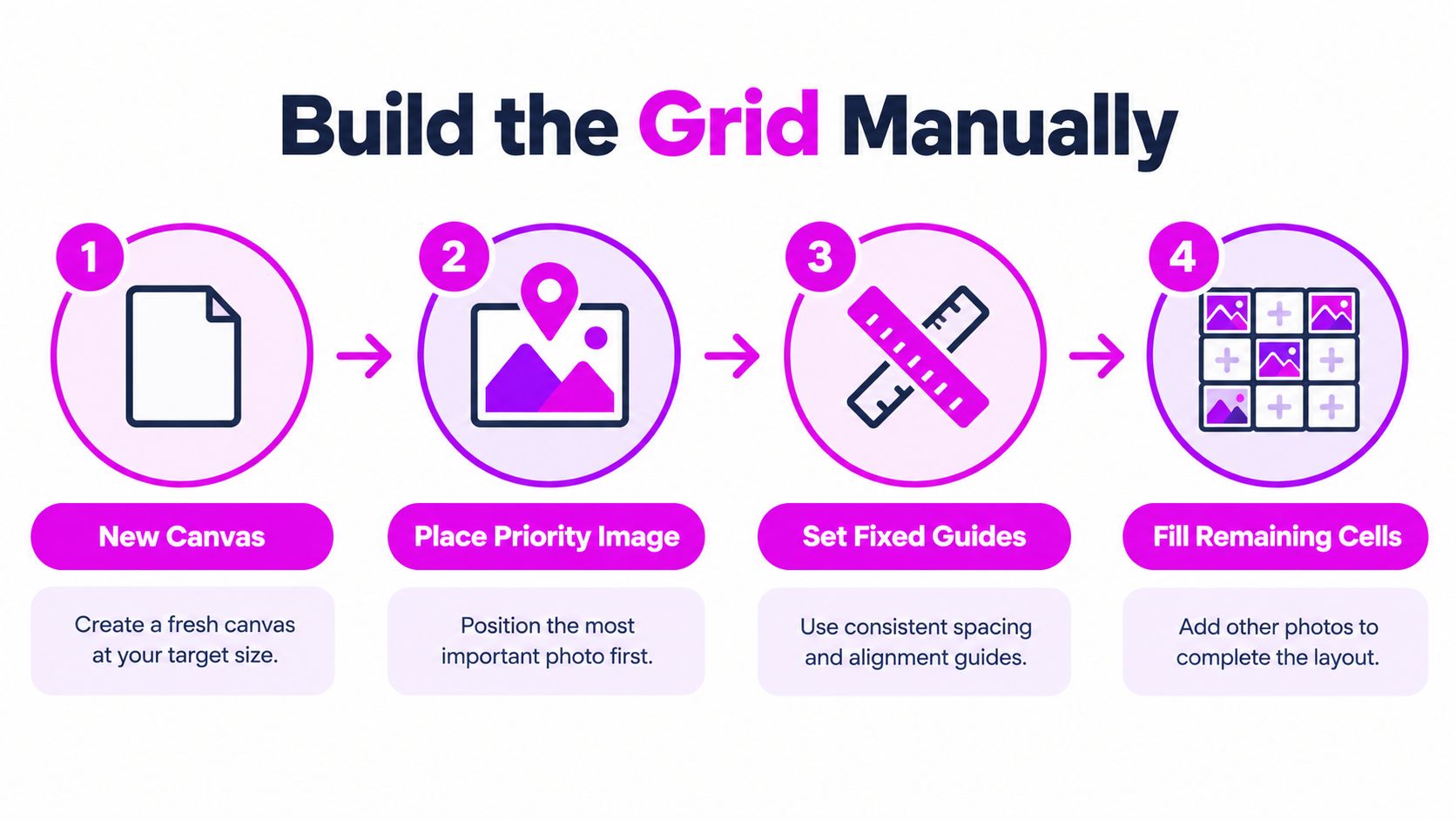
Manual building gives you control where templates guess. Create a fresh canvas at your target size, add guides for columns, rows, and gutters, and place the highest priority image first in its intended cell. Don't fill left to right by habit. Anchor the grid with the image viewers must notice first.
Crop each remaining photo with the same focal point rule you set during preparation. Keep gutter width constant so adjacent photos don't visually merge, especially where two bright or busy images sit side by side. Then adjust placement for balance, spreading darker, brighter, and denser images across the canvas instead of clustering them.
Manual Workflow Controls
| Task | Problem it solves | Verify |
|---|---|---|
| Fixed guides | Drifting edges and uneven cells | Shared alignment lines across rows |
| Consistent crop | Subjects jumping in scale | Similar subject size where comparison matters |
| Constant gutters | Adjacent images merging | Equal spacing at full size view |
| Background color | Weak separation between tiles | Gutter reads cleanly at thumbnail size |
Phone editors favor speed and presets. They're fine for a quick recap when crops are forgiving. Desktop editors in tools like Adobe Photoshop, Affinity Photo, or Canva on a larger screen give finer alignment and export control, which matters for client work and print.
Take a compact product showcase. Put the full product as the hero tile, then add smaller cells for material, scale in hand, and packaging. Each supporting tile answers one question. Or take an education grid for social media. Arrange stages in strict sequence, keep backgrounds consistent, and leave labels outside busy detail.
Check the grid at thumbnail size before you polish details. If hierarchy fails small, alignment tweaks at full size won't rescue it.
Export at the target pixel dimensions, then inspect the full canvas for seams and resampling artifacts. Manual work is slower, but you see exactly why a layout succeeds or fails.
Speed Up Creation With Templates and Batch Tools
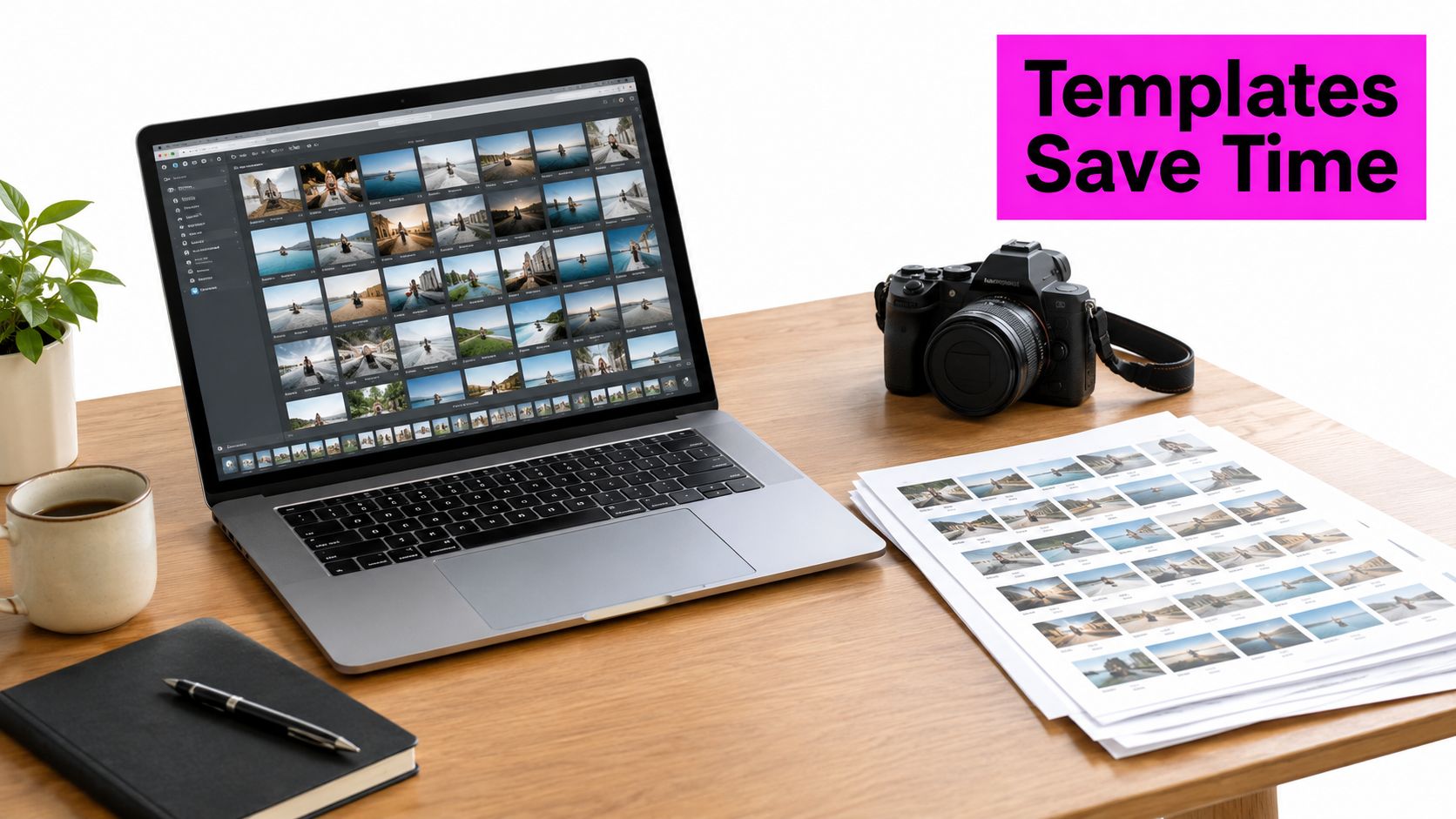
Templates earn their keep when the structure repeats. If you publish a weekly product lineup or class recap, build one master layout with fixed cells, gutters, and label positions, then swap images into it. You're reusing decisions, not reinventing them.
Batch tools suit a different problem. When many similarly formatted images need the same resize, crop treatment, or export setting, processing them together removes repetitive clicks. It's useful to understand batch photo editing workflows for repetitive image tasks before you trust automation with a full set. When you're still sorting concepts, it also helps to organize ideas as bricks so themes and sequences stay visible before production starts.
When to Automate a Photo Grid
| Situation | Recommended approach | Reason |
|---|---|---|
| Same layout every week | Saved template | Structure is already solved |
| Many images, same output size | Batch resize and crop | Repetitive treatment, low creative variance |
| Faces and logos in varied positions | Manual review after batching | Automated crops can clip key details |
| One off hero campaign image | Fully manual build | Hierarchy needs deliberate control |
Don't assume every image batches cleanly. Automation tends to flatten hierarchy, giving a minor detail shot the same weight as the hero. Run the batch, then review focal points one by one and fix outliers by hand. Separate repetitive production from creative judgment. Let tools resize. You decide emphasis.
Improve Balance and Accessibility
Equal tiles don't guarantee a balanced grid. A small photo with a face, saturated color, or hard contrast can outweigh a larger, quieter image. Treat placement as a visual balance problem, not a counting exercise.
Collage research describes generating saliency maps to identify attention heavy regions and selecting layouts with a Gestalt based energy function, outlined in research on perception aware collage synthesis. You can approximate that manually. Score each photo for face presence, subject size, contrast, and saturated color. Give larger cells to high priority images, set one dominant focal area and two or three secondary anchors, and counterbalance a heavy tile with lighter images elsewhere. Reviewing core principles of graphic design for balance and hierarchy helps keep those choices consistent.
Avoid clustering all dark images on one side. Don't crop subjects at joints or through facial features. If reviewers can't identify the focal image within two seconds on a proof sheet, reduce competing contrast or shrink secondary cells, a test drawn from that same collage synthesis approach.
Decorative and Informative Grid Decisions
| Grid type | Primary goal | Publishing safeguard |
|---|---|---|
| Decorative mood board | Overall impression | One concise alt text summary |
| Product comparison | Distinct details per tile | Individual descriptions or captions outside the image |
| Teaching sequence | Steps understood in order | Equivalent text content published alongside |
| Event recap | Highlights and atmosphere | Alt text naming the event and major content |
Accessibility is where most tutorials stop too early. Screen readers can't describe a flattened collage without metadata such as alternative text, a limitation examined in research on image description for blind and low vision users. A decorative mood board can carry one summary description. A teaching grid, product comparison, or event announcement can't. Each tile holds distinct information, so publish individual descriptions, captions, or the source images separately.
Publishing safeguard: If the grid is the only place the information exists, some readers won't get that information at all.
Tiny labels create a similar problem. They look efficient at full size and vanish in a thumbnail. Visual neatness and comprehension can conflict, so decide early whether the grid is decorative, informative, or a substitute for a gallery, then build the fallback it needs.
Check, Export, and Publish the Photo Grid
Run two inspections, because they catch different failures. At 100% view, look for seams, resampling artifacts, accidental clipping, inconsistent gutters, and unreadable labels. At thumbnail size, check whether the focal image still leads and whether secondary images support it instead of competing.
Check crop safety one last time around faces, logos, headlines, product edges, and instructional details. Then confirm the final pixel dimensions and file format against the actual delivery context. Don't rely on a universal format rule. A print handout, a classroom slide, and a feed post punish different shortcuts.
Pre-Publish Photo Grid Checklist
| Area | Final check |
|---|---|
| Hierarchy | Focal image is obvious at thumbnail size |
| Crops | No clipped faces, logos, or product edges |
| Spacing | Gutters are consistent across every row and column |
| Text | Labels stay legible after platform preview cropping |
| Accessibility | Alt text and fallback descriptions are ready |
| Export | Dimensions and format match the destination |
Use this decision path next time. Go manual when the layout is bespoke or the crops are unforgiving. Use a template when the structure repeats weekly. Add batch assistance when image volume is high and treatment is uniform, then review focal points yourself.
Marketers can reuse the method for campaign rhythm, educators for sequenced material, and small businesses for product proof. The workflow stays the same because the principle stays the same. Assign each image a role, protect it through cropping, and make sure the meaning survives outside the flattened file. That's how to make a photo grid that communicates, not just one that fills space.
When your grid needs a steady supply of matching visuals, Bulk Image Generation helps you generate professional quality images in bulk and streamline post production tasks like resizing and enhancement. Create consistent source images for product lineups, campaigns, and teaching sets, then arrange them with the manual control this guide describes. Visit the platform to build your next set and turn it into a grid with a clear point.