Best Collage Maker App Free: 7 Tools Compared for 2026

Ryan Bennett • October 31, 2026
Find the best collage maker app free in 2026. We compare 7 tools on features, pros, cons, and best uses for marketers, educators, and hobbyists.
It's 9 PM. A product launch post needs a six-photo grid tonight, the client wants clean borders and readable text, and the only design software on your laptop costs more than the project budget. You don't need a full design suite for that job. You need a collage maker app free enough to finish, export, and publish without hitting a paywall at the last tap.
That's where most roundups mislead you. One app gives you templates but locks commercial use. Another is generous with layouts but caps storage. A third needs an account before you can save anything. Use the wrong one and you'll rebuild the same grid twice.
I've matched each tool below to a specific job, from a product grid to a classroom poster to a family album page. You'll also see where you could turn family photos into blanket collages once the layout works. Pick by project first, then check the free-plan fine print.
1. Canva
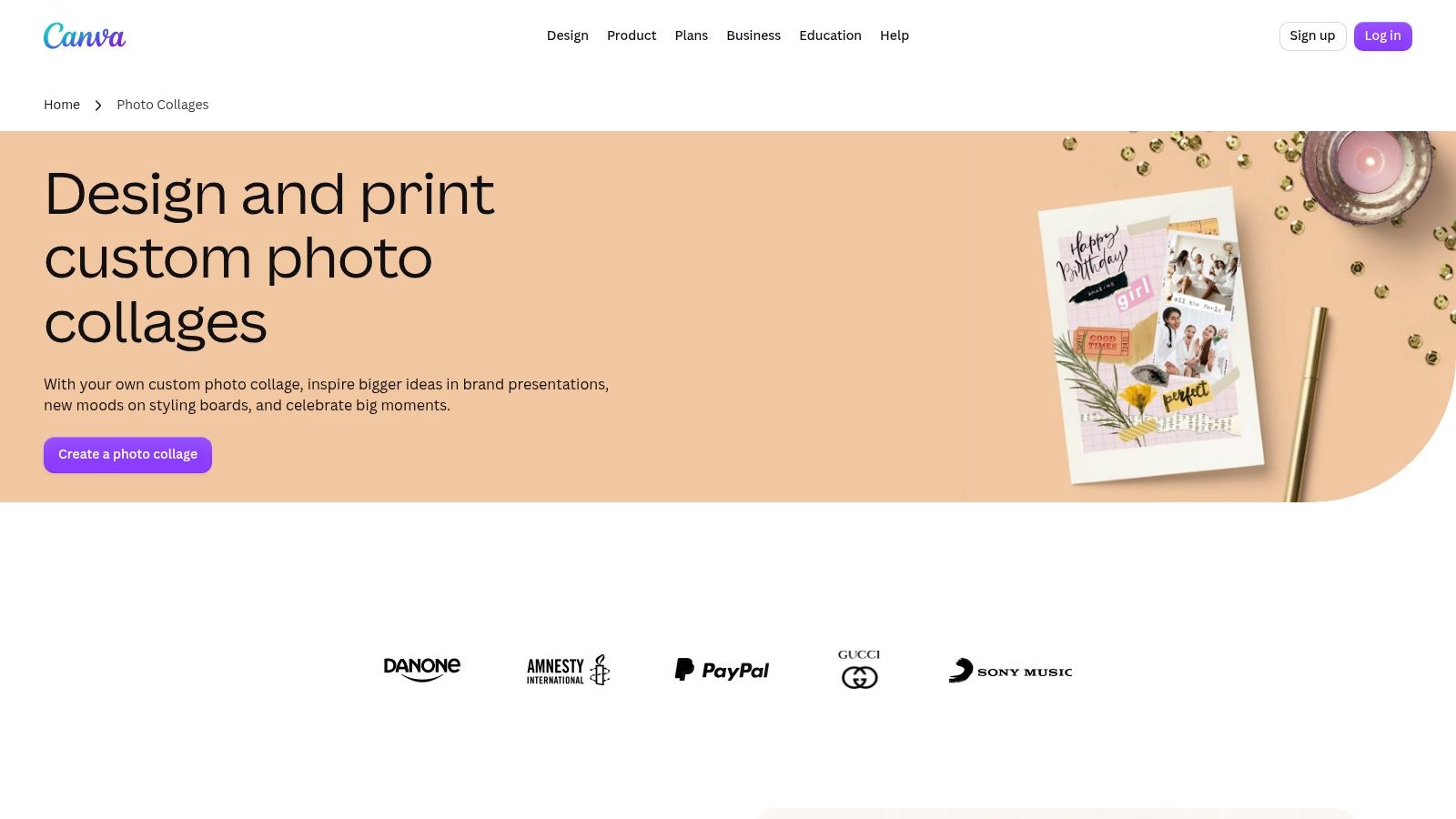
Say a small shop needs a launch grid for Instagram, a matching story, and a printable flyer from the same six product shots. That's Canva's sweet spot. It's not just a grid tool, it's a broader design editor, so you can add text, frames, stickers, and graphics without switching apps. Start from Canva's photo collage maker and resize the same design for each placement.
Demand is not theoretical. The Statista mobile app usage topic reports Canva recorded more than 1.16 million downloads in the United States in November 2024. That scale matters because templates stay current and sharing links work the way clients expect.
What the Free Plan Actually Gives You
- Customizable grids and templates: Strong for mood boards, promos, and presentations
- Browser and mobile access: Collaborate and share from either device
- 5 GB of free storage: Fine for a campaign, tight for a product archive
The trade-off is friction. Some stock assets and tools require a paid plan, and the editor is overkill for a simple two-photo join. I recommend it when branding matters. If you're learning the layout basics first, this guide on how to make a collage helps you plan spacing before you pick a template.
2. Adobe Express
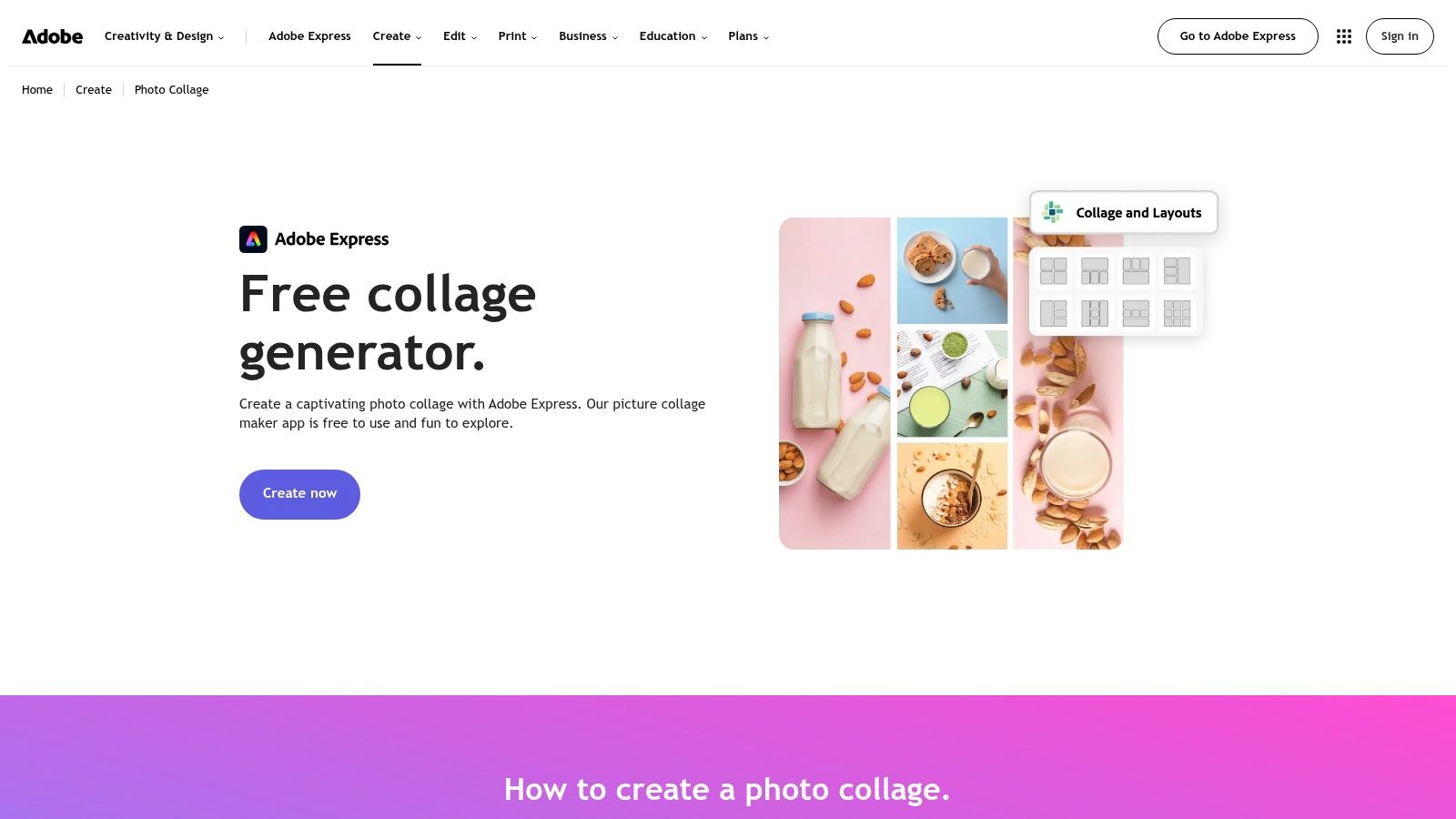
Adobe Express works best when your collage needs photo correction as well as layout. Say an educator builds a classroom poster from phone photos taken under mixed lighting. You can crop, rotate, apply filters, and enhance each image inside the collage, then drop it into a ready-made template. Open it through Adobe Express photo collage on web, iOS, or Android.
The scrapbook-style cutout effects are useful for that poster job. A cutout student project photo layered over a colored background reads better than a rigid grid. Adjustable layouts give you more control than a fixed template, which helps when one image must dominate.
Practical rule: Choose Express when the photos themselves need fixing. Choose a simpler grid tool when they don't.
Free Limits to Check
The free plan includes templates, fonts, standard editing tools, Adobe Stock assets, and 5 GB of storage. You will need an Adobe account, and some assets are premium. That's manageable for a school or marketing team already using Adobe tools. For a one-off family grid, account setup and the fuller editor slow you down. It's a balanced middle option, not the fastest path to a plain collage.
3. Google Photos
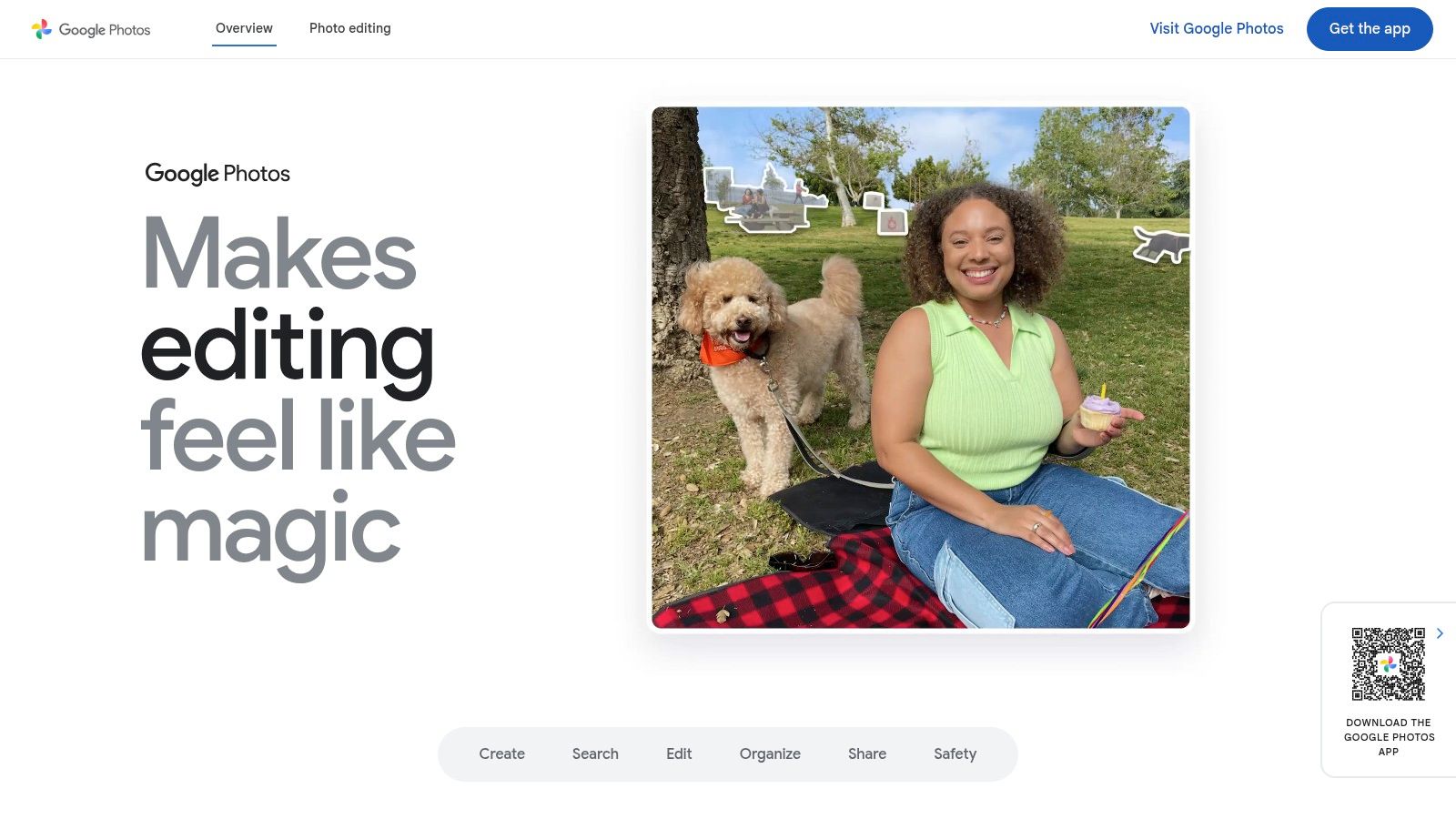
Your photos are already backed up. You want a family album page in two minutes, not a design session. Google Photos wins that job because the library is the starting point. Select the shots, pick a template, adjust borders and order, then save or share from Google Photos.
That's the whole workflow, and it's enough for everyday snapshots. Photo replacement is quick when a child blinked in one frame. Border adjustments keep a grid from looking cramped when you print it.
The habit behind this is mainstream. The mobile photography trends and stats roundup reports approximately 43% of smartphone users in the United States regularly use photo-editing applications. Google Photos fits that phone-first behavior because there's no export and re-upload step.
Where It Falls Short
- Shared storage: Your 15 GB is shared across Photos, Drive, and Gmail
- Web gaps: Some collage editing features are app-only
- Design depth: Weak for graphic-heavy, branded layouts
I wouldn't build a campaign here. I would use it for a clean snapshot grid you'll share with family today.
4. PicCollage
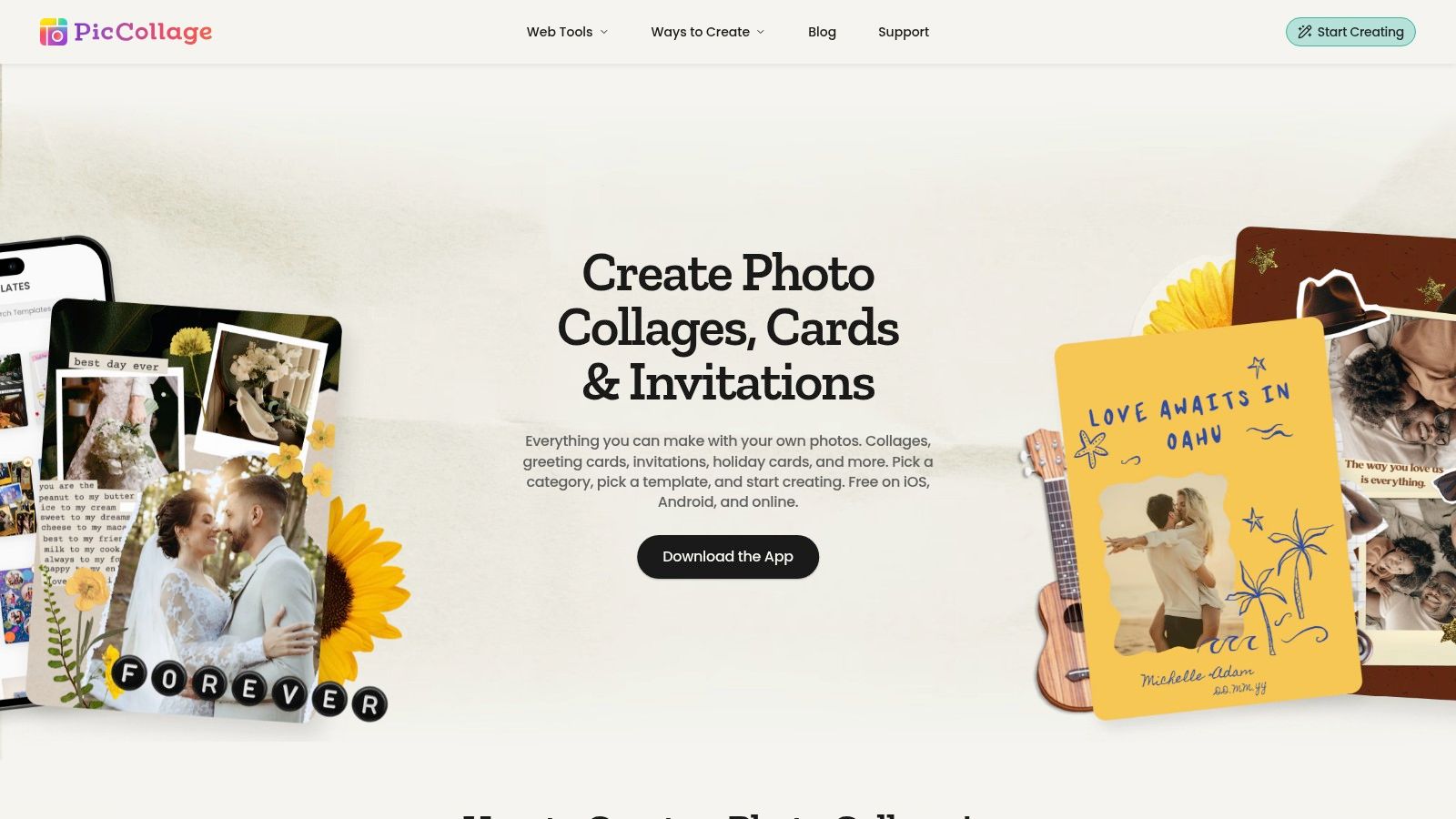
PicCollage is built for cards, invitations, and celebrations, and it feels that way. Grid and freestyle modes, stickers, text, filters, and cutouts make a birthday collage fast on a phone. Start a project at PicCollage Create or in the iOS and Android apps, then adapt an occasion template instead of building spacing from scratch.
This category has a long track record. The Sensor Tower overview for PicCollage anchors a history where PicCollage launched globally on July 13, 2011 and the company reported 100 million downloads by September 2015. That longevity explains the deep template library. It doesn't guarantee every template is free.
The Freemium Catch
Basic collage creation is free to download and use. VIP adds more templates, stickers, and features, and in-app purchases mean you'll hit locked content while browsing. Check a template's badge before you spend twenty minutes arranging photos in it.
For playful personal projects, that trade-off is fair. For clean, brand-led product grids, the decorative style fights you. Before you commit to a layout, skim these ideas on how to create a collage so you know whether you need freestyle control or a fixed grid.
5. Picsart
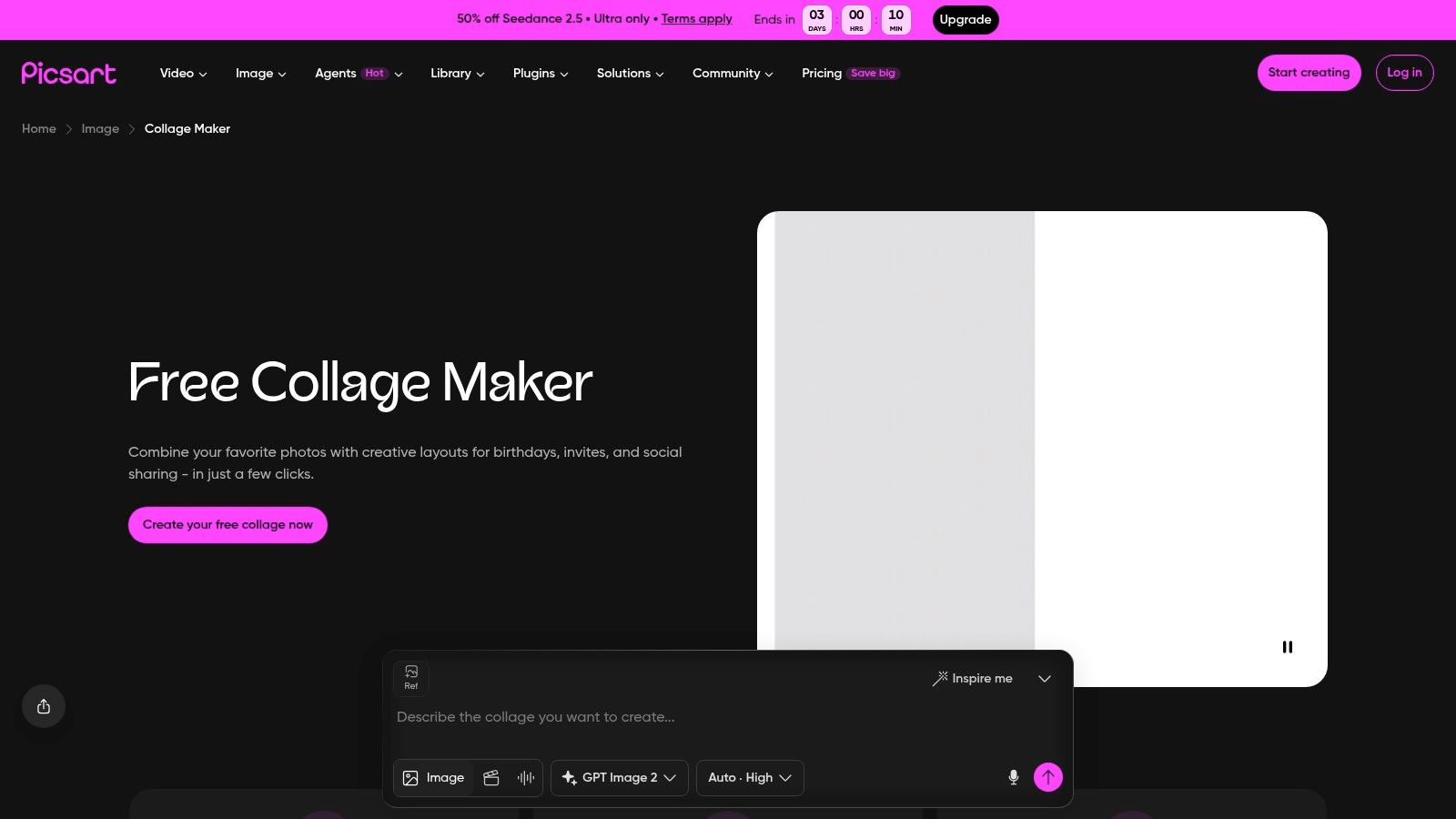
Picsart suits the creator who wants a stylized social collage, not a tidy grid. Think of a mood board where three photos overlap, one has an effect applied, and bold text sits on a layer above. The Picsart collage maker combines collage templates with a wider photo editor, so editing and layout happen in one pass.
Layer-based customization is the reason to choose it. You can push one image forward, fade another back, and add stickers without flattening the design too early. If you're blending images rather than griding them, good masking and lighting for photo composites matters more than template choice.
If you won't use layers and effects, Picsart's extra tools become distractions, not advantages.
Free Experience in Practice
The collage maker is advertised as free, but some content and tools are restricted to subscribers. Subscription prompts interrupt browsing, and you should verify available assets and export options before building client work around a specific effect. I recommend Picsart for expressive personal and social projects where a locked sticker is an annoyance, not a deadline risk. For repeatable product layouts, its flexibility works against consistency.
6. Fotor
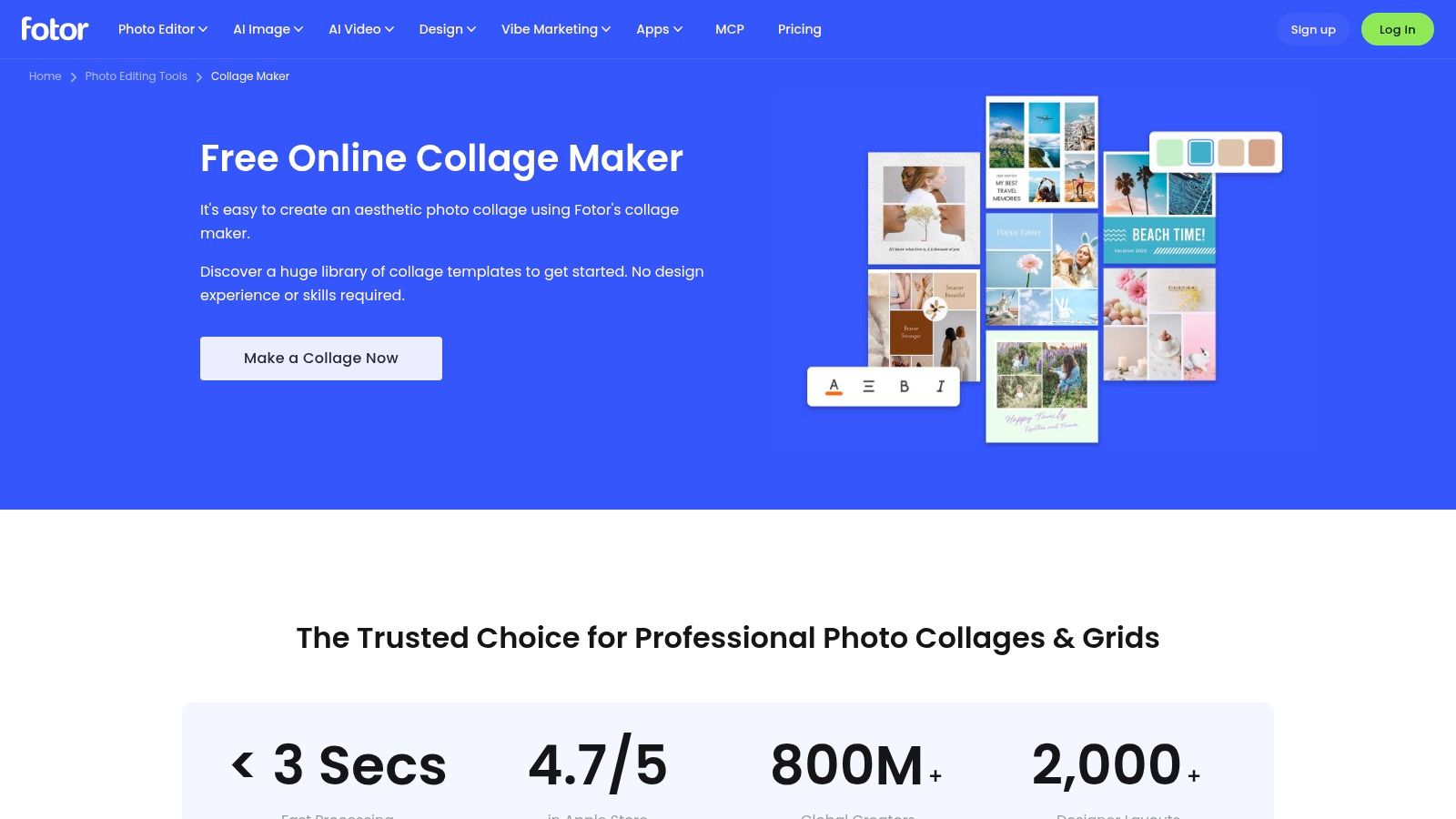
Use Fotor when spacing precision is the project. A before-and-after comparison for a renovation business, or a product grouping where four items must align evenly, needs control over margins, spacing, and backgrounds. The browser-based Fotor collage maker gives you that control with drag-and-drop swapping and bulk photo uploads.
That detail separates it from phone-first apps. You can nudge a grid until product labels line up, crop inside the frame, then export without rebuilding. Mobile editing options exist, but the browser is where the spacing controls earn their keep.
The Commercial-Use Warning
- Free account limits: Fewer templates and resources than paid tiers
- Commercial restriction: Fotor says commercial use of designs requires an upgrade
- Advanced tools: Some assets and features need a paid plan
That second point changes the recommendation entirely. I like Fotor's grid control for testing a layout and for personal projects. I would not publish a free-account design in a paid ad or product listing. Build the mockup here if you want, but budget for the upgrade before it becomes customer-facing work.
7. MergePhotos
MergePhotos does one job and stays out of your way. It combines images rather than designing a full post. Grid layouts for up to 16 photos, long horizontal or vertical stitching, auto-merge, and silhouette shape collages cover the cases where you don't need text or branding. Try it at MergePhotos in a browser.
Privacy is the differentiator. The site says the tool is free, requires no account, adds no watermark, and processes photos locally in the browser rather than uploading them to a server. That matters for student photos, customer images, or family pictures you don't want sitting in another cloud account. The Apple App Store listing for a collage maker app illustrates the opposite pattern in this category, where privacy labels can involve tracked purchases, location, identifiers, and usage data.
Exports come out as JPG and PNG. Limits in some modes may depend on device memory, and you get far fewer design tools than Canva or Adobe Express. That's an acceptable trade for stitching receipts, joining screenshots, or making a clean grid privately. If your job is just joining a pair of images, this overview of a combine 2 photos app shows the narrower workflow.
Free collage maker apps at a glance
| Item | Free Plan Highlights | Best For | Main Limitation |
|---|---|---|---|
| Canva | Free templates, stock assets, and 5 GB storage | Collages and broader marketing or social graphics | Some assets and tools are paid; storage is limited |
| Adobe Express | Free templates, fonts, standard editing tools, stock assets, and 5 GB storage | Collages with photo editing for web and mobile | Requires an Adobe account; some assets and features are paid |
| Google Photos | Free collage creation and 15 GB shared storage | Quick collages from an existing Google Photos library | Less suited to elaborate designs; some editing is app-only |
| PicCollage | Free basic collage creation on mobile, with some browser tools | Casual projects, cards, and invitations | VIP content and advanced features are paid |
| Picsart | Free collage maker with templates and editing tools | Stylized collages, social posts, and mood boards | Some content and tools are restricted to subscribers |
| Fotor | Free basic features and limited templates | Grids, product groupings, and before-and-after collages | Free designs are not for commercial use; some tools are paid |
| MergePhotos | Free browser tool with no account or watermark, according to the site | Simple photo grids, stitching, and shape collages | Limited design and branding tools compared with full editors |
Match the App to the Job, Then Check the Free-Plan Fine Print
Start with the project type, not the star rating. Use Google Photos for quick snapshot grids from a library you already maintain. Use MergePhotos for stitching, shape collages, and privacy-sensitive images you don't want to upload. Use Canva or Adobe Express when the collage carries marketing text, branding, or a client logo and must work at several sizes.
Pick PicCollage for cards and invitations where occasion templates save real time. Pick Picsart when layers and effects are the point of the piece. Pick Fotor to prototype a precisely spaced product or before-and-after grid, while remembering its free account is not cleared for commercial use.
Ratings alone won't tell you any of that. One Google Play collage maker listing reports more than 100 million downloads and approximately 3.67 million reviews with a rating of only about 3.6/5. Scale doesn't equal a smooth export. Test your chosen app with your real photos, export at final size, and reopen the file before you build ten more versions.
Before you publish: Confirm commercial rights, check the storage cap, and look for a watermark on the exported file, not the preview.
Define free on four points: no payment, no watermark, no export limit that blocks your job, and no data monetization you're uncomfortable with. An app can pass the first test and fail the other three. Account requirements matter too, especially in classrooms where students shouldn't create personal accounts for a one-lesson poster.
If your next step is producing many visuals rather than arranging existing photos, our free Bulk Image Resizer resizes up to 100 images at once while keeping quality. That helps after the collage stage, when a campaign needs the same assets prepared for a feed post, a story, and a product page. Resize the source set first and your grids stay consistent across every placement.
When a collage project becomes a batch of campaign visuals, Bulk Image Generation helps you generate and resize images in bulk, remove backgrounds, and prepare consistent sets for product grids, posters, and social posts. Start free, build the asset set you need, then drop it into the collage app that fits your job.