Bulk Photo Frames: Batch Sizes and Workflow

Ryan Bennett • October 29, 2026
Apply bulk photo frames with a size chart, batch steps, brand presets, and export settings that keep every image sharp and consistent.
Say you're the social manager with a folder of product shots, a navy brand frame, and a deadline tonight. The first export looks right. Then a tall bottle loses its cap, a white label disappears under the border, and the next file lands in the folder at a different size.
That's the slow part of bulk photo frames: not adding a border, but stopping each image from becoming a separate design job. Treat the frame as a production spec before you touch the folder, and you can spend the evening reviewing exceptions instead of exporting everything individually.
Frame Sizes Borders and Export Specs
Start with the destination, not the nicest photograph. Your outer canvas is the delivered file size. The visible opening is the area where the photograph shows, and the border occupies the space between that opening and the canvas edge.
Keep that border even unless you deliberately need a caption bar. Otherwise, a slightly deeper bottom edge can look like a positioning mistake rather than a design choice.
This distinction also matters when digital files become physical displays. Frameology's framing guide distinguishes photo size, frame size, and mat openings as separate purchasing specifications. Don't assume the dimensions on a frame's packaging describe the visible image.
Choose a destination before a border
The following table is a worked-example preset sheet, not a statement of mandatory platform requirements. Its pixel dimensions and border widths are proposed production choices you can adapt to your actual publishing destination or print lab.
Bulk photo frame sizes and export settings
| Use | Border or mat | Export |
|---|---|---|
| Instagram or Facebook square | Example canvas 1080 × 1080 px; border 48–72 px | JPG, sRGB |
| Story or Reel | Example canvas 1080 × 1920 px; about 80 px clear at top and bottom, then preview interface overlays | JPG, sRGB |
| LinkedIn or blog card | Example canvas 1200 × 627 px; border 32–48 px | JPG, sRGB |
| Website hero | Example canvas 1920 × 1080 px; border 32–48 px | WebP or JPG |
| Print 8 × 10 in | Example at 300 ppi: 2400 × 3000 px; mat opening about 7 × 9 in | PNG or TIFF, avoid heavy JPG compression |
| Print 5 × 7 in | Example at 300 ppi: 1500 × 2100 px; opening set by the actual mat specification | PNG or TIFF |
Use the square example when you need a repeatable feed asset. Choose the vertical version for a full-height composition, but preview the publishing interface before approving the clearance. A wide card needs less visual border because its shallow opening already limits the photograph.
For print, distinguish the print dimensions from the physical frame's outer dimensions. The moulding adds width, and the mat hides part of the print.
Practical rule: Lock the canvas and opening before deciding how an individual photograph should fit.
Changing a resolution label won't manufacture missing detail. Likewise, forcing a portrait into a square either distorts it or requires a crop, depending on the editor's fit setting.
If your source folder comes from an event, EventUploader's guide to batch downloads for event galleries is useful context for collecting the files before production. Download first, choose a destination row, and put canvas width, canvas height, opening width, and opening height in the preset name.
Presets That Keep the Brand Frame Stable
Say a small shop divides a product launch between an owner, a designer, and a social assistant. The owner warms the navy border, the designer makes it thinner, and the assistant adds a white edge around dark photographs. Each file looks reasonable alone. Together, the grid looks like unrelated campaigns.
The preset is the shared brand object. Individual photographs are inputs, not invitations to redesign it.
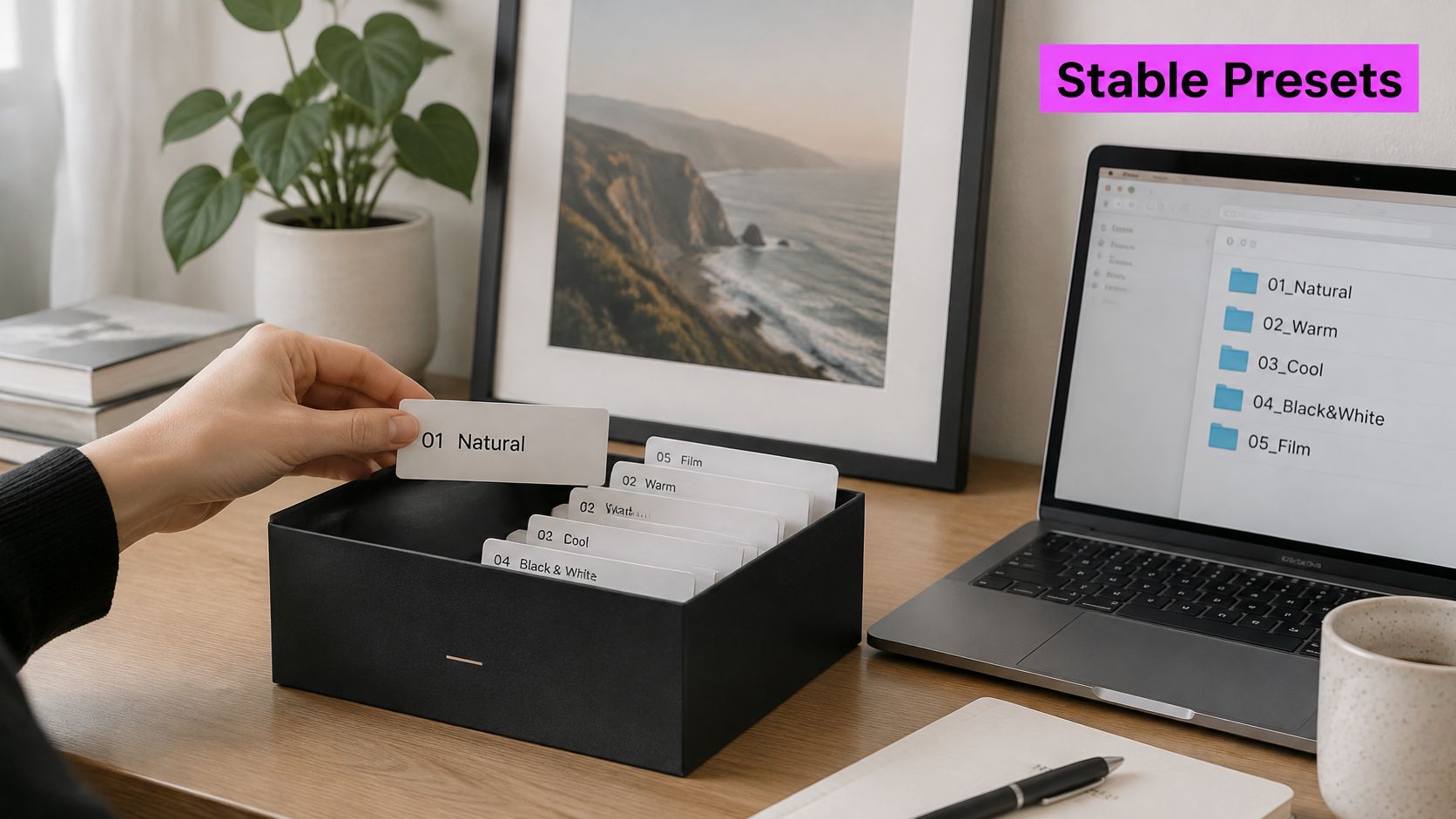
Give the frame an identity
Use a name that identifies placement, color, and campaign, such as Frame-IG-Square-Navy-Spring. Append the geometry values from your approved destination sheet so nobody has to open the file to identify it.
Store the border color as a hex value, not “the blue from the launch.” A visual style guide should also define whether captions use sentence case or capitals, which font belongs inside the frame, and when a reversed color treatment is allowed.
Keep the preset family small:
- Primary frame: The default treatment for product photography and ordinary campaign images.
- Reversed frame: An approved alternative when the primary treatment loses separation against the photograph.
- Quiet frame: A restrained version for quotes or layouts that already contain substantial text.
Don't automatically give generated artwork a different border. Test it separately, though, because detailed edges can compete with the frame. If it needs a heavier treatment, approve that as a named variant rather than improvising during export.
Store pixels, use proportions as a check
For this hypothetical square preset, a border around 4–6% of the short side is a useful design experiment, not a universal standard. On the example 1080 px canvas, that computes to roughly 43–65 px; the selected table row's 48–72 px range remains the governing specification.
Once approved, store the actual pixel width. A percentage is useful for comparing related layouts, but a fixed export needs an unambiguous setting.
Pin this example card beside the Photoshop Action or batch-editor preset:
- Canvas: 1080 × 1080 px.
- Hex: #14263D.
- Border: 60 px, approximately 5.6% of the short side.
- Fit mode: Contain for complete product visibility.
- Export: JPG with the sRGB profile embedded.
Keep type readable in the actual destination preview, not just on a large monitor. Save the profile with the preset, and send exceptions to a review folder instead of making silent per-image changes.
How to Frame a Folder in One Pass
A batch should be repeatable by someone who didn't build the template. That means the folder, frame, and fit rule must be ready before the editor starts processing.
Use the following sequence as a production checklist. The illustration captures the preparation stages; the numbered workflow includes the checks that prevent destructive exports.
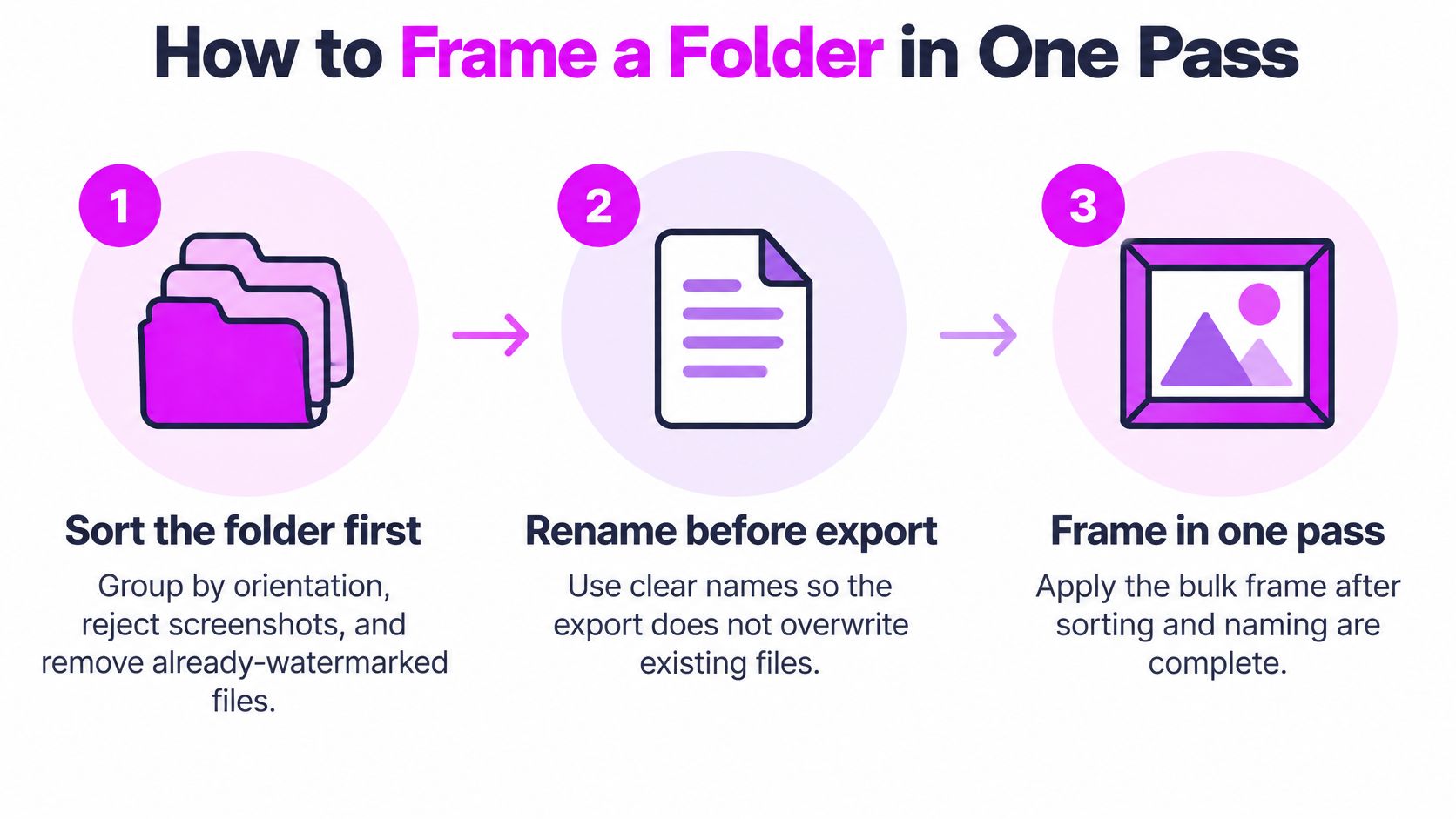
Prepare the inputs and master
-
Sort the folder first. Group files by orientation and intended fit. Remove screenshots, duplicates, and already-watermarked versions from the production set. A portrait and a wide product arrangement shouldn't inherit the same crop just because they arrived in the same download.
-
Rename before export and preserve the originals. Use a stable product or image identifier, then reserve a suffix such as
sku-frame-01for the result. Keep source files read-only where practical, and create a separate output directory before you load the batch. -
Build the master at the final outer size. In Photoshop or Affinity Photo, keep the border on its own layer and use a mask for the opening. Establish cover or contain before importing: cover fills the opening by cropping, while contain preserves the complete image and may expose background. Choose an anchor appropriate to the subject, rather than assuming the center is safe.
If you're starting with camera originals, develop them before applying the frame. RevelRaw's walkthrough of how to batch process RAW images on Mac is useful for separating RAW preparation from the later framing pass.
Test the preset before committing
-
Load the saved preset by name, then process a small test slice. For example, choose five to ten images that include a tall subject, a wide arrangement, a dark photograph, and a white-background product. This is a proposed test size, not a guarantee that every exception will appear.
-
Inspect the sample at actual pixels. Look for clipped hair, labels hidden by the border, and double edges caused by a white margin already baked into the source. Review the composition as well as the mechanics. A technically centered crop can still put the important part of the product in the wrong place; deliberate batch image cropping keeps those decisions separate from decoration.
-
Run the approved folder into the new directory. Resize the photograph into the target geometry before applying the final-width frame. If you scale a large framed source down as a single object, you also shrink its border, which can turn the intended treatment into a hairline.
-
Audit the completed output. Include the beginning and end of the run, plus anything that looked tight during testing. As an example sampling plan, review every tenth export and inspect all flagged exceptions individually.
Keep the editable master and the originals. A flattened delivery folder isn't a replacement for either.
A clean batch has consistent outer dimensions and border weight, with no file undersized for its assigned destination. If the output count doesn't match the approved input list, resolve the missing or duplicate files before handing over the folder.
Quality Checks Before You Export the Batch
The failure people notice on a phone is simple: a crisp, attractive frame around a mushy photograph. A sharp border can make weak source detail more obvious, not less.
Check the photograph at its intended displayed size before judging the decorative layer. It needs enough pixels for the opening after cropping; requiring the source to match the entire outer canvas is a convenient conservative intake rule, but the actual photograph doesn't occupy the border area.
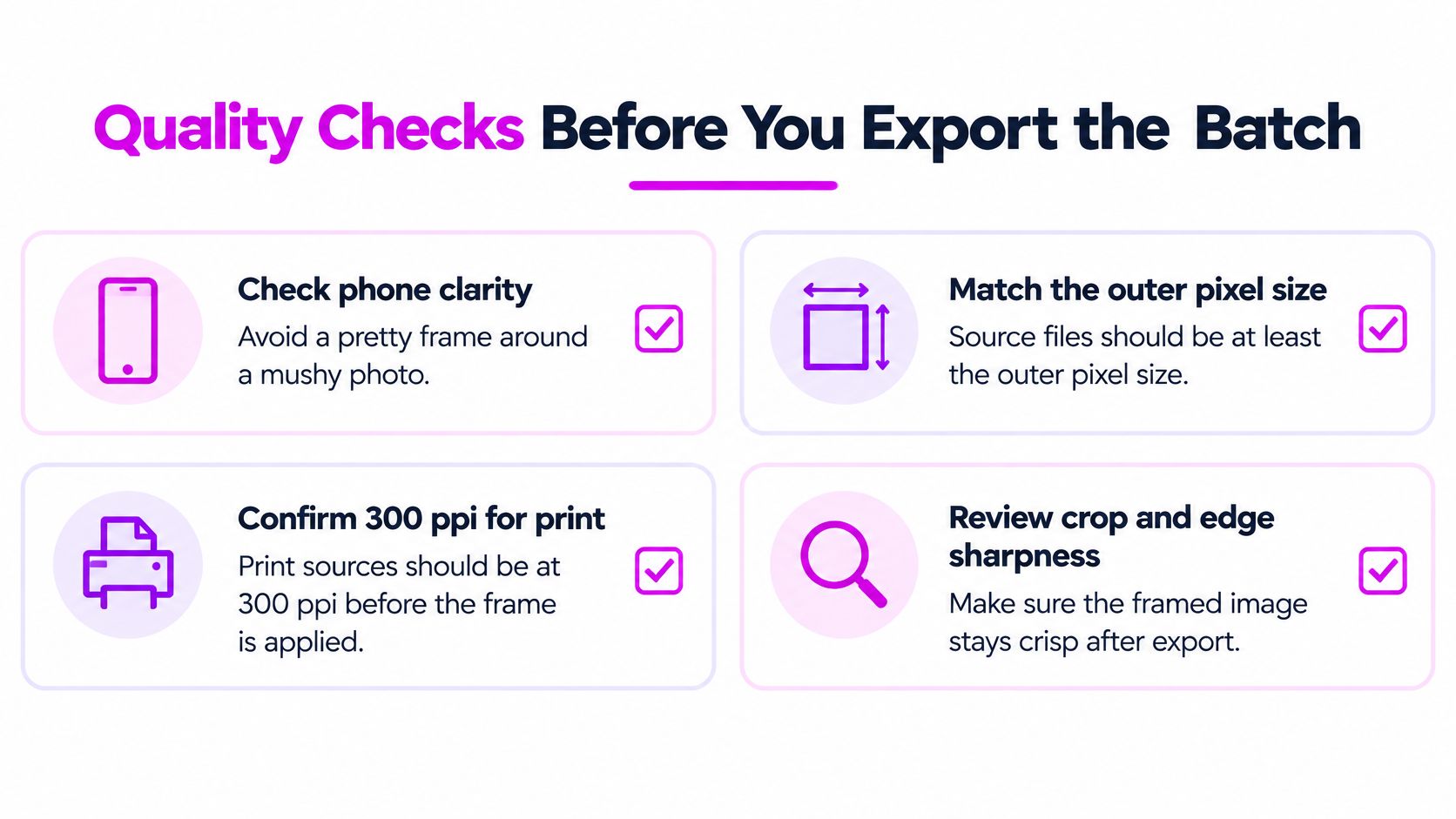
Review source detail before edge detail
For print, calculate pixel requirements from the intended physical size and the lab's requested resolution. A thumbnail doesn't become a detailed print because you change its ppi metadata or surround it with a mat.
Next, inspect the masked edge against a contrasting background. Extend the photograph slightly beneath the frame so interpolation doesn't expose a hairline seam, but avoid treating overlap as extra crop allowance. Important labels and faces still need visible breathing room.
The same approval discipline applies when exports are destined for physical frames. Picture Frame Suppliers' manufacturing workflow recommends approving a physical sample, monitoring production, and inspecting finished goods before shipment. For a combined print-and-frame order, retain an approved assembled sample rather than approving the digital artwork and frame separately.
Judge the delivery file, not just the master
Flatten a delivery copy only after the frame is positioned, and keep the layered master for revisions. For web delivery, compare compressed JPG output against the master; use PNG when transparency is necessary or when its lossless output visibly preserves graphic detail better.
Keep screen exports in sRGB. For print, follow the lab's profile instructions rather than converting to a guessed print space.
Review both light and dark photographs. A white frame may disappear against pale products, while a dark treatment can make shadow-heavy artwork difficult to distinguish.
Approval means the exported file passes, not merely that the editable canvas looked right.
Use this final pass list:
- Dimensions: The export matches its chosen destination row.
- Border: Width and color match the approved preset.
- Subject: No meaningful detail is clipped or hidden.
- Delivery: File size is practical for the channel, and the exported preview remains clear.
Uneven Crops Soft Edges and Heavy Files
Uneven borders are a batch failure worth checking first because they often reveal a problem with the action, not the photographs. If some files look heavily framed and others barely framed, inspect when the action applies the border relative to resizing.
Don't repair the brand system to accommodate a faulty sequence. Correct the processing step, then rerun only the affected subset.
Diagnose the visible symptom
Bulk frame problems and the fix
| What you see | Usual cause | Fix |
|---|---|---|
| Border thicker on some files | Frame scaled with the photo, or mixed orientations | Split orientations and apply the frame only after the final canvas |
| Faces or labels cut off | Cover fit anchored at center | Reframe that subset with a higher anchor or contain fit |
| White hairline inside the frame | Source already had a margin | Crop to the subject, then run the preset again |
| Soft or pixelated frame | Export smaller than an upscaled source | Re-export from a master at the table size |
| Files too large to upload | TIFF or uncompressed PNG on a flat border | Re-export as JPG or WebP for screen; PNG only where transparency is needed |
A higher anchor helps when the important detail sits near the top, but it isn't a universal face-saving switch. Check the resulting lower crop too. For packaging, contain is often the more defensible choice because the complete label matters more than filling every part of the opening.
A pale internal line needs closer inspection. It may be an existing source margin, but it can also come from a mask alignment error. Temporarily hide the frame layer: if the line remains in the photograph, fix the source; if it disappears, inspect the mask.
Separate preset repairs from source repairs
Border placement, anchor position, and delivery format are usually preset-level repairs. You can correct them without changing the approved color or typography.
Missing detail is different. Repeated lossy saves and aggressive enlargement require a return to the original or full-resolution master. A guide to resizing images without quality loss can help you distinguish resampling choices from detail that wasn't captured.
Large files don't automatically contain useful additional detail. Inspect the format and layers before assuming the image needs to be made smaller. Repair the cause, then use the export pass list to approve the replacement subset.
Run the Next Framed Batch Tonight
Choose the next deliverable, not the entire archive. If the preset exists, use a hypothetical ten-image test with deliberately different subjects, review it at actual pixels, and send the approved run to a separate output folder.
For a wedding or event, finish gathering the originals before you freeze that production set. Wedding Studio's wedding photo sharing tool can fit into that collection stage, keeping guest contributions upstream of your framing workflow.
If the images haven't been made yet, start with a matched set rather than unrelated downloads. We can create up to 100 images at once from a list of prompts, so you can plan a consistent style and aspect before framing. Use our free resizer and aspect ratio tools when the remaining task is matching the selected canvas, not repairing the composition.
Name the preset, test ten, export the rest.
Build your next matched image set with Bulk Image Generation, then resize and adjust the batch before applying your approved frame. Bring a prompt list and a destination canvas so you can prepare the whole set without opening every file individually.