Best Batch Photo Editor: Top Picks for 2026

Ryan Bennett • October 18, 2026
Compare the best batch photo editors for speed, automation, pricing, and recurring workflows, with practical picks for marketers, agencies, and small
You've got a folder open, a deadline closing in, and hundreds of images that all need the same correction. A product launch needs consistent crops and backgrounds. A shoot needs one white balance fix applied everywhere. An agency needs the same set resized, renamed, and exported three different ways before delivery.
That's the job of the best batch photo editor for your workflow, and it isn't the same job for everyone. A UK survey of more than 300 wedding photographers found editing took 55% of working time compared with only 4% for shooting, which explains why synchronized work matters more than another creative filter, according to the Kepla survey of wedding photographer working time. The seven tools below solve different bottlenecks. One is built around a catalog, another around recorded actions, another around folders or scripts. If your files live on a Mac, pairing any of them with Mac workflow apps for file organization keeps inputs and exports from turning into a second project. Pick by the work you repeat, not by popularity.
1. Adobe Lightroom Classic
Choose Adobe Lightroom Classic if your bottleneck is applying one credible look across a whole shoot and finding those images again later. It's a non-destructive RAW editor and catalog in one application, so your originals stay untouched while you grade, rate, keyword, and filter large libraries. That combination is why it remains the default for wedding, event, and portrait delivery.
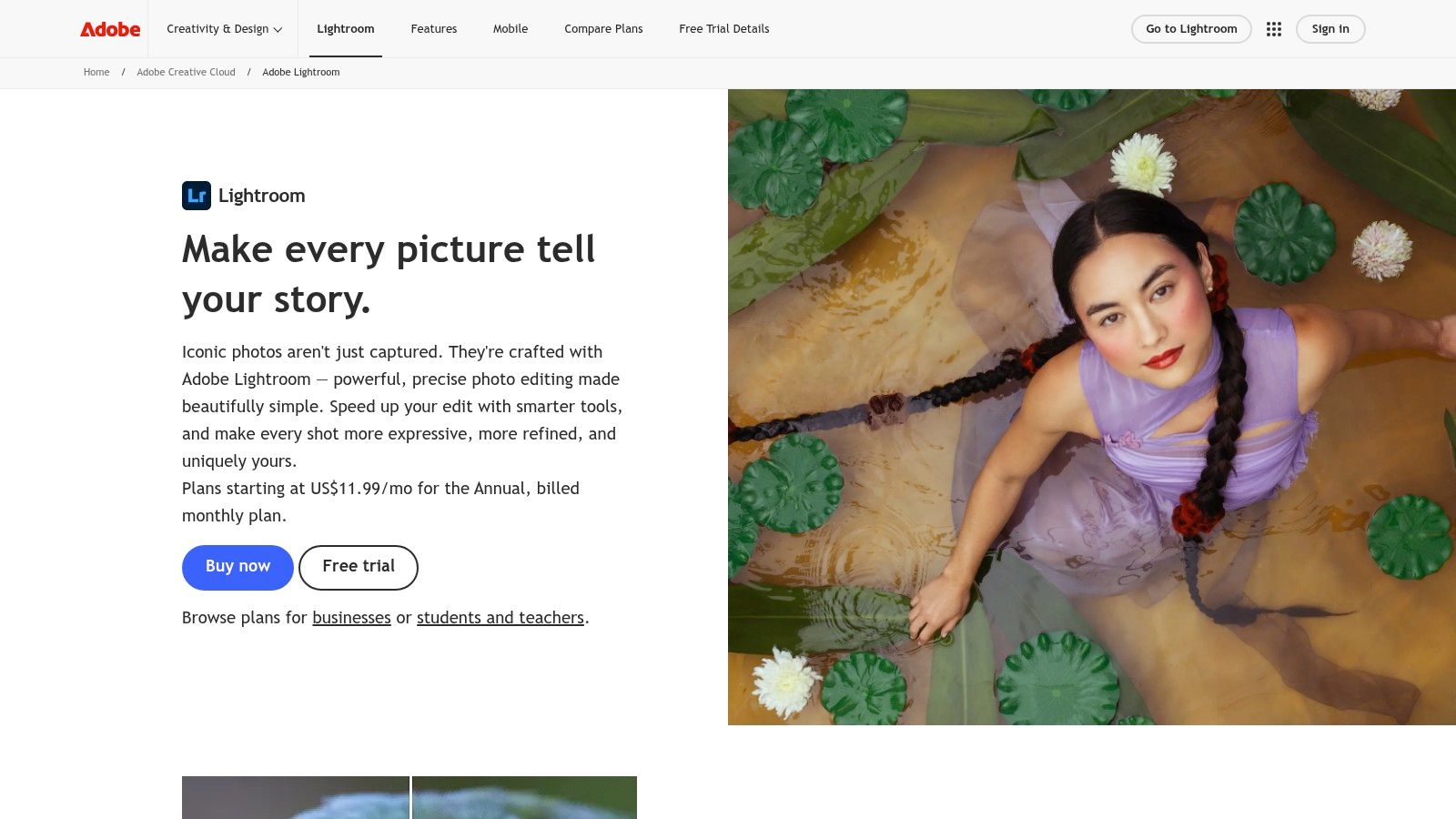
Auto Sync and Sync push exposure, color, crop, and other Develop settings across selected photos as you work or after you've finished one reference frame. Develop presets, metadata presets, renaming, and export presets turn that into a repeatable delivery system, and round-tripping sends exceptions to Photoshop without breaking the catalog.
Why It Fits Catalog-Led Work
G2 lists 3,299 user reviews for Lightroom, with reviewers naming non-destructive editing, organization, and batch work as core strengths, based on G2 reviews for Adobe Photoshop Lightroom. Throughput still depends on your files and hardware. DPReview exported 100 RAW files and found export time rose sharply as resolution climbed, so you should benchmark your own camera files before blaming the software, using DPReview's Lightroom Classic export benchmark.
The trade-offs are clear. Some automatic corrections, including Auto Upright, may need calculating per image rather than blindly syncing. Pricing is subscription only, which is poor value if you batch a few shoots a year. For consistent color across a series, start with disciplined basics and Pinnacle Property Media color correction tips before you lean on presets.
Build one reference edit per lighting scene, sync only within that scene, then spot-check the first, middle, and last frame before export.
2. Adobe Photoshop and Adobe Bridge
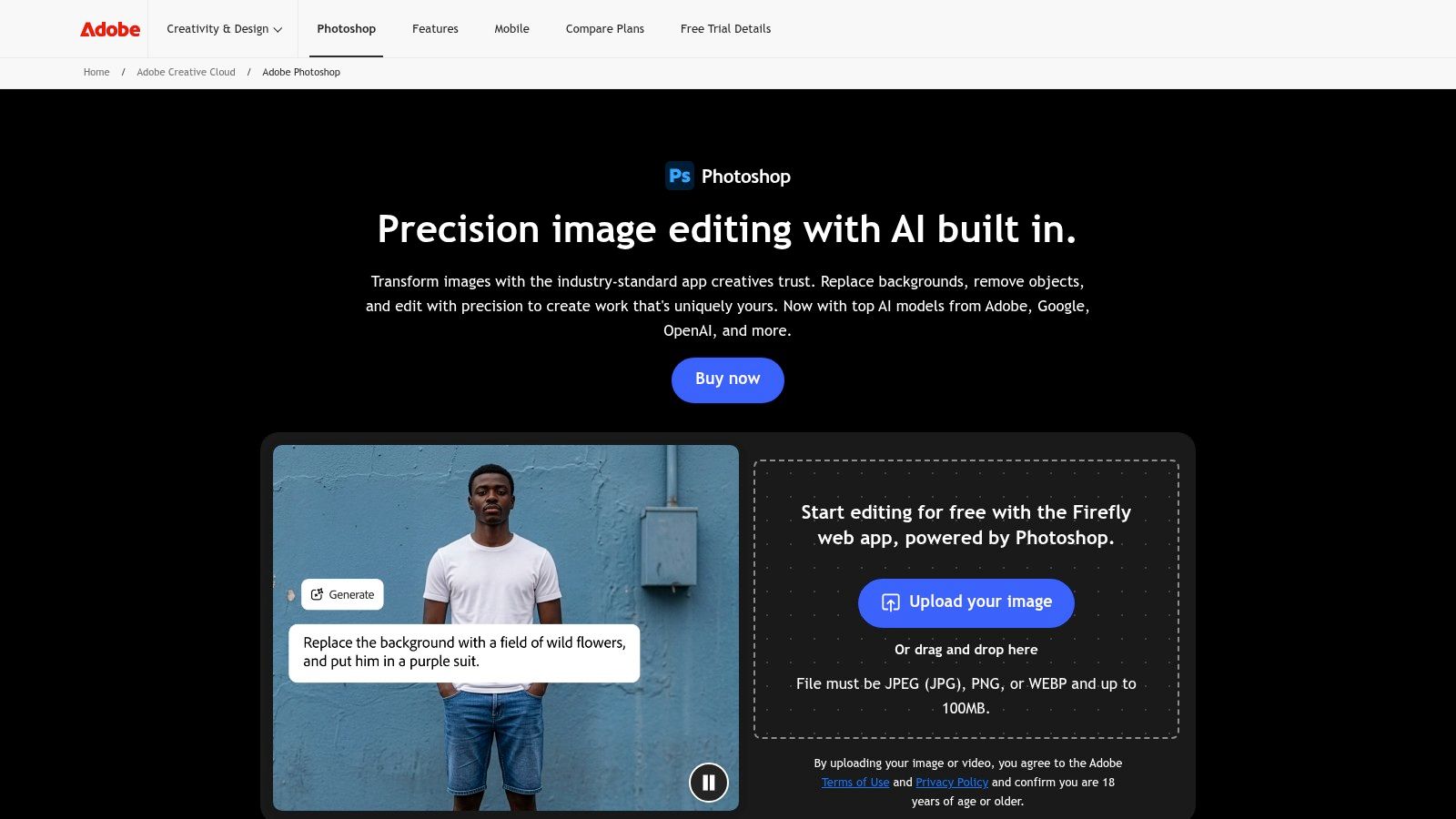
Adobe Photoshop with Bridge is the right answer when a batch needs pixel-level work, not just global sliders. Layers, masks, filters, compositing, and retouching steps can be recorded once and replayed across files. If every product shot needs the same cleanup routine or every portrait needs the same skin treatment, this pairing beats a develop-only editor.
How the Automation Works
- Actions: Record a sequence in Photoshop, then run it through Batch across a folder or a Bridge selection.
- Image Processor: Convert and resize sets in bulk without building a custom action for simple jobs.
- Bridge: Curate, batch rename, and export files without opening each one in Photoshop first.
- Droplets: Turn a proven action into a drag-and-drop target for repeat jobs your team runs weekly.
That flexibility is the strength and the cost. Actions take time to build and test, and a bad step repeats faithfully across every file. For simple exposure and color passes, it's slower and clunkier than Lightroom, and Photoshop requires a subscription.
Use it deliberately. Record the action on copies, test on your hardest files first, and keep Bridge as the selection layer so you're not hunting through folders. If you're mapping where this sits in a wider production process, this overview of batch photo editing workflows is a useful reference. Choose Photoshop when the repeated step changes pixels. Choose something else when it only changes settings.
3. Capture One Pro
Studio teams don't pick Capture One Pro for cheap batch conversion. They pick it because color rendering and tethered capture decide whether a commercial shoot runs smoothly. If clients are watching images arrive live and approving color on set, this is the tool built for that room.
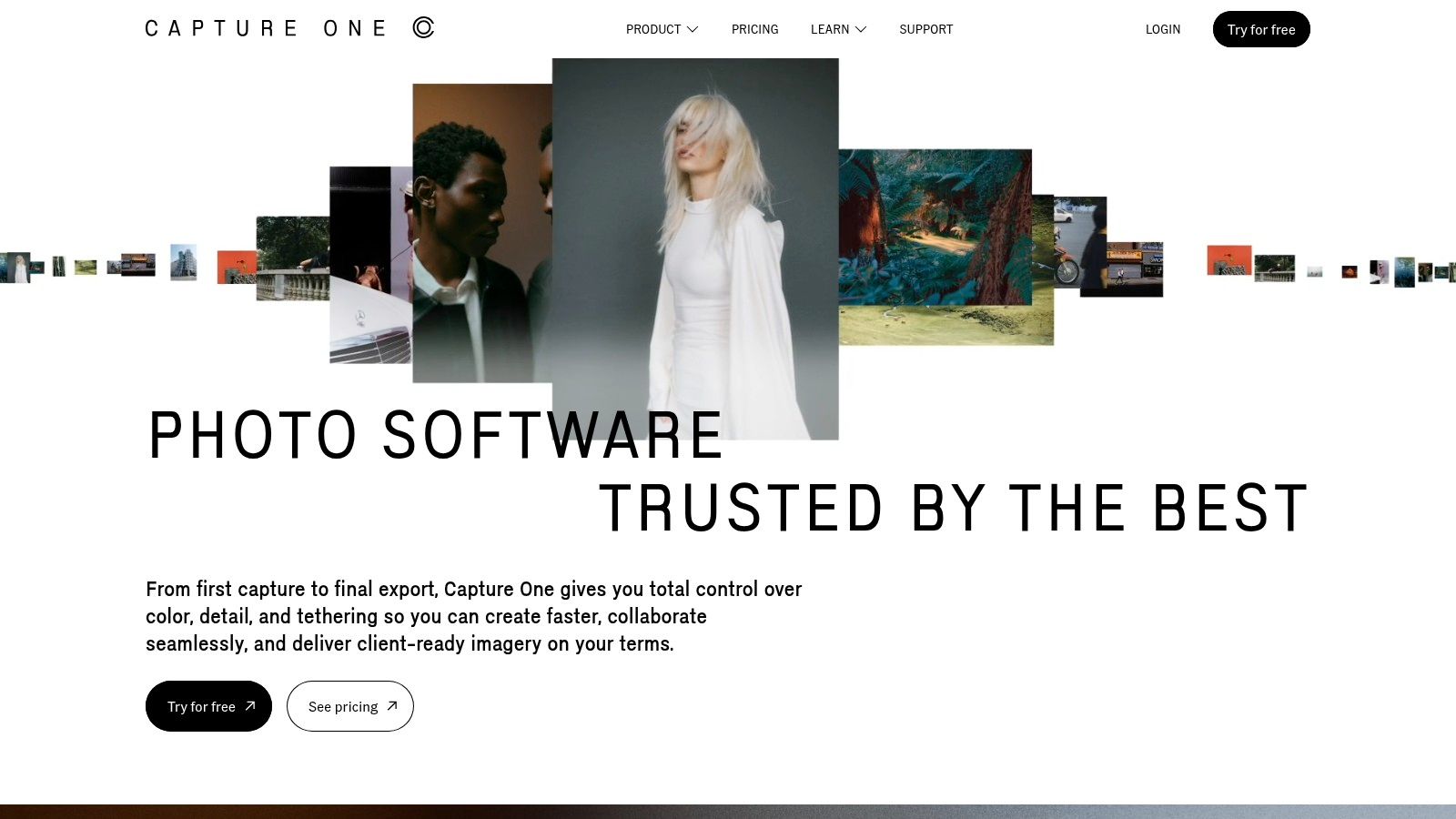
Edit Selected Variants applies adjustments to every selected image at once, while copy and apply tools move a finished correction across a set. Process recipes output several formats, sizes, and destinations in one run, so a client proof, a web file, and a print file don't need three separate exports. During tethered sessions, Next Capture Adjustments and styles applied on capture mean new frames arrive already close to the approved look.
Where It Earns Its Price
E-commerce and studio production reward exactly this kind of repeatability. A survey of 1,356 e-commerce sellers found the median time to finish a product image fell from about 15 minutes to under 5 minutes with AI-assisted editing, a reduction of more than 66%, reported in the survey of 1,356 e-commerce sellers. Capture One isn't the AI tool in that survey, but the lesson applies directly. Standardized capture, styles, and recipes remove the same repetitive handling.
The downsides are real. Pricing is premium, even though subscription and perpetual options both exist. The clipboard and variant model confuses newcomers, and sloppy variant handling creates messy sessions fast. If you don't shoot tethered or grade color critically, you're paying for capacity you won't use. If you do, it's the strongest studio choice here.
4. Affinity Photo
You want serious pixel editing and batch jobs without renting software. That's Affinity Photo, and its pitch is refreshingly direct. It's free, full-featured, and capable of the retouching, resizing, watermarking, and export work that small teams repeat every week.
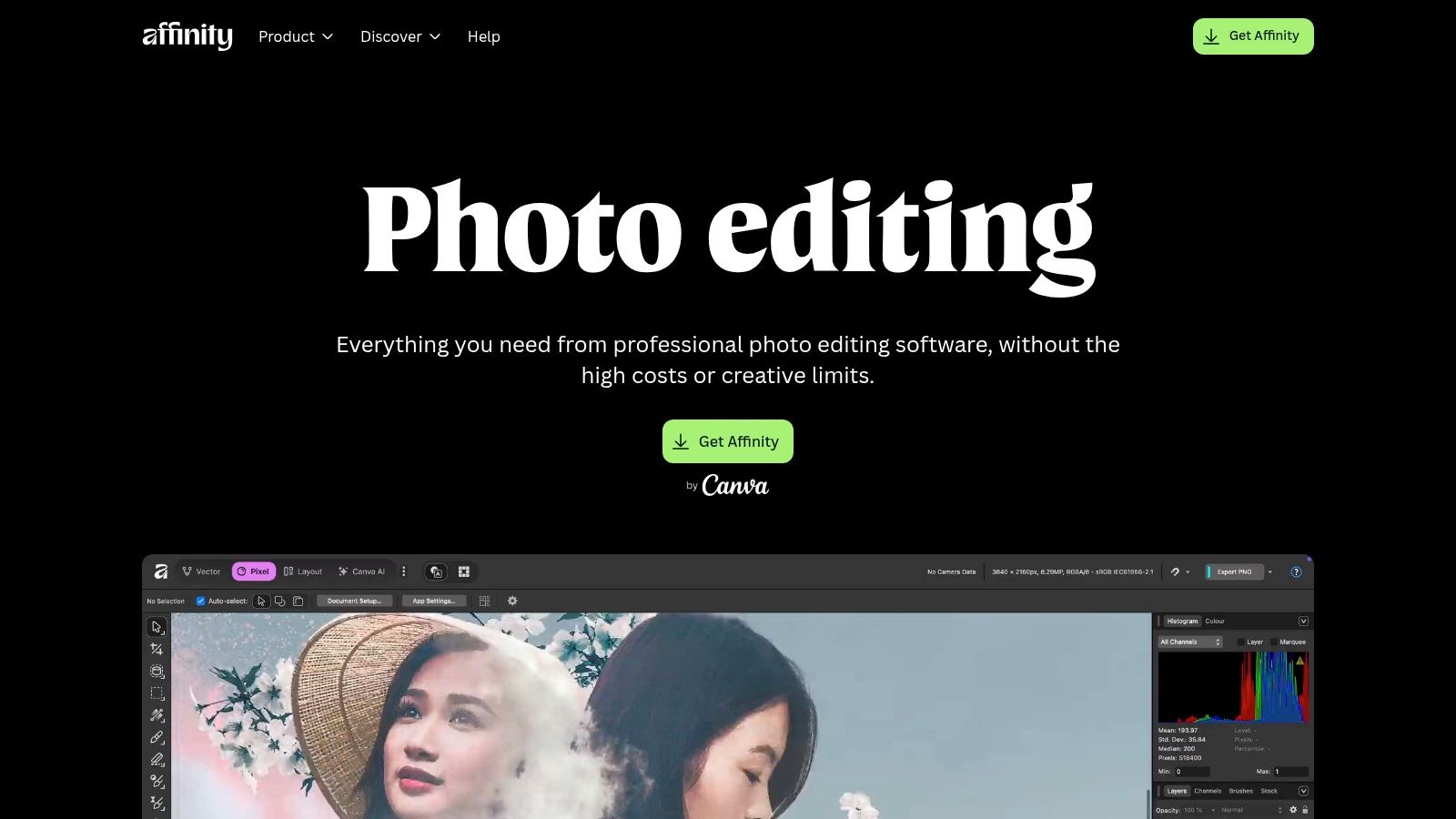
Record a macro once, then apply it through Batch Jobs to many files. The editor underneath is substantial, with non-destructive adjustments, RAW development, HDR merging, focus stacking, astrophotography stacking, and PSD import. For a solo creator or small business, that covers product cleanup, social assets, and print preparation in one purchase-free install.
What You Give Up
Affinity isn't trying to be your photo library. It has no equivalent to Lightroom's cataloging depth or Capture One's session-based series grading, so organizing thousands of frames and syncing a look across a shoot feels less direct. You'll manage files in folders and lean on macros rather than a database.
Some AI features also sit behind Canva premium plans, so read the current feature split before you build a workflow around them. That caveat doesn't weaken the core case. If your batch work is macro-driven transformation rather than catalog-driven grading, Affinity gives you professional tools and no monthly bill. Don't buy a subscription editor just to resize and watermark. Use this, build clean macros, and keep your folder structure disciplined.
Practical rule: Name macros by output, not by effect. A macro called "Store 2000px sRGB" survives team handoffs. One called "Final fix v3" doesn't.
5. ON1 Photo RAW
ON1 Photo RAW suits photographers who want one application instead of a catalog tool plus a pixel editor plus a plugin folder. Cataloging, development, effects, and print tools live together, and batch processing and exporting run across those modules. If you'd rather learn one interface thoroughly than maintain an Adobe-centered stack, start here.
The practical draw is applying export, resizing, noise reduction, and enhancement across many images without round-tripping. AI tools including NoNoise, Generative Erase, and Brilliance AI handle cleanup and correction inside the same session. Presets, effects, and multi-format export recipes then carry a finished set to delivery.
Who Should Pick It
Photographers who shoot scenery, travel, and enthusiast projects get the most from this design because they move between organizing, developing, and creative effects constantly. Subscription options include Photo RAW MAX listed as low as $89.99 per year in the available results, which positions it as a lower-commitment alternative for users who don't want Adobe pricing. Check the current plan before you budget, since promotional pricing changes.
Performance is the main warning. The heavier AI features can strain older computers, especially when you queue them across a large batch. The third-party preset and plugin ecosystem is also smaller than Adobe's, so you'll build more of your own system. Test it with your noisiest, largest files first. If your machine handles those at batch scale, ON1 is a credible all-in-one answer.
6. XnConvert
Not every batch is a photo edit. Sometimes you have a folder of mixed files that need resizing, watermarking, format conversion, and metadata cleanup before upload, and opening a RAW editor for that is wasted effort. XnConvert exists for exactly those jobs, and it does them without ceremony.
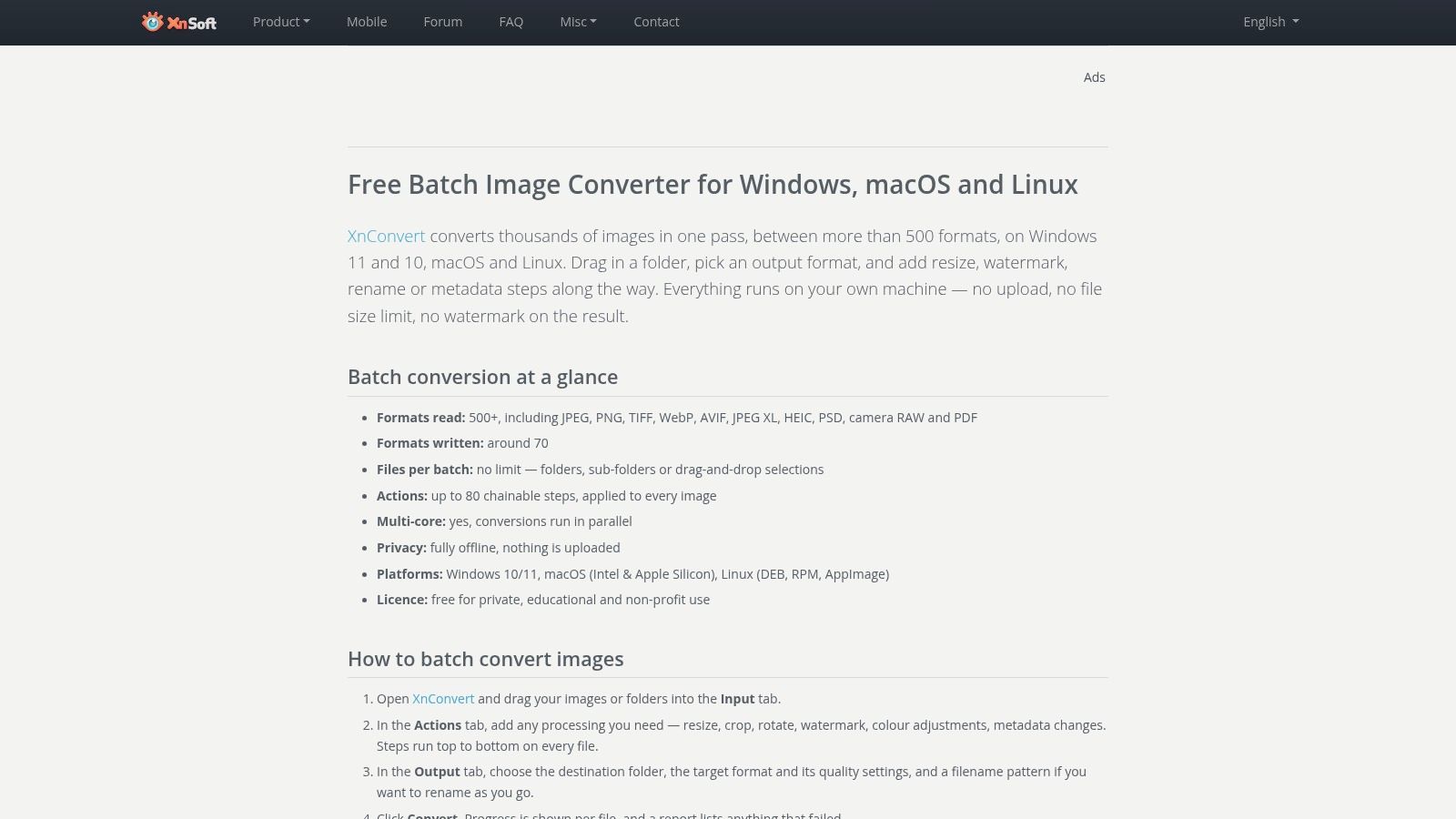
It supports more than 500 input formats and about 70 output formats, chains up to about 80 actions in one batch, and saves presets so next month's run matches this month's. Processing happens offline, which suits client files you don't want moving through a web tool.
Why Folder Processing Wins Here
- Predictable pipelines: Stack resize, watermark, rename, and convert steps in a fixed order that runs the same way every time.
- Lightweight speed: Large folders move quickly because there's no catalog import or preview database to maintain.
- Saved presets: Store one configuration per channel or client instead of rebuilding settings from memory.
Know its limits before you commit. XnConvert isn't a full RAW developer, so don't expect considered color grading or local adjustments. The interface is utilitarian rather than polished, and commercial use requires a paid license. None of that matters if your bottleneck is delivery mechanics. For teams comparing dedicated utilities against full editors, this guide to choosing a batch photo editor helps frame the trade-off. Grade elsewhere if you must. Convert here.
7. ImageMagick
ImageMagick is the choice when no human should touch the batch at all. It's a free, open-source command-line toolkit that runs on Windows, macOS, and Linux, built for scripted and headless pipelines. If images arrive from a generator, a scanner, or an upload form and need identical treatment every time, a script beats a person clicking through a dialog.
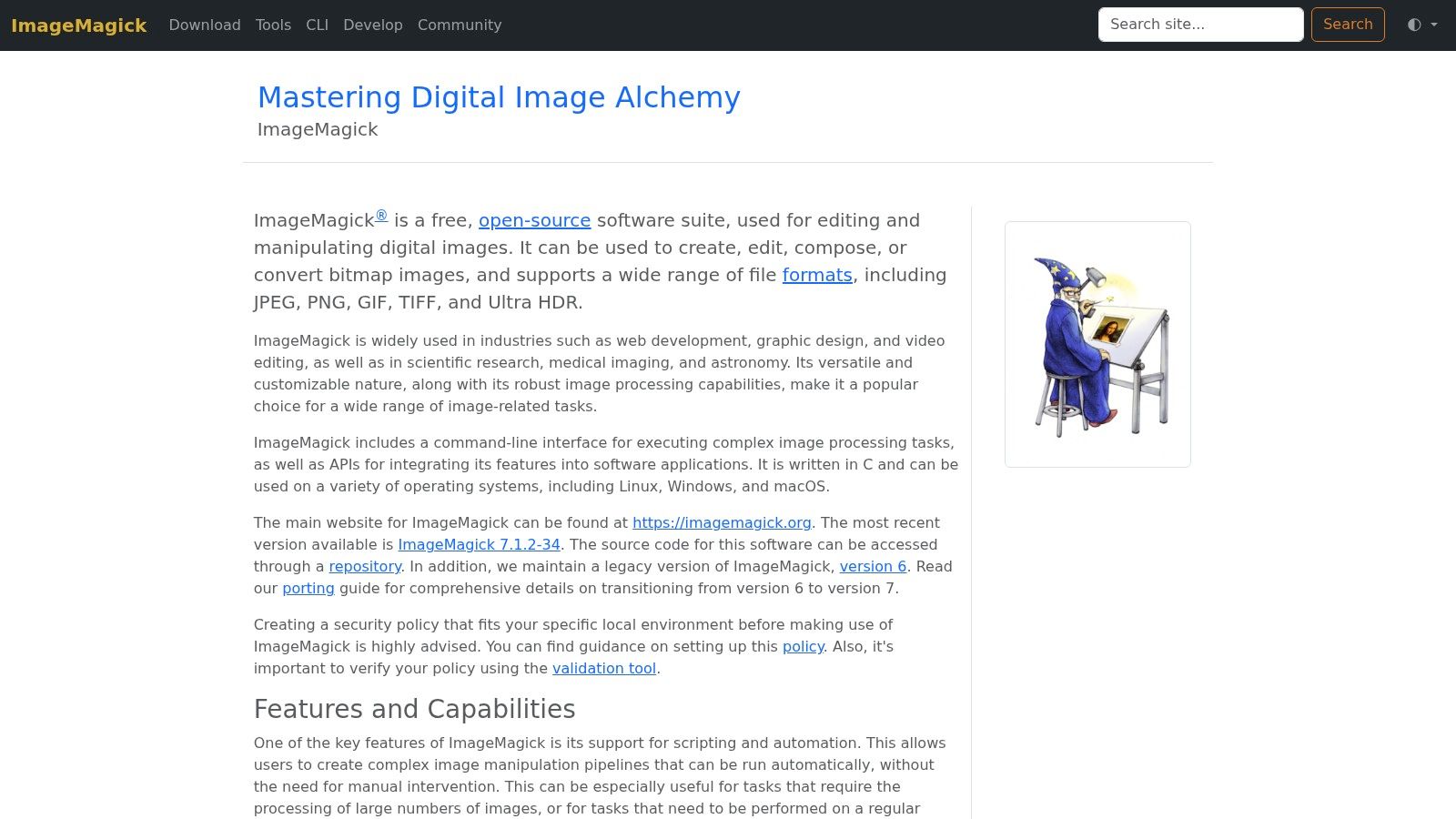
Use mogrify to transform many files in place, or on copies in an output folder, and convert for single-file transformations you can loop in a script. Resizing, cropping, annotation, watermarking, reformatting, and color adjustments all run from bash, PowerShell, or Python. That makes the workflow versionable. Your exact processing steps live in a text file your team can review, reuse, and rerun months later with identical results.
The Real Cost
There's no visual preview and no digital asset management. You can't scroll a contact sheet, adjust a slider, and watch the histogram respond. The learning curve is steeper than any graphical tool here, and a wrong flag applied in place can overwrite originals if you're careless.
Never run an untested ImageMagick command against originals. Copy a small set, run the script, inspect every output, then scale up.
For developers and technical marketers, that discipline pays off in automation nothing else here matches. Pipe it into a folder watcher or build step and batches process themselves. If you're evaluating that route, this overview of bulk image editor options covers the surrounding choices. Everyone else should pick a graphical tool and not apologize for it.
Best Batch Photo Editors: Top 7 Comparison
| Tool | Implementation Complexity | Resource Requirements | Expected Outcomes | Ideal Use Cases | Key Advantages |
|---|---|---|---|---|---|
| Adobe Lightroom Classic | Low to moderate; sync tools and presets simplify batch edits | Subscription; catalog storage and desktop processing | Consistent adjustments, metadata, and exports across many photos | Large photo libraries and high-volume shoots | Fast batch adjustments; strong cataloging and filtering |
| Adobe Photoshop and Adobe Bridge | Moderate to high; Actions require setup | Photoshop subscription; desktop processing | Automated pixel edits, conversions, resizing, renaming, and exports | Custom edits and repeatable workflows needing pixel-level control | Flexible automation; Bridge handles batch file tasks without opening images |
| Capture One Pro | Moderate; variant and clipboard workflows take practice | Premium subscription or perpetual license; desktop processing | Consistent RAW color and multi-format output | Studio, tethered capture, and e-commerce production | Strong color rendering; tethering and export recipes |
| Affinity Photo | Moderate; macros must be recorded for repeat jobs | Free editor; desktop processing | Repeatable retouching, resizing, watermarking, and exports | Pixel editing and batch tasks without a subscription | Broad editing features; macro-based batch processing |
| ON1 Photo RAW | Low to moderate; integrated tools support an all-in-one workflow | Desktop processing; demanding AI tools may tax older computers | Batch edits, enhancements, resizing, noise reduction, and exports | Photographers wanting cataloging and editing in one application | All-in-one workflow with AI-assisted tools |
| XnConvert | Low to moderate; configure actions and save presets | Lightweight, offline desktop tool; commercial use requires a paid license | Multi-step conversions, resizing, watermarking, and metadata actions | Repetitive folder-based processing across many formats | Fast batch processing; supports extensive formats and action chains |
| ImageMagick | High for users unfamiliar with command-line tools | Free, open-source; runs on Windows, macOS, and Linux | Scripted image transformations at scale | Headless production pipelines and automated bulk processing | Flexible, repeatable automation; no license cost |
Choose the Editor That Fits the Bottleneck
Match the tool to the repeated task and the decision gets simple. Use Lightroom Classic for catalog-led grading across shoots, Photoshop and Bridge for recorded pixel edits, and Capture One Pro for color-critical studio and tethered work. Use Affinity Photo for capable batch work without a subscription, ON1 Photo RAW for one all-in-one application, XnConvert for fast folder transformations, and ImageMagick for scripted automation. Don't pay for a catalog you'll never maintain, and don't force a converter to do color grading.
Before you commit, run a small test batch with representative filenames, formats, sizes, and delivery requirements. Include your hardest files, not just clean examples. Time the full run from selection to final export, check whether metadata survives, and open outputs at full size. That provenance check matters more than most comparisons admit. A 2025 empirical study of 50 AI image-generation systems found only 38% used machine-readable marking, so you should confirm your editor preserves the credentials you rely on through conversion and export, as documented in the 2025 study of AI image-generation marking.
Check accessibility in the same test. If you're publishing campaign or classroom images at volume, your workflow needs meaningful alt text and readable contrast, not just attractive files, which is why social media accessibility guidance on alt text for graphics belongs in your publishing checklist. Batch tools multiply whatever you feed them, including missing descriptions.
Where AI-generated visuals feed your pipeline, Bulk Image Generation can sit before the editing stage. It generates up to 100 visuals in under 20 seconds and applies post-production tasks such as resizing, enhancement, background removal, and face swaps in a coordinated batch workflow. Generate there if that fits, then finish in the editor that matches your bottleneck. The best batch photo editor is the one that removes your specific repetitive hour, reliably, every week.
Generate your next campaign, product, or classroom image set in bulk with Bulk Image Generation, then batch resize, enhance, remove backgrounds, or swap faces before you export. Start with one real set you need this week and see how much repetitive editing disappears from your workflow.