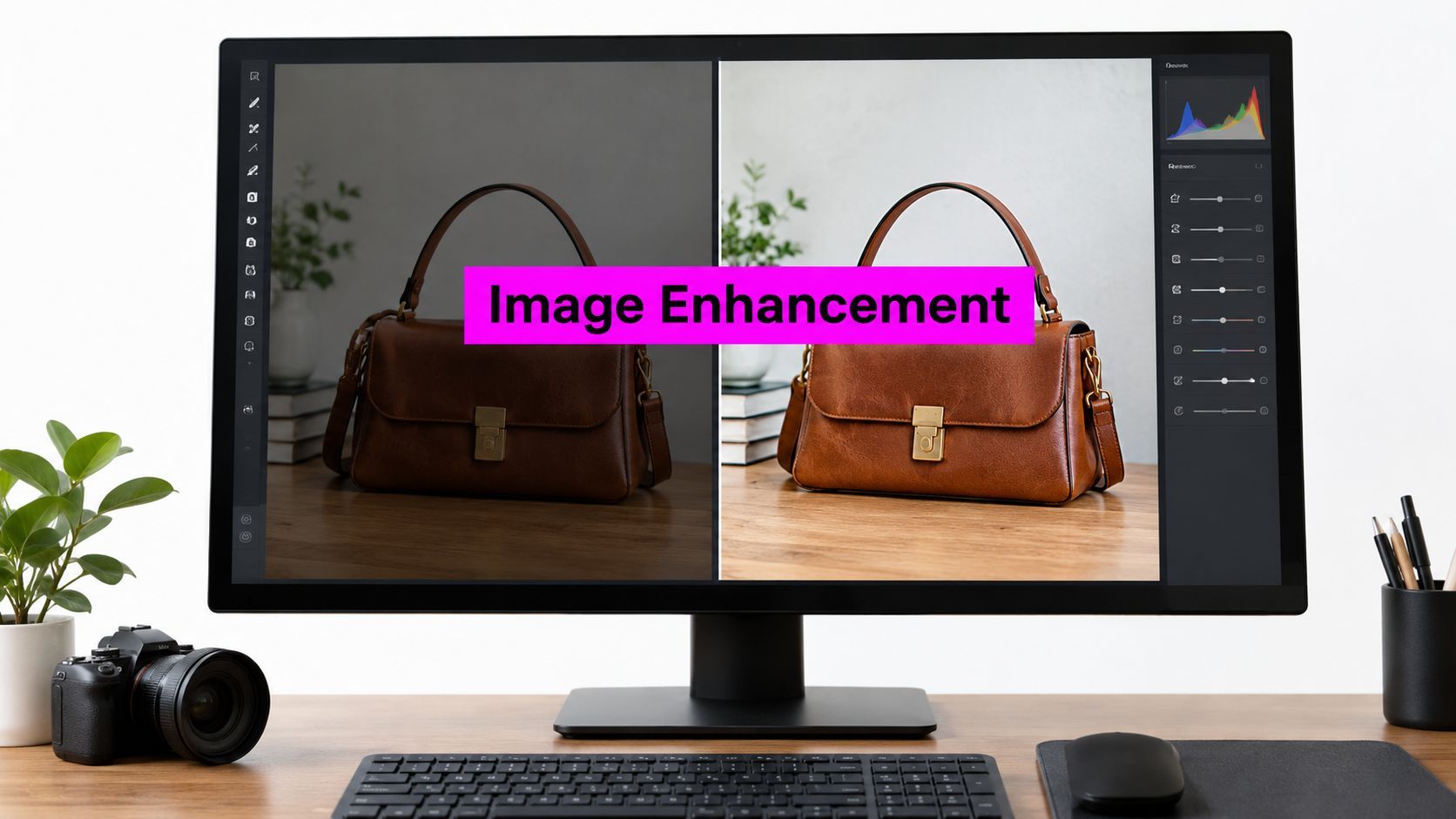
What Is Image Enhancement and When It Helps

Ryan Bennett • October 23, 2026
What is image enhancement? See how contrast, sharpening, and AI edits improve clarity without inventing detail, plus workflows for marketers and educators.
Image enhancement makes visual information already captured in a file easier to see or use for a specific job. It doesn't create new information or reliably reconstruct detail the sensor never recorded.
That distinction sounds academic until you're staring at a folder that has to ship tonight. The photos are usable, just not readable yet, and every fix you try changes something else.
Why Sharper Photos Still Confuse People
You're at the end of a content sprint. The product shots look flat under office light, a classroom scan has gone muddy gray, and the social crops that looked fine on a monitor shrink into mush on a phone.
Meanwhile, a one-off generator is still loading its next variation. You don't need a new picture. You need the pictures you already have to read clearly, in the size and place where people will see them.
That's the job people are asking about when they ask what is image enhancement. It changes how existing pixels are presented so a person, or a system, can interpret them more easily.
It isn't the same as generating a fresh image from a prompt. It also isn't a promise that software can invent the stitching on a shoe, the small print on a label, or the missing strokes in a diagram if the capture never held them.
Three Files, Three Different Problems
A dull product photo usually needs separation. The item and the background sit too close in tone, so the shopper's eye doesn't land anywhere.
A scanned worksheet needs something else. Lines, labels, and faint pencil marks have to stay distinct after printing, and heavy smoothing can delete the very strokes a student is supposed to trace.
A social crop needs legibility at a glance. What survives at full size on your laptop may vanish when it's compressed, resized, and viewed one-handed on a train.
If you can't name what the viewer should notice more easily after the edit, you aren't enhancing yet. You're just pushing sliders.
I've cleaned batches by hand after waiting on single-image tools, and the pattern is always the same. The first file gets careful attention, the tenth gets a copy of those settings, and by the thirtieth nobody's checking whether that recipe still fits.
The useful question isn't whether a file looks punchier. It's which change helps visibility for this audience, and which change alters meaning. A brighter product can become a different color. A crisper face can become a slightly different face. A cleaner diagram can lose a faint but important line.
You'll get more from short, concrete choices than from a glossary here. Start with the problem in the file, pick the smallest operation that addresses it, and check the result against the untouched version before you roll that setting across everything else.
What Image Enhancement Is Built to Do
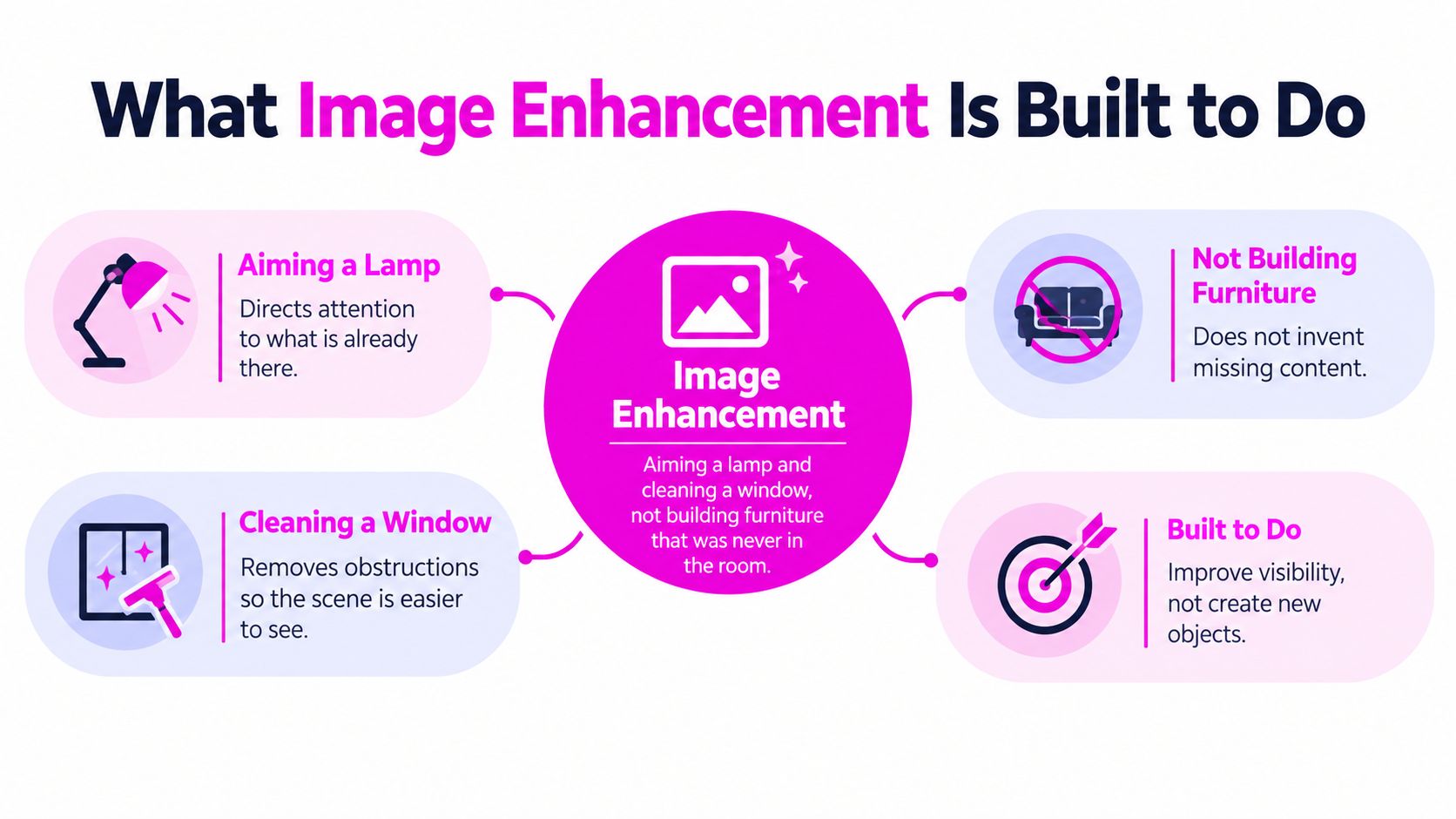
Think of a dim room you already own. Enhancement is like aiming a lamp at the corner you want people to see and cleaning the window so light gets through. It isn't building furniture that was never in the room.
That analogy holds up in practice. Academic instructional material on image enhancement defines it as a foundational area of digital image processing that improves the visibility of a particular region or feature while suppressing less useful information elsewhere, and it does not increase the image's inherent information content.
The Target Depends on the Job
A shopper needs readable color and a clear edge between product and background. If those two things land, the listing works even if the photo will never win a print award.
A teacher needs a diagram students can parse quickly. Labels that blur into arrows, or gray lines that disappear on a photocopier, fail even if the page looks handsome on screen.
An automated system may need something a human wouldn't choose at all. Increasing contrast can separate objects with similar brightness values so detection works, even when the result looks harsh to you.
A Small Toolkit, Not a Stack to Apply All at Once
The common operations are familiar for a reason. Each one answers a different visibility problem.
- Brightness and contrast adjustment: Lifts or separates tones so features stop blending together in a flat capture.
- Histogram-based contrast enhancement: Redistributes tonal values across the range, useful when most of the image is crowded into dull grays.
- Sharpening and edge emphasis: Makes boundaries more distinct, which helps when shapes need to read at small sizes.
- Smoothing and noise reduction: Quiets random speckle that competes with the subject, especially in low-light or scanned files.
Every one of those carries a trade. Smoothing can reduce random noise and also erase fine detail, like fabric texture or a thin worksheet line. Sharpening can make a boundary obvious and also exaggerate a dust spot, a compression artifact, or a flaw you'd barely noticed before.
That's why the same capture can legitimately need different settings for a product listing, a social graphic, a worksheet, or computer vision input. Clarity, color balance, and readability can all improve. Detail that was never recorded can't be reliably rebuilt, no matter how confident the preview looks.
Manual and AI Techniques That Change Visibility
Group the techniques by the problem in front of you, not by the brand on the toolbar. A dark, uneven scan and a noisy phone photo may both look bad, but they don't need the same fix.
The older manual stage still does most of the honest work. A 1999 academic treatment of biological image processing describes enhancement as typically following image capture, with methods including brightness and contrast adjustment, edge detection, edge sharpening, removal of small irrelevant features identified as noise, and correction of uneven background intensity.
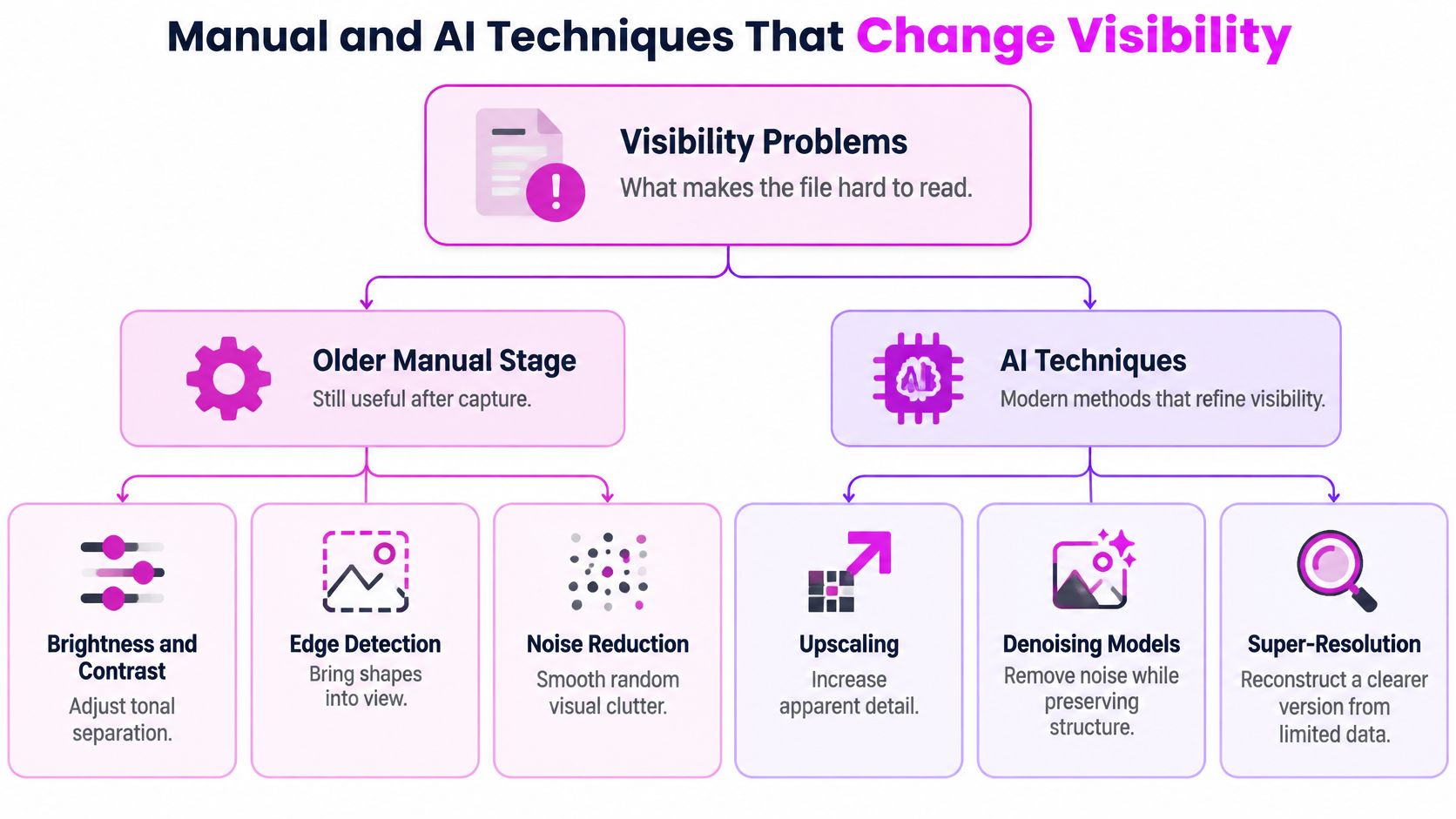
Those moves exist because raw files fail in predictable ways. Illumination changes across a scene, sensors add noise, contrast runs low, focus softens, and distracting artifacts creep in. Remote sensing, medicine, biology, and commercial photography all built workflows around those same failures long before AI editors arrived.
Where AI Fits in the Same Toolkit
Modern operations map onto the old problems rather neatly. Denoising tackles speckle, contrast modification tackles flatness, sharpening and deblurring tackle soft edges, and super-resolution tackles enlargement. If noise is your main blocker, it helps to understand how reducing noise in images preserves edges while it cleans before you reach for stronger settings.
AI speeds up how those transformations get applied and combined. It can run background removal, resizing, and face-related edits across a batch instead of one file at a time. That speed is real and useful. It doesn't turn the tool into a source of truth about what was in the original scene.
The field's actual milestone isn't one famous algorithm. It's a toolkit that maps an original image into a representation better suited to a defined task.
That same source notes a transformation can improve the match with human perception but cannot increase the total information present and may discard some information. So quality stays task-dependent. An image that looks attractive on a feed isn't automatically accurate enough for measurement, and a file tuned for automated analysis may look ugly to a customer. Pick whose eyes, or whose system, you're serving first.
When a Better-Looking Image Stops Being Faithful
Sharper doesn't always mean better. It sometimes means the software guessed confidently and you stopped checking.
Separate two goals that introductory explainers usually mash together. Perceptual enhancement is tuned for human appearance, so punch and polish win. Faithful enhancement is tuned to preserve source information, so what the file claims stays close to what was captured.
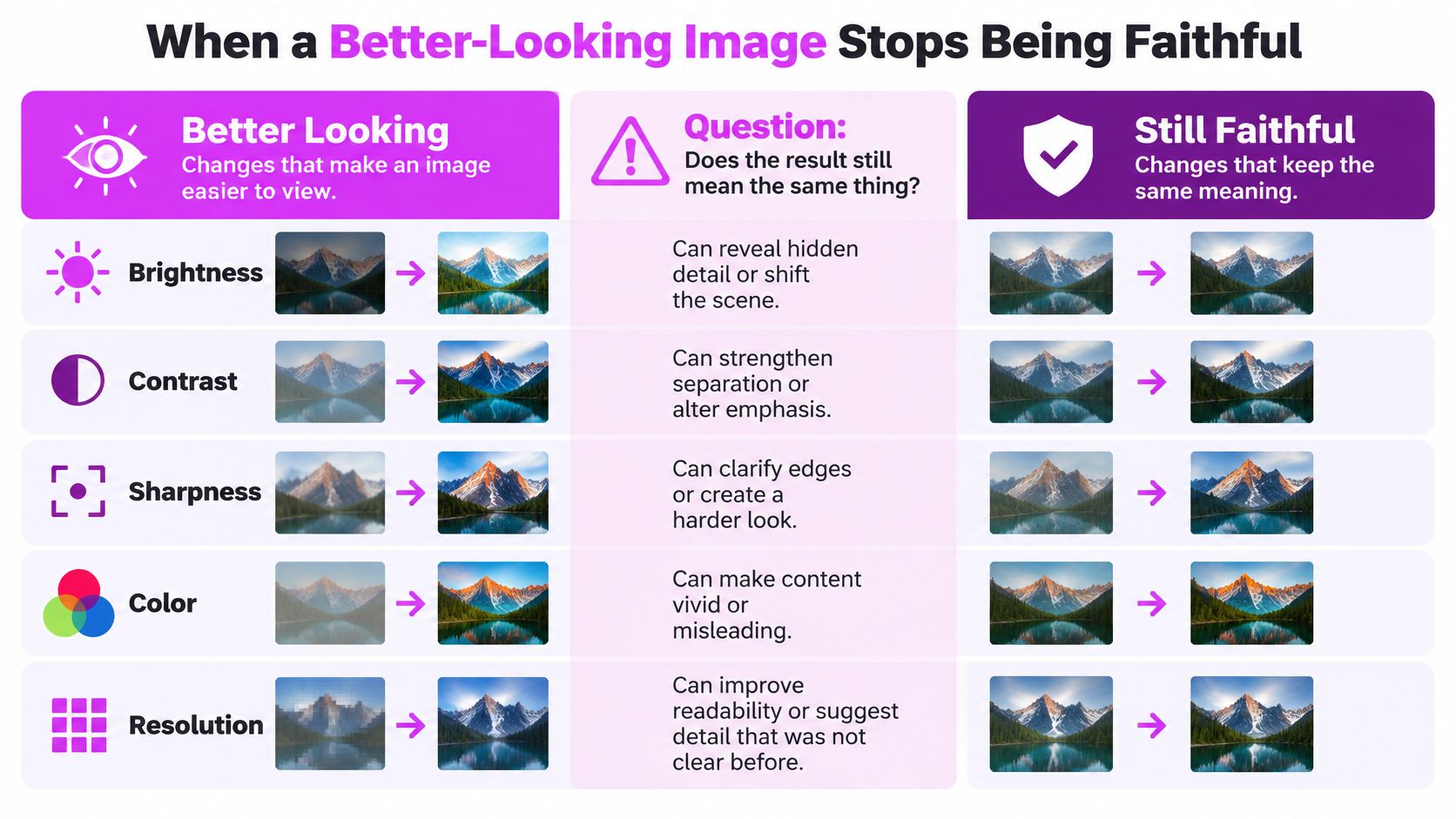
The engineering trade is consistent. Stronger processing can improve apparent detail while amplifying noise, ringing, halos, or hallucinated structures. Push a flat product photo hard enough and edges get crunchy outlines. Push color and a navy bag drifts toward black, which is why it's worth treating color correction for photos as an accuracy check, not just a style choice.
Why Metrics Disagree with Your Eyes
PSNR measures pixel-level reconstruction error in decibels. SSIM evaluates luminance, contrast, and structural similarity. Because they measure different things, a higher PSNR doesn't always correspond to better perceived quality.
No-reference metrics estimate quality without a trusted original to compare against. A systematic review of medical image enhancement found 65 image-quality metrics across 39 studies, with many studies relying on non-reference measures, and enhancement there is described as capable of introducing textures, removing details, or altering meaning. Neither family of metric proves an image is truthful.
Practical rule: Compare original and result at 100% zoom, inspect high-contrast edges for halos, and use PSNR or SSIM only when a trusted reference exists. Without one, you're relying on human review plus no-reference checks.
Translate that to ordinary work. A marketer can shift product color across an entire launch set with one enthusiastic preset. An educator can distort a diagram so lines point at the wrong label. A small business can publish an enhanced face or texture that no longer represents the person or material it sells.
None of that means don't enhance. It means know which kind you're doing, and don't let a prettier file borrow authority it hasn't earned.
Image Enhancement Examples for Real Work
Decisions get easier on real jobs, where you can see what success looks like and what you'd regret changing.
A Marketer With a Flat Product Set
Start with mild, edge-preserving denoising, then careful contrast, then resize for the actual placement. That order cleans speckle without turning packaging text to wax, and it keeps the social crop readable on a phone.
Check color on every frame, not just the hero shot. A consistent batch can still shift color systematically, so the set looks unified and is uniformly wrong.
Capture quality sets the ceiling before any of this starts. If you're weighing phones for product and social shooting, NeoTeo's Pixel 10a and 11 Pro comparison is a useful starting point for thinking about what the device hands you to work with.
Keep from the original: true product color and any label text a buyer might zoom into.
An Educator With a Scanned Worksheet
A gray, speckled scan of a worksheet or coloring page needs contrast and local detail enhancement so lines and labels separate from the paper tone. Students should see where one shape ends and the next begins.
Go gently on smoothing. The strokes students need to trace or color inside are exactly what aggressive cleanup treats as dirt. Print one page before you commit, because a screen hides what a classroom printer will swallow.
Keep from the original: line weight, label placement, and any faint guide marks that carry instructions.
A Small Business Guarding Its Identity
For a logo lockup or a simple product set, identity matters more than drama. Modest sharpening can make a boundary read cleanly at small sizes, and that's often enough.
Be careful at the generative end of the shelf. Research on image enhancement operations and quality metrics notes common operations include denoising, contrast modification, sharpening, deblurring, and super-resolution, and that stronger enhancement can amplify noise, ringing, halos, or hallucinated structures. A face swap or generative repair can produce a plausible image, but plausible isn't the same as an untouched photograph of your actual premises or team.
The selection rule is simple in production terms. Choose by what happens next, use perceptual super-resolution only when the enlarged image will be viewed large, and judge representative crops instead of trusting one global score.
Keep from the original: brand colors, real faces, and textures customers will compare against the delivered product.
How to Choose an Enhancement Workflow
Three common paths cover most situations, and each fails in a different place. Choosing well means matching the path to volume and to how much control each file really needs.
Manual photo software gives you precise control. You decide every crop, background, and tonal move yourself, which is ideal for a single hero image and miserable when forty files each need the same three fixes.
One-image AI generators help you explore a look quickly. They stall when you need dozens of consistent assets, because you end up waiting on each render and then cleaning backgrounds, sizes, and crops somewhere else.
A batch workflow trades some per-file fussiness for consistency and speed. You set the approach once, run it across the set, and spend your attention on reviewing crops rather than repeating clicks.
| Job | Approach | Main risk |
|---|---|---|
| Single hero product shot | Manual editor, careful contrast and sharpening | Slow, and easy to overtune for your monitor |
| Exploring a campaign look | One-off AI generation | Great single frames that don't match each other |
| Product or social set at volume | Batch editor with shared settings | A wrong setting repeats across every file |
| Worksheets and coloring pages | Batch contrast and cleanup, printed proof | Smoothing away lines students need |
| Enlargement for display | Super-resolution, checked at final size | Invented texture nobody notices until it's large |
What a Batch Option Actually Handles
Bulk Image Generation is one example of the batch path. Users describe goals in ordinary language, Flux 1.1 and OpenAI's GPT-Image-1 guide style and composition, and the service can create up to 100 unique visuals in under 20 seconds without hand-building every prompt.
Its batch editor covers background removal, face swaps, resizing, and enhancement, and the business says that post-production pass cuts editing time by half. It also offers free helpers such as aspect-ratio calculators, prompt generators, and image-to-prompt conversion, plus templates for social campaigns, product photography, branding, game assets, and coloring pages.
Whichever route you pick, keep settings separate for photographs and illustrations. A recipe that flatters a product photo will often wreck clean line art, and understanding how resolution and size of an image affect the final output stops you enlarging files that were only ever meant to be seen small.
Review the awkward crops too, not only the hero frame. The file with a busy background or a face near the edge is where a batch setting usually breaks first.
Keep the Original and Take the Next Step
Three questions are worth asking before anything ships. Can viewers see it better? Is the content still faithful? Can anyone verify what changed?
The first question is the one most tools answer. The second and third decide whether the file deserves trust.
Modern upscaling, face edits, background replacement, and generative fill move enhancement toward synthesis. Sharpening a low-resolution historical image may help people see it, but it creates no reliable new evidence about the past. A face swap can produce a polished, believable result that shouldn't be mistaken for an untouched photograph.
Provenance Is Part of the Edit Now
C2PA's Content Credentials framework uses metadata and cryptographic signatures to record where media came from and how it was changed. Adoption doesn't guarantee that provenance survives every platform or workflow, and an enhancement can improve accessibility and usability while reducing evidentiary value.
So treat the editing history as something you maintain yourself until the chain is dependable everywhere.
- Preserve the original: Keep untouched files in a separate folder so any result can be compared or rebuilt.
- Record the method: Note which operations and settings produced the published version, in plain language your future self will understand.
- Check the export: Confirm whether the exported file still carries provenance metadata after resizing or platform upload.
- Label identity-altering edits: Mark generative repairs and face swaps as edited, especially where a viewer might assume a straight photograph.
Visibility gets people to look. Faithfulness gives them a reason to believe what they're looking at.
Take one small, real batch as your next step, whether that's product shots, social crops, or classroom pages. Run only the mild enhancement that matches that job, then compare each result against the untouched file at full zoom before publishing. If a result looks better but says something different, dial it back and keep the version you can stand behind.
Ready to test that approach on a real set instead of one file at a time? Bulk Image Generation lets you generate visuals in bulk and run enhancement, background removal, and resizing across the batch, so your review time goes to checking faithfulness rather than repeating edits. Bring a small product, social, or classroom set, enhance it lightly, compare against your originals, and publish only what still tells the truth.