Size of Twitter Banner: 1500 X 500 Pixels and Safe Zones

Ryan Bennett • November 1, 2026
Find the size of Twitter banner: 1500 x 500 pixels at 3:1. Get safe zones, avatar overlap, mobile crop limits and file format tips in one quick reference.
The size of Twitter banner images for an X profile is 1500 x 500 pixels, a 3:1 aspect ratio. The 400 x 400 pixel profile photo overlaps its lower-left corner.
That overlap is where most designs fail. A file can match the spec exactly and still hide a logo, cut off a headline, or lose its focal point on a phone. The X official help guidance recommends a 1500 × 500 pixel banner and a 400 × 400 pixel profile image, and a 1500 × 500 image contains 750,000 pixels. Treat those numbers as the canvas, then design inside the smaller area that stays visible everywhere.
Twitter Banner Size at a Glance
Start with the file, then check how it sits on the profile. In 2025, Analyzify published a recommended Twitter/X header banner size of 1500 × 500 pixels and specified a 3:1 aspect ratio. That's the size of Twitter banner uploads for both web and mobile, so you don't need separate files for each device.
The banner and profile photo are sized separately, but they're displayed together. Design them as one composition, because the square avatar sits over the wide header and changes what visitors can see.
| Element | Recommended size | Aspect ratio | What it means for the design |
|---|---|---|---|
| Profile banner (header) | 1500 × 500 px | 3:1 | Main canvas shown at the top of the profile |
| Profile photo (avatar) | 400 × 400 px | 1:1 | Overlaps the lower-left corner of the banner |
| Total banner area | 750,000 px | 3:1 | Pixel count of one 1500 × 500 image |
| Mobile vertical crop | About 60 px off top and bottom on some displays | Not applicable | Top and bottom edges can be trimmed |
How to Read This Table
The first row sets your canvas. The second row marks the obstruction you must work around. The third row confirms the total working area, and the last row warns you that the edges aren't fully reliable on every screen.
One-line check: If your file is 1500 x 500 and the ratio is 3:1, the size is correct.
Correct size alone doesn't guarantee a working banner. Placement inside that canvas decides whether your message survives.
Why the 3:1 Ratio Suits a Profile Header
A 3:1 canvas is three times wider than it's tall. That long, shallow shape fits naturally across the top of a profile, where there's plenty of horizontal room and very little vertical room. It's a header, not a poster.
In 2024, Figma published 1500 × 500 pixels as the recommended X/Twitter header dimensions and identified the format's aspect ratio as 3:1. Design teams often export at that exact size to avoid rescaling, and you should too.
What the Width Lets You Do
The horizontal room lets you place elements side by side instead of stacking them. A logo, a short headline, a product image, or a call to action can share one line of sight. Say a bakery wants its name on the left of center and a product photo on the right. A 3:1 frame holds both without crowding.
Compare that with other shapes. A 16:9 file is too tall for the header slot, so it loses height or crops at the sides. A square file sits awkwardly, with wasted space above and below. Neither matches the slot, so the platform reshapes them for you, usually badly.
For batch work, treat 3:1 as your reusable output preset. Generating directly at that ratio removes manual cropping later. If you're converting dimensions between platforms, an aspect ratio calculator keeps the math quick and consistent. Our free tools include an aspect ratio calculator among other utilities, all free to use without an account.
Run a simple test before you export. Place your logo and headline on a 1500 x 500 frame and confirm both fit without touching the edges.
Safe Zones Around the Profile Photo
The profile photo covers the lower-left area, so that corner can't carry information. The Adobe Express Twitter size guide notes that banner composition must account for the profile photo overlay in the lower-left area, which can obscure branding or text even when the full header image itself is correctly sized. Keep critical content away from that corner and place it toward the central or center-right portion instead.
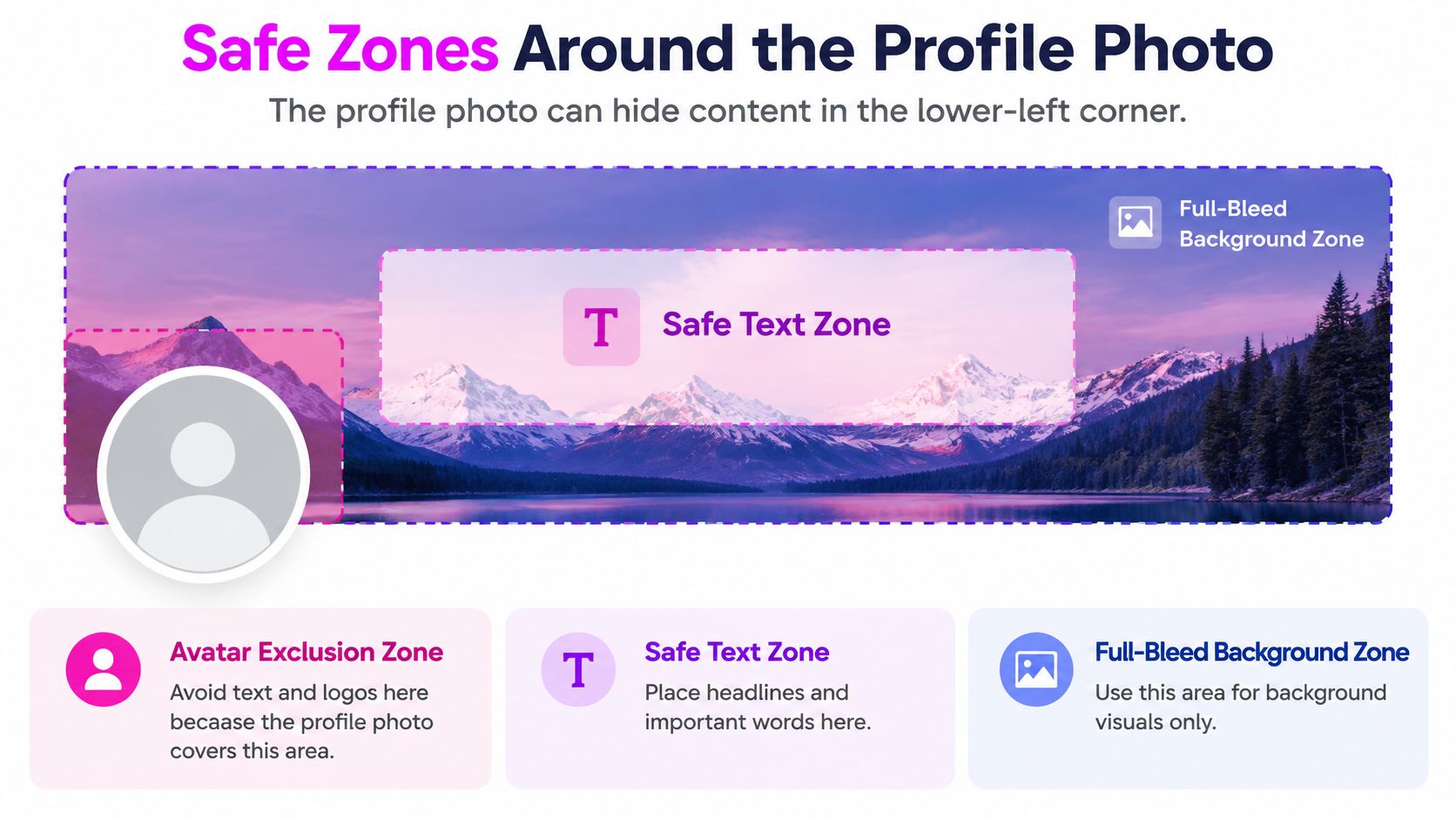
Think of the banner as three working zones. Each one has a single job.
| Zone | Location | Allowed content | Rule |
|---|---|---|---|
| Avatar exclusion zone | Lower-left, under the 400 × 400 px photo | Background texture or gradient | Keep logos and text out |
| Central crop-safe band | Centre and centre-right of the canvas | Headline, logo, key message | Keep inside edge padding |
| Edge padding | About 60 px from top and bottom | Nothing critical | Keep clear of trimming |
| Nonessential background | Any remaining area | Texture, gradient, imagery | Low contrast, no text |
Placing a Headline and Logo
Put your headline in the central band, where it stays readable at narrow widths. Place your logo beside it or to its right, never underneath where the avatar lands. Fill the lower-left with a gradient or texture that looks fine partly covered. For wider context on how ratios shift between platforms, this guide to aspect ratios for social media is a useful companion.
Give text generous edge padding and strong contrast. Responsive scaling shrinks apparent text size even when no pixels are removed, so small, pale lettering fails first. In batch work, store the focal point, text bounding box, and avatar-exclusion zone with each file so a QA step can check placement automatically before delivery.
Run three placement tests before you export:
- Avatar test: Is any text sitting under the profile photo area?
- Band test: Is the headline fully inside the central band?
- Width test: Does the padding survive a narrow browser view?
How Desktop and Mobile Views Crop Your Banner
Mobile cropping causes most cut-off text, so start there. In 2025, Amplitude Marketing published a recommended X header photo size of 1500 × 500 pixels and reported that 60 pixels may be cropped from the top and bottom. If your headline hugs either edge, a phone can trim it.
X doesn't guarantee one identical visible crop across devices. The same uploaded file can look slightly different on a wide monitor, a narrow window, and a phone. That's normal behaviour, not an upload error.
| Viewing context | Visible area | Main risk | Design response |
|---|---|---|---|
| Wide desktop | Full 1500 × 500 canvas minus avatar overlap | Text hidden under the profile photo | Keep text out of the lower-left corner |
| Narrow browser window | Scaled canvas, edges reduced proportionally | Edge text scales down or crops | Keep headline in the central band with padding |
| Mobile app | About 60 px trimmed top and bottom on some displays | Top and bottom text or logos cut off | Keep headline and logo at least 60 px inside the top and bottom edges |
Row by Row
On wide desktop, you see nearly the whole canvas, so the avatar is the main threat. In a narrow window, everything scales down together, which makes small edge text hard to read even when it isn't cropped. On mobile, the vertical trim is the problem, and it hits first and last lines without warning.
Test on the smallest screen you'll accept, not the largest one you own.
A banner checked only on a desktop browser is the most common reason for cut-off text on phones. Preview on desktop, in a narrow window, and on a phone before publishing. If your headline survives all three, it'll survive almost anything in between.
File Formats and Export Settings That Hold Up
Choose your format by what's in the image. The rule is direct, and the reason is how each format handles edges.
PNG for Text, JPG for Photos
Use PNG when your banner has sharp text, logos, flat colours, or transparency. PNG keeps those edges crisp, so lettering stays clean after upload. Use JPG when the banner is mainly photographic and a smaller file matters more than perfect text edges. Save JPGs at high quality, because aggressive compression blurs fine detail and leaves artefacts around lettering.
A mixed banner needs a judgement call. If the headline is the focus, export as PNG. If the photo dominates and text is minimal, JPG usually holds up. When you're unsure, export both from the same canvas and compare edge sharpness at full zoom along with file size. Pick the one that keeps text clean without bloating the file.
Colour, Size, and Source Quality
Export in the sRGB colour profile so colours look consistent across browsers and phones. Keep the file well under the platform upload limit, and check the current limit in the X help pages before a large batch, since limits can change. Don't upscale a small image to reach 1500 x 500. Upscaling adds pixels the source never had, and text goes soft. Start from a source at or above the target size instead.
Finish with this export checklist:
- Pixel size: Exactly 1500 x 500, at 3:1
- Colour profile: sRGB, confirmed in export settings
- Readability: Text still legible at half size on screen
- Edges: No visible compression artefacts around the logo
Common Banner Mistakes and How to Fix Them
Most broken banners fail in predictable ways. Each mistake below has one cause and one concrete fix, so you can work through your own file quickly.
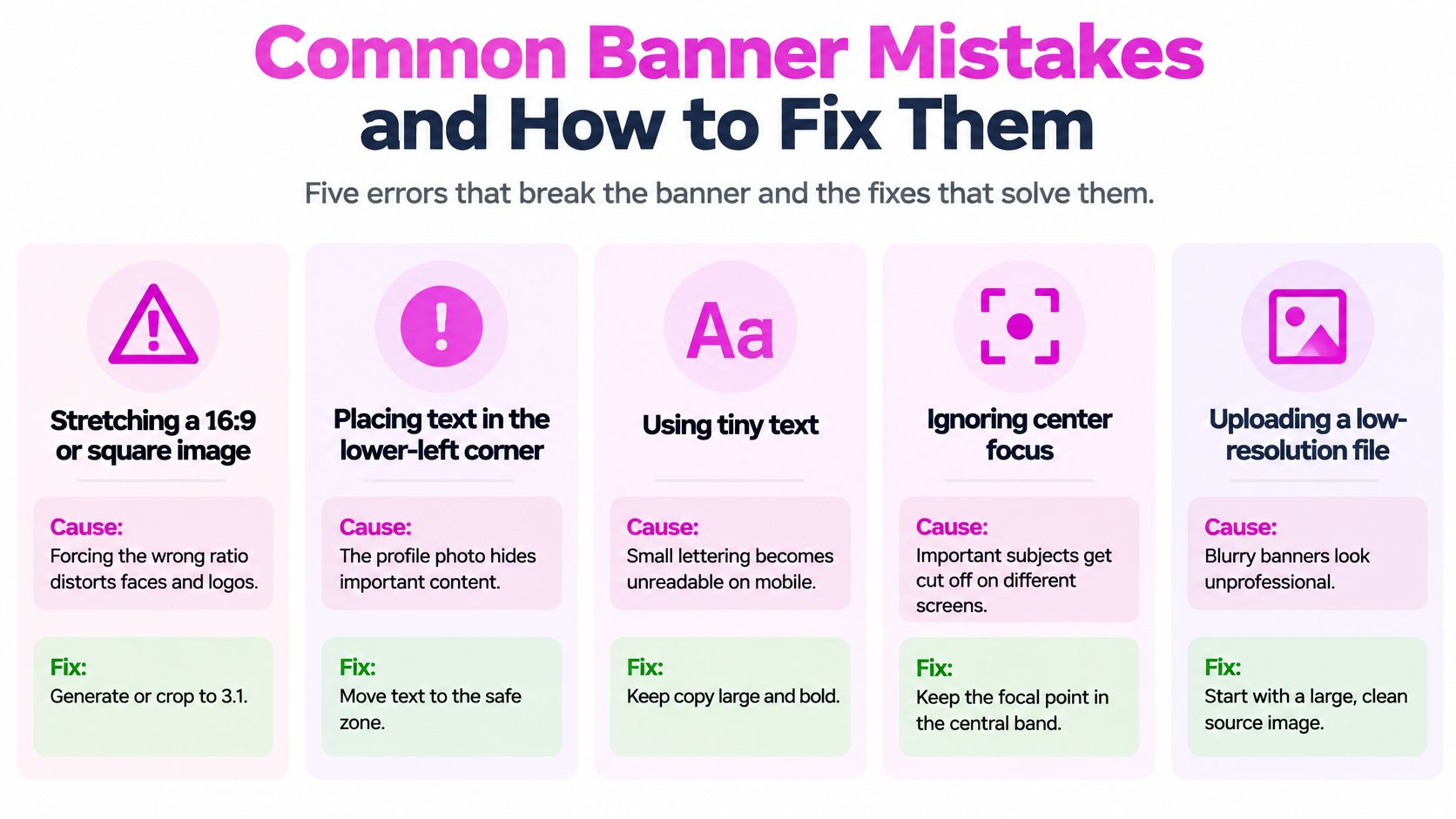
Stretching a 16:9 or square image. Forcing the wrong shape into a 3:1 slot distorts faces and logos. Fix it by generating or cropping at 1500 x 500 before you place anything else.
Placing a logo or headline in the lower-left. The avatar covers that corner, so your most important content disappears behind a circle. Move it into the central band, where it stays visible in every view.
Source and Edge Problems
Upscaling a small source. A tiny file stretched to full banner size blurs text and softens logos. Start again from a file at or above the target size, even if that means regenerating the image.
Text too close to the top and bottom edges. Mobile displays trim those edges, so tightly placed lettering gets clipped. Keep about 60 px of clear margin at both the top and bottom.
Testing only on a desktop browser. A wide monitor shows the friendliest version of your banner and hides phone problems. Preview in a narrow window and on a phone before you publish, every time.
Notice the pattern. Four of these five mistakes aren't about artistic skill. They're about placement and testing, which means they're cheap to fix once you know where to look.
How to Generate Banners at 1500 x 500 in Batches
Batch generation works when every file follows the same preset and the same placement rules. Set those rules once, then let the process repeat them. Here's the sequence.
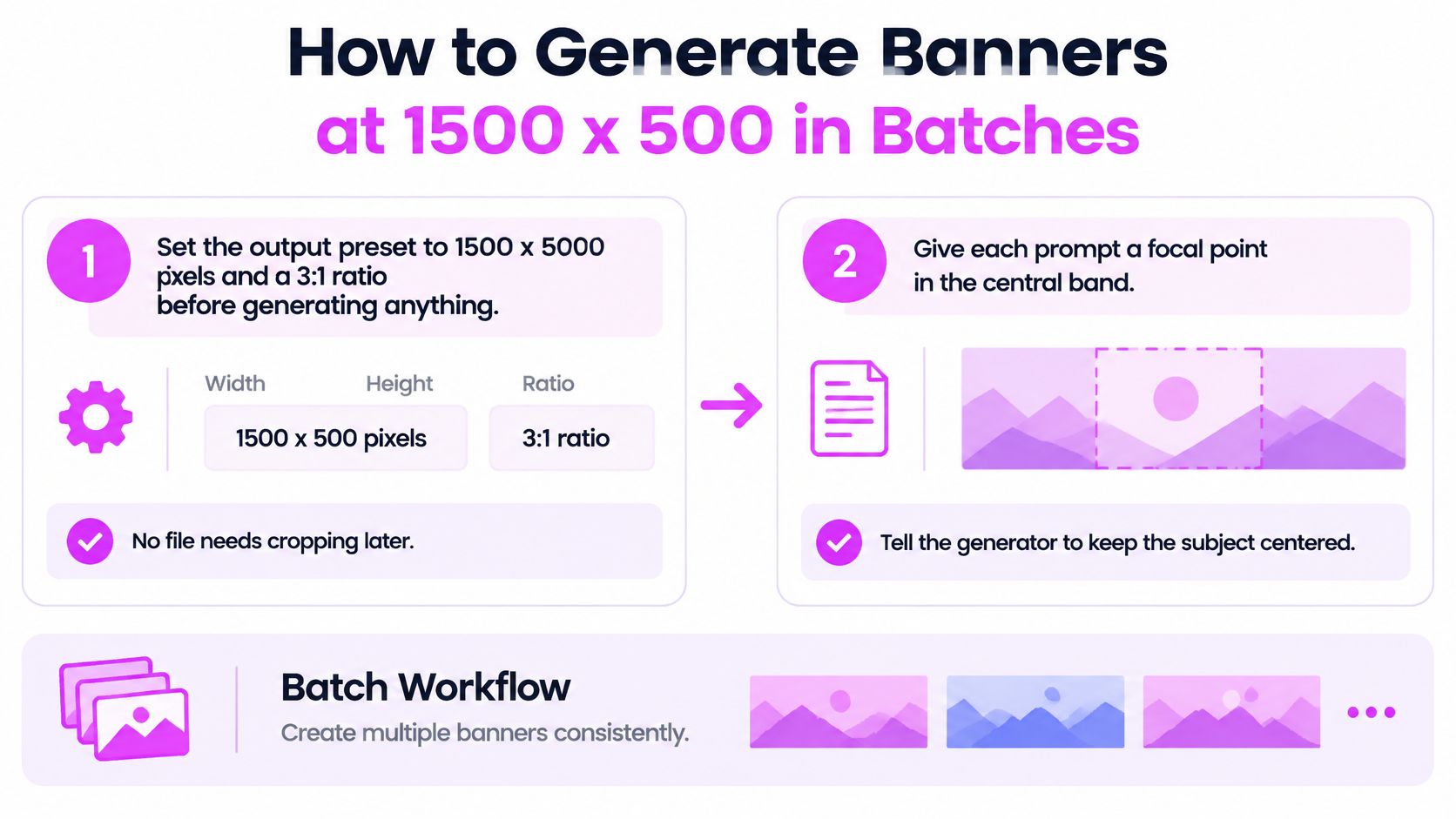
- Set the output preset first. Configure 1500 x 500 pixels at a 3:1 ratio before generating anything, so no file needs cropping later.
- Give each prompt a focal point. Place the subject in the central band and tell the generator to keep the lower-left quiet or plain, so the avatar has nothing important to cover.
- Generate the set, then review at two widths. Check each image at desktop width and at a narrow preview, because a banner that reads well wide can fail small.
- Check the two danger areas. Confirm no headline or logo sits under the 400 x 400 avatar area, and confirm padding holds at 60 pixels from the top and bottom.
- Export by content type. Save text-heavy designs as PNG and photographic ones as JPG, both in the sRGB profile. A bulk image resizer helps when source files arrive at mixed sizes and need normalising first.
- Store layout metadata with each file. Save the focal point, text bounding box, and avatar exclusion zone alongside the image, so later QA runs without reopening the design.
Why the Preset Matters More Than the Prompt
A strong prompt on the wrong canvas still produces a file you'll have to crop, and cropping after generation often cuts the subject. The preset locks the size of Twitter banner outputs before creative choices begin. That's what keeps a campaign consistent across many accounts, because every banner shares the same canvas, the same safe zones, and the same export rules.
If one image in the batch breaks a rule, fix the preset or the prompt pattern, not just that single file. The same flaw is probably hiding in the rest of the set.
Check Your Banner Against These Specs Before Uploading
Make a clear go or no-go decision on each banner. Five yes-or-no tests are enough:
- Size test: Is the file 1500 x 500 pixels at 3:1?
- Avatar test: Is the lower-left area clear of text and logos?
- Band test: Does the headline sit inside the central band with padding?
- Export test: Is it PNG or JPG in sRGB?
- Preview test: Does it pass a narrow-window and a phone preview?
If all five pass, upload it. If any one fails, fix the placement and re-export rather than uploading and hoping. For bulk work, record the pass or fail result for each file in a batch log, so a campaign spanning several accounts can be audited without reopening every design. For product and social campaigns, leave space for readable copy and compare crops for each channel before approval. If you're standardising profile imagery across platforms, this reference on the best export size for LinkedIn photos helps you keep each channel's specs separate instead of guessing.
Set your next batch to 1500 x 500 at 3:1, keep the lower-left clear, and generate every variation on the same preset with Bulk Image Generation. You can create up to 100 images at once from a list of prompts, then download the whole set or keep editing with background removal, face swap, or resizing. Start free and build a campaign set that looks consistent on every profile.