Create fb cover collage: Stop the Scroll with a Pro Look

Ryan Bennett • January 28, 2026
Learn how to create fb cover collage to captivate your audience. Get pro tips on dimensions, AI tools, and design strategies for maximum engagement.
Your Facebook cover isn't just a placeholder; it's the first real handshake you get with a visitor. Too often, though, it's treated like an afterthought. A single, static image can feel flat, but a well-designed collage turns that prime real estate into a story.
Think of it as your digital billboard. It’s your chance to make a memorable first impression before anyone even thinks about scrolling down your page.
A great collage does more than just look pretty—it communicates value in a single glance. A small business can show off different products. A travel blogger can feature a few stunning shots from recent trips. A consultant can highlight a range of skills and experiences. This multi-image format just tells a richer, more complete story than one photo ever could.
Moving Beyond Basic Design
Forget about spending hours hunting for the perfect stock photo. The real goal here is to create something that’s uniquely yours and actually connects with your audience. This guide is all about a modern, efficient workflow that skips the generic advice.
We’re going to get into how to:
- Generate custom visuals from scratch using AI tools like Bulk Image Generation, turning simple ideas into dozens of high-quality images in minutes.
- Master composition so you can arrange your photos for maximum impact, guiding your visitor’s eye exactly where you want it.
- Optimize for engagement by weaving in your branding and subtle calls-to-action that actually encourage people to interact.
The moment you start thinking of your cover as an active marketing tool, everything changes. You stop decorating your page and start strategically building your brand. It becomes a visual that doesn't just sit there—it actively works for you.
Ultimately, whether you're a seasoned social media manager or a business owner wearing a dozen different hats, learning how to put together a compelling Facebook cover collage is an incredibly valuable skill. It’s about making that digital billboard count, ensuring every new visitor gets who you are and what you’re about from a single, powerful glance.
Get Your Dimensions and Safe Zones Right
Before you even think about the fun part—designing your collage—we need to talk about the technical stuff. Trust me, a jaw-dropping design is completely useless if Facebook awkwardly crops it or makes it look grainy. Getting the dimensions perfect from the get-go is the single most important step for a professional-looking cover.
Facebook has its own ideas about how your cover should look on different devices, which can be a real headache. They recommend uploading your cover at 851 pixels wide by 315 pixels tall. But here's the catch: it displays at 820x312 on desktops and gets squished to 640x360 on mobile. It's a weird system, but pages that nail these specs can see engagement rates as high as 5.07%. A small detail with a big impact.
Understanding the Mobile-First Safe Zone
Let's be real: most people are going to see your Facebook cover on their phone.
Because the mobile view is taller and narrower, Facebook chops off the sides of your beautiful 851x315 image. This creates what designers call the "safe zone"—a critical area in the center where all your important stuff has to live. Your main photo, any text, your logo... it all needs to be packed into this central space to stay visible on every device.
The biggest mistake I see people make is putting key information too close to the edges. Always, always design with the mobile safe zone in mind. It's the only way to avoid your message getting cut off and ensures you look professional no matter how someone finds your page.
To make sure your collage looks sharp and nothing important gets lost, it's worth getting familiar with the perfect Facebook banner dimensions. This simple step helps you sidestep the common pitfall of automatic cropping ruining your hard work.
A well-designed cover can do more than just look pretty; it can guide a visitor's entire experience on your page.
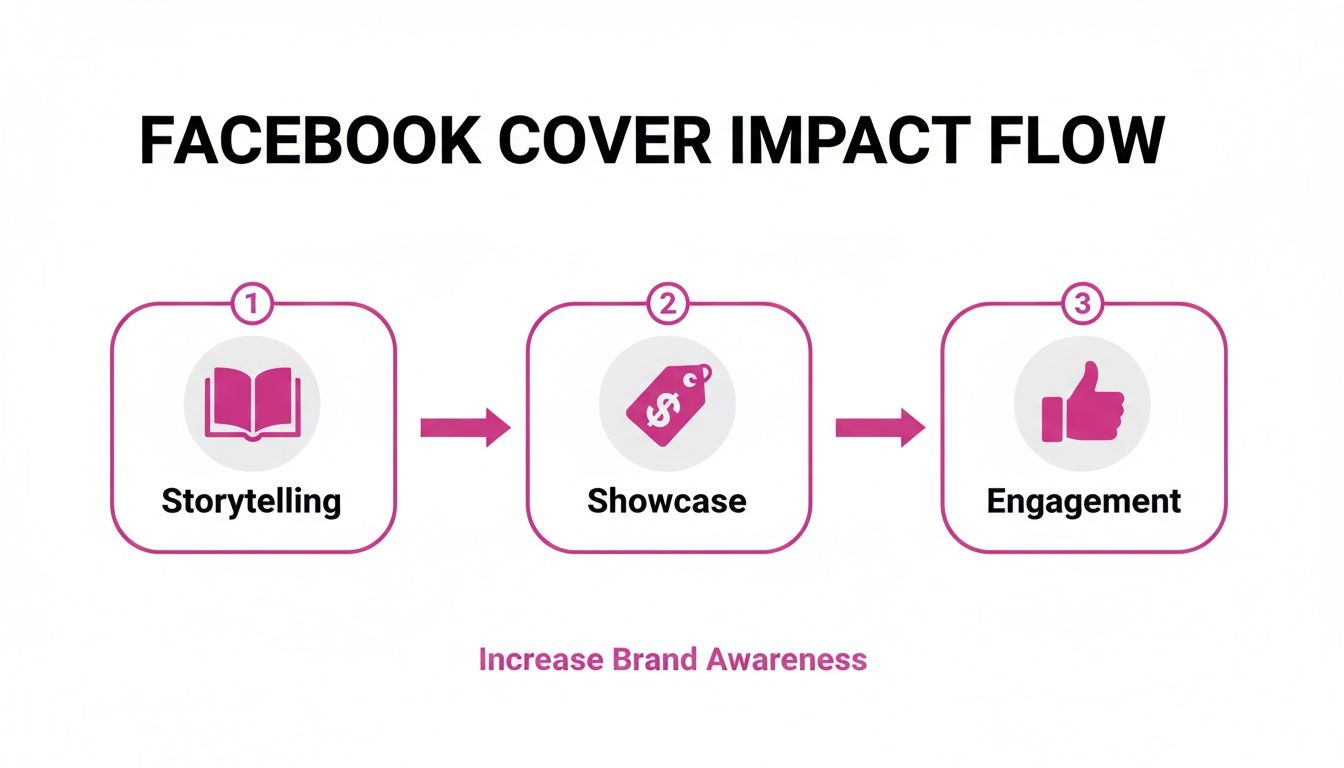
As you can see, your cover is a powerful tool for storytelling and showcasing what you're all about, which directly fuels more interaction from your audience.
To help you keep track of all the numbers, here's a quick cheat sheet. It’s a handy reference for making sure your cover collage is optimized for every screen.
Facebook Cover Photo Dimensions Cheat Sheet
| Display Type | Display Dimensions (Pixels) | Recommended Upload Size (Pixels) | Key Considerations |
|---|---|---|---|
| Desktop | 820 x 312 | 851 x 315 | The full width of your design is visible. |
| Mobile | 640 x 360 | 851 x 315 | Sides are cropped. Keep vital content in the center. |
| File Type | N/A | N/A | JPG or PNG. Use JPG for faster loading. |
| File Size | N/A | N/A | Keep it under 100KB to avoid heavy compression. |
Having these specs on hand will save you a ton of guesswork and make the whole process smoother.
Practical Tips for Perfect Sizing
Setting up your canvas correctly from the start saves so many headaches later on. It’s all about building a solid foundation for your collage.
Here's my go-to checklist:
- Start with 851x315 Pixels: Don't mess around with other sizes. Create your design file at these exact dimensions. This is the source file Facebook uses to resize everything, so you want it to be perfect.
- Keep File Size Under 100KB: To make sure your cover loads lightning-fast and doesn't get butchered by Facebook's compression algorithm, save your final collage as a high-quality JPG under 100KB.
- Visualize the Cropping: Always remember the left and right sides will get trimmed on mobile. You can find plenty of templates online that show you the safe zones. If you're looking for more control over sizing, you might find our guide on how to use an aspect ratio calculator (https://bulkimagegeneration.com/tools/aspect-ratio-calculator) helpful for this and other projects.
Using AI to Generate Your Collage Images
Alright, this is where the real fun begins. Forget spending hours digging through stock photo sites hoping to find the perfect image. With a bulk AI image generator, you can create a whole library of custom visuals in minutes. This completely flips the script on how you create a fb cover collage—you're no longer a searcher, you're a creator.
Let's say you run a local coffee shop. Instead of using the same generic photos everyone else has, you can generate exactly what you need with a simple text prompt: a flat lay of artisanal coffee beans, warm lighting, rustic wood background.
Or, if you're a tech brand, you could try something like: abstract geometric shapes in blue and silver, futuristic glow, minimalist.
This method allows you to churn out dozens of unique, high-quality images that are perfectly in tune with your brand’s personality. Advanced AI models like Flux 1.1 can understand natural language with incredible precision, turning what was once a multi-hour design chore into a quick, imaginative session.
Crafting Prompts That Actually Work
The magic is all in the prompt. A well-written prompt is the difference between a generic, unusable image and one that looks like it was professionally shot. The trick is to be descriptive without boxing the AI in too much.
Here are a few tips I've learned for writing effective prompts:
- Be Specific About the Subject: Don't just say "a dog." Try "a golden retriever puppy playing in a field of wildflowers."
- Describe the Style and Mood: Use words like "cinematic lighting," "vintage photo," "soft and dreamy," or "bold and graphic."
- Mention the Composition: Phrases like "close-up shot," "wide angle," or "symmetrical" give the AI clear direction on how to frame the image.
If you ever find yourself staring at a blank text box, a dedicated tool can get the creative juices flowing. You can get a feel for structuring your ideas with a free AI image prompt generator to get much better results from your descriptions.
Photo collages on Facebook covers are exploding for a reason: engagement. Research shows Facebook posts have an average engagement rate of 5.07%, outperforming both TikTok and Instagram. Photos, specifically, get 35% more likes and shares than posts with just text. By combining several images, you're telling a richer story that increases how long people look at your profile, which the algorithm loves.
From Prompt to Production-Ready Images
Once you’ve got a handful of prompts you're excited about, it's time to generate. A good bulk image tool can take all your prompts and create an entire gallery of options for you in a matter of seconds.
This is a total game-changer for workflow. You're no longer stuck generating one image at a time. You can experiment with different styles, subjects, and compositions all at once, giving you a huge pool of visuals to pick from for your collage.
When you're creating visuals, especially with AI, having a broader sense of how to use AI social media content creation is a massive advantage. It helps you think more strategically about how each image fits into your overall brand story.
The real win here is speed and variety. What used to take an entire afternoon of searching, downloading, and curating can now be done in the time it takes to drink your morning coffee. This frees you up to focus on what really matters—the creative strategy, composition, and branding of your Facebook cover.
Putting It All Together for a Professional Look
Okay, you've got a folder full of freshly generated images. Now for the fun part: bringing them all together into a single, knockout design. The real art here isn't just slapping photos onto a canvas. It's about telling a visual story that pulls the viewer's eye exactly where you want it to go. When you create fb cover collage designs, good composition is non-negotiable.
One of the biggest mistakes I see is when every image screams for equal attention. The result? A chaotic mess that leaves people confused. Instead, always start by picking your star player—the one image that grabs attention and holds it. Every other photo in the collage should be its supporting cast, not trying to steal the spotlight.
Think about a small business launching a new line of handmade soaps. The hero shot, the largest image, should be that gorgeous, flagship bar. Then, you can surround it with smaller photos showing the different scents, the creamy lather in action, or the natural ingredients. This gives context without creating visual noise.
Get a Cohesive Feel with Smart Edits
Making a dozen different images look like they belong in the same family used to be a painful, pixel-by-pixel process. This is where modern batch editors are a total game-changer. You can apply the same edits to all your images at once, ensuring they look perfectly matched.
Imagine you’re a photographer showing off a recent wedding shoot. The lighting is slightly different from the ceremony to the reception. Instead of tweaking each photo one by one in Lightroom, you can apply a consistent color grade or filter to the whole set with a single click. Boom—your collage instantly has that unified, professional vibe.
The real magic of batch editing is getting top-tier efficiency without compromising on quality. It's the secret to maintaining a consistent visual identity across your entire collage, which is absolutely critical for building a brand people recognize.
Real-World Scenarios for Batch Editing
Batch editing isn't just a fancy feature; it's a practical tool that saves an incredible amount of time. Here are a few ways you can put it to work on your own projects:
- For E-commerce: A clothing brand can use a batch background remover to put multiple products on a clean, consistent backdrop. This creates that sleek, minimalist look that makes the products pop.
- For Events: An event planner could apply the same high-energy, vibrant filter to all the photos from a recent conference. This ensures the mood and excitement feel consistent across every single shot.
- For Personal Brands: A consultant could use batch face swaps to place their professional headshot into a variety of business-themed scenes, creating a versatile library of images for their collage in minutes.
These tools give you a high-end, polished look without needing a graphic design degree. Tasks that once took hours in clunky software are now done before your coffee gets cold. And if you find yourself needing to resize a bunch of images to fit perfectly into your collage template, a good bulk image resizer will make that part of the workflow a breeze.
Design Your Collage to Boost Engagement
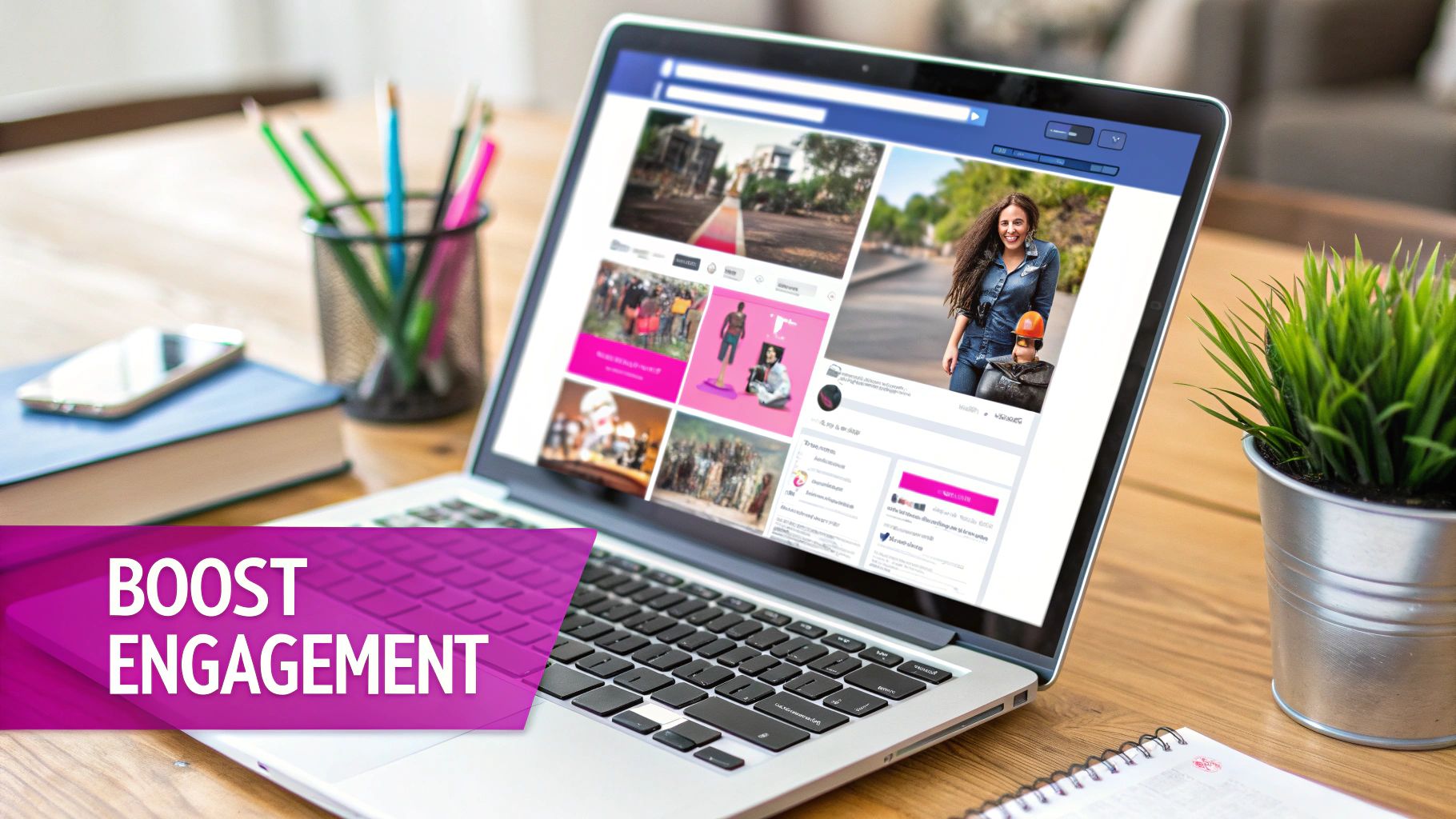
Your Facebook cover collage is so much more than just a placeholder at the top of your page. Think of it as prime real estate—a strategic tool that can grab attention, tell a story, and nudge visitors toward taking action. The goal is to turn that passive banner into an active part of your marketing funnel.
This means every design choice has to be intentional. Are you dropping a new product line? Your collage is the perfect spot to feature the top three items. Running a seasonal promo? Use images that nail that specific vibe and maybe add a subtle arrow pointing toward your call-to-action button. It’s all about guiding your visitor's journey from the moment they land on your page.
Weave In Authentic Design Trends
Let's be real: people are getting tired of overly polished, sterile AI visuals. Authenticity is what cuts through the noise now. This is where you can get creative with trends like 'Tactile Craft' or 'Naive Design'—styles that make your AI-generated images feel more human and less like they came off a digital assembly line.
This isn't just a hunch; it's a real shift. Google Trends data showed a massive spike in searches for 'cover photos for fb' in early 2026, signaling that people are hungry for fresh, collage-style designs again. It’s a direct reaction against those flawless AI images, pushing creators back toward raw, emotional aesthetics that mix Y2K digicam vibes with 80s magazine layouts. You can find more insights on these trends over at Accio.com.
Your cover collage shouldn't feel like a corporate billboard. When you embrace a more tactile, handcrafted look, you build an instant connection. It proves there's a real person behind the brand, and that's how you build trust.
Of course, this doesn't mean your design has to look amateurish. The sweet spot is using powerful AI tools to create your base images, then arranging them with a human touch that shows off your brand's unique personality.
Integrate Your Branding and CTAs
Your brand identity needs to be felt, not just seen. Instead of just slapping your logo in the corner and calling it a day, think about weaving your brand colors into the collage itself. This could be through the background, subtle photo filters, or even the clothes people are wearing in the images.
Subtle calls-to-action (CTAs) are your secret weapon here. Forget plastering "CLICK HERE" in giant letters. A simple, well-designed arrow or a visual cue pointing toward your "Shop Now" or "Sign Up" button can make a huge difference in your click-through rates.
Here are a few ideas to get you started:
- Color Harmony: Use your brand’s primary and secondary colors as the glue that holds the collage together.
- Subtle Logo Placement: Tuck your logo into one of the images naturally. Maybe it’s on a coffee mug, a t-shirt, or a product in the shot.
- Directional Cues: Use the composition itself to guide the eye. A person's gaze, the angle of an object, or leading lines in a photo can all point directly to your main CTA button without you having to say a thing.
When you connect your design choices to clear business goals, you create a fb cover collage that’s not just pretty—it becomes a hardworking asset for your brand.
Common Questions About Facebook Cover Collages
Even with the best tools and a clear plan, a few questions always seem to pop up right when you’re about to hit "upload." Honestly, getting these final details right can be the difference between a cover collage that looks okay and one that looks truly professional.
Let’s walk through some of the most common issues I see people run into. Getting these sorted will help you finalize your design with total confidence.
What Is the Best File Format for a Facebook Cover Collage?
This is the classic JPG vs. PNG debate, and the answer really depends on what’s in your collage.
For most collages heavy on photos, an sRGB JPG file is your best bet. It hits that sweet spot of vibrant color and a smaller file size, which is a huge deal for how quickly your page loads.
Facebook definitely prefers images that load fast, so keeping your file under 100KB is a pro move. While PNGs are fantastic for designs with sharp lines, logos, or text, they can create unnecessarily large files for photo collages and potentially slow things down.
How Often Should I Update My FB Cover Collage?
Think of your cover photo as a billboard, not a framed painting. There’s no single right answer, but a good rule of thumb is to refresh it quarterly or whenever you have a major business event. This keeps your page looking active and relevant.
Consider a quick update for things like:
- New Marketing Campaigns: A fresh cover can be the perfect way to announce a big promotion.
- Product Launches: Put your shiny new offerings right at the top where everyone can see them.
- Seasonal Promotions: A festive or seasonal design is an easy way to connect with what's on your audience's mind.
Just try to avoid changing it too often, like every week. You want to give visitors a chance to associate a strong visual with your page, and that consistency helps build brand recognition.
Can I Use AI-Generated Images for My Business Page?
This is a really important question, especially for businesses. The good news is, yes—images you create with a platform like Bulk Image Generation are typically cleared for commercial use. This means you can design completely unique visuals without getting tangled up in the confusing world of stock photo licensing or copyright claims.
Using AI for your collage isn't just about avoiding legal headaches. It’s about creative freedom. You can generate visuals that are perfectly tailored to your brand’s specific vibe, something that’s nearly impossible to find in generic stock photography.
Why Does My Collage Look Blurry After Uploading?
Ugh, the dreaded blurriness. It's one of the most frustrating problems, but it's almost always preventable. It usually comes down to one of three things: wrong dimensions, aggressive file compression by Facebook, or an incorrect color profile.
Before you upload, run through this quick checklist:
- Check Your Dimensions: Did you start your design on an 851x315 pixel canvas? If you upload something smaller, Facebook will stretch it out, and that's an instant recipe for blur.
- Watch the File Size: If your file is too big (we're talking over a few hundred kilobytes), Facebook will automatically compress it—hard. That compression kills quality.
- Use the sRGB Color Profile: Make sure your final image is saved with the sRGB color profile. It's the standard for web browsers and ensures your colors look right on screen.
Nailing these three points will solve blurriness 99% of the time, making sure your collage looks just as crisp as you designed it.
Ready to stop endlessly searching for stock photos and start creating unique visuals that actually tell your brand's story? With Bulk Image Generation, you can generate dozens of high-quality, on-brand images in seconds and edit them with powerful batch tools. Try Bulk Image Generation for free and transform your creative workflow today!
