Poster sizes pixels: A Quick Guide to Poster Dimensions

Ryan Bennett • January 5, 2026
Master poster sizes pixels with a concise, printer-ready guide - quick charts, DPI tips, and exact dimensions for flawless posters.
How many pixels do you need for a poster? It all comes down to where it's going to live. For a gorgeous, high-quality print, you'll want to pack in 300 pixels for every inch of paper. But if you're just whipping up a graphic for the web, a much leaner 72 pixels per inch will do the trick.
Why Pixels Are The Foundation Of Poster Design
Getting a handle on the relationship between poster sizes and pixels is what separates a stunning visual from a blurry mess. It’s the secret sauce for making designs that look sharp both on-screen and in your hands.
Every digital image you’ve ever seen is just a grid of tiny colored squares called pixels. The more of these squares you have in your design file, the more detail you can pack in, which directly translates to a crisp, clear printed poster.
This is where DPI (Dots Per Inch) comes in. Think of DPI as the translator that converts the pixels on your screen into physical dots of ink on paper. More dots crammed into each inch (a higher DPI) gives you a high-resolution, professional-looking image. Fewer dots (a low DPI) means the ink gets spread too thin, resulting in that dreaded pixelated, fuzzy look. This guide will cut through the jargon with straightforward charts and real-world advice to make sure every print comes out perfectly.
Connecting Digital Files to Physical Prints
I like to think of a digital file as a blueprint. If you want to build a solid, high-quality poster, that blueprint needs to have enough detail—enough pixels—for the final physical size. It's a non-negotiable part of the process.
Here's why it's so critical to get this right from the start:
- Prevent Blurry Prints: This is the most common pitfall. Someone grabs a low-resolution image from a website and tries to blow it up into a huge poster. It might look okay on a monitor, but it simply doesn't have enough pixel data to be printed sharply.
- Ensure Professional Quality: For anything that represents you or your business, from marketing posters to art prints, 300 DPI is the gold standard. Anything less, and you're gambling with the final quality.
- Streamline Your Workflow: Knowing the correct poster sizes in pixels before you even start designing saves a ton of time. No more going back for frustrating revisions or getting a box of disappointing prints from the printer.
Precision is everything when you're creating visuals at scale. Since 2022, AI has generated over 15 billion images, and a staggering 34 million new ones are created daily—many of which are designed for popular poster formats. For social media marketers, even using exact pixel dimensions can significantly boost engagement. If you're curious, you can discover more insights about the role of AI in image creation.
DPI's Critical Role In Poster Print Quality
If you want professional print results, understanding Dots Per Inch (DPI) is non-negotiable. DPI is a simple measure of density: it counts how many tiny ink dots a printer can squeeze into one square inch of paper. More dots mean a sharper, cleaner image. Fewer dots? You get a blurry, pixelated mess.
Think of it like building a mosaic. If you have thousands of tiny, tightly packed tiles (high DPI), you can create a stunningly detailed picture. But if you only use a handful of large, clunky tiles (low DPI), the final image will look blocky and amateurish up close. This is exactly how the relationship between poster sizes and pixels works in the real world.
The Three Tiers Of DPI Standards
Not every project needs gallery-level detail. The right DPI always comes down to the final use case—whether your image is destined for a screen or a high-end physical print. To get it right every time, you need to know the three industry standards.
Here's the breakdown:
- 72 DPI (Web and Screen): This is the standard for anything viewed on a digital display. It keeps file sizes small and load times fast, which is perfect for websites and social media. Never, ever use this resolution for printing.
- 150 DPI (Standard Prints): This is a decent middle ground, often acceptable for prints meant to be seen from a distance, like a large banner hanging across a room. It keeps file sizes manageable but sacrifices the fine details you'd notice up close.
- 300 DPI (Professional Quality): This is the gold standard for high-quality printing. At 300 DPI, the ink dots are so small and dense that the human eye can't distinguish them, resulting in crisp lines and photo-realistic images. Always use this for professional posters, art prints, brochures, and flyers.
To really nail this, you need to get the fundamentals right. There's a fantastic detailed guide on print quality that dives even deeper into these concepts.
From Screen To Print: A Visual Comparison
The difference between a 72 DPI and a 300 DPI print is night and day. A design that looks perfectly sharp on your 72 DPI monitor will look fuzzy and unprofessional when printed at that same resolution because the pixels are stretched too far apart on the physical paper.
Pro Tip: Always set your design canvas to 300 DPI before you start working. You can't magically add detail later by increasing the DPI of a low-resolution image. That just stretches the existing pixels, making the final result even blurrier.
For example, a small 8x10 inch poster needs a digital file that's 2400 x 3000 pixels to print beautifully at 300 DPI. If you tried to use a file that was only 576 x 720 pixels (the 72 DPI equivalent), the print would be a pixelated disaster. Thankfully, modern tools can automate these calculations, taking the guesswork out of the equation.
Poster Size To Pixel Conversion Chart (72, 150, 300 DPI)
This is your new go-to reference for poster design. Forget the guesswork—we've put together a simple, clean chart that maps all the standard poster sizes (both international A-series and common US formats) to the exact pixel dimensions you'll need.
Whether you're prepping a small A4 flyer for a local event or a massive 24x36 inch movie poster, this is where you start. Just find your poster's name, and you'll see its physical dimensions alongside the precise pixel counts required for web, standard printing, and high-quality professional prints.
How to Read the Chart
It couldn't be simpler. Find the poster size you're working with in the first column. From there, just slide across the row to find the pixel dimensions that match what you're trying to do.
- 72 DPI: Use this for digital-only stuff. Think website banners, email graphics, or social media posts. It's not for printing.
- 150 DPI: This is a good middle-ground for prints that will be seen from a distance. Large banners or posters hung high on a wall often work well at this resolution.
- 300 DPI: This is the undisputed industry standard for professional printing. If people are going to see your design up close—like a flyer, art print, or detailed advertisement—you need 300 DPI to get that crisp, sharp finish.
Let's say you're designing an 18x24 inch poster that needs to look amazing in a frame. You'd find that size in the table, look under the 300 DPI column, and see you need to set up your canvas at 5400 x 7200 pixels. Starting with the right numbers is everything.
Quick tip: You can't just add pixels to a low-res image later and expect it to look good. Always start your design with the final print resolution in mind to avoid a blurry, pixelated mess.
This chart is one of those things you'll want to bookmark. It's a foundational tool for any designer, marketer, or creator, helping you nail the technical specs from the very beginning and avoid those costly, frustrating print errors.
| Poster Size | Dimensions (Inches) | Dimensions (cm) | Pixels at 72 DPI | Pixels at 150 DPI | Pixels at 300 DPI |
|---|---|---|---|---|---|
| A4 | 8.3 x 11.7 in | 21 x 29.7 cm | 598 x 842 px | 1245 x 1755 px | 2490 x 3510 px |
| A3 | 11.7 x 16.5 in | 29.7 x 42 cm | 842 x 1188 px | 1755 x 2475 px | 3510 x 4950 px |
| A2 | 16.5 x 23.4 in | 42 x 59.4 cm | 1188 x 1685 px | 2475 x 3510 px | 4950 x 7020 px |
| A1 | 23.4 x 33.1 in | 59.4 x 84.1 cm | 1685 x 2383 px | 3510 x 4972 px | 7020 x 9945 px |
| 11x17 in | 11 x 17 in | 27.9 x 43.2 cm | 792 x 1224 px | 1650 x 2550 px | 3300 x 5100 px |
| 18x24 in | 18 x 24 in | 45.7 x 61 cm | 1296 x 1728 px | 2700 x 3600 px | 5400 x 7200 px |
| 24x36 in | 24 x 36 in | 61 x 91.4 cm | 1728 x 2592 px | 3600 x 5400 px | 7200 x 10800 px |
| 27x40 in | 27 x 40 in | 68.6 x 101.6 cm | 1944 x 2880 px | 4050 x 6000 px | 8100 x 12000 px |
A Guide to International Standard Poster Sizes
If you're designing for a global audience, you need to speak the universal language of paper sizes: the ISO 'A' series. It's the standard pretty much everywhere outside of North America, and it's built on a beautifully simple system. Each size is exactly half the area of the one before it—an A3 is half of an A2, an A2 is half of an A1, and so on, all while keeping the same aspect ratio.
This built-in logic makes scaling your designs a breeze. A layout you create for an A3 poster can be resized for a massive A0 display or a small A4 flyer with hardly any adjustments. Getting a handle on these standard poster sizes in pixels is your first step to producing professional work for international clients.
This chart gives you a quick visual breakdown of the pixel resolutions you'll need for web, standard, and professional print quality.
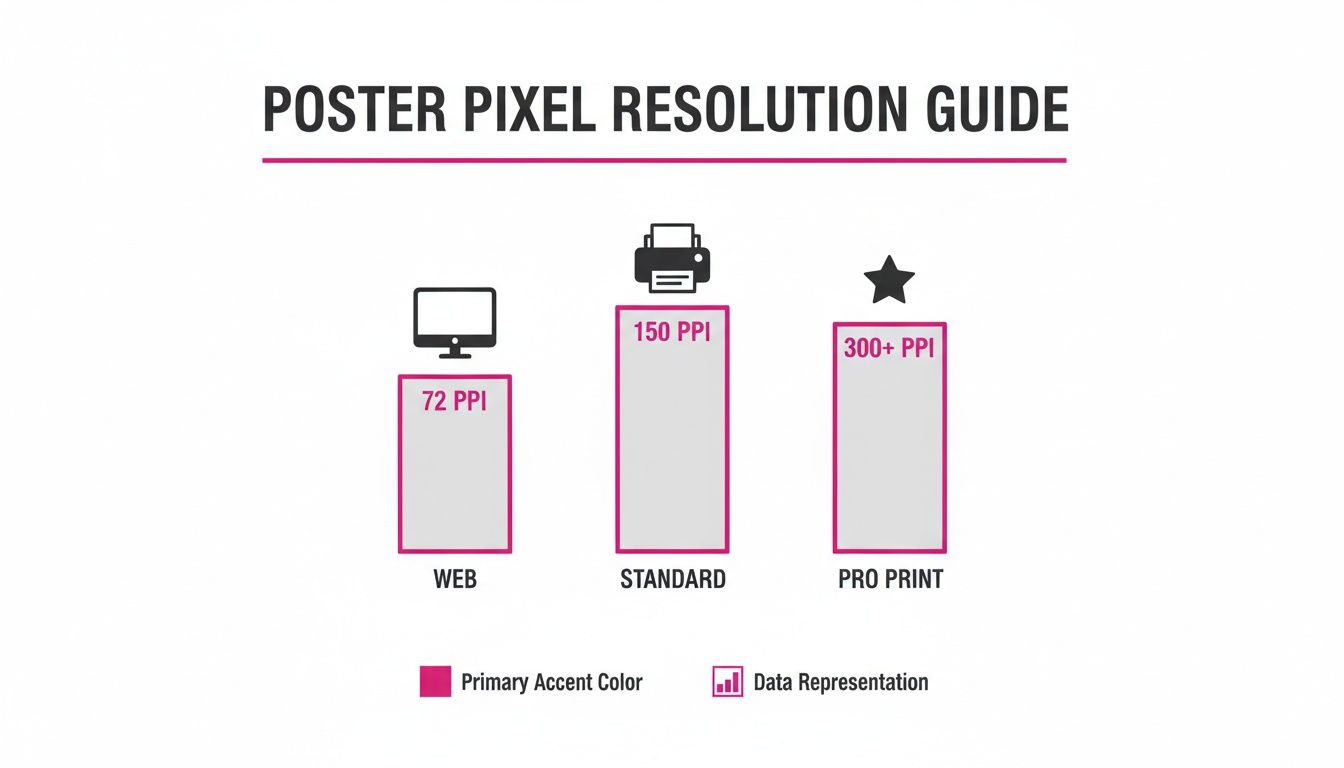
As you can see, jumping up to "Pro Print" at 300 DPI demands a whole lot more pixel data. It's a non-negotiable step if you want your final poster to look sharp and professional.
Common A-Series Poster Formats
The A-series technically goes from A0 all the way down to A10, but in the poster world, a few key sizes steal the show. Each one has its own common use case, from huge advertisements to smaller promos. Knowing where each size fits in helps you pick the right canvas for your project.
- A0 (33.1 x 46.8 in): This is the big one. A0 is reserved for high-impact visuals where every detail matters—think conference displays, scientific posters, and large-scale architectural plans.
- A1 (23.4 x 33.1 in): A very popular choice for event posters, retail window displays, and detailed informational charts. It's big enough to grab attention from a distance but still manageable for most indoor spots.
- A2 (16.5 x 23.4 in): The versatile middle child. A2 is perfect for art prints, smaller event announcements, and promotional posters you'd see in a café or community center. It strikes a great balance between impact and space efficiency.
- A3 (11.7 x 16.5 in): Often the largest size a standard office printer can handle, A3 is ideal for flyers, small promotional posters, and notices that need more detail than a regular letter-sized page.
A solid grasp of these sizes is also a must for massive projects. If you're designing something like a billboard, you're working with gigantic pixel counts. Check out our guide on using an AI billboard mockup generator to see how these same principles scale up to even larger formats.
Pixel Dimensions for A-Series Posters (at 300 DPI)
For any professional print job, 300 DPI is the gold standard. To hit that quality benchmark, your digital file has to start with the right number of pixels. This table lays out the exact pixel dimensions you'll need for the most common A-series poster sizes.
| Poster Size | Dimensions (Inches) | 300 DPI Pixels (Width x Height) |
|---|---|---|
| A0 | 33.1 x 46.8 in | 9930 x 14040 px |
| A1 | 23.4 x 33.1 in | 7020 x 9930 px |
| A2 | 16.5 x 23.4 in | 4950 x 7020 px |
| A3 | 11.7 x 16.5 in | 3510 x 4950 px |
Standardizing poster sizes in pixels has become critical for AI-driven bulk generation, a market expected to hit USD 1.435 billion by 2032. Print legacies like the ISO A-series, which have set benchmarks since the 1990s—like an A1 needing 7020 x 9930 pixels for 300 DPI—are now the digital foundation ensuring sharpness in automated AI outputs. You can learn more about AI image generator market trends and see how this is shaping modern design.
A Guide to Standard US Poster Sizes
While the rest of the world runs on the metric-friendly 'A' series, the North American market has its own set of standard poster dimensions. If you're designing for a US audience, you'll need to get familiar with these formats. They're deeply baked into everything from local print shops to Hollywood movie theaters.
Unlike the beautifully logical A-series where everything scales perfectly, US sizes are a bit more... unique. Each one evolved for a specific job. Getting the right poster sizes in pixels for these formats from the start will save you from the headache of costly reprints and awkward cropping later on.
Core US Poster Dimensions
A few key sizes handle most of the work in the United States. Once you know what they're typically used for, picking the right one for your project is a breeze.
- 11x17 inches (Tabloid): This is your workhorse. Often called "Tabloid" or "Ledger," it's a super cost-effective choice for things like street-level ads, event flyers, and info signs that need a bit more room than a standard piece of paper.
- 18x24 inches (Architectural C): This medium size hits a sweet spot between being noticeable without taking over a whole wall. It’s perfect for retail promotions, art prints, concert posters, and smaller trade show displays where you need your graphics to have some real presence.
Pro Tip: Always, always confirm the final print size with your client or printer before you even open your design software. A file set up for an 18x24 poster has a different aspect ratio than a 27x40 movie poster. You can't just scale it up without some serious rework.
Large Format and Cinematic Standards
When you need to make a big impression, especially in advertising or official movie promotions, two larger sizes are the undisputed industry kings. These demand huge pixel counts to stay sharp.
- 24x36 inches (Architectural D): Many people consider this the classic "poster size." It’s a favorite for big retail ads, major event promotions, and decorative art prints. Its clean 2:3 aspect ratio just looks good and gives you a massive canvas for your design.
- 27x40 inches (One-Sheet): This is the official standard for movie posters you see in theater lobbies. Its unique dimensions are instantly recognizable and almost exclusively used for promoting films.
Since 2022, AI has cranked out over 15 billion images, with many of them tailored for common print standards like US Letter (2550 x 3300 pixels at 300 DPI). In North America, which commands 41% of the AI market share, it's also common to see e-commerce stores using custom product posters at 2000 x 3000 pixels to make their listings pop. You can discover more insights about the AI image generator market to see how these standards are being put to use.
Pixel Requirements for US Poster Sizes (300 DPI)
If you're printing professionally, don't even think about using less than 300 DPI. It's the only way to guarantee your final product is crisp and sharp. Here’s a quick-reference table with the exact pixel dimensions you'll need.
| Poster Size | Dimensions (Inches) | 300 DPI Pixels (Width x Height) |
|---|---|---|
| 11 x 17 in | Tabloid | 3300 x 5100 px |
| 18 x 24 in | Architectural C | 5400 x 7200 px |
| 24 x 36 in | Architectural D | 7200 x 10800 px |
| 27 x 40 in | One-Sheet | 8100 x 12000 px |
How To Prepare Your Poster File For Printing
Knowing the right poster sizes in pixels is a great start, but it's only half the job. To make sure your design looks just as good on paper as it does on your screen, you have to prep the file with a few technical details in mind.
Getting these steps right is what separates a professional result from a disappointing one. It’s how you avoid common printing mistakes like unexpected white borders or colors that look dull and washed out.
Bleed, Trim, and Safe Area Explained
First thing’s first: you have to account for the physical reality of printing and cutting. Commercial printers are incredibly precise, but tiny shifts can happen when the machine trims hundreds of sheets of paper. This is where bleed, trim, and safe areas come in—they’re your design’s safety net.
These three guides work together to make sure nothing important gets accidentally chopped off.
- Trim Line: This is the edge of your finished poster. It’s the line where the printer will make the final cut.
- Bleed Area: Think of this as an extra border that extends beyond the trim line, usually by 0.125 inches (or 3mm). Any background colors or images must fill this area completely. If the cut is a fraction of a millimeter off, you'll still have solid color to the edge instead of an ugly white sliver.
- Safe Area: This is an inner margin, also typically 0.125 inches inside the trim line. Keep every bit of important text, your logo, or key graphics inside this zone. Anything inside the safe area is guaranteed not to be trimmed off.
Getting these margins right is absolutely fundamental. For a deeper dive, especially on larger formats, this guide to flawless A1 poster printing offers some excellent, detailed tips on the process.
Choosing The Right Color Profile
Another make-or-break step is setting the correct color profile. Your computer screen and a commercial printer create colors in completely different ways. Using the wrong profile is one of the most common reasons prints don't match what the designer saw on-screen.
RGB (Red, Green, Blue) is an additive color model made for digital screens. It works by mixing colored light, which is why designs can look so bright and vibrant on a monitor.
CMYK (Cyan, Magenta, Yellow, Key/Black), on the other hand, is a subtractive model built for printing. It creates color by mixing physical inks that absorb light. To get the most accurate color possible in the final print, always set your design document's color profile to CMYK before you even start.
Selecting The Best File Format
Finally, the way you save and export your file really matters. When it comes to preserving quality for a professional print job, not all formats are created equal.
The undisputed industry standard for submitting print-ready files is a high-resolution PDF (Portable Document Format). PDFs are fantastic because they embed all your fonts, images, and color profile information into a single, locked file. This ensures your design looks exactly the same no matter who opens it, and prints just the way you intended.
While PDF is king, a couple of other formats are also solid choices:
- TIFF (Tagged Image File Format): A lossless format that doesn't compress or discard any image data. It’s a great option for high-quality photographs where every detail counts.
- EPS (Encapsulated PostScript): An older vector format that's still widely supported. It’s perfect for logos and graphics that need to be scaled without losing any quality.
Optimizing Poster Designs For Digital Platforms
Taking a high-resolution poster from print to digital involves a lot more than just saving a smaller file. Every social media platform and website has its own preferred poster sizes in pixels and aspect ratios, and getting them right is the key to making your design look sharp and engaging on screens of all sizes. A poster that looks amazing in a frame can end up awkwardly cropped or horribly compressed online if you don't adapt it properly.
We live in a mobile-first world, and that means vertical formats are king. Your classic 24x36 inch print poster has a 2:3 aspect ratio, but platforms like Instagram and TikTok are built for taller, narrower content. For example, the 1080 x 1920 pixels (a 9:16 aspect ratio) format is the undisputed standard for Stories and Reels. It fills the entire smartphone screen, giving your design the maximum possible impact.
Key Dimensions For Top Social Platforms
When you start repurposing your poster for the web, focus on hitting these key pixel dimensions. It’s the difference between looking amateur and looking professional.
- Instagram & Facebook Stories/Reels: The gold standard here is 1080 x 1920 pixels. This is non-negotiable for grabbing attention in these full-screen, immersive formats.
- Instagram Feed Posts: To take up the most screen real estate on the main feed, go with a vertical post at 1080 x 1350 pixels (a 4:5 ratio). It consistently outperforms square or landscape posts.
- Pinterest Pins: Pinterest is another platform that heavily favors vertical images. An image sized at 1000 x 1500 pixels (a 2:3 ratio) is perfect for visibility and is far more likely to get repinned.
Beyond the dimensions, you have to watch your file size. Huge files mean slow load times, which frustrates users and can even hurt your SEO. As a rule of thumb, export your web graphics as JPEGs or PNGs and try to keep the file size under 500 KB without any obvious loss in quality.
Juggling all these different requirements for each platform is a massive time sink. Manually resizing one design into five or six different formats is the kind of repetitive work that kills productivity and slows down your entire marketing campaign.
Thankfully, you don't have to do it all by hand. Modern design tools can automate this whole process. Instead of manually cropping and exporting each version one by one, you can use a bulk image resizer to instantly transform your master poster design into perfectly optimized formats for every social channel you need. It's a simple move that saves a ton of time and keeps your brand looking consistent everywhere online.
Common Questions About Poster Sizes And Pixels
Once you’ve got the technical details down, a few common questions always seem to pop up when it's time to turn a digital design into a physical poster. Nailing the answers on poster sizes and pixels is what separates a smooth project from a last-minute headache.
Think of this section as a final sanity check before you hit "send" to the printer. We'll cover the most frequent hurdles designers run into, making sure you can get a flawless final product every single time.
What Happens If My DPI Is Too Low For My Poster Size?
Simply put, if your file’s DPI is too low for your print size, the poster will look blurry, pixelated, or "blocky." This happens because each tiny pixel in your digital file gets stretched to cover a much larger physical area, making the individual squares of color visible to the naked eye. Once it's printed, there's no going back.
For example, an image at 1080 x 1920 pixels looks great on a screen, which typically operates at 72 DPI. But if you try printing that same file as a big 24x36 inch poster, the effective resolution plummets. The result? A low-quality, unprofessional-looking print. To avoid this disaster, always design your print files at 300 DPI from the start.
Can I Increase The DPI Of A Low-Resolution Image?
While your design software will let you change the DPI value of an image, it can't magically invent detail that isn't there. When you try to "upscale" a low-resolution image, the software is essentially guessing what the new pixels should look like based on the ones around them. This process, called interpolation, nearly always leaves you with a soft or blurry image.
It's always best to start with a high-resolution source file. While some modern AI enhancement tools are getting better at upscaling images, they're no substitute for a file that was high-resolution to begin with.
What Is The Best File Format For Poster Printing?
For professional printing, PDF and TIFF are the two formats you can trust. They each have a specific job, and both are designed to keep your artwork pristine.
- PDF (Portable Document Format): This is the undisputed industry standard for a reason. It perfectly preserves vector elements, embeds fonts, and locks in your layout and color profiles (like CMYK), so it looks identical no matter who opens it.
- TIFF (Tagged Image File Format): This is a lossless format, which means it holds onto every last bit of original image data without any quality loss from compression. It’s the perfect choice for highly detailed photographs or intricate artwork.
JPEGs are everywhere, but they use "lossy" compression, which throws away data to make the file smaller. If you absolutely have to use a JPEG, make sure you save it at the highest possible quality setting to minimize the damage.
How Do I Manually Calculate Poster Sizes In Pixels?
The math to figure out the right pixel dimensions is actually pretty straightforward. Just multiply the poster's width and height in inches by your target DPI.
Let's take an 18x24 inch poster that needs to be printed at 300 DPI:
- Width in Pixels: 18 inches × 300 DPI = 5400 pixels
- Height in Pixels: 24 inches × 300 DPI = 7200 pixels
So, your final image file needs to be 5400 x 7200 pixels to guarantee a crisp, professional print. You can use this exact formula for any poster size or DPI you need.
Ready to create stunning visuals without the manual effort? Bulk Image Generation uses powerful AI to generate hundreds of high-quality, perfectly sized images in seconds. Stop wrestling with pixels and start creating at scale by visiting https://bulkimagegeneration.com.
