
Bulk Image Background Remover: A Practical 2026 Guide

Ryan Bennett • September 28, 2026
Learn how a bulk image background remover works, the best workflows for batch editing in 2026, pricing at scale, and pitfalls to avoid when processing hundreds
At midnight, a folder of product photos can feel heavier than a full campaign. You've got hundreds of images waiting for clean cutouts, storefront copy already written, and stakeholders asking whether the new listings are live. Removing each background manually in Photoshop is often the slowest part of the job, while outsourced clipping can produce inconsistent edges, halos, and color spill that remain visible across an entire catalog.
A bulk image background remover solves the throughput problem, but it doesn't eliminate production work. It moves the work from repeated masking into input preparation, routing, quality control, pricing, and exception handling. That tradeoff is where most real-world results are decided.
Background removal has also become a scaled commercial category. One market estimate valued the Image Background Remover Market at USD 1.40 billion in 2025, with a projection of USD 2.34 billion by 2032, at a projected CAGR of 7.58%, according to 360iResearch's market estimate. The practical question isn't whether automation exists. It's whether your workflow can use it without creating a second, more expensive cleanup queue.
The Midnight Stack of Cutouts
At midnight, a designer opens a folder of 400 product photographs. The deadline is the next morning, the marketplace requires isolated product images, and “quick” follow-ups keep arriving. Masking one image may take only a few minutes. Repeating that task across a full folder can consume the night.
That pressure is the practical reason batch tools exist. Product launches, marketplace uploads, model changes on category pages, and seasonal lookbooks all create repeated cutout work. A bulk image background remover converts the folder into a processing job, reducing repeated selection, refinement, and export actions. The time saved comes from removing repetition, not from eliminating production decisions.

Background removal is a frequent editing operation. Magic Eraser's 2026 photo-editing research report records background removal at 27.8% of edits, with a median processing time of 1.2 seconds and a 95th-percentile time of 2.8 seconds. Those figures come from Magic Eraser's 2026 photo-editing research report. Fast processing matters at catalog scale, but throughput alone does not determine the cost. Failed cutouts create a second queue for review, repair, and re-export.
The hidden handoff
Batch processing moves the first pass forward. It does not make every output publication-ready. A system may remove a thin strap, clip a shoe edge, retain a gray halo from the original backdrop, or classify a soft shadow as background.
Production rule: Treat the automated result as a draft until it passes a deliberate visual check.
Route files by risk. Clean catalog shots can use a fast batch path. Reflective packaging, transparent objects, hair, fur, and complex shadows deserve a stronger model or manual review. This routing usually saves more time than selecting a tool because its demo looks impressive. It also makes per-image effort visible, since exceptions consume labor that a headline processing speed does not show.
The underlying technology has developed over decades. Image segmentation research reaches back roughly 40 years, and the Roberts edge detector appeared in 1965 as an early computer-based method for separating image components, according to 360iResearch's background-removal market overview. Modern batch systems apply that history to production folders, where the test is consistent output under deadline pressure.
How Background Removal Actually Works
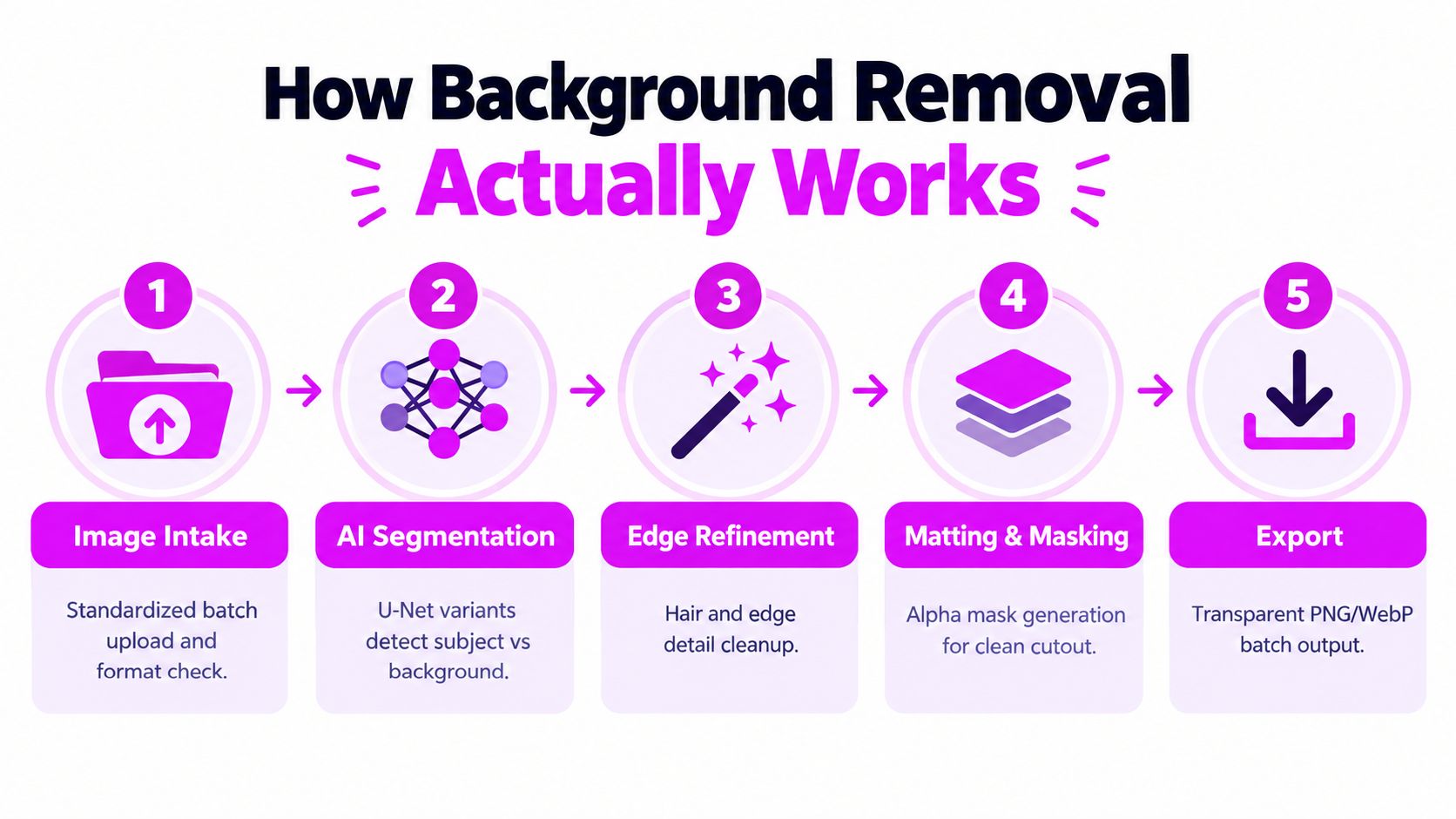
A bulk remover turns each file into a prediction, then an export. The practical question is not whether it can erase a backdrop, but where that prediction will fail and how much review each failure creates.
From pixels to a foreground mask
The model first examines the image and estimates which pixels belong to the subject. Segmentation architectures such as U-Net variants and transformer-based matting networks are commonly used for this foreground estimate. Their output is a mask, with each pixel assigned to the foreground, background, or an intermediate state.
A binary mask suits a product with a clean silhouette on a plain backdrop. It has less information to work with around hair, glass, smoke, fine fabric, and translucent packaging, where an edge may be partly visible rather than fully present or absent.
Edge refinement, often called alpha matting, handles those uncertain pixels. Instead of making a hard keep-or-remove decision, the system estimates partial transparency around the boundary. A strand of hair or a soft product edge can then blend more naturally against a replacement background.
A production pipeline still needs mask cleanup and edge refinement after the first prediction. In the benchmark discussed in this arXiv segmentation study, representative methods generally exceeded 90% mIoU, precision, and recall across controlled and unconstrained benchmarks, while lightweight models including BiSeNetV2 and Fast-SCNN could perform materially worse. For catalog work, a small defect repeated across hundreds of files becomes a visible brand problem and adds correction time to the apparent low cost per image.
What you actually receive
The standard output is an RGBA image with red, green, blue, and alpha channels. The alpha channel records transparency. Some systems also provide a separate mask, confidence data, or processing metadata, which can help send uncertain files into a review queue instead of treating every result alike.
Chroma keying follows a different rule. It removes a known color range, such as green, while learned segmentation estimates the subject from its shape and visual context. Chroma keying performs well in a controlled studio, but it is a poor substitute when source backgrounds vary.
For ordinary product images, model fit usually matters more than graphics hardware. Match the model to the subject, edge complexity, and lighting. A fast model that mishandles reflective packaging can cost more through manual correction than a slower model with cleaner masks. If the same marketing workflow includes sound extraction from product demos, free software for audio extraction can keep that separate media task out of the image-processing queue.
A Practical Batch Workflow
A reliable batch run starts before the first upload. Create a working copy of the source folder, preserve the originals, and use filenames that carry enough information to trace an output back to its source. Product ID, view, and revision are more useful than camera-generated names.
Prepare and route the folder
Standardize dimensions where possible, but don't enlarge small originals to make a batch look uniform. Keep a record of the source resolution, file format, and intended destination. A marketplace thumbnail, a product detail page, and a print asset may need different exports.
Then split the folder into practical groups:
- Clean catalog images with a clear subject and simple backdrop.
- Edge-sensitive images containing hair, fur, thin straps, mesh, or translucent materials.
- Context-dependent images where shadows, reflections, or a surface may need to remain.
- Uncertain files that deserve manual inspection before automation.
Send the first group through the fastest dependable route. Route the difficult groups to a model with stronger matting or a manual queue. This is more efficient than forcing one model to handle every image and then correcting its weakest cases later.
For automated work, a Python or Node script can call an API in chunks. The useful features aren't flashy. Add retries for temporary failures, checkpoint completed files, preserve the original filename in the output metadata, and write a failure log. A batch that stops halfway without telling you is more dangerous than a slower batch that reports every result.

Verify before committing the full export
Run a small pilot first. Inspect simple products and difficult edges, then adjust the model, background fill, shadow treatment, or output dimensions before processing the entire folder.
For a larger job, spot-check the first 10% of results as an operating rule, then compare selected outputs with a trusted reference cutout. This isn't a claim about model accuracy. It's a practical control against a bad preset propagating through the entire batch.
You can also automate secondary actions, such as applying a white fill, preserving a soft shadow, or exporting a WebP derivative. Keep those steps separate from the mask itself so you can re-export without rerunning the expensive or time-consuming part.
Teams building a more general batch automation layer may find the RenderIO batch processing docs useful for thinking through chunking, job status, and failure handling. For broader production planning, the batch editing photos guide provides a useful adjacent framework for organizing repeatable image operations.
What Bulk Really Costs Per Image
The advertised per-image price is only one part of the bill. A realistic calculation includes compute, human review, and rework.
Compute covers model inference, storage, and transfer. Human review includes checking masks, correcting exceptions, and deciding whether shadows or surface context should stay. Rework includes failed uploads, incorrect defaults, re-exports, and files that need to be processed again because the output format or resolution was wrong.
Public pricing comparisons show why volume changes the decision. Across 30 paid background-removal tools, a 2026 comparison found a median comparable price of $0.03998 per image at 500 images and $0.02999 per image at 5,000 images. The lowest comparable option in one tier was $0.018 per image, according to Claid's background-removal cost comparison.
| Volume Tier | Tool Type | Compute Cost | QA + Rework | True Cost/Image |
|---|---|---|---|---|
| Small batch | Web app or credits | Headline rate may dominate | High relative impact from manual exceptions | Often higher than the advertised rate |
| Recurring catalog work | Subscription or API | Tiered usage can reduce the unit price | Depends on routing and review discipline | Usually lower when defaults are stable |
| Large archive | API or self-hosted workflow | Usage, storage, and transfer become material | Automated logging and sampling matter most | Determined by total pipeline cost |
A free tier can still consume paid labor if the output needs rescue. Likewise, a low credit price isn't automatically economical if it produces halos that force a retouching pass. The right question is total monthly cost divided by accepted outputs, not the nominal price shown on the upload screen.
For 200 product images, convenience may matter more than scripting. For a 5,000-image catalog refresh, batch limits, export behavior, and review time become central. For a 50,000-image archive migration, an API or local pipeline is usually easier to govern because you can checkpoint jobs, repeat settings, and measure rejected outputs.
Web Apps vs Desktop vs API Pipelines
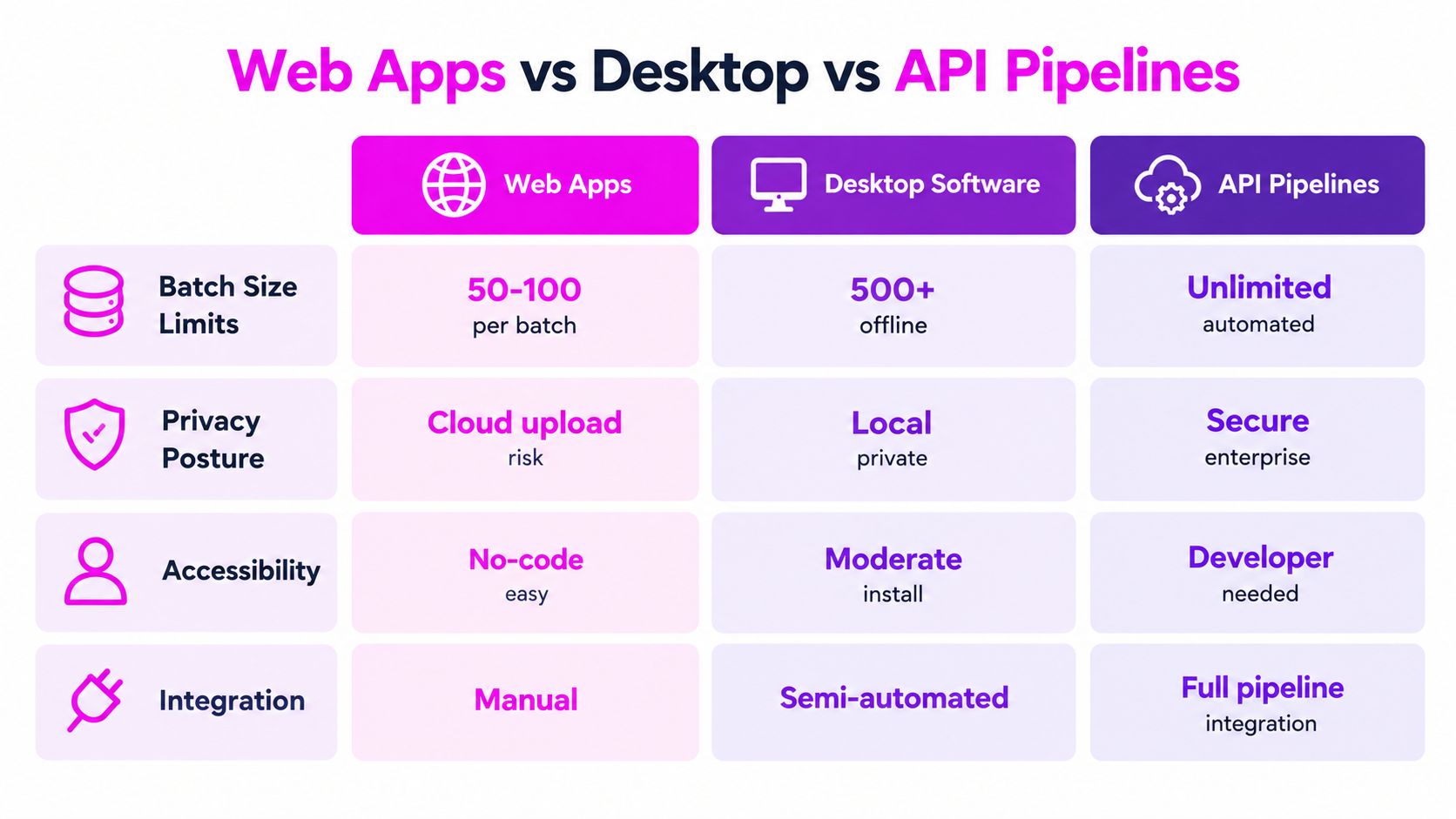
The delivery method determines how much operational control you get. A web app is easiest to start with, desktop software keeps more of the workflow on your machine, and an API pipeline offers the strongest automation at the cost of technical setup.
Web apps
Tools such as remove.bg, PhotoRoom, and Canva are attractive because there's little setup. A freelancer can upload images, review previews, and download outputs without writing code. Independent coverage of online background removers highlights meaningful differences in batch access, with some providers supporting batches of 20 images and others reaching 250 images at once, as described in PhotoRoom's 2026 e-commerce background-remover review.
The drawback is operational dependence on the provider. Files leave your computer, batch caps may interrupt large jobs, and downloading or renaming outputs can become manual. Confirm whether the service offers transparent PNG, white-fill JPEG, mask downloads, API access, and a usable failure report before committing a catalog to it.
Desktop software
Desktop workflows, including Photoshop actions and dedicated batch editors, are useful when source files are sensitive or when operators need direct control. They keep the work local, but the process remains tied to the computer, installed software, available storage, and a person who can notice stalled jobs or malformed exports.
A desktop tool is a reasonable fit for a small studio with a predictable folder structure. It's less comfortable for nightly catalog synchronization because someone may still need to monitor folders, resolve errors, and move finished files into the next system.
API pipelines
An API, a self-hosted model such as rembg, or a cloud function turns background removal into a repeatable service. A developer can connect it to a product information system, run it on a schedule, preserve job logs, and send failed files to a review queue.
That flexibility creates responsibilities. You'll need retry logic, authentication management, rate-limit handling, output validation, and a plan for files the model can't process cleanly. Privacy also requires attention. A 2026 roundup identified tools that process images client-side and claim no-signup, no-watermark bulk runs, while other workflows use server-side APIs or desktop software, as discussed in Atomm's background-remover roundup.
For a freelancer handling 100 images per week, a web app may be the sensible choice. An agency running nightly syncs should consider an API or self-hosted workflow. If the images are regulated or commercially sensitive, local desktop processing is the safer middle ground unless an API provider can satisfy your security requirements. If your workflow also generates assets or print materials, a tool such as this best QR code generator for prints can sit beside the image pipeline without forcing QR creation into the background-removal step. Teams exploring programmatic creative workflows can also review this image generation API guide.
When Removing Backgrounds Hurts Your Results
Transparent output isn't automatically better output. A clean cutout can remove the visual information that helped a customer understand the product, its scale, or its intended use.
Product photography is the clearest example. A ground shadow can show contact with a surface, while a subtle gradient can communicate depth and material. Remove both, and the item may look like it's floating. For some storefronts, preserving the original floor, shadow, or controlled studio context will create a more credible image than placing the subject on a flat white background.
Edge damage is easy to miss
Portraits and character images create another trap. Binary masks often chew through flyaway hair, translucent strands, soft fabric, and semi-transparent accessories. The result may be technically transparent but visually artificial, with a rigid outline that resembles a sticker.
Reflective products can fail for a different reason. Glass, polished metal, and clear packaging may contain background information inside the object itself. A model that removes aggressively can erase reflections that define the product's shape.
The same caution applies to archival and artistic imagery. If the original composition is the point, isolating the subject can make the frame feel empty and amateurish. A selective mask, preserved shadow, or contextual surface may serve the final design better than a full cutout.
A benchmark comparison supports the need for use-case validation. On FashionStyle14, background removal improved classification accuracy by up to 5% for simple models trained from scratch, while on Fashionpedia semantic segmentation it slightly reduced performance. For Swin-B, performance moved from 31.98% mIoU on original images to 31.74% mIoU after background removal, according to the relevant arXiv benchmark.
Decision rule: Define the downstream job first. If the image needs subject isolation, remove the background. If it needs realism, scale, or context, preserve part of the scene.
Pitfalls and a Final Checklist
The cheapest batch is the one you don't have to run twice. Before processing a folder, confirm that the source dimensions, file naming, color profile, and intended output format are consistent enough for the destination.
Use PNG with alpha when another designer may need to re-edit the cutout. Use a JPEG with a white or approved color fill when the catalog system doesn't support transparency. Don't assume a transparent PNG is the correct final delivery format because the remover produces one.
Preflight checks
- Inspect thin edges: Look at straps, wires, hair, fur, mesh, and small product details.
- Check color spill: Saturated backdrops can leave unwanted color around the subject.
- Preserve resolution: Don't let a low-resolution export replace a large source and introduce blur.
- Track batch IDs: Keep filenames or metadata that connect every output to its source run.
- Confirm completeness: Compare the input count with the successful output count and review the failure log.
- Test difficult materials: Glass, mirrors, translucent packaging, and reflective surfaces need special attention.
- Protect context: Decide whether shadows, floors, reflections, or gradients belong in the final image.
Start with a small pilot and inspect it before launching the full job. After processing, perform a side-by-side review of a random sample, then send rejected frames to a documented fallback path, such as a stronger matting model or manual retouching.
For a deeper operational framework, use this guide to best practices for quality assurance when defining sampling, naming, approvals, and exception handling. A bulk image background remover earns its place in production when it reduces accepted-output time, not when it merely reports a fast processing speed.
Bulk Image Generation helps teams create and prepare image sets at scale, including batch editing tasks such as background removal, resizing, face swaps, and enhancement. Visit Bulk Image Generation to turn repeatable image production into a more organized workflow, then test a small batch before committing your next catalog or campaign.