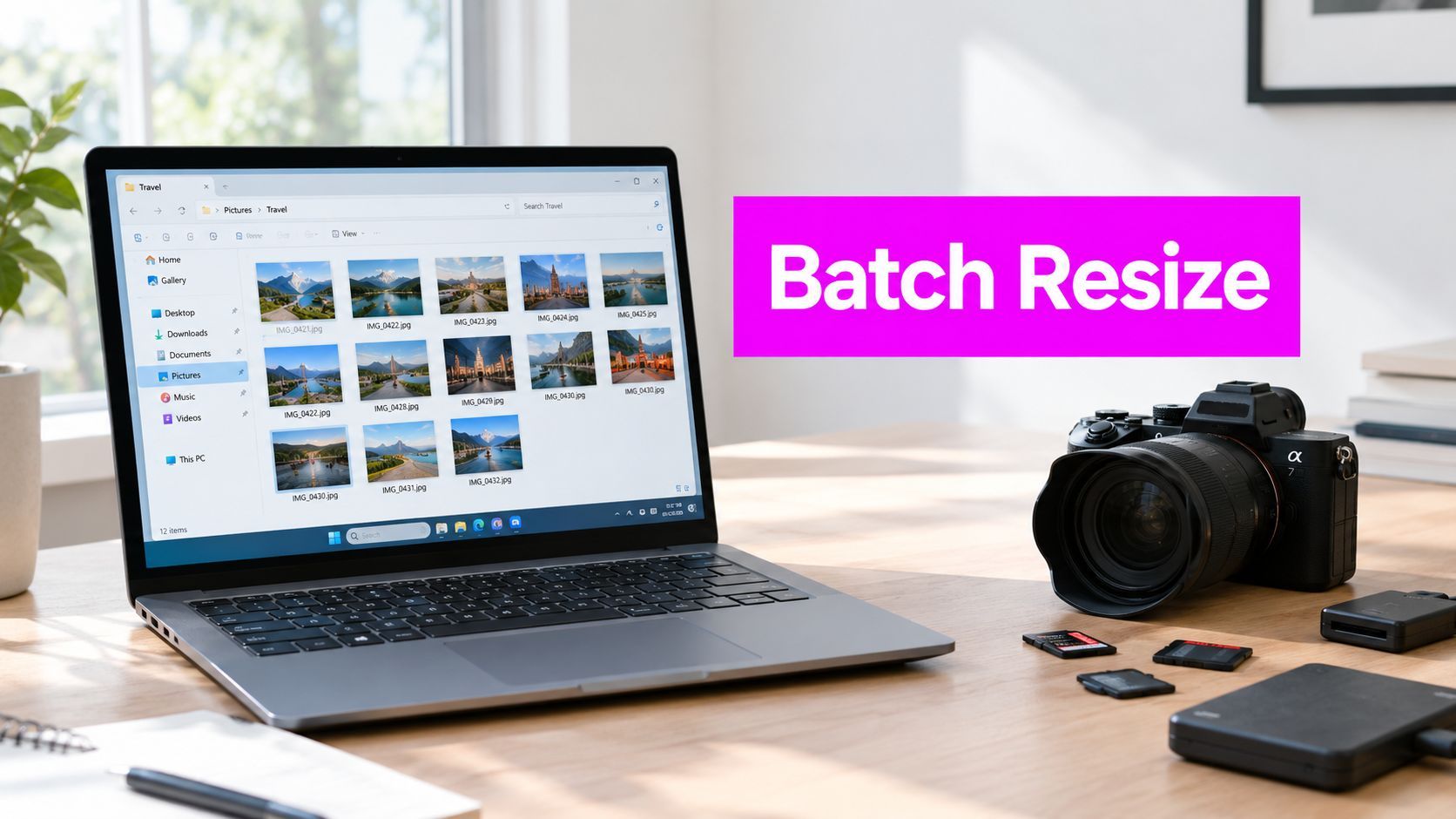
10 Batch Image Resizer for Windows Tools

Ryan Bennett • September 22, 2026
Compare the best batch image resizer for windows tools, from PowerToys and IrfanView to ImageMagick, with features, trade-offs, and usage tips.
You've got a folder full of product photos, social graphics, screenshots, or AI-generated visuals, and resizing them one at a time is already wasting time. The problem isn't finding a tool that can make an image smaller. It's choosing one that fits the actual workflow, including your formats, output quality, batch size, automation needs, licensing, and whether you need resizing alone or a broader editing pipeline.
This comparison organizes ten batch image resizer for Windows options by how people work. Some are built for an instant File Explorer action. Others handle guided desktop batches, chained edits, catalogs, or scripted production pipelines. A browser-based option can be faster for a quick JPG, PNG, or WebP job, while a command-line tool makes more sense when the same image variants must be created repeatedly.
AI workflows also change the decision. Bulk Image Generation combines image creation with batch post-processing, so it can complement a conventional resizer when you need background removal, enhancement, or other edits after generating assets. It isn't a universal replacement for established Windows utilities, but it can remove several manual steps from content production.
1. Bulk Image Resizer for Windows
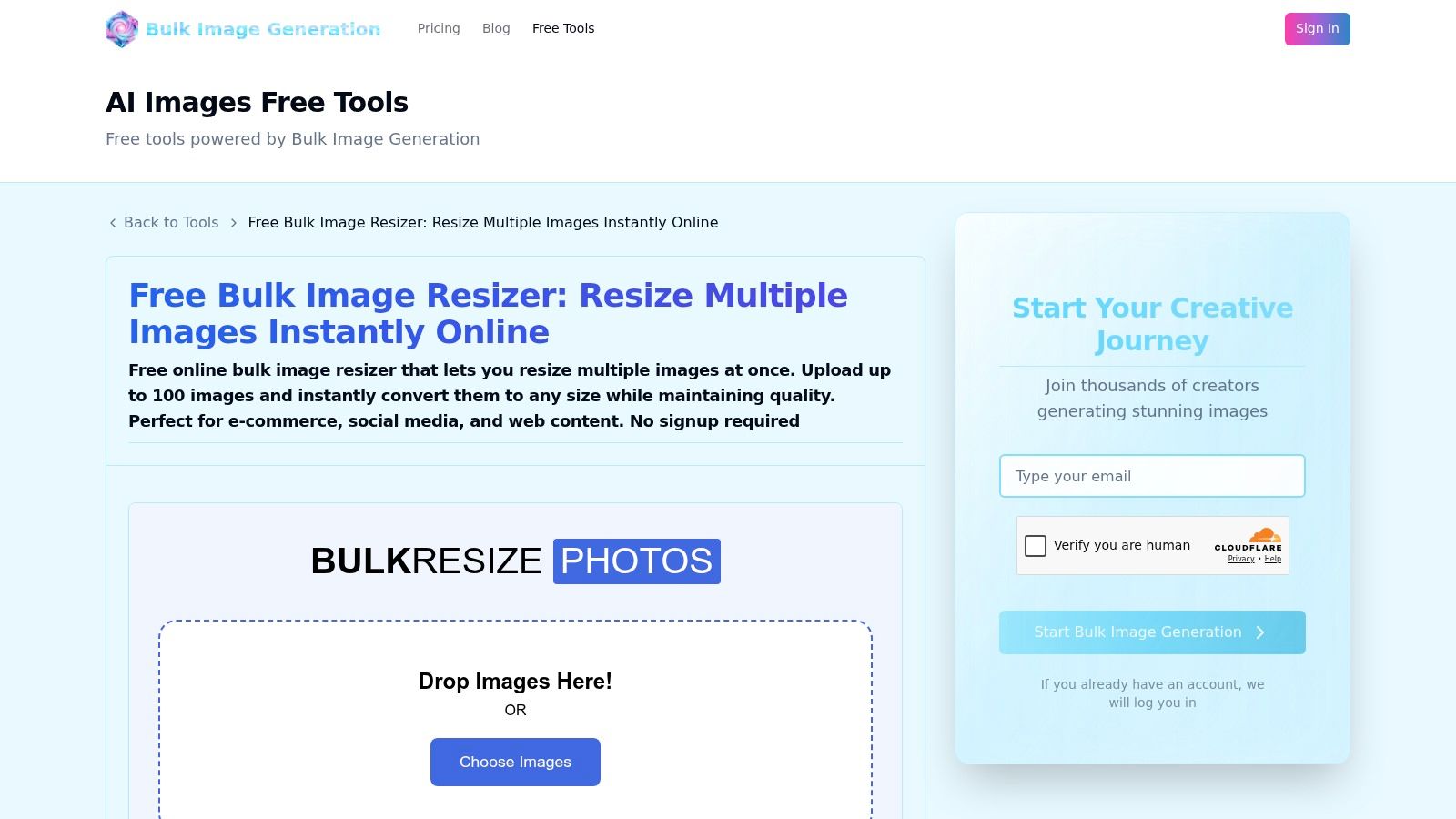
For a quick browser-based job, Bulk Image Resizer is the most direct option in this list. It runs without a Windows installation and is designed for resizing JPG, PNG, and WebP files in batches. You choose dimensions and output quality, upload the folder contents, then download the processed files as a single ZIP.
The workflow suits ecommerce teams preparing product images, marketers creating social variants, and small businesses that don't want to open a full desktop editor for a simple transformation. The tool supports up to 100 images per batch, with a maximum file size of 10 MB per image, according to the product specification. Those limits make it practical for ordinary publishing queues, although very large shoots or uncommon formats will need another solution.
Where it works best
The strength is the short path from mixed source folder to downloadable output. You don't need to configure a desktop profile, learn a command syntax, or manage separate exports for every file. The ZIP download also keeps the result together for handoff or upload.
Practical rule: Use a browser resizer when the job is well-defined, the formats are supported, and you want the output without adding another Windows application.
The limitation is just as clear. This is primarily a bulk sizing and quality tool, not a per-image retouching environment or a built-in API workflow. If your images need background removal, enhancement, or other advanced post-production, the wider batch photo resize workflow is more useful than treating resizing as the entire production process. The platform can also support follow-up work such as batch editing professional headshots, but teams with TIFF, RAW, or highly customized automation requirements should choose a desktop or CLI alternative.
2. Microsoft PowerToys Image Resizer
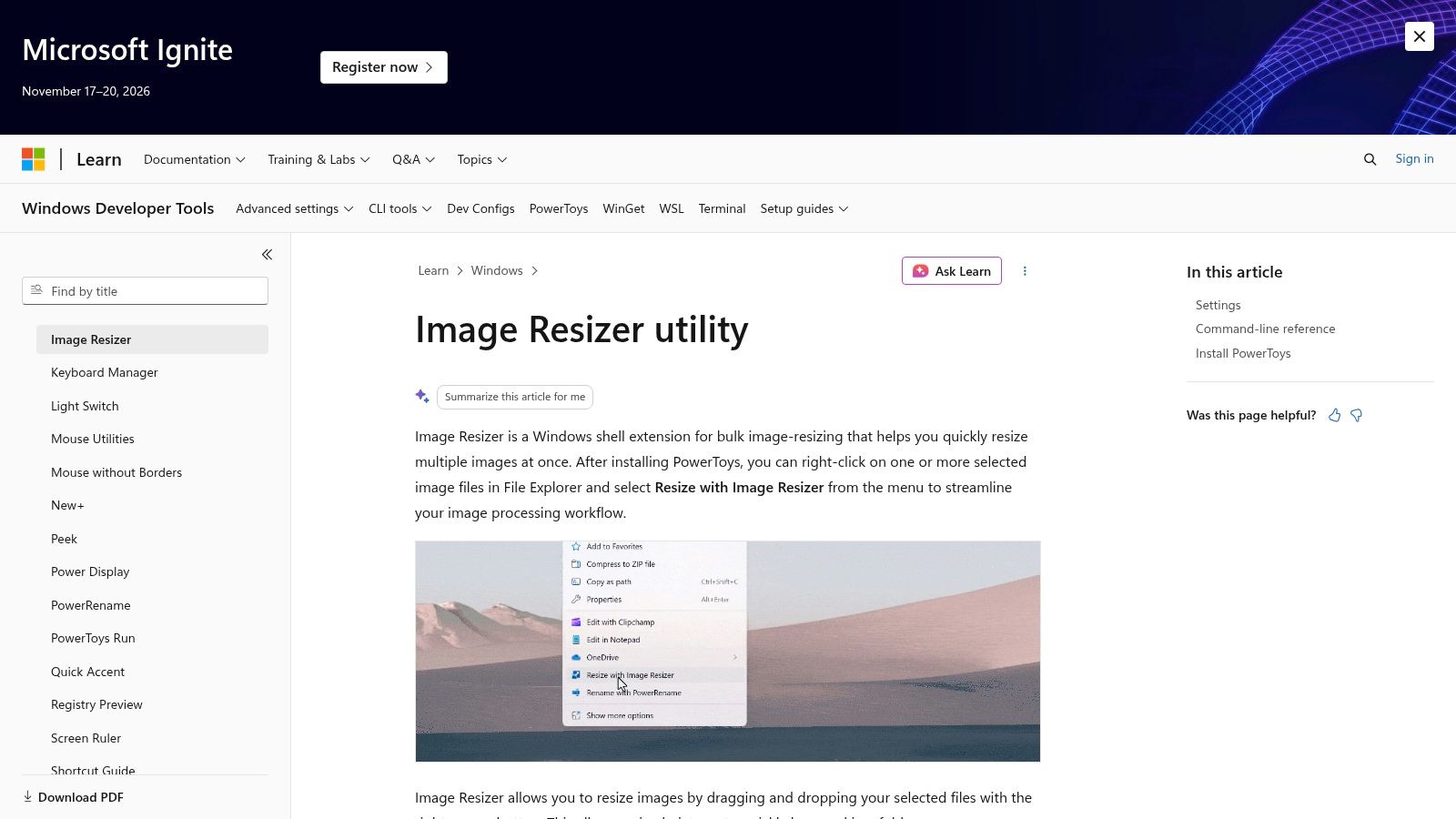
Microsoft PowerToys Image Resizer is the answer for users who want resizing to feel like a native Windows action. It adds a Resize pictures command to File Explorer, allowing you to select multiple files, right-click, and apply a preset or custom size without opening a separate editor. Microsoft describes it as a Windows shell extension for resizing multiple images at once in its official documentation.
The appeal is frictionless operation. You can create reusable size presets, choose output behavior, and work directly from the folder where the images already live. That makes it especially useful for occasional marketing exports, internal documentation, and quick collections of photos that don't need watermarks, overlays, or multi-step corrections.
The trade-off
PowerToys is free, open source, and maintained as an official Microsoft project. Installation is available through common Windows distribution routes, and the shell integration is the feature that matters most. You don't need to learn a new workspace just to make a group of images smaller.
It isn't a complete production editor. There are no deeper workflow stages for tasks such as watermarks, text overlays, or detailed per-image adjustments. Microsoft's documentation confirms the tool's core role as a bulk-resizing shell extension, so it's best treated as a fast utility rather than a full asset preparation system.
3. IrfanView Batch Conversion and Resize
IrfanView looks modest, but its Batch Conversion/Rename module gives experienced Windows users far more control than its lightweight appearance suggests. You can resize collections while preserving aspect ratio, resample images, apply long-edge rules, rename outputs, and use command-line options when a repeatable process matters. The official IrfanView website also provides the documentation and plugin ecosystem needed for broader format handling.
The interface feels dated, and that's part of the learning curve. New users may need time to understand the relationship between the file list, output settings, advanced options, and naming rules. Once configured, though, it's a practical choice for folders that need predictable treatment rather than visual editing.
Why practitioners still use it
IrfanView is particularly effective when a team has a known recipe. For example, one profile can resize by a long edge, preserve proportions, write to a separate output folder, and apply a naming pattern. Its command-line support also makes it a bridge between a desktop utility and a scripted workflow.
For quality-focused work, the resizing method matters more than the button you click. A useful companion is this guide to resizing pictures without losing quality, especially when your source folder contains both photographs and text-heavy graphics. Commercial users should also verify the applicable license before deploying IrfanView across a business workflow.
4. XnConvert by XnSoft
XnConvert is a strong choice when resizing is only one step in the batch. Its action-stack model lets you chain operations such as resize, watermarking, text, filters, rotation, and conversion in a single run. The XnConvert product page highlights broad format support, including modern formats such as AVIF, HEIC, and JPEG XL.
That action-stack approach changes how you think about the job. Instead of resizing first, then opening another application to add a watermark, you can build a repeatable sequence and apply it to the whole folder. This is useful for agencies, ecommerce teams, and publishers that need consistent treatment across assets from different sources.
Where it falls short
XnConvert is more capable than a one-click resizer, but that flexibility adds configuration work. You need to decide the order of actions, confirm how each format is interpreted, and inspect results when a mixed folder contains very different source dimensions. A chained workflow can save time, but only after the recipe has been tested.
The software is free for private, educational, and nonprofit use. Businesses should review the current licensing and donationware terms before standardizing it across a commercial team. If you need similar processing without the graphical interface, XnSoft also offers the companion NConvert command-line tool.
For a browser-first alternative when the workflow is primarily online, compare the broader batch image editor online approach. XnConvert remains the better fit when local files, format variety, and repeatable multi-action processing matter.
5. FastStone Photo Resizer
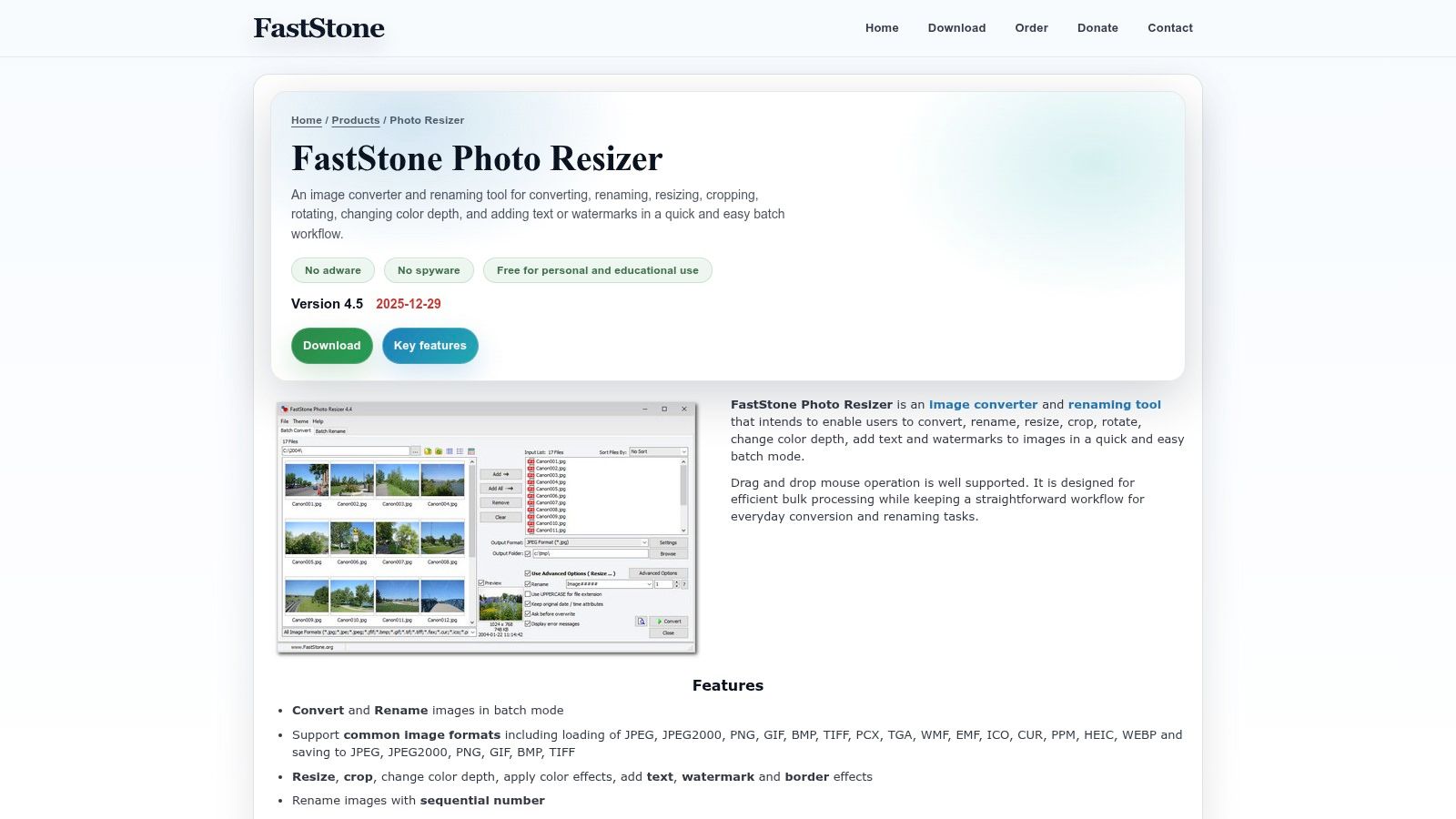
FastStone Photo Resizer sits between a basic utility and a full image editor. It handles batch resizing, renaming, rotation, cropping, watermarking, text overlays, and common image adjustments through a drag-and-drop Windows interface. The FastStone Photo Resizer page provides the current product information and download details.
Its practical advantage is workflow balance. A team preparing web or ecommerce images can resize a folder, add a watermark, apply an overlay, and rename the outputs without building a complicated action system. Multiple resampling methods and long-edge rules are useful when source images arrive at inconsistent dimensions.
The honest limitation
FastStone's interface is utilitarian. It prioritizes controls over modern visual polish, so people accustomed to newer creative applications may find it less inviting. That doesn't prevent productive work, but it can make initial setup feel less obvious.
FastStone is a good fit when the batch needs more than dimensions but less than cataloging or RAW management. It isn't the best choice for teams that need advanced automation, and it may be more than you need if all you want is a File Explorer right-click command. Check the current personal and commercial licensing distinction before using it in a business setting.
6. Light Image Resizer by ObviousIdea
Light Image Resizer is designed for users who want a polished Windows application with reusable profiles. It supports batch resizing and conversion, shell integration, watermarking, metadata adjustments, and presets that can target common output requirements, including file-size-oriented workflows. The Light Image Resizer website details its supported features and business-oriented deployment options.
The profile system is the main reason to choose it. A marketing team can prepare a profile for website images, another for social assets, and another for internal previews. OneDrive-synced profiles can help keep settings consistent across supported workstations, which is more useful operationally than repeatedly recreating the same dimensions by hand.
Who should choose it
This tool makes sense for businesses that want a maintained commercial product, deployment guidance, and a more finished interface than some legacy utilities provide. Support for WebP, HEIC, AVIF, and RAW formats can broaden its usefulness, although some advanced formats may require additional plugins.
The trade-off is cost and configuration. It's paid software, and teams should confirm which formats and features are included in the selected edition. Light Image Resizer is a stronger fit for repeatable business profiles than for a single casual resize, especially when output size, metadata, and watermark behavior need to be standardized.
7. Fotosizer
Fotosizer keeps the user experience focused on the common case. You can resize batches through presets, use its Explorer integration, and avoid the complexity of a larger editing suite. The Fotosizer website describes a standard edition for basic resizing and professional editions with added workflow features.
That simplicity helps non-designers. Someone preparing a folder for a website or social channel can choose a familiar target, review the settings, and process the files without navigating a large collection of unrelated editing panels. The right-click integration also makes it convenient when the source files are already organized in Windows folders.
Standard versus professional use
The free standard edition covers basic resizing, which is enough for many personal and occasional jobs. Professional tiers add capabilities such as watermarking, color adjustments, ZIP output, and completion actions. Those additions matter when the process includes handoff, branding, or automatic cleanup after export.
Fotosizer doesn't currently provide a direct resize-to-exact-file-size feature, so it isn't ideal when a publishing system imposes a strict byte limit. It's better for dimension-based presets than for a technical delivery specification. Users should also confirm the current license tier and business terms before rolling it out across a team.
8. Icecream Image Resizer
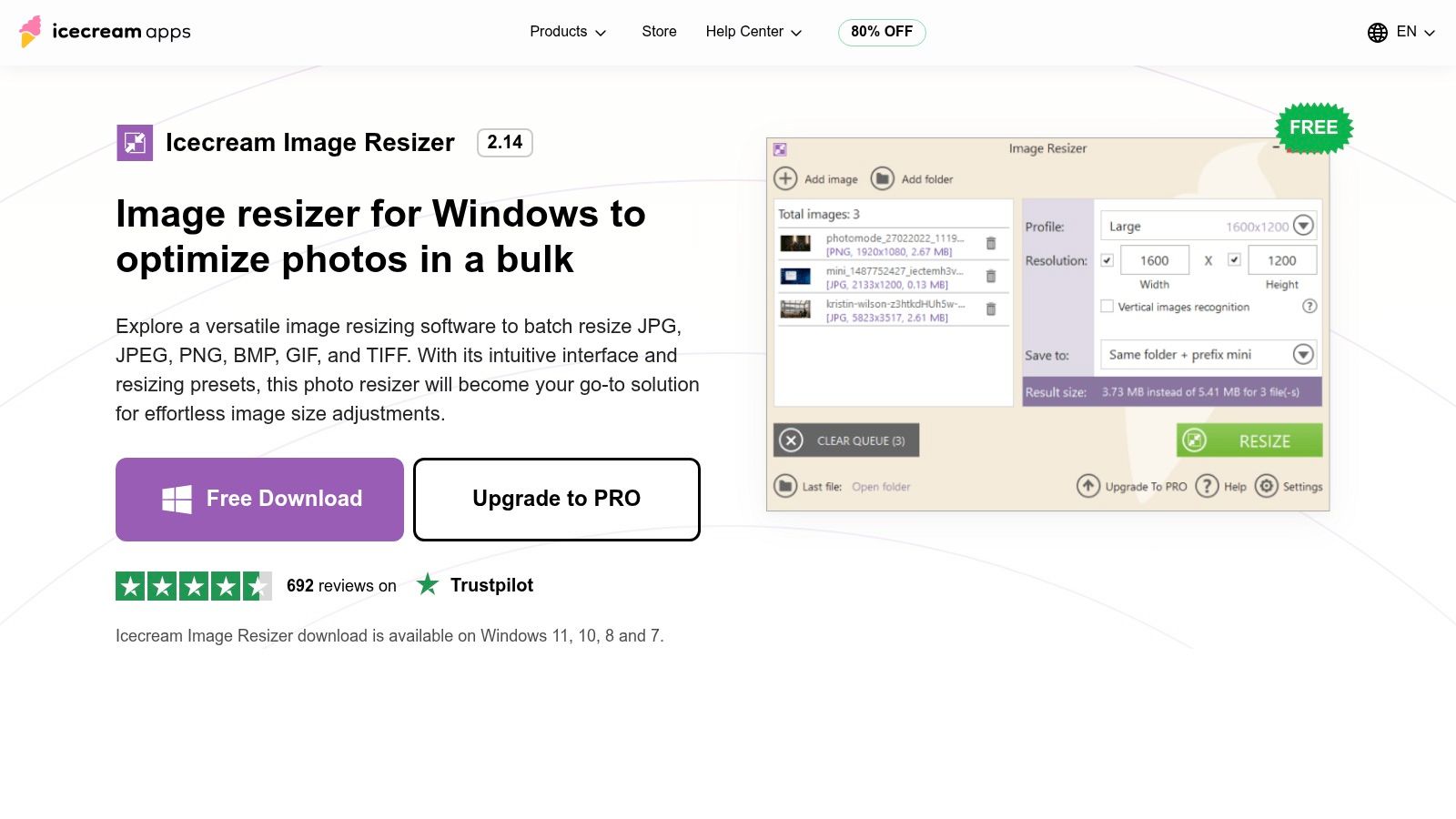
Icecream Image Resizer is built for quick, guided resizing rather than deep image engineering. Its drag-and-drop interface supports common formats including JPG, PNG, GIF, TIFF, and BMP, while presets for email and major social platforms reduce the need to remember dimensions. The Icecream Image Resizer page also lists controls for target folders, overwrite behavior, and output estimation.
The preset approach is useful for social media managers and small businesses that process familiar asset types repeatedly. Vertical image recognition and simple folder controls reduce avoidable setup mistakes, particularly when a user wants to create a quick publishing batch rather than design a full transformation recipe.
What it doesn't try to be
Icecream is easier to approach than a CLI tool, but it offers fewer deep batch actions than IrfanView, XnConvert, or ImageMagick. Basic watermarking is available, yet users needing chained filters, complex naming rules, or scripted folder processing will likely outgrow it.
The free version covers ordinary resizing needs, while unlimited batch processing and some additional features are gated behind the Pro edition. That makes it a sensible first tool for a nontechnical user, but teams should test the actual batch volume and required features before choosing an edition.
9. ImageMagick
ImageMagick is the option for people who want resizing to become part of a repeatable production system. Its Windows builds expose extensive command-line controls through commands such as magick, with geometry rules for resizing, cropping, fitting, and generating multiple variants. The official ImageMagick website documents the suite and its broad processing capabilities.
A PowerShell or Command Prompt script can process every file in a folder, write outputs to predictable directories, and create several sizes from the same source. That makes ImageMagick suitable for websites, application assets, CI/CD pipelines, and other systems where a person shouldn't have to repeat the same desktop action.
Automation versus accessibility
The flexibility comes with a real cost. ImageMagick has no native, beginner-oriented GUI in its core package, and the command syntax takes time to learn. A poorly designed command can overwrite originals or produce unexpected geometry, so scripts should write to a separate output directory until the result has been verified.
Format support depends on the Windows build and its delegates. WebP, AVIF, and JPEG XL may be available, but users should confirm their chosen build rather than assume every format is enabled. For performance-sensitive pipelines, the underlying image engine matters more than the visible interface. A Windows benchmark documented by PhotoSauce MagicScaler recorded MagicScaler processing 10,000 Bee Heads images in 3.99 seconds with 420 MB peak memory, compared with System.Drawing at 39.58 seconds and 1,001 MB, and ImageMagick at 29.86 seconds and 878 MB. That comparison is tied to its specific test setup, but it demonstrates why engine choice affects throughput and memory use.
10. ACDSee Photo Studio
ACDSee Photo Studio is the broadest option here. Its batch tools sit inside a larger photo management and editing environment that can combine cataloging, RAW processing, conversion, export, and resizing. The ACDSee Photo Studio product page describes multiple editions, including Home, Professional, and Ultimate, so users can choose a package based on how much of the wider workflow they need.
This is valuable when resizing isn't an isolated task. A photographer or content team can locate assets through a catalog, apply batch edits, process RAW files, and export resized versions without moving between several programs. Activity tracking and background processing also make it easier to monitor longer jobs than a simple right-click utility would.
When it becomes overkill
If you only need to reduce a folder of JPG files, ACDSee adds unnecessary weight and expense. Its value appears when cataloging, RAW work, and batch editing already belong in the same application. The multi-threaded background workflow is useful in that context, but it doesn't justify adopting a full photo suite for a one-off resize.
ACDSee offers paid perpetual editions and licensing options for organizations. Review the edition differences carefully, particularly if your team needs RAW support, catalog features, or volume deployment rather than basic batch resizing.
Top 10 Windows Batch Image Resizers, Feature Comparison
| Tool | Primary features | Target audience | Unique selling point | Price / Licensing |
|---|---|---|---|---|
| Bulk Image Resizer, Resize Multiple Images at Once (Free) | Browser-based bulk resize (up to 100 images); JPG/PNG/WebP; set dimensions/quality; ZIP export; integrates with batch editor | Ecommerce, social and web teams needing fast prep | Free web tool inside Bulk Image Generation with seamless handoff to AI batch editing tools and templates | Free (browser-based) |
| Microsoft PowerToys – Image Resizer | Explorer context-menu resizing; presets/custom sizes; encoding quality and output format options | Windows users who want zero-friction resizing from File Explorer | Native shell integration; official Microsoft project; MIT open-source | Free, open-source (MIT) |
| IrfanView (Batch Conversion/Resize) | Batch conversion/resize with advanced options; command-line support; broad format support via plugins | Power users, scripted workflows and automation | Very lightweight and fast; mature CLI and documentation for large scripted jobs | Free personal; paid license required for commercial use |
| XnConvert (by XnSoft) | Multi-step action stacks (resize, watermark, text, filters); supports 500+ formats; CLI companion (NConvert) | Teams handling diverse asset types and format conversion chains | Extremely wide format support and straightforward action chaining for multi-step batches | Free for private/edu/non-profit; donation/commercial terms apply |
| FastStone Photo Resizer | Batch resize, renaming, watermarking, text overlays, drag-and-drop presets | Web/e-commerce teams needing profile-like presets for product images | Balanced feature set for common e-commerce/web tasks with fast performance | Free for personal use; business licensing / paid for commercial use |
| Light Image Resizer (ObviousIdea) | Batch resize/convert with presets (including target file-size); shell integration; OneDrive-synced profiles; plugin support for modern formats | Marketing and business pipelines requiring deployable profiles | Polished UI, business-friendly deployment and presets tailored for web performance | Paid (one-time purchase); some formats via plugins |
| Fotosizer | Explorer right-click resize; quick presets; Pro adds watermarking, color adjustments, ZIP output | Non-designers who need simple, repeatable resizing workflows | Very simple setup with lifetime Pro options for businesses | Free standard edition; Pro paid (lifetime tiers available) |
| Icecream Image Resizer | Drag-and-drop batch resize; social-media presets; basic watermarking; final-size estimation | Social media managers and marketplace sellers wanting speed and presets | User-friendly interface with built-in social presets and fast workflow | Free basic; PRO paid to unlock unlimited batches/features |
| ImageMagick (CLI) | Comprehensive CLI tools (resize/convert/mogrify); scriptable for CI/CD; supports modern formats depending on build | Developers, DevOps and automated production pipelines | Extremely flexible and automatable, industry-standard for scripted image processing | Free, open-source |
| ACDSee Photo Studio (Home/Pro/Ultimate) | Batch resize integrated with cataloging, RAW processing, multi-threaded background jobs | Photographers and teams needing DAM + editing in one app | Combines resizing with cataloging, RAW workflow and enterprise licensing options | Paid (Home / Professional / Ultimate editions) |
Match the Tool to Your Image Pipeline
The best batch image resizer for Windows depends on what happens before and after the resize. If you occasionally select files in Explorer and need a quick result, Microsoft PowerToys Image Resizer is the cleanest fit. It keeps the interaction close to the files and avoids the overhead of a separate editor.
For fast desktop batches, start with IrfanView or FastStone Photo Resizer. IrfanView is especially useful when speed, lightweight processing, and command-line control matter. FastStone is more approachable when the job includes watermarks, text overlays, rotation, cropping, or other practical preparation steps. Both are better suited to local folders than a browser workflow, and both deserve a licensing check before commercial deployment.
Choose XnConvert when you need a sequence of transformations. Its action stacks are useful for mixed asset folders where resizing, conversion, watermarking, and filtering belong in the same recipe. Light Image Resizer is a stronger business-oriented option when profiles, shell integration, metadata controls, and deployment guidance justify paid software. Fotosizer and Icecream Image Resizer suit nontechnical users who value presets and simple guided interfaces over extensive automation.
Use ImageMagick when resizing must run from a script, scheduled process, or build pipeline. It has the steepest learning curve in the list, but it gives technical teams precise control over naming, folders, geometry, formats, and repeated output variants. ACDSee Photo Studio makes more sense when image management, RAW processing, cataloging, and resizing already need to live in one application.
For quick JPG, PNG, and WebP jobs, the browser-based Bulk Image Resizer avoids installation and packages the output in a ZIP. Its stated capacity of up to 100 images per batch and 10 MB per file makes it practical for many ordinary publishing tasks, while its format limits and lack of built-in API automation make it less suitable for very large or highly specialized pipelines. Teams that need broader web publishing workflows can also review an image processing tool for bulk page generation.
Bulk Image Generation can complement these tools when the work starts with content creation rather than existing files. Its platform combines AI image generation with batch editing tasks such as resizing, background removal, face swaps, and enhancement. That can replace parts of a conventional workflow for marketers, educators, agencies, and small businesses that need to create many visuals and then prepare them for several channels, but it shouldn't replace a proven local pipeline when you need uncommon formats, strict scripted controls, or catalog-based asset management.
Before publishing, process a representative sample instead of trusting a preset blindly. Preserve the originals, inspect photographs and text-heavy graphics separately, confirm output dimensions and formats, and check commercial licensing for every tool in the workflow. Those safeguards prevent a fast batch job from producing a folder of blurred, incorrectly cropped, or unusable assets.
Bulk Image Generation helps you create visuals in bulk with AI, then prepare them through resizing, background removal, face swaps, and enhancement in the same broader workflow. If you want to connect image generation with practical Windows-ready batch preparation, visit Bulk Image Generation and test the workflow with your next asset set.