Batch Photo Resize: Pro Tips to Streamline Your Workflow

Ryan Bennett • September 22, 2026
Learn essential techniques for batch photo resize. Boost your productivity with our expert tips and transform your photo editing process today!
Why Your Current Photo Workflow Is Costing You Hours
If you've ever found yourself resizing photos one by one, you know the drill. It's not just boring; it's a real drain on your time. For many of us, this manual process is a hidden cost that stacks up, hour after hour. Picture a wedding photographer with a gallery of 2,000+ images to deliver, or an e-commerce manager prepping a new product line for launch. Adjusting each photo individually just isn't practical.
This is where switching to a batch photo resize strategy makes a massive difference. You can turn an all-day task into something you knock out in less than an hour. Creative agencies I've worked with have told me they've slashed their image processing time from days to just a few hours. This isn't just about getting time back; it speeds up client delivery and directly helps your business.
The Ripple Effect of Inefficient Image Processing
A slow photo workflow causes more than just a headache. For any business with a website, oversized images can kill performance. People online don't wait around for slow pages. In fact, bulk image optimization is a must-have for a good user experience. Data from 2024 shows that resizing and compressing images in bulk can reduce file sizes by over 70%. This is huge, especially when studies show that 53% of mobile users will bounce if a site takes more than three seconds to load. You can see more stats on how bulk compression impacts site speed.
From Chore to Core Skill
Ultimately, a clunky workflow creates a bottleneck that holds back your creativity and growth. When you're stuck doing repetitive edits, you have less time for the important stuff—finding new clients, brainstorming marketing ideas, or creating awesome content. The most successful professionals I know don't see batch processing as a small convenience. They see it as a fundamental skill. For them, the ability to batch photo resize is as vital as their camera, allowing them to take on bigger projects while keeping quality high across the board. It's time to stop letting manual edits run your schedule.
Navigating The Batch Photo Resize Tool Landscape
Finding the right tool to batch resize photos can feel like searching for a needle in a haystack. There are so many options out there, each claiming to be the best, fastest, or easiest. The truth is, the "best" tool really depends on what you're trying to accomplish. A wedding photographer wrestling with thousands of high-resolution RAW files has completely different needs than a product manager who just needs to update a few dozen images on an e-commerce site.
Finding The Right Fit For Your Workflow
Your choice should come down to a few practical things: your budget, how comfortable you are with technology, and the final purpose of your images. A free mobile app might be all you need for some quick social media updates. But for large, complex jobs where every pixel counts, professional desktop software is usually the way to go.
Tools like BatchPhoto or PhotoWorks often have lifetime licenses, which can be a great deal if you batch photo resize images frequently. This can save you money in the long run compared to subscription-based services like Fotor or BeFunky.
This little decision tree can help you figure out when batch processing is the right call for your project.
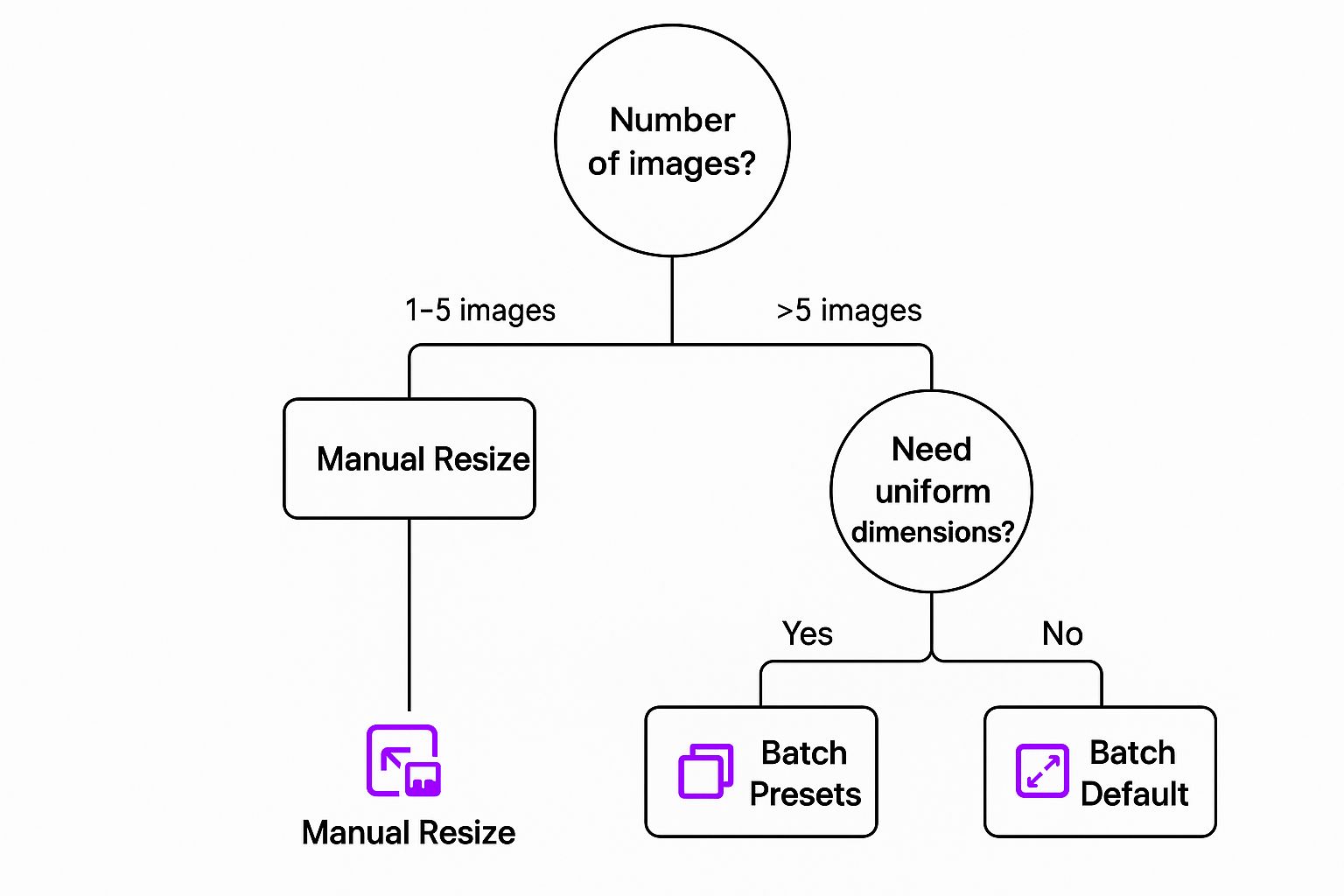
The main takeaway here is pretty clear: as soon as you're dealing with more than a handful of photos, especially when you need them all to be consistent, batch resizing becomes a must-have.
To give you a clearer picture of your options, here's a comparison of some popular tools.
Batch Photo Resize Tools Comparison
Compare popular batch resizing tools across different platforms showing features, pricing, and best use cases
| Tool Name | Platform | Max Batch Size | Key Features | Best For |
|---|---|---|---|---|
| Bulk Image Generation | Web-based | 100+ | AI-driven resizing, multiple format support (PNG, JPG, WebP), simple UI | E-commerce owners and marketers needing fast, high-volume resizing without complex software. |
| Adobe Photoshop | Desktop (Win/Mac) | Unlimited | Advanced actions & scripts, extensive editing tools, precise quality control | Professional photographers and designers who need maximum control and are in the Adobe ecosystem. |
| BatchPhoto | Desktop (Win/Mac) | Unlimited | Supports RAW files, annotations, watermarking, filters | Photographers and professionals handling large, varied photo batches with complex needs. |
| Fotor | Web & Mobile | Varies by plan | User-friendly interface, templates, basic editing features | Casual users and social media managers who need quick edits and resizes on the go. |
This table shows the trade-offs: desktop apps offer power and precision, while web-based tools provide convenience and speed.
Balancing Speed, Quality, and Cost
As you compare tools, you'll see a constant balancing act between speed, final image quality, and cost. Some free online tools are incredibly quick but might sacrifice image quality with heavy compression, leaving your photos looking a bit blurry. On the other hand, paid desktop software gives you granular control over compression settings, so your images stay sharp.
If you're looking for a powerful web-based solution that doesn't compromise on quality, our bulk image resizer tool was designed to handle large batches easily. The goal is always to find a tool that fits into your existing workflow, not one that makes you change how you work.
Mobile Batch Photo Resize Mastery On The Go
It’s easy to think of serious photo editing as a desk-bound task, but the supercomputer in your pocket is a surprisingly capable editing station. Modern smartphones can easily handle a batch photo resize, which is a huge win for anyone creating content away from their main computer. I often see travel photographers processing a whole day's worth of shots on a flight or a social media manager prepping a week of posts while grabbing coffee. This isn't a futuristic dream; it’s a practical mobile workflow.
The trick is to find apps that focus on solid functionality, not just flashy filters you'll never touch. The best tools concentrate on the essentials: resizing, cropping, and managing photo data. I’ve used them to prep entire web-ready galleries or optimize a batch of images for an email newsletter, all from my phone. For example, getting images ready for an Instagram feed usually means resizing them to a standard 1080px width, a task a good mobile app can knock out in seconds.
Essential Mobile Features
When you're looking for a mobile app to handle batch resizing, a few key features make all the difference in your workflow. Here's what I've found to be most important:
- Custom Presets: Being able to save settings like "Instagram Post" or "Blog Thumbnail" is a massive time-saver. You set it up once and reuse it forever.
- Metadata Preservation: This is a big one. You want an app that doesn't strip away important EXIF data like location, camera settings, or timestamps from your photos.
- Aspect Ratio Control: Look for apps that let you lock the aspect ratio or crop an entire batch to specific dimensions, like 16:9 for video thumbnails or 4:5 for social posts.
- Cloud Integration: A smooth connection to services like Google Photos or Dropbox is non-negotiable for an efficient mobile workflow.
The app market has caught on to this demand, especially in regions with heavy photo app usage like the United States. Many tools now offer powerful batch photo resize functions, with some capable of processing up to 500 images at once. This completely changes what's possible for creators on the move. As a report on the growth of editing apps shows, this is a growing field. By choosing an app with these core features, you can turn your phone into a serious productivity machine.
Professional Desktop Solutions For Serious Volume
While web-based tools are fantastic for quick jobs, there are moments when you just need the raw processing power of a dedicated desktop application. Think about the aftermath of a week-long commercial photoshoot—you're not just resizing a handful of images, you're dealing with thousands of high-resolution files. This is where desktop software truly shines, acting as a command center to batch photo resize and edit an entire catalog, even while you sleep.
The main draw here is the combination of precision and power. Desktop editors like Adobe Photoshop or Luminar Neo allow you to create complex "actions" or "presets." Let's say you need to resize 1,500 product shots, but you also need to adjust the color balance, apply a subtle sharpening filter, and add a watermark. A desktop program lets you define that exact sequence once and then apply it to every single image, ensuring perfect consistency. This level of control is non-negotiable for professionals who need every photo to be identical.
Handling RAW Files and Advanced Edits
One of the most significant advantages of desktop software is its ability to handle RAW files. Unlike standard JPEGs, these uncompressed files capture all the data from the camera's sensor, giving you much more freedom during editing. A specialized tool like BatchPhoto is designed to work with these large files and supports non-destructive editing, meaning your original image is always safe if you need to go back.
With these tools, you can manage color profiles, correct for lens distortion, and apply detailed edits across a massive batch of images without losing any quality. For photographers delivering high-end work to clients, this capability is essential.
Creating Efficient Workflows
The key to mastering desktop batch processing is building custom presets for your most common tasks. For example, a stock photographer might create different presets for each platform they upload to, since each has unique size and metadata requirements. What was once a tedious, multi-step process becomes a simple one-click action.
Similarly, a marketing agency could have a specific preset for each client's branding guidelines, ensuring every image fits perfectly. Although these tools often come with an upfront cost, the time saved on large-scale projects offers a massive return. Once you're ready to produce visuals at this scale, you might also be interested in how our AI image generator can help you create brand new assets from the ground up.
Web-Based Batch Photo Resize That Actually Delivers
Moving your workflow to a web-based batch photo resize tool seems like a no-brainer. You get to skip software installations and constant updates—just upload, resize, and download. But as anyone who’s tried a few knows, not all browser-based platforms are the same. For a creative agency, using an online tool for client work depends heavily on security, speed, and whether the final quality holds up across hundreds of images.
When Online Tools Outperform Desktop Software
While desktop apps definitely have their place, online resizers are unbeatable for quick tasks and accessibility. Picture this: you're a social media manager and need to get 20 event photos ready for an Instagram Story, like, yesterday. A tool like BeFunky or our own platform at Bulk Image Generation lets you knock this out in minutes from any computer, no need to fire up complex software.
The biggest hurdle with web tools is often upload limits or slow processing. If you hit an error, a good strategy is to break up your images into smaller, more manageable batches. It's also critical to check the platform’s privacy policy. You must know how your images are being used, especially if they belong to a client. Always make sure the service you choose doesn’t try to claim any rights to your photos.
Balancing Convenience and Quality
The need for these tools isn't new. It really took off with the digital photography boom in the 2010s, which saved people from the pain of editing photos one by one. Before that shift, processing hundreds of images was a massive job for photographers and marketers. You can even learn more about the history of batch resizing apps and see how far they've come. The best online tools today strike a great balance between being easy to use and delivering professional-level results.
Expert Techniques For Flawless Batch Results
Going beyond just clicking "resize" is what separates a decent outcome from a professional one. When you batch resize photos, small details can cause big problems, like strange color shifts or lost photo data across hundreds of images. I’ve seen this exact situation ruin entire product galleries for e-commerce sites. The key is to approach each batch process with a clear strategy.
Mastering Your Output Settings
Before you start any batch job, you have to think about the final destination for your images. The settings you’d use for a web gallery are completely different from those for print-ready materials. For instance, an e-commerce site needs images that are lightweight yet sharp. I typically aim for a JPEG quality setting between 75-85 to find that sweet spot between file size and clarity. But for a high-resolution print job? You’d never compress that heavily.
To get the best results, it helps to know where your images will be seen. Here's a quick reference I use to determine the best settings for different platforms.
| Use Case | Recommended Size | Quality Setting | Format | File Size Target |
|---|---|---|---|---|
| E-commerce Product Page | 2000 x 2000px | 80-90 | WebP / JPEG | < 250 KB |
| Social Media (Instagram Post) | 1080 x 1080px | 75-85 | JPEG | < 150 KB |
| Website Hero Image | 1920 x 1080px | 85-95 | WebP | < 300 KB |
| Email Newsletter | 600px width | 70-80 | JPEG | < 100 KB |
| High-Resolution Print | 300 DPI, various sizes | 100 (Lossless) | TIFF / PNG | > 5 MB |
As you can see, there's no single "best" setting. It's all about context. The goal for web images is always to balance crisp visuals with fast load times, while print demands maximum quality, no matter the file size.
It's also essential to consider different screen densities. A great technique is to create multiple batches for various resolutions—one for standard displays and another at 2x resolution for high-DPI screens like Retina displays. This ensures your images look crisp everywhere and you're not serving massive files to users who don't need them.
Workflow Optimization and Troubleshooting
A solid workflow saves you from major headaches later on. One of my go-to techniques is to apply watermarks during the resizing process itself. Most good desktop tools, like BatchPhoto, let you do this in one go, which is far more efficient than watermarking hundreds of photos individually after the fact.
My most important piece of advice? Always run a small test batch first. Grab 5-10 images from your set—especially ones with different lighting or colors—and run them through your chosen settings. Check them for any quality loss, weird artifacts, or metadata issues. If everything looks good, you can confidently process the entire batch. This simple check has saved me from having to re-do massive jobs more times than I can count. It’s a vital step, particularly when you’re preparing a large volume of visuals, like those we discuss in our guide on how to create stunning digital product images with AI.
Building Your Personal Batch Photo Resize System
Now that we’ve walked through the tools and some pro techniques, it's time to put it all together into a system that actually works for you. An effective batch photo resize workflow isn't just about the software you pick; it's a personalized process tailored to your specific projects, technical skill, and final goals. The aim is to create a repeatable method that slashes your editing time and gives you consistent, high-quality results every time.
Laying the Foundation
First things first, what do you spend most of your time doing? A photographer delivering client galleries has very different needs than a marketer prepping images for a dozen social media platforms.
For example, a photographer might build their system around a desktop tool like BatchPhoto. They could create presets for different jobs, like "Web Previews" (resized to 1200px, watermarked) and "Full-Resolution Prints" (color corrected, metadata preserved). A social media manager, on the other hand, might have a mobile-first workflow, using an app's cloud integration to pull images from a shared drive and apply a "Square Post" or "Story" preset on the fly.
Your system should be built around a core tool that does the heavy lifting, but don't be afraid to add smaller helper apps. A powerful desktop program can handle the big batches, while a mobile app is perfect for those one-off resizes when you're away from your desk.
Measuring Success and Staying Current
How do you know if your new system is actually an improvement? The easiest way is to track your time. If it used to take you an hour to process 50 photos, how long does it take now? The goal here is a real, noticeable drop in the time you spend on repetitive tasks. It's also a good idea to periodically check your output. Are your images consistently sharp? Are the file sizes optimized?
Technology moves fast, so it’s smart to re-evaluate your tools and process once a year. New platforms pop up, and features that were top-of-the-line last year might be standard or even outdated now. Subscribing to a few photography or design newsletters is a great way to stay in the loop without much effort. By creating a flexible yet structured batch photo resize system, you turn a tedious chore into a smart, streamlined part of your creative work.
Ready to build a powerful, time-saving system? Get started with Bulk Image Generation and see how our AI-powered tools can resize hundreds of your images in seconds.
