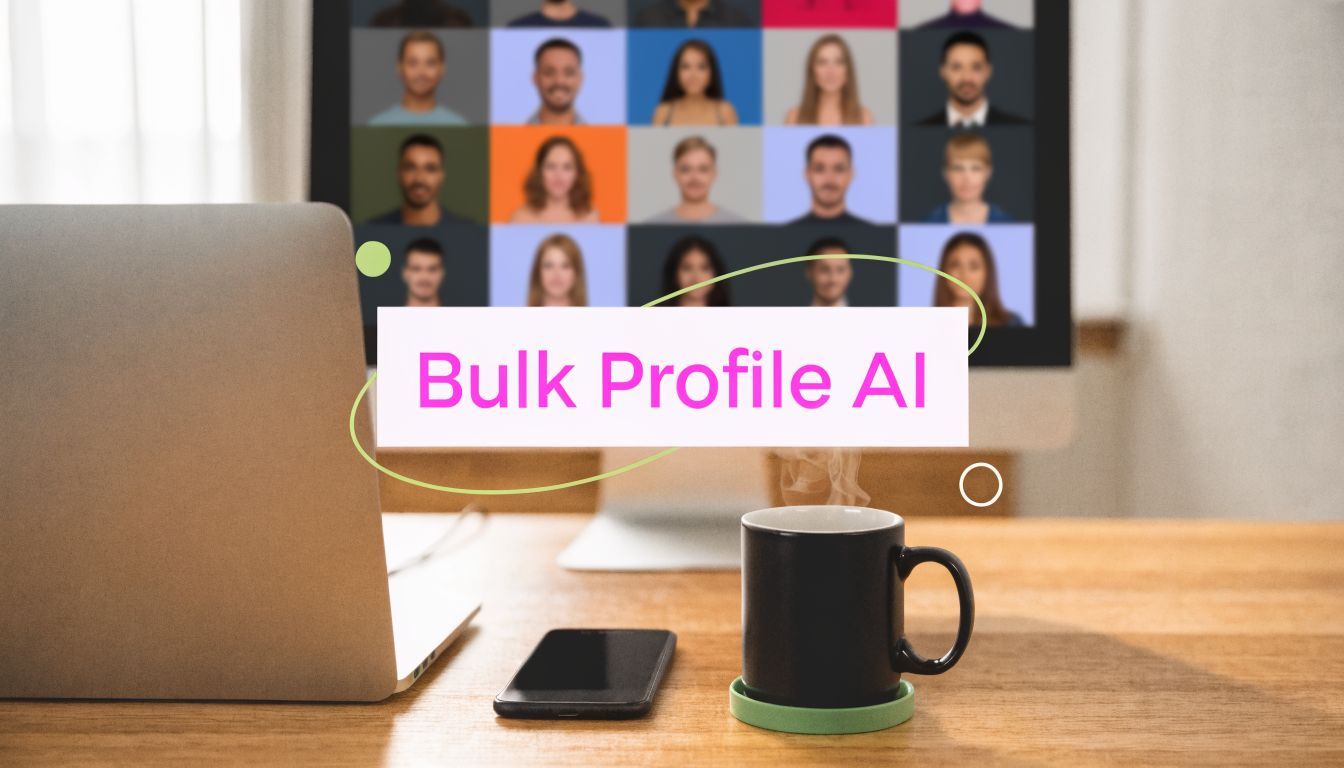
User Profile Images: The AI Bulk Creation Workflow

Ryan Bennett • April 22, 2026
Learn a step-by-step AI workflow to create, edit, and optimize hundreds of user profile images. Go from idea to deployment with batch generation and editing.
Your team probably has this problem already. Sales wants polished headshots for LinkedIn. Support needs matching avatars in the help center. Social accounts still use a logo that was cropped badly two years ago. Half the employee profile photos came from webcams, the other half from conference badges, and none of them look like they belong to the same company.
That chaos costs more than design time. It creates a messy first impression everywhere your brand appears.
Most advice about user profile images stops at camera angles, lighting, and whether someone should smile. That matters for one image. It doesn't solve the operational problem, which is creating, editing, resizing, approving, and deploying profile images across teams and platforms without turning every update into a mini production cycle.
AI changes the workflow when you use it correctly. Not as a novelty filter. As a production system.
Why Your Profile Image Is Your Most Important Digital Asset
A user profile image is usually the smallest branded asset you publish. It's also one of the most impactful assets you control.
People judge it fast. In 40 milliseconds, they form judgments based on profile images, and research summarized by Buffer notes that a profile picture alone accounts for over 90% of what people think of you. The same analysis also notes that professional headshots can increase LinkedIn connection requests by up to 38% (Buffer on profile picture psychology).
That matters because profile images sit at the front door of almost every digital interaction. Someone sees your face, your avatar, or your company mark before they read your bio, click your site, or decide whether you're credible. For a founder, consultant, recruiter, educator, or social media manager, that image does more trust-building work than is often acknowledged.
Small image, big consequences
A weak user profile image usually fails in one of three ways:
- It looks accidental. Poor crops, dim lighting, cluttered backgrounds, and inconsistent framing signal low attention to detail.
- It doesn't match the role. A creator can get away with more style than a CFO. A gaming community avatar shouldn't look like a law firm portrait.
- It breaks across platforms. A great rectangular image can become a terrible circular thumbnail.
Practical rule: Treat user profile images like conversion assets, not decoration.
The problem gets worse at scale. One person can swap in a decent image manually. A team with multiple departments, regional accounts, partner profiles, and creator campaigns needs a repeatable system. Without one, every update becomes a scavenger hunt through folders, old exports, and Slack threads.
That's why the right question isn't, "How do I take a better photo?" It's, "How do I build a workflow that produces consistent profile images every time?"
Planning Your Visual Identity and Style
Before you generate anything, decide what your profile images are supposed to communicate.
That sounds obvious, but many teams skip it. They jump into prompts, produce a pile of images, then try to reverse-engineer a brand system from the outputs. That usually creates inconsistency disguised as creativity.

A better approach starts with a compact creative brief. Not a giant deck. Just enough structure to keep every generated image aligned.
Decide what the image should say
Start with message, not style.
If the account belongs to a founder, you may want authority and approachability. If it's a support team profile, warmth and clarity matter more than edge. If it's a faceless creator brand, anonymity can still feel recognizable through color, silhouette, framing, and illustration style.
Ask these questions:
- Who is the account for. An executive, educator, community manager, agency team member, or brand mascot all need different visual treatment.
- What should people feel. Trust, competence, creativity, friendliness, privacy, or professionalism.
- What level of realism fits. Photorealistic portraits work for some use cases. Stylized, illustrated, or avatar-based images work better for others.
- How much variation is acceptable. Team profiles usually need tight consistency. Creator campaigns often need a broader range.
Use authenticity on purpose
Authenticity isn't just branding language. It shapes how people relate to what they see.
A 2021 PMC study found that using self-photographs as user profile images significantly predicted higher life satisfaction, with notable effects for women high in openness (β = .24) and for men (β = .28) (PMC study on self-photographs and life satisfaction). For practical brand work, the takeaway is simple. When a real person should be visible, don't over-design them into something generic.
That doesn't mean every profile needs a literal headshot. It means the image should feel congruent with the person or brand behind it. Overly polished images can look detached. Random AI styling can feel synthetic. The sweet spot is deliberate authenticity.
Teams that get this right don't just pick a nice image. They define visual boundaries before generation starts.
Build a lightweight brand image brief
A useful profile image brief usually includes:
-
Core style direction
Choose one primary lane. Photorealistic headshot, flat illustration, 3D avatar, monochrome portrait, bold-color creator thumbnail, and so on. -
Color rules
Pick a narrow palette. This keeps avatars recognizable in crowded feeds and circular crops. -
Background logic
Neutral background, soft gradient, branded solid, blurred environment, or transparent cutout. -
Expression and framing
Direct eye contact, slight smile, neutral expression, bust crop, head-and-shoulders, or silhouette. -
Usage constraints
Circular crop safe area, mobile-first readability, and whether the image must work with dark mode interfaces.
If you don't already have a visual system, it helps to create strong brand guidelines before you generate at scale. Even a lightweight guideline document can prevent dozens of off-brand outputs later.
When you're ready to turn that brief into prompts, a tool like the free AI image prompt generator can help translate brand direction into usable prompt language without forcing your team to become prompt engineers.
Choose consistency before variety
The hardest planning trade-off is this one: do you want consistency, or do you want exploration?
For user profile images, consistency usually wins. People don't encounter these images as a gallery. They encounter them as identifiers. That means repeated visual cues matter more than novelty.
Use variation selectively. Change wardrobe tone, crop depth, pose intensity, or background treatment. Keep the core identity system fixed.
Decoding Platform-Specific Image Requirements
Most profile image problems aren't creative. They're technical.
An image can look excellent in a full-size preview and fail completely once a platform crops it into a circle, compresses it, shrinks it in a feed, and displays it on different devices. That's why user profile images need platform-aware production, not last-minute resizing.
Professional user analytics platforms show that up to 30% of profiles exhibit multi-device usage, which is a good reminder that image testing can't assume a single screen type or operating system (WebEngage on analysing user profiles). If your audience moves between phone, laptop, tablet, and app views, your image has to stay legible in all of them.
What actually matters in platform optimization
You don't need to memorize every current spec to work well. You do need to understand the variables that break images:
-
Display shape
Some platforms upload square but display circular. Others use rounded squares or switch shape depending on context. -
Compression behavior
Fine texture and subtle gradients often get muddied. Simpler contrast survives better. -
Thumbnail scale
Details visible in an editor disappear in a small feed avatar. -
Safe area
If the face or focal point sits too close to the edge, circular crops clip it.
Profile image specifications for major platforms 2026
Below is a practical cheat sheet for production planning. The exact upload interface may change over time, but this framework helps you prepare assets that adapt cleanly.
| Platform | Recommended Size (pixels) | Display Shape | Supported Formats |
|---|---|---|---|
| 1:1 square, high-resolution source | Circular in most profile contexts | JPG, PNG | |
| 1:1 square, high-resolution source | Circular | JPG, PNG | |
| X / Twitter | 1:1 square, high-resolution source | Circular | JPG, PNG |
| 1:1 square, high-resolution source | Circular | JPG, PNG | |
| 1:1 square, high-resolution source | Circular or rounded display contexts | JPG, PNG | |
| YouTube | 1:1 square, high-resolution source | Circular in channel avatar contexts | JPG, PNG |
For channel and creator workflows, it also helps to review YouTube's specific image requirements when you're preparing assets that need to work across both profile and channel branding surfaces.
Build for the crop, not the canvas
A common mistake is designing to the full square and assuming the platform will respect it. It won't.
Design to an inner safe zone. Keep faces, logos, and key visual markers comfortably centered. Avoid text unless you know the profile image will never be seen at thumbnail size. In practice, text almost always fails.
The best profile image file is rarely the most detailed one. It's the one that still reads clearly after compression, cropping, and shrinking.
Use aspect ratio tools before editing starts
Production gets easier when you set your constraints early. Instead of generating a portrait image and forcing it into multiple awkward crops later, decide your target formats first and generate with those boundaries in mind.
A simple aspect ratio calculator for image planning helps teams check whether a source composition will survive square, vertical, or mixed-platform use before they send a batch into editing.
That matters especially when one image set has to support profile pictures, speaker pages, team directories, and campaign cards at the same time. The more surfaces you support, the more expensive bad source framing becomes.
Generating Hundreds of Profile Images in Seconds
Single-image prompting is fine for experiments. It breaks down when you need profile images for a team, a creator network, a course catalog, a community site, or multiple client brands.
The faster method is batch generation with a controlled brief.

The shift is important. You're no longer trying to "get one perfect prompt." You're defining a system that can produce many usable images with consistent quality.
Start with outcomes, not prompt tricks
A lot of AI image tutorials still teach prompting like a secret language. That made sense when tools were less forgiving. For operational work, it's the wrong mindset.
Describe the goal in plain language:
- professional headshots for a consulting team
- warm and approachable avatars for a support staff directory
- faceless creator profile images with consistent color and clean backgrounds
- culturally diverse team portraits with the same framing and lighting style
Then lock down the variables that matter:
-
Subject type
Individual person, team role, avatar, illustration, or privacy-first abstract identity. -
Visual environment
Studio lighting, flat color background, office blur, gradient, or transparent cutout. -
Consistency rules
Similar crop, similar eye level, similar background treatment, and limited palette shifts. -
Variation rules
Pose differences, wardrobe changes, hairstyle differences, expression range, or slight style alternates.
What a scalable generation brief looks like
A practical brief for AI-generated user profile images might read like this:
Create a set of professional profile images for a software company team. Use clean studio-style lighting, neutral backgrounds, centered head-and-shoulders framing, natural expressions, and a consistent modern corporate look. Keep the images suitable for circular crops and social platform thumbnails.
That brief is doing real work. It defines audience, visual standard, usage context, and crop behavior without overcomplicating the process.
Use batch generation for selection, not perfection
Here, bulk workflows outperform traditional photo production.
Instead of spending time polishing one draft at a time, generate a broad set, review quickly, remove weak fits, and keep the strongest cluster. You're compressing ideation and production into one loop.
Bulk Image Generation is built for that workflow. It lets users describe goals in natural language, generate up to 100 unique visuals in under 20 seconds, and then move directly into batch editing using Flux 1.1 and GPT-Image-1 integrations. For teams working on user profile images, that matters because it removes the old bottleneck of manual prompt iteration and one-by-one exports.
Review with criteria, not taste alone
When a batch comes back, don't ask only, "Which one do I like?" Ask:
- Does it read well at thumbnail size
- Does it match the intended role
- Does it fit the broader brand system
- Will it still work after circular cropping
- Can this style scale across more people or accounts
A beautiful outlier often loses to a solid standard.
The best batches include controlled variation
You need some variety. You don't need chaos.
Useful variation in user profile images includes:
- slight smile versus neutral expression
- warm background versus cool background
- tighter crop versus slightly wider shoulders
- formal wardrobe versus smart casual
- literal portrait versus stylized interpretation
Poor variation usually shows up as inconsistent lighting, wildly different art direction, mismatched ages or demographics, or dramatic composition changes that break the set.
Good batch generation gives you options inside a system. Bad batch generation gives you random images that happen to share a prompt.
Keep source organization boring
The least glamorous part of this workflow saves the most time later.
Name batches by audience and intended use. Store approved sets separately from experiments. Keep one folder for originals, one for edited outputs, and one for platform-ready exports. If your team can't tell which file is the approved LinkedIn version versus the Instagram-safe crop, the workflow isn't finished.
AI generation is fast. Asset confusion is what slows teams back down.
Automating Post-Production with Batch Editing
Many believe the hard part is creating the image. It usually isn't.
A major sinkhole is post-production. Removing backgrounds one by one. Resizing for different channels. Correcting contrast on a batch that came back slightly flat. Exporting variants with different crops. Repeating that process every time a team member joins, a brand refresh happens, or a campaign needs a matching visual set.

Manual editing turns a fast generation step into a slow delivery step. That's why batch editing matters as much as generation.
The edits that actually move performance
A 2025 analysis found that profiles with AI-enhanced, high-contrast images optimized for 1:1 aspect ratios receive 28% more profile views on Instagram and LinkedIn because they render better in thumbnails (2025 analysis on AI-enhanced profile images).
That doesn't mean every image should be aggressively sharpened or overexposed. It means clarity wins. Strong separation between subject and background wins. Crops designed for small circular display win.
Common post-production jobs worth automating
Some edits are repetitive enough that doing them manually no longer makes sense:
- Background removal for teams that need transparent or branded backdrops
- Square crop normalization so every profile image sits correctly inside platform frames
- Contrast and lighting adjustment when generated sets vary slightly
- Background replacement for department-specific or campaign-specific versions
- Face swaps or identity-safe variants when you need consistency across template structures
- Export formatting for JPG or PNG use cases
What manual workflows get wrong
The old approach usually looks like this. A marketer gets a folder of images, opens them in Photoshop or Canva, edits the first few carefully, rushes the rest, exports inconsistent file sizes, and sends final assets over chat for approval. A week later, someone notices one profile has a darker background, another is off-center, and two avatars look soft on mobile.
That's not a talent problem. It's a process problem.
A batch-first editor fixes it by applying the same transformation rules across the approved set. One crop logic. One contrast treatment. One output standard.
Batch resizing should happen once
When teams resize assets manually, they create drift. Different crops, different margins, different filename habits.
Using a bulk image resizer for profile image sets keeps the final outputs consistent across the batch and removes the temptation to "just fix this one quickly" in a separate tool.
If one profile image looks handmade and the rest look systemized, users notice the mismatch even if they can't explain it.
Keep editing subtle
A lot of AI post-production fails because it tries too hard.
For user profile images, good editing usually means:
- cleaner edges
- stronger subject separation
- more readable thumbnail contrast
- safer crop positioning
- consistent visual tone across the set
Bad editing usually means:
- plastic skin
- overbright whites
- halos around hair
- fake depth blur
- backgrounds that don't match the brand style
The point of automation isn't to make every image dramatic. It's to make every image deployment-ready.
Deploying Images with Accessibility and Privacy in Mind
A polished workflow isn't complete when the image file is exported. It ends when the image is deployed responsibly.
That means two things get added to the process. Accessibility and privacy. Neither is often considered until someone raises a problem after launch.
Write alt text that reflects the image's job
For user profile images, alt text should describe what helps a user understand the image in context.
If the profile belongs to a public-facing expert, write alt text that identifies the person and gives a concise visual description. If the image is a stylized avatar, say that. If the image is purely decorative in a context where the person is already clearly named, the platform's accessibility behavior may shape whether alt text needs extra detail.
Useful alt text examples:
- Professional portrait of a marketing consultant smiling against a neutral background
- Illustrated avatar of an educator in blue and green brand colors
- Faceless silhouette profile image with a soft gradient background
Weak alt text usually sounds like file metadata. "Profile pic" doesn't help anyone. Neither does stuffing brand terms into the description.
Privacy-first user profile images are no longer niche
Not everyone wants a literal face online. In many communities, that isn't hesitation. It's a valid operating choice.
Social media analytics from 2025-2026 indicate that 42% of educational content creators seek AI tools for faceless profile images that preserve privacy while building trust (social media analytics on faceless profile image demand). That's a useful signal for any brand working with educators, moderators, parents, niche hobbyists, or community operators.
What works for faceless profiles
Privacy-first doesn't have to look generic. The strongest faceless user profile images still give people something recognizable to anchor on.
Use one or more of these approaches:
- Stylized silhouettes with consistent color and shape language
- Illustrated bust avatars that avoid biometric realism
- Hands, tools, or creator objects when the identity is role-first
- Brand-coded abstract icons for multi-account systems
- Anonymous but warm compositions using soft lighting and clear visual hierarchy
What doesn't work is grabbing a random stock placeholder. Those images often feel evasive rather than intentional.
A private profile can still look trustworthy when the visual identity is deliberate.
Test images like creative assets
This is the part many teams skip. They deploy one profile image and assume it's done. In reality, profile images deserve the same testing mindset as ad creative or landing page headers.
You can test variables such as:
| Variable | Version A | Version B | What to watch |
|---|---|---|---|
| Expression | slight smile | neutral | connection quality and profile interactions |
| Style | photorealistic | illustrated | audience fit and brand recognition |
| Background | plain neutral | branded color | thumbnail clarity and consistency |
| Crop | tight headshot | head-and-shoulders | readability in small displays |
The process can stay simple:
- Choose one variable at a time so you know what changed.
- Run each version long enough to avoid snap judgments from a single day.
- Compare platform-native signals such as profile views, follower actions, or connection responses.
- Keep a changelog so future updates build on what you've already learned.
Accessibility, privacy, and performance belong together
These aren't separate concerns. They reinforce each other.
A profile image that's easy to identify at small sizes, respectful of a user's privacy needs, and clearly described for assistive technologies is usually a stronger image overall. It has a clearer purpose. It also tends to be easier to scale across teams and audiences because the rules are explicit.
That discipline is what turns user profile images from a design task into a dependable operating system.
From Generation to Growth Your New Image Workflow
The old way treats profile images as random one-off assets. Someone needs one, someone makes one, someone crops it badly, and the cycle repeats.
The better way is a workflow.
Start with a visual brief. Define what the image needs to communicate. Build for platform constraints early. Generate in batches so you can select from a controlled set instead of chasing one perfect draft. Automate the repetitive editing work. Then deploy with accessibility, privacy, and testing in mind.
That approach gives you three things manual workflows rarely deliver at the same time. Speed, consistency, and usable quality.
For marketers, that means cleaner brand presence across social accounts and team profiles. For small businesses, it means you don't need a custom shoot every time you need a new avatar set. For educators and creators, it means you can choose between authentic portraits and privacy-first visuals without sacrificing professionalism.
User profile images may be small, but the workflow behind them shouldn't be improvised.
Frequently Asked Questions About AI Profile Images
Are AI-generated user profile images acceptable for business use
Yes, if they match the context and are genuine. For founder profiles, team directories, and professional networks, realism and consistency matter. For community accounts, educational brands, and creator channels, stylized or faceless images can be a better fit. The key is that the image shouldn't mislead people about who they're interacting with.
Should every employee have the exact same style
Usually, yes at the system level, no at the human level.
Use the same crop logic, background approach, tonal range, and image treatment across the set. Leave room for small differences in expression, wardrobe, or pose so the images don't feel copied and lifeless. Uniform structure builds brand trust. Minor variation keeps the people in the images believable.
Is a real photo always better than an avatar
No. A real photo is better when trust depends on real identity, such as consulting, recruiting, executive leadership, or sales outreach. An avatar can be better when privacy, safety, or stylistic brand positioning matters more.
The wrong choice isn't "photo versus avatar." It's using the wrong identity format for the role.
What makes a profile image fail on social platforms
The most common failures are poor cropping, low contrast, cluttered backgrounds, weak thumbnail readability, and inconsistent style across related accounts. Another frequent issue is designing the image at full size without checking how it looks in a tiny circular display.
How many versions should I create
Create enough to compare useful options, then narrow fast. This typically means generating a controlled batch, selecting a small approved set, and exporting only the versions needed for live use. More options help during review. Too many live variants create confusion.
Should I add logos or text to user profile images
Usually not. Text becomes unreadable at thumbnail size, and small logos often add noise rather than recognition. If branding matters, build it into the background color, framing system, or illustration style instead of forcing text into the avatar.
How often should I update profile images
Update them when the brand changes, the role changes, the quality is clearly outdated, or the current image no longer reflects how the account should be perceived. Don't change them so often that recognition drops. Profile images work partly because people learn them.
What's the biggest operational mistake teams make
They treat creation, editing, and deployment as separate jobs owned by different people with no shared standards. That's how you end up with inconsistent files, duplicate edits, and profile images that look unrelated even though they belong to the same brand.
If you're tired of patching together prompts, editors, and export steps, Bulk Image Generation gives you a practical way to run the full workflow in one place. You can generate large sets of user profile images from natural language prompts, edit them in batches, and prepare platform-ready assets without the usual manual backlog.
