Size of a poster in pixels: A Practical Guide to Sharp Prints

Ryan Bennett • January 16, 2026
Learn the size of a poster in pixels for crisp, print-perfect results. This guide covers DPI, dimensions, and setup to ensure your posters look perfect.
So, what's the perfect size for a poster in pixels? The honest answer is: it depends. For a standard 24x36 inch professional poster, you'll want 7200 x 10800 pixels to get that crisp, high-resolution print quality you see in galleries. That’s assuming a print standard of 300 DPI.
But not every project needs that level of detail. Let's break down what these numbers actually mean for your design.
Your Quick Guide to Poster Pixel Dimensions
Let's cut right to the chase. Finding the right pixel dimensions isn't about a single magic number. It’s all about the relationship between the final physical size of your poster and its print resolution, which we measure in Dots Per Inch (DPI).
Think of pixels as the building blocks of your digital image. The more "blocks" you pack into each inch of paper, the sharper and clearer the final print will be. If you don't have enough pixels for a large print, the image will look blurry and pixelated—not the professional look you're going for.
Poster Size to Pixel Conversion Chart
To take the guesswork out of it, here's a quick reference chart for the most common poster sizes. It shows you exactly how many pixels you need for both good quality and the absolute best, professional-grade quality.
| Poster Size (Inches) | Good Quality (150 DPI) | Best Quality (300 DPI) |
|---|---|---|
| 11 x 17 | 1650 x 2550 pixels | 3300 x 5100 pixels |
| 18 x 24 | 2700 x 3600 pixels | 5400 x 7200 pixels |
| 24 x 36 | 3600 x 5400 pixels | 7200 x 10800 pixels |
| 27 x 40 | 4050 x 6000 pixels | 8100 x 12000 pixels |
As you can see, the pixel requirements jump up quickly as the poster size and desired quality increase. Always aim for 300 DPI if the poster will be viewed up close.
This whole relationship—physical size, print quality, and final pixel dimensions—is a simple but critical formula for success.
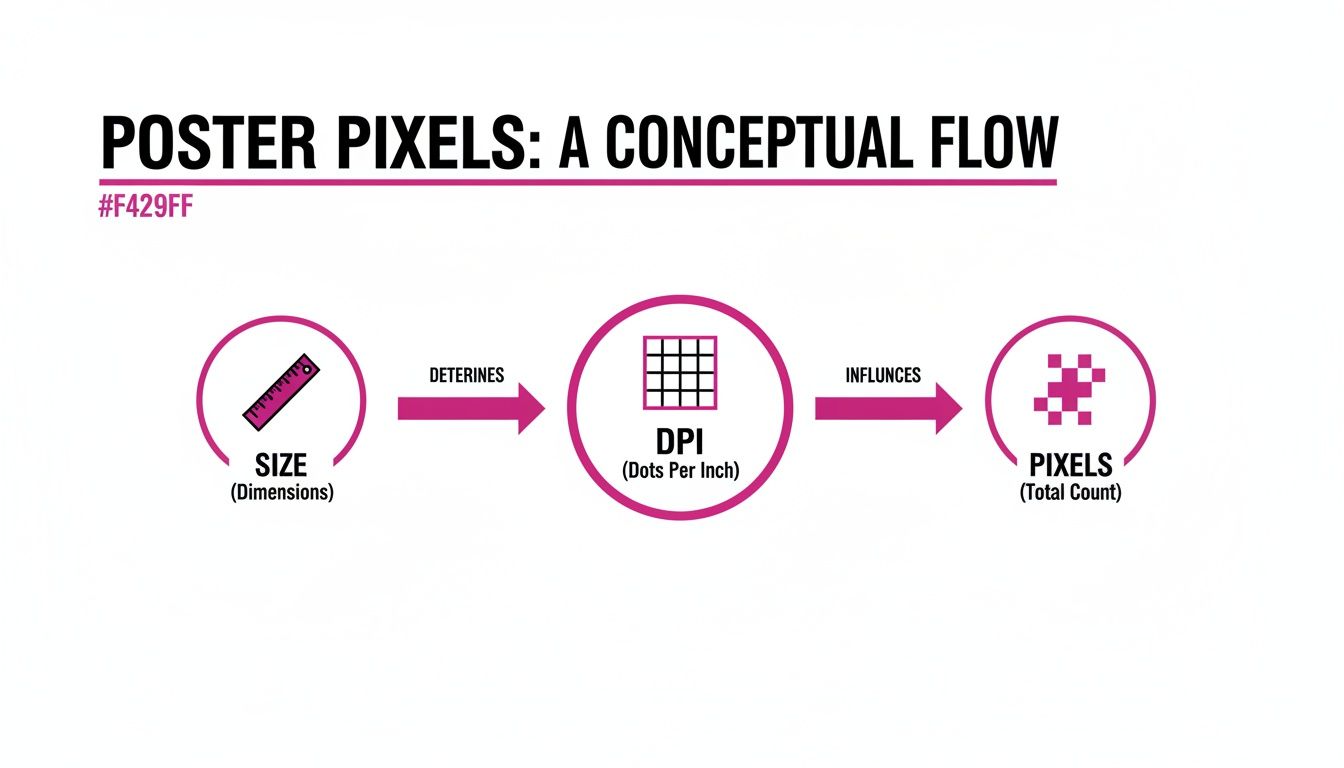
As this shows, you can't just pick a pixel count out of thin air. You have to start with the physical size and the print quality you're aiming for.
Why These Numbers Matter
Getting these conversions right is what separates an amateur print from a professional one. There's a reason the 24 x 36 inch poster is an industry staple; its large format offers a powerful visual impact and has been a cornerstone of advertising for decades. In the U.S. market alone, this size accounts for an estimated 40-50% of all printed posters.
If you start with a low-resolution image and need to make it work for a large print, all is not lost. Modern AI image upscaling tools can intelligently increase your pixel count without destroying the quality.
And if you're working with a unique or custom poster size, maintaining the correct proportions is crucial. You can use an online aspect ratio calculator to make sure your design doesn't get stretched or distorted when you resize it.
Connecting Pixels, DPI, and Physical Size
Alright, let's connect the dots between the file on your computer and the poster you'll actually be holding in your hands. Getting a handle on how physical size (inches), digital size (pixels), and print quality (DPI) all work together is probably the single most important part of this whole process. Think of them as three legs of a stool—you can't have one without the others.
I like to think of it like building a mosaic. The final wall space you're covering is your poster's physical size, say, 18x24 inches. The tiny little tiles you use to create the image are your pixels.
So, what’s DPI? Dots Per Inch is simply how many of those little tiles you cram into every square inch of the wall.
If you use big, chunky tiles (that's low DPI), your mosaic is going to look blocky and crude up close. But if you use tiny, tightly packed tiles (high DPI), you can create a stunning, super-detailed image that looks amazing even with your nose pressed against it.
The Simple Formula for Poster Pixels
Thankfully, you don't have to guess how many "tiles" you need. There’s a dead-simple formula that perfectly bridges the digital and physical worlds, giving you the exact pixel dimensions you need every single time.
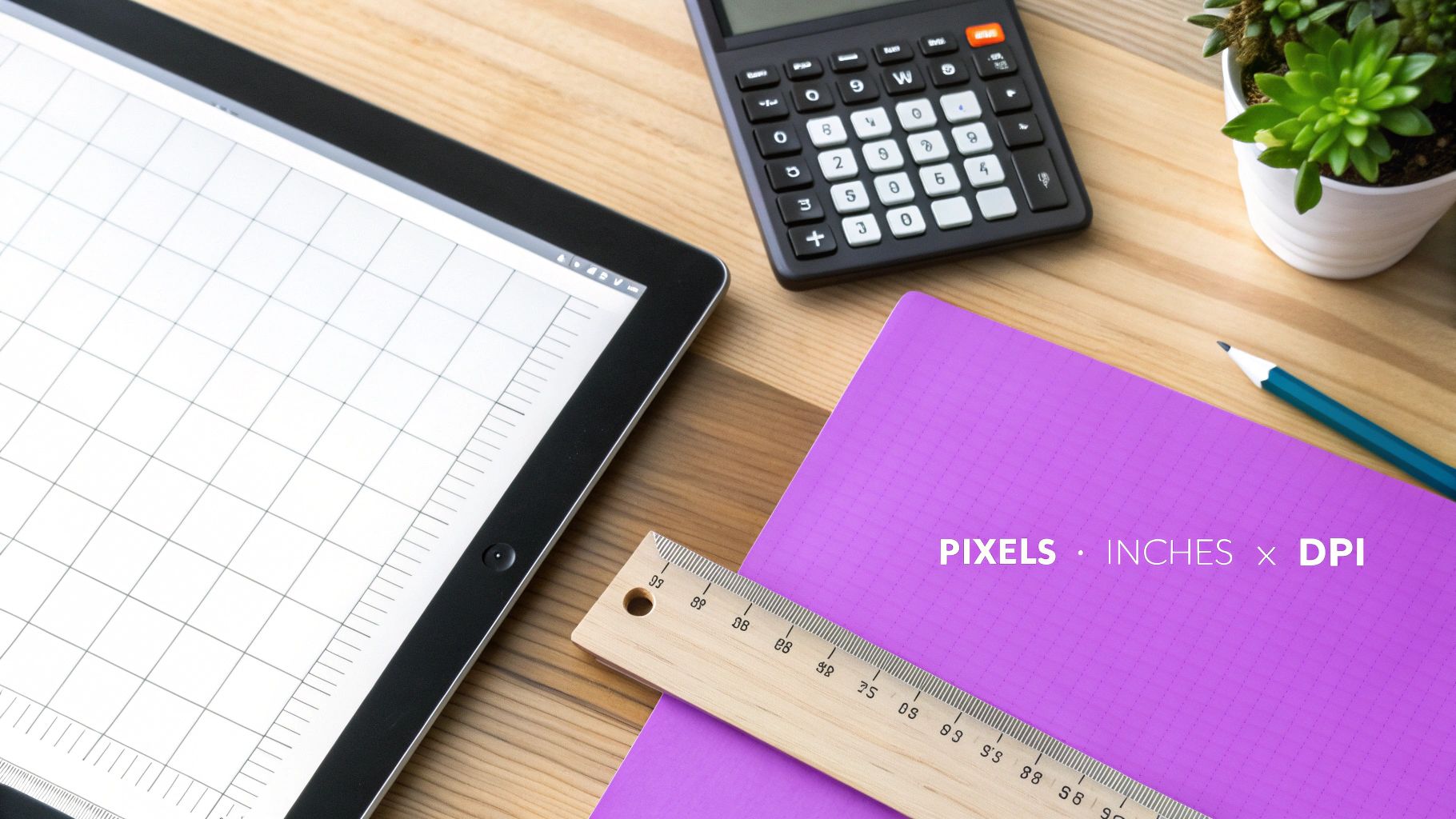
The Conversion Formula: Pixel Dimensions = Physical Dimensions (in Inches) × DPI
That’s it. For any poster size, you just multiply its width and height in inches by your target DPI. This little bit of math removes all the guesswork and is the bedrock of a high-quality print job.
Let's walk through a real-world example to see just how easy this is.
Calculating Pixels for an 18x24 Inch Poster
Imagine you’re designing a classic 18x24 inch event poster. You want it to look crisp, professional, and not at all fuzzy. The gold standard for high-quality printing is 300 DPI, so we’ll use that.
Here’s how the math breaks down:
- Pixel Width: 18 inches × 300 DPI = 5400 pixels
- Pixel Height: 24 inches × 300 DPI = 7200 pixels
Boom. To make sure your 18x24 inch poster prints beautifully, your digital file needs to be 5400 x 7200 pixels. If you start your design with these dimensions, you’re setting yourself up for success and avoiding the heartbreaking disappointment of a blurry, pixelated mess.
This exact same formula works for any poster size and any DPI you choose. Once you understand this relationship, you're in complete control of your final print quality. It's this fundamental knowledge that separates a good design from a truly great one.
Choosing the Right DPI for Your Poster Project
Not every poster needs to be created at the absolute highest resolution possible. In fact, picking the wrong DPI can either bloat your file sizes to unmanageable levels or, even worse, leave you with a blurry, disappointing print. It’s all about matching the resolution to the poster’s real-world use.
Think of it like this: you wouldn't use a tiny, low-quality photo from a flip phone to print a massive billboard. The same principle applies here, just with more specific numbers.
The Three Tiers of Print Resolution
To get the perfect print, you need to know the industry standards. These three DPI levels cover pretty much every scenario you'll encounter, from a quick digital mockup to a professional gallery print.
-
72 DPI (For Screens Only): This is the undisputed king of the digital world. It’s ideal for anything that will live on a screen—websites, social media graphics, email images—because it keeps file sizes small and load times fast. But try to print a 72 DPI image, and you'll get a pixelated mess. Just don't do it.
-
150 DPI (The Practical Choice): This is your solid, middle-of-the-road option. It’s perfect for prints that will be viewed from a bit of a distance. Think informational posters in an office, event flyers, or even just personal drafts where you don't need razor-sharp perfection. It strikes a good balance between quality and manageable file size.
-
300 DPI (The Professional Standard): For any poster that's meant to look professionally printed or will be seen up close, 300 DPI is non-negotiable. This is the industry gold standard for a reason. It ensures every line is crisp, every detail is sharp, and your colors look rich and vibrant.
Here’s the single most important takeaway: If you think you might print it, start your design at 300 DPI. You can always save a lower-resolution copy for the web later. You can't, however, magically add detail to a low-res image that was never there in the first place.
The High-Resolution Trade-Off
So why not just make everything at 300 DPI? The trade-off is file size. A 24x36 inch poster at 300 DPI is a whopping 7200 x 10800 pixels. That's a huge file. This is exactly why you can't just find a small image online and "upscale" it for a big poster. Stretching a low-resolution image only magnifies its flaws, making the blurriness and pixelation painfully obvious.
This is where AI platforms really shine. Generating 100 of these massive, high-res images using an AI like Flux 1.1 on Bulk Image Generation takes less than 20 seconds. This can cut production time by over 90% compared to doing it manually in Photoshop, where just resizing and prepping files could take hours. You can find more details on this topic from printing experts like Thomas Group Printing.
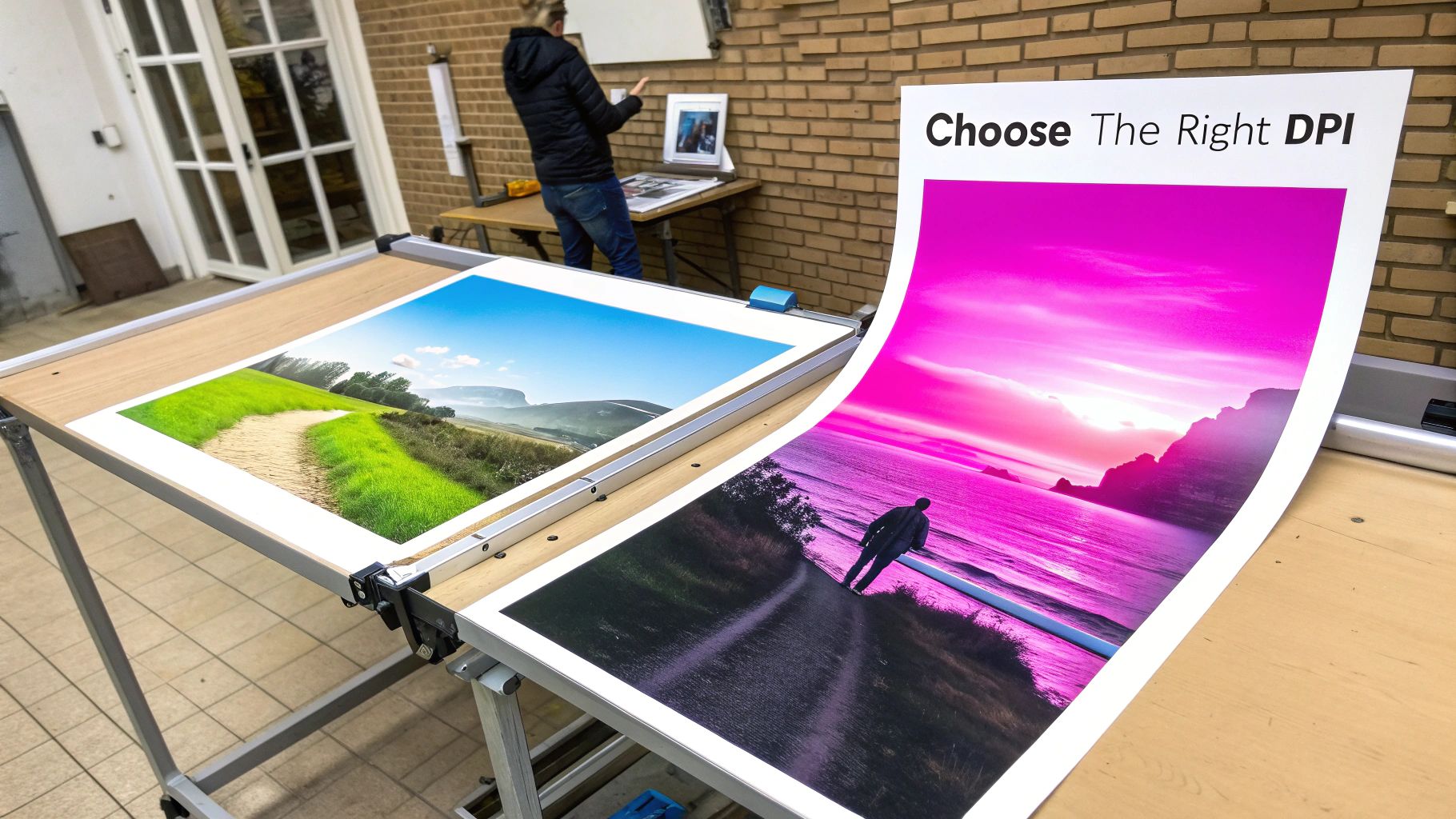
When you're creating images for different poster sizes, tools that manage aspect ratios are a lifesaver. Using a built-in calculator ensures your design for an 18x24 poster can be adapted to a 27x40 movie poster without looking stretched or distorted. It keeps everything looking just right.
Common Poster Sizes and Their Pixel Requirements
Alright, now that we've got the theory down—the relationship between inches, pixels, and DPI—let's get practical. Think of this next part as your ultimate cheat sheet. It’s here to take all the guesswork out of setting up your poster files, so you can spend less time crunching numbers and more time designing something that looks incredible.
Poster sizes aren't random; each one is designed for a specific job, from small flyers you'd see in a coffee shop to the massive sheets plastered on a movie theater wall. Picking the right format is the first step, and knowing the pixel counts is the second. Let's break down the most common sizes and give you the exact pixel dimensions you’ll need for both good-quality and pro-level printing.
Popular US Poster Dimensions
In the US, a few standard sizes dominate the market for everything from concert merch to retail promotions. Each one has a sweet spot where it really shines.
-
11 x 17 inches (The Versatile Flyer): You'll often hear this called "tabloid" or "ledger" size. It's the go-to for street marketing, bulletin boards, and informational flyers. It’s big enough to catch the eye but not so huge it feels overwhelming.
- 150 DPI: 1650 x 2550 pixels
- 300 DPI: 3300 x 5100 pixels
-
18 x 24 inches (The Event Standard): This is your classic poster size, perfect for band posters, art prints, and small-scale ads. Its well-balanced proportions make it a designer's favorite for visual-heavy work. In fact, the 18 x 24 inch poster is a major player, making up a huge 30% of the global events market. Its use shot up by 40% between 2019 and 2025 as live events roared back to life. You can read more about these poster size trends and their market impact.
-
24 x 36 inches (The Advertising Powerhouse): When you need to make a statement, this is the size you reach for. It's the standard for retail ads, trade show booths, and any display that needs to command attention from a distance. You've got tons of room for big, bold text and detailed graphics.
- 150 DPI: 3600 x 5400 pixels
- 300 DPI: 7200 x 10800 pixels
-
27 x 40 inches (The Movie Poster): This is the official "one-sheet" size you see in movie theater lightboxes. It’s built for one thing: maximum visual impact.
- 150 DPI: 4050 x 6000 pixels
- 300 DPI: 8100 x 12000 pixels
International A-Series Poster Sizes
Outside of North America, the world runs on the ISO "A" series. If you're designing for a global audience, you need to know these dimensions.
Fun Fact: The A-series is ingeniously designed. Each size is exactly half the area of the one before it (for example, you can fold an A1 sheet in half to get two A2 sheets). This keeps the aspect ratio perfectly consistent across the board.
-
A3 (297 x 420 mm): This is the international cousin of the US 11x17 inch poster. It’s a workhorse for flyers, charts, and presentations.
- 300 DPI: 3508 x 4961 pixels
-
A2 (420 x 594 mm): Similar in feel to the 18x24 inch event poster, the A2 is a popular pick for public notices, art prints, and in-store ads.
- 300 DPI: 4961 x 7016 pixels
-
A1 (594 x 841 mm): This is a large-format beast, great for technical drawings, big shop window displays, and conference posters. If you want to get into the weeds, this guide on A1 poster dimensions and pixel specifications is a great resource.
If your project demands multiple versions of a design for all these different sizes, don't sweat it. You can use our free AI image generator to quickly spin up high-resolution assets perfectly tailored to each dimension.
To make things even easier, here's a handy table that pulls all of this information together.
Pixel Dimensions for Standard Poster Sizes
This table breaks down the pixel requirements for the most common poster sizes in both the US and international markets, giving you numbers for both standard and professional print quality.
| Standard Size (Name & Inches) | Common Uses | Standard Quality (150 DPI) Pixels | Professional Quality (300 DPI) Pixels |
|---|---|---|---|
| Tabloid (11" x 17") | Flyers, bulletins, small events | 1650 x 2550 | 3300 x 5100 |
| Medium (18" x 24") | Event promotions, art prints | 2700 x 3600 | 5400 x 7200 |
| Large (24" x 36") | Retail advertising, trade shows | 3600 x 5400 | 7200 x 10800 |
| Movie Poster (27" x 40") | Theatrical displays, collectibles | 4050 x 6000 | 8100 x 12000 |
| A3 (11.7" x 16.5") | International flyers, charts | 1754 x 2480 | 3508 x 4961 |
| A2 (16.5" x 23.4") | Notices, international posters | 2480 x 3508 | 4961 x 7016 |
| A1 (23.4" x 33.1") | Shop displays, technical charts | 3508 x 4961 | 7016 x 9933 |
Bookmark this page or save this table. It's the kind of reference you'll come back to again and again. Getting your pixel dimensions right from the start is the foundation for a flawless final print.
Your Essential Pre-Print Checklist
Getting the pixel dimensions right is a huge step, but a few final checks can be the difference between a perfect print and a pricey mistake. Professional designers live by a pre-flight checklist. It’s their secret to catching common issues early and ensuring what they see on screen is exactly what comes off the printer.
This final once-over covers four critical areas that go beyond simple pixel counts. Skipping them can lead to nasty surprises like weird white borders, chopped-off text, or colors that look disappointingly dull and washed out.
Let’s walk through what you absolutely need to confirm before hitting "send" on that print file.
Bleed and Safety Margins Explained
First up is something called bleed. The easiest way to think about it is coloring a picture. If you want the color to go right to the very edge of the paper, you don’t stop at the line—you color past it. That’s exactly what bleed is for printing.
By extending your background color or image about 0.125 inches (or 3mm) beyond the final trim line, you create a small buffer for the printer’s cutting machine. When the poster is trimmed down to its final size, that extra bit gets sliced off, guaranteeing your design goes cleanly from edge to edge without any accidental white slivers.
On the flip side, you have the safety margin. This is the complete opposite of bleed. Think of it as an invisible border inside the trim line where you should never place important stuff like text or logos. This buffer zone protects your key content from getting tragically cut off during trimming.
Color Mode and File Formats
Next, we need to talk about color. The screen you’re looking at right now uses the RGB (Red, Green, Blue) color model, which mixes light to create colors. It’s perfect for digital displays.
Printers, however, don't use light; they use ink. They operate in CMYK (Cyan, Magenta, Yellow, Black). If you design in RGB and send it straight to print, your vibrant on-screen colors can come out looking muted and off. The solution? Always convert your final file to the CMYK color space for accurate, predictable results.
Finally, you have to pick the right file format for the job:
- PDF: This is the undisputed industry standard. It locks everything—your design elements, fonts, and images—into place so nothing shifts or breaks when the printer opens it.
- TIFF: A fantastic choice if your main goal is preserving maximum image quality. It uses what’s called lossless compression, so no detail is lost.
- JPEG: Only acceptable if you save it at the absolute highest quality setting. Anything less, and you risk visible compression artifacts that can ruin a print.
Getting these settings dialed in is every bit as important as figuring out the initial size of a poster in pixels. You can make this process a whole lot faster by using a capable bulk image resizer to apply consistent settings like bleed and margins across a whole batch of designs at once.
Common Questions About Poster Pixels and Printing
Even after you’ve got all the formulas down, a few nagging questions always seem to pop up right before you’re about to hit “send to printer.” Let’s clear those up so you can finalize your project with confidence, knowing you’ll get exactly what you envisioned without any costly surprises.
Here are some straightforward answers to the questions I hear most often.
What Happens If My DPI Is Too Low?
Ever tried to blow up a small photo to fit a big frame? It gets blurry and blocky, right? That’s exactly what happens when your DPI is too low for your poster size.
The printer is forced to stretch each individual pixel to cover more area than it was meant to. This is what we call pixelation—that ugly, jagged effect that instantly makes any design look amateurish. Without enough pixel data to work with, the printer has to guess how to fill in the gaps, and the result is never good.
Can I Just Increase the DPI of a Small Image?
This is probably one of the most common and damaging mistakes you can make. You can't just open a low-resolution image in Photoshop, change the DPI value from 72 to 300, and expect it to magically become sharper.
That action doesn’t create new detail out of thin air. All it does is either make the existing pixels bigger or use an algorithm to guess what new pixels should go in between them.
The result is a soft, fuzzy, or artificially smooth image that often looks even worse than the original. Always, always start with an image that has enough native pixels for your target print size at 300 DPI right from the get-go.
What Is the Best File Format for Printing Posters?
Choosing the right file format is critical to making sure what you see on your screen is what comes out of the printer. Here are the top choices the pros use:
- PDF: This is the undisputed champion. It packages your fonts, images, and layout into a neat, self-contained file, ensuring it looks identical on any machine. No surprise font changes or missing images.
- TIFF: An excellent choice if image quality is your absolute top priority. TIFFs use lossless compression, meaning zero detail is sacrificed when the file is saved. The files are bigger, but the quality is unmatched.
- JPEG: Use this one with care. While incredibly common, JPEG is a "lossy" format, meaning it throws away a little bit of data every time you save it. If you must use it, make sure you save it at the highest possible quality setting to minimize that loss.
How Do I Check an Image’s Pixel Size and DPI?
You don’t need any fancy software to check the basic stats of an image file. It’s pretty simple.
On a Windows PC, just right-click the file, go to "Properties," and click on the "Details" tab. On a Mac, open the image in the Preview app, head to the "Tools" menu, and select "Show Inspector." Both will show you the image's dimensions in pixels.
Ready to stop worrying about dimensions and start creating? With Bulk Image Generation, you can generate hundreds of perfectly sized, high-resolution images for any poster project in seconds. Let our AI handle the technical details so you can focus on your creative vision. Try it for free today!
