A Complete Guide to Midjourney Aspect Ratio
Ryan Bennett • September 22, 2026
Master the Midjourney aspect ratio with this complete guide. Learn commands, fix common errors, and explore creative compositions for stunning AI art.
The --ar command in Midjourney is your way of telling the AI what shape your final image should be. It sets the width-to-height proportions before a single pixel is generated.
Think of it like an artist choosing a canvas. A perfect 1:1 square is great for a focused portrait, but a sweeping 16:9 rectangle is what you need for a cinematic landscape. This single command is the foundation of your entire creative process.
Why Aspect Ratio Is Your Most Important Creative Tool
Before you even think about your prompt, you're making a choice that will define the entire visual story. The aspect ratio isn't just a technical setting; it's the frame that dictates the composition, mood, and emotional punch of your final image.
It controls what the viewer sees and, just as crucially, what they don't. This one decision sets the stage for everything that comes next.
Shaping Your Composition and Story
Your choice of aspect ratio directly tells Midjourney how to build the scene. A tall, skinny frame forces the AI to "think" vertically, while a wide, panoramic one encourages it to spread things out. Once you get this, you can start guiding the composition with real intent.
-
Vertical Ratios (e.g., 2:3, 9:16): These are perfect for emphasizing height, power, or a single subject. They create a more intimate feeling and are tailor-made for character portraits or anything designed for a phone screen, like Instagram Stories.
-
Horizontal Ratios (e.g., 3:2, 16:9): These are all about conveying scale, showing off the environment, and implying movement. They give your subject room to breathe and are the go-to for cinematic scenes, website headers, and YouTube thumbnails.
-
The Default Square (1:1): Since day one, Midjourney's default has been the 1:1 square. It’s a balanced, direct, and powerful format. This isn't a random choice; it lines up perfectly with social media, where square images can see 15-20% higher engagement on platforms like Instagram because they fill the screen so well. You can dive deeper into how Midjourney's aspect ratio features have evolved over time and how they impact creators.
By selecting your canvas first, you’re not just setting dimensions; you’re telling Midjourney what kind of story you want to tell. A portrait and a landscape require fundamentally different frames to be effective.
Ultimately, mastering the --ar command transforms it from a technical afterthought into your primary tool for visual storytelling. It’s the first and most impactful step in taking control of your final image.
To make things easier, here's a quick reference table to help you choose the right frame for your vision. It connects the technical commands to the creative outcomes you're likely looking for.
Common Midjourney Aspect Ratios and Their Best Uses
Aspect Ratio (--ar) | Common Name | Best For | Typical Use Case |
|---|---|---|---|
--ar 1:1 | Square | Social media posts, profile pictures, balanced compositions | Instagram feed, product shots, icons |
--ar 16:9 | Widescreen | Cinematic scenes, landscapes, digital displays | YouTube thumbnails, website headers |
--ar 9:16 | Vertical Video | Mobile-first content, full-screen portraits | Instagram Stories, TikTok, phone wallpapers |
--ar 3:2 | 35mm Film | Classic photography, storytelling, general purpose | Blog post images, print photography |
--ar 2:3 | Portrait Film | Character portraits, book covers, posters | Pinterest pins, character concept art |
--ar 4:3 | Standard Monitor | Digital art, presentations, balanced compositions | Desktop wallpapers, presentation slides |
--ar 3:1 | Wide Panoramic | Expansive landscapes, epic scenes, banners | Website banners, environmental art |
This table should give you a solid starting point. Don't be afraid to experiment with other ratios—sometimes the most unexpected frames produce the most interesting results
How to Actually Use the Aspect Ratio Command
Putting Midjourney’s aspect ratio command to work is surprisingly simple. You just tack on a small parameter at the end of your prompt, telling the AI exactly what shape you want the final image to be. This tiny addition gives you a massive amount of control over your composition right from the start.
The easiest way to do this is with the shorthand command --ar, followed by the width-to-height ratio you're aiming for. You can also use the longer version, --aspect, but they both do the exact same thing. I almost always use --ar just because it's faster. Think of it as telling an artist what size canvas to use before they even pick up a brush.
Getting the Syntax Right
The structure couldn't be simpler: write your prompt like you normally would, then add the aspect ratio command at the very end. One key thing to remember is that Midjourney only likes whole numbers. So if you're thinking 1.39:1, you need to write it as 139:100.
Here’s the basic format you'll follow:
/imagine prompt [your creative idea] --ar [width]:[height]
Let's say you're creating a widescreen image for a desktop background. Your prompt might look something like this:
/imagine prompt a cinematic shot of a lone astronaut on a red desert planet, cinematic lighting --ar 16:9
This little command tells Midjourney to generate the image within a 16:9 frame, which is perfect for capturing that wide, movie-like feel. What if you need a tall image for a phone wallpaper or a Pinterest pin? Just flip the numbers.
/imagine prompt a full-body portrait of a medieval knight in ornate silver armor --ar 9:16
How Things Have Changed: V4 vs. V6
If you've dug through older Midjourney tutorials, you might have seen conflicting advice about which ratios work. That's because the tool's capabilities have exploded with each new version.
-
Midjourney V4: Back then, things were much more limited. The model really only liked common ratios like 1:1, 2:3, and 3:2. Trying anything too exotic would usually get your prompt rejected or produce some seriously weird, unpredictable results.
-
Midjourney V5 and V6: These versions completely changed the game. They support pretty much any aspect ratio you can throw at them, all the way up to a maximum of about 2:1 horizontally (or 1:2 vertically). This freedom means you’re no longer stuck with standard photo sizes and can get truly creative with your compositions.
This evolution is exactly why mastering the modern --ar command is so critical—it unlocks the full creative power of the latest models. And while Midjourney has its own commands, understanding general principles, like how to change the aspect ratio of video, can give you a better sense of how different formats work across various platforms.
When I'm planning a large batch of images for specific print sizes or digital ads, I don't guess the numbers. I use a handy aspect ratio calculator to get the exact integers I need, saving a ton of time and failed prompts.
Choosing the Right Frame for Your Story
Knowing the commands is one thing, but actually connecting them to your creative goals? That's where the magic happens. The Midjourney aspect ratio you pick is the very foundation of your image. It influences everything from the emotional vibe to where the viewer's eye naturally lands. Think of each ratio as a specialized tool in your creative kit.
It's simple, really. A portrait artist and a landscape painter wouldn't use the same canvas. One needs to capture intimate, personal details, while the other is all about epic scale. Your choice of --ar does the exact same thing for your AI art.
Matching Ratios to Real-World Goals
Different projects demand different frames. A quick social media post has to grab attention on a tiny screen, but a website banner needs to create a wide, immersive feeling. Let's break down the most popular choices and how to use them strategically.
-
1:1 (The Perfect Square): This is the undisputed king of social media profiles and balanced compositions. Its symmetry is direct and powerful. It’s perfect for icons, product shots, or any image where you need the subject front and center without any distractions.
-
9:16 (The Vertical Storyteller): If you're creating for mobile, this is non-negotiable. This ratio is practically built for Instagram Reels, TikToks, and phone wallpapers. The tall frame really emphasizes a subject, giving it a sense of presence that pulls the viewer in. It's fantastic for character art or dynamic portraits.
-
4:5 (The Modern Portrait): A little taller than a square, the 4:5 ratio has become a favorite on Instagram feeds. It takes up more vertical screen real estate than a 1:1 image but isn't as narrow as 9:16, making it a great middle-ground for detailed character designs and compositions that feel like a classic print.
Harnessing the Power of Widescreen
When you want to create something that feels cinematic or just plain massive, horizontal ratios are your best friend. The 16:9 widescreen format is an absolute powerhouse for website banners, YouTube thumbnails, and any scene that needs to feel grand and immersive.
Its use in Midjourney absolutely exploded after V5, finally allowing for more complex and detailed horizontal scenes. This ratio is a game-changer for digital marketers; global data shows it powers 75% of all HD content consumption. For small business owners, simply using --ar 16:9 for website hero images can slash post-production resizing work by 50%, because it already fits most modern website headers perfectly.
Of course, getting the ratio right in Midjourney is only half the battle. If you're working with e-commerce, it's also crucial to be optimizing product image size for platforms like Shopify to ensure fast loading times.
The aspect ratio isn't just a technical setting. It's a strategic choice that aligns your creative vision with how your audience will actually experience it.
For anyone looking to build out entire websites with AI visuals, planning your ratios is a critical first step. If you're generating a large set of hero images, for instance, check out our guide on using an AI website images generator to make your workflow much smoother.
When you select the right frame from the very beginning, you make sure your story gets told exactly as you envisioned it.
Composing Your Scene Within the Frame
Nailing the Midjourney aspect ratio command is a great first step, but it’s really only half the battle. Now you have to think like a photographer or a film director to actually fill that frame. This is where you go from just making an image to composing a scene with intent, telling the AI exactly how to arrange the pieces to tell a story.
Simply slapping --ar 16:9 on your prompt gives you a wide canvas, but Midjourney needs you to tell it what to do with all that extra space. Do you want your subject pushed to the far left, gazing out over a vast, empty landscape? Or are you aiming for a perfectly balanced scene with symmetrical elements?
Directing the AI with Compositional Language
You can bake classic artistic principles right into your prompts to steer the final composition. The same timeless rules of photography and art that humans use work wonders for guiding an AI. By adding a few descriptive phrases, you can turn a potentially random output into a deliberate work of art.
Think about how different frames cry out for specific compositional cues:
- For a wide 16:9 frame, try using phrases like "cinematic wide shot," "subject placed on the left third," or "leading lines drawing the eye inward." These prompts encourage the AI to create a sense of drama and scale, perfect for epic landscapes or establishing shots.
- For a tall 9:16 frame, prompt with terms like "full-body symmetrical portrait" or "character looking up, negative space above." This really plays up the verticality, making a character feel larger than life or creating a feeling of awe.
By thinking about composition first, you’re not just hoping for a good result; you’re actively directing it. Your prompt becomes a creative brief for the AI, ensuring the aspect ratio and the content within it work together.
This handy flowchart is a quick decision-making guide for matching your project's goal to the perfect Midjourney aspect ratio.
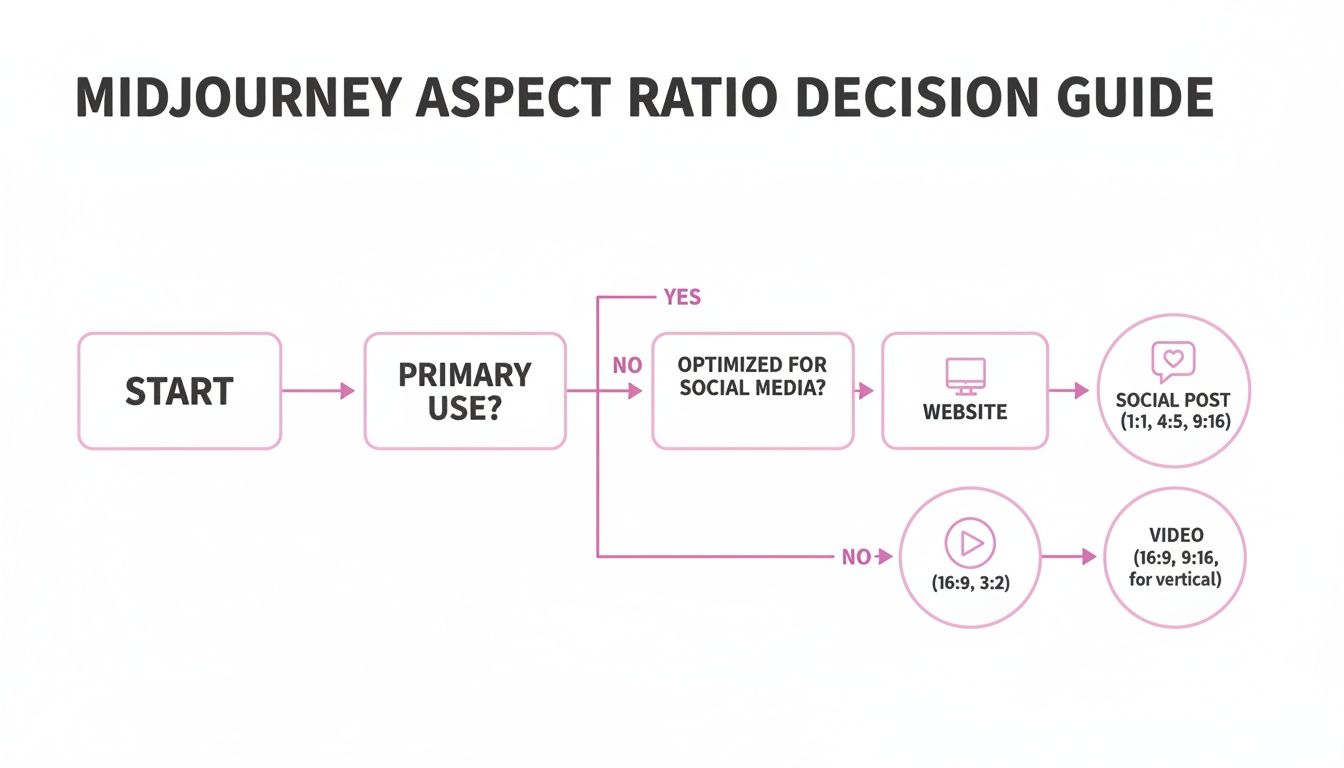
As the chart shows, your end goal—whether it's a social media story or a sprawling website banner—demands a specific frame to make the biggest impact.
Practical Examples of Compositional Prompts
Let's see this in action. The trick is to combine a clear subject with a specific aspect ratio and a compositional instruction. This three-part formula gives Midjourney a much clearer set of directions to follow.
- Goal: A dramatic landscape for a website header.
- Prompt:
A lone hiker standing on a mountain peak overlooking a misty valley, cinematic wide shot, rule of thirds --ar 16:9
- Prompt:
- Goal: An impactful portrait for a book cover or poster.
- Prompt:
Close-up portrait of a stoic queen with intricate silver crown, symmetrical framing, soft lighting --ar 2:3
- Prompt:
- Goal: An expansive panoramic scene for a banner.
- Prompt:
A futuristic city skyline at dusk with flying vehicles, panoramic view from a high vantage point --ar 3:1
- Prompt:
In every example, the aspect ratio sets the stage, but it's the compositional phrase that directs the performance. This approach is the key to consistently generating images that don't just look good, but feel intentional and professionally framed.
Solving Common Midjourney Aspect Ratio Problems
Even seasoned Midjourney pros run into aspect ratio commands that just don't stick. You type in your prompt, add --ar 16:9, and out pops… a perfect square. It's a common frustration, but don’t worry—it’s usually caused by a handful of simple slip-ups, and the fixes are just as simple.
Most of the time, the culprit is a tiny typo. Midjourney is incredibly literal with its parameters. A missing space before the --ar command or using something other than whole numbers (like --ar 1.5:1) will cause the AI to just ignore it completely. Always double-check that you have a space and you're using the width:height format with integers.
Why Midjourney Ignores Your Command
If your syntax is flawless but you’re still getting a 1:1 square, the problem probably lies within the prompt itself. The AI can get tripped up when it receives conflicting instructions, especially if you’re using an image to guide the generation.
- Image Prompt Interference: When you drop an image URL into your prompt, Midjourney often defaults to that image's original aspect ratio. It’s trying to be helpful by preserving the source shape, but in the process, it might override your
--arcommand. - Version Limitations: While V6 is incredibly flexible, older models were much more constrained. If you’ve switched to an older version for a specific style, you might be asking for a ratio it simply doesn't support, causing it to fall back to a default setting.
- Accidental Text Prompts: It’s a classic mistake. Sometimes users type instructions directly into the prompt box, like "make this a 16:9 image." That’s just seen as descriptive text; only the
--ar 16:9parameter will actually change the frame.
A great way to diagnose the issue is to isolate the parameter. Just run a dead-simple prompt like
a red circle --ar 3:2. If that works, you know for sure the aspect ratio command is fine, and the problem is hiding in your more complex prompt.
Quick Fixes for Common Issues
When your composition isn’t quite right, you don’t always have to reroll and hope for the best. Midjourney has a couple of powerful tools baked right in to fix a generated image that's almost perfect but just needs a different frame.
If your subject feels too cramped or awkwardly cropped, upscaling the image and using the Pan feature is your best friend. Just click the directional arrows (← → ↑ ↓) to intelligently extend the canvas in any direction. This is a brilliant way to effectively change the Midjourney aspect ratio after the fact, adding more breathing room or context to a scene without starting over.
Similarly, turning on Remix Mode can be a lifesaver. It lets you fine-tune the prompt on a specific variation, so you can tweak the composition without losing the elements you already love.
Scaling Your Creative Workflow Efficiently
Moving from tinkering with one-off images to tackling large-scale projects is a whole different ballgame. This is where a deep understanding of Midjourney's aspect ratio becomes your secret weapon. Get this right, and you’ll build a reliable, efficient workflow that saves you countless hours down the line.
Imagine you need to create hundreds of images for a social media campaign, a website redesign, or a complete branding package. If you don't plan your aspect ratios from the start, you're just signing yourself up for a mountain of tedious editing later. Every single image will need to be manually cropped, resized, and tweaked to fit its final destination. It's a creative bottleneck nobody has time for.
Pre-Planning Your Ratios
The key to working smarter, not harder, is to decide on your dimensions for each platform before you generate a single image. A Pinterest pin (--ar 2:3) needs a completely different canvas than a YouTube thumbnail (--ar 16:9) or a standard Instagram post (--ar 1:1).
Defining your ratios first ensures every image Midjourney creates is already perfectly suited for its job. You're essentially front-loading the technical work.
The goal is to eliminate manual resizing entirely. When you build aspect ratio planning into your initial creative brief, you turn a potential headache into a streamlined part of your production process. This is a massive productivity boost for any creator or marketer.
This proactive approach does more than just save time; it ensures your brand looks consistent and professional across all your channels. You get to focus on the creative side of things instead of getting bogged down in repetitive technical fixes.
For those of us handling huge volumes of images, tools like a bulk image resizer can automate things even further. Ultimately, treating aspect ratio as a strategic decision—not an afterthought—is the real secret to scaling your visual content effectively.
Common Questions Answered
Working with Midjourney's aspect ratio often brings up a few questions, especially when you're trying to get the perfect frame. We’ve all been there. Here are some quick, straightforward answers to the most common things people ask.
Let's clear up the confusion so you can get back to creating.
Can I Really Use Any Aspect Ratio?
For the most part, yes. With newer versions like V5 and V6, Midjourney gives you a ton of creative freedom. You can go with standard ratios like --ar 16:9 for a widescreen look, --ar 4:5 for a portrait, or even try something wild like a super-wide --ar 3:1 for a panoramic shot.
Just a heads-up, though: if you push it too far with extreme ratios (think anything beyond 2:1), you might get some weird, distorted, or less-than-perfect results. The AI was trained mostly on more conventional image shapes, so sticking closer to those usually gives you the most predictable and coherent images.
Does Aspect Ratio Mess with Image Quality?
Nope, changing the aspect ratio won't degrade the final upscaled quality of your image. What it does change is the starting canvas size and, more importantly, the entire composition of the picture. For example, a 16:9 image will start as a 1456x816 pixel grid, while a classic 1:1 square begins at 1024x1024.
A word of caution: really unusual ratios can sometimes force the AI into a corner, making it generate strange artifacts or awkward crops as it struggles to fill the non-standard frame. The core quality is still there, but the composition might not be what you hoped for.
How Do I Figure Out the Right Ratio for Printing?
This is way simpler than it sounds. To get the perfect aspect ratio for a physical print, just use the dimensions you plan to print. If you want a standard 8x10 inch photo, your ratio is 8:10. You can simplify that down to 4:5, so your prompt would include --ar 4:5.
Here are a couple more quick examples:
- Want a 5x7 inch photo? Use
--ar 5:7. - Printing a 12x18 inch poster? That's
--ar 12:18, which simplifies to--ar 2:3.
If math isn't your thing, an aspect ratio calculator online can make this process foolproof. It takes your print size and spits out the exact parameter you need, guaranteeing your final image fits the frame perfectly without any surprise cropping.
What Happens If I Forget to Set an Aspect Ratio?
If you don't add the --ar parameter to your prompt, Midjourney will simply default to a 1:1 square. This is the standard setting for all recent versions and it's a great all-rounder, perfect for things like Instagram posts or profile pictures. But if you want anything other than a square, you have to tell it.
Ready to take your creative process to the next level? Bulk Image Generation lets you move from single prompts to generating hundreds of perfectly framed images in seconds. Stop wasting time manually resizing and start creating at scale. Try it now and completely change your workflow.