Your Guide to a Free Transparent Image Maker

Ryan Bennett • September 28, 2026
Discover how a free transparent image maker can transform your designs. Learn to create crisp PNGs and process bulk images with AI in just a few clicks.
A free transparent image maker is pretty much what it sounds like: an AI-powered tool that strips the background from your photos, leaving you with a clean, isolated subject. For creators, it’s the quickest way to get professional-looking cutouts for e-commerce, marketing, or any design project without getting bogged down in complex software like Photoshop.
Why a Free Transparent Image Maker Is a Game-Changer for Creators
If you're a digital marketer, run a small business, or create educational content, you've felt the pressure to produce great visuals. You need slick product shots for your online store, scroll-stopping graphics for social media, or crystal-clear images for your course materials. The big hurdle? Traditional photo editing is a massive time sink, can get expensive, and has a notoriously steep learning curve.
Anyone who’s tried manually tracing an object to remove its background knows the pain. It can take forever and requires a surgeon’s steady hand. For most people without a design background, the whole process is just frustrating and the results often look amateurish. You could hire a pro, but those costs pile up fast, especially if you have dozens or even hundreds of images to get through.
The Modern Fix for Visual Content
This is where a modern, AI-driven free transparent image maker completely changes the workflow. It automates the most mind-numbing part of image editing, saving you a ton of time and money. Instead of painstakingly outlining a subject pixel by pixel, the AI just gets it—it intelligently finds the foreground and separates it from the background with a single click.
This isn't just a gimmick; it's part of a huge shift in how content gets made. The global AI image generator market was valued at USD 9.10 billion in 2024 and is on track to hit an incredible USD 63.29 billion by 2030. That kind of growth shows just how much demand there is for tools that make creating visuals faster and easier for everyone.
Key Takeaway: The rise of AI tools has leveled the playing field for professional design. Now, anyone can produce high-quality visuals without needing a massive budget or years of specialized training.
How It Helps You in the Real World
The applications are endless and incredibly practical. Once an image has a transparent background, it becomes a super versatile asset. Think about these common scenarios:
- E-commerce: Slap your product on a clean white background for a consistent, professional storefront that helps build customer trust.
- Social Media: Layer your cutout image over branded templates, videos, or other graphics to create eye-catching posts that actually make people stop scrolling.
- Education: Isolate diagrams or key subjects for presentations and learning materials, making sure students can focus on what's important.
Of course, making images transparent is often just one part of the job. Many creators also need other specialized tools, like a dedicated Quote Image Maker for whipping up social media graphics in a hurry. By combining these kinds of accessible tools, you can build a really powerful and efficient content machine.
Create Your First Transparent Image in Under a Minute
Alright, let's skip the fluff and get right to it. This is all about taking action—turning a regular photo into a clean, transparent PNG that you can use anywhere, right now. No theory, just a quick, practical walkthrough.
We'll pretend you're running an e-commerce store and need a crisp product shot for your website, like, yesterday.
The whole process is ridiculously simple. It’s designed to completely wipe out the tedious manual work that used to be the only way. You don’t have to spend your afternoon painstakingly tracing edges in some complicated software. Instead, a smart AI does all the heavy lifting for you with just one click.
Your Quickstart Guide to Background Removal
Getting started with a free transparent image maker like the one from Bulk Image Generation is incredibly intuitive. All you need is your image. For this example, let's grab a photo of a new handbag you want to feature on your homepage.
The main interface is built for speed. As you can see below, there's a big, obvious area to upload your file.
Once you upload the image, the AI instantly gets to work. It analyzes the photo, figures out what the main subject is (your handbag), and cleanly removes everything else. The background just vanishes, leaving you with a perfect cutout. This single-click process is what makes these tools a lifesaver for busy founders and marketers.
From there, you just download the result. The tool automatically gives you a PNG file, which is the standard format that preserves transparency. And just like that, you have a professional-looking, versatile image ready to be dropped onto any background for your website, social media, or a digital ad. The whole thing takes less than 60 seconds.
This kind of rapid, automated workflow is exactly why the AI image generator market, valued at USD 299.295 million in 2023, is exploding. It solves a massive pain point for industries like e-commerce and marketing that are always hungry for fast content. You can dive deeper into the AI image generator market growth on Fortune Business Insights.
From Simple Cutout to Creative Asset
Now that you have your transparent image, placing it on a plain white background is just the beginning. This is where you can get creative. The real magic of a transparent image is its flexibility.
Think about what you can do with that new handbag image:
- Promotional Graphics: Slap it on a bold, colorful background with some text to announce a flash sale.
- Social Media Stories: Drop it into a video to create a more dynamic, eye-catching post.
- Branding Consistency: Use the same clean product shot across all your marketing, from email newsletters to flyers, for a sharp, unified look.
This is just one simple but powerful tool in your visual content arsenal. If you're looking to create entirely new images from scratch, you might also want to check out our free AI image generator. These tools work together to cover pretty much all of your visual needs.
How to Process Hundreds of Images at Once
Making one image transparent is quick, but what about a whole product catalog? Or all the headshots for a new company directory? The idea of doing that one-minute process 50 or 100 times is enough to make anyone dread the task. This is where a bulk free transparent image maker really shines, turning a job that could take all day into something you can knock out in a few minutes.
Let’s say you’re launching a new collection of 50 products for your e-commerce store. Every single one needs a crisp, transparent background to look professional and consistent on your site. Instead of uploading, processing, and downloading each one individually, you can just drop the entire folder in and let the tool do its thing. This isn't just a small time-saver; it’s a massive leap in efficiency that lets you focus on work that actually matters.
Your Bulk Processing Workflow
The whole idea is beautifully simple: you grab an entire folder of images, tell the tool to remove the background on all of them, and then sit back. The AI gets to work, processing every single image in the queue and spitting out a full set of ready-to-use PNGs.
This is a complete game-changer if you handle images in any kind of volume. Think about the old way of doing things in Photoshop. Each image could easily take 5-10 minutes of careful clicking and refining. For 50 images, you'd be looking at over four hours of tedious, mind-numbing work. With a bulk tool, the entire batch is done before you can even finish a cup of coffee.
The real win with bulk processing isn't just about saving time—it's about being able to scale. It gives small businesses and solo creators the power to manage their visual assets with the same speed and polish as a big company with a dedicated design team.
This infographic breaks down the basic workflow for a single image, which is exactly what the tool automates across your entire batch.
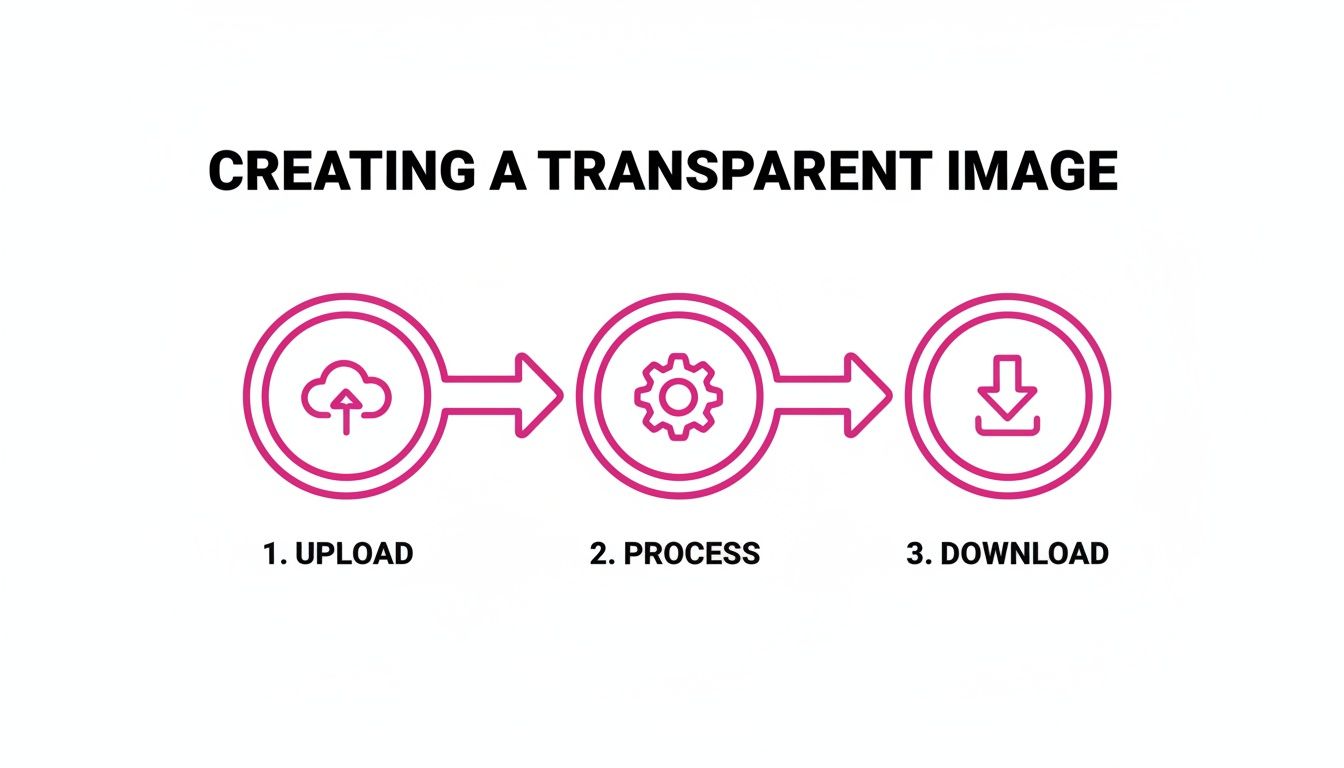
Uploading, processing, and downloading—imagine that happening automatically for hundreds of files at once.
To really see the difference, let’s compare the two approaches side-by-side.
Comparing Manual vs. AI-Powered Bulk Background Removal
| Task | Manual Editing (e.g., Photoshop) | Bulk Image Generation (AI Tool) |
|---|---|---|
| Setup Time | Open software, load each image one by one. | Select an entire folder to upload at once. |
| Processing Time (50 images) | 4-8 hours (5-10 mins per image). | 2-5 minutes total. |
| Consistency | Varies by image; hard to maintain. | Perfectly consistent results every time. |
| Skill Required | Intermediate to advanced editing skills. | None. Just drag and drop. |
| Cost | Software subscription + hours of labor. | Free for standard use. |
The table makes it pretty clear. The AI-driven approach isn't just faster; it's smarter, more consistent, and accessible to anyone, regardless of their design skills.
Post-Processing in Batches
Getting rid of the background is often just step one. What if all 50 of those new product photos also need to be resized for your website? A solid bulk platform rolls other essential tools right into the workflow.
- Bulk Resizing: Once the backgrounds are gone, you can apply a universal resize to the entire batch. Every image will come out perfectly uniform, ready for your product grid.
- Bulk Enhancements: You could also apply an auto-color correction or other filters across the board, giving your entire product line a cohesive, polished feel.
- Format Conversion: If you need another format, you can convert the whole batch at once—though for transparency, PNG is almost always what you want.
This all-in-one approach means you can go from raw photos to web-ready assets without ever leaving the platform. If you want to dive deeper into resizing, you can check out our bulk image resizer tool, which is the perfect partner for background removal. By combining these tools, you can build a fast, efficient pipeline that gets your visuals market-ready in record time.
Insider Tips for Flawless Transparent Images
Simply zapping the background is one thing, but getting a truly professional-looking transparent image requires a little more finesse. A few small tweaks can take your cutouts from "good enough" to "perfect." These are the tricks I’ve learned over time that make all the difference, and it all starts with the image you feed the AI.
You’ve probably heard the old saying, "garbage in, garbage out." It’s especially true for AI tools. If you start with a blurry photo where your subject just melts into the background, the AI will have a tough time finding a clean edge. For the best shot at a crisp cutout, always use a sharp, well-lit image where your subject stands out.
Mastering the Details
Even the best free transparent image maker can leave behind tiny imperfections. This happens most often around tricky edges like hair, fur, or complex patterns. Before calling it a day, do yourself a favor and zoom way in for a quick quality check.
Keep an eye out for any leftover color fringes from the original background or weird semi-transparent artifacts the AI might have missed. Spotting a minor issue? A quick touch-up in any basic editor can clean it right up. This extra step literally takes seconds but adds a layer of polish that makes your work look far more professional. For more on refining your final shots, check out our guide on AI product photography.
The Only File Format That Matters
This one is non-negotiable. When you're saving an image with a transparent background, you must save it as a PNG file. Other common formats like JPG or WEBP just don't support transparency. If you save as a JPG, the tool will automatically slap a solid white background behind your subject, completely undoing all your hard work.
The PNG (Portable Network Graphics) format was built for this. It uses what's called an "alpha channel" to store transparency information for every single pixel. This is what allows for those perfectly clean cutouts you can drop onto any background without a clunky white box around them.
Once you have that perfect PNG, you can really start getting creative. Don't just think static graphics. Layer it over a video for an eye-catching social media story or pop it into a presentation slide to make key info stand out. The possibilities are endless.
And as you get better at this, you'll want to learn how to reduce file size without losing transparency to make sure your beautiful images load quickly on any website. It's a key skill for balancing quality and performance.
Navigating Common Issues and Simple Fixes
Even the slickest free transparent image maker can stumble sometimes. But don't worry—most glitches you'll run into are surprisingly common, and the fixes are usually dead simple. Knowing what to look for ahead of time means you can solve these little hiccups in seconds and get right back to creating.
One of the most frequent hangups is a low-contrast image. Picture this: you're trying to cut out a white polar bear from a snowy background. The AI is going to have a tough time seeing where the bear ends and the snow begins. That confusion often leads to a messy cutout with jagged edges or even missing chunks of your subject.
The fix? It's almost laughably easy. Before uploading, just pop the image into any basic photo editor and give the brightness or contrast a tiny nudge. Making your subject stand out, even just a little, gives the AI a clear, defined edge to work with. You'll get a much cleaner result every time.
Solving Background Confusion
Another classic challenge is a busy or overly complex background. If your subject is standing in front of a cluttered bookshelf, a dense forest, or a patterned wall, the AI can get confused. It might accidentally snip out parts of your subject or leave distracting bits of the background behind. It's doing its best to figure out what's important, but too much visual noise throws it off its game.
Here’s how to handle it:
- Pre-Crop Your Image: The quickest win is to crop out as much of the distracting background as you can before you upload. This helps the AI focus only on the area that actually matters.
- Shoot on a Simple Background: This is more of a proactive tip, but if you're taking the photos yourself, try to use a plain wall or a simple backdrop. A little planning upfront can save you a ton of editing headaches later.
Pro Tip: If a tiny, stubborn piece of the background makes it through, don't sweat it. You can either rerun the tool or, even faster, use a simple eraser tool in a free editor to clean it up manually. It's often a quicker fix than trying to get a perfect AI result from a super complex image.
The Most Common User Mistake
Alright, let's talk about the number one mistake that trips up almost every newcomer. You’ve just generated the perfect transparent image, you’re thrilled with how it looks, and then you save it... as a JPG. The moment you try to use it, a solid white background has mysteriously reappeared. Frustrating, right?
This happens because the JPG file format simply does not support transparency. Only the PNG format can save an image with a transparent background. Always, always make sure you download or export your final image as a PNG file to preserve all that hard work. It's such a small detail, but it makes all the difference.
As the AI image generator market continues to explode—with some projections showing it could hit USD 60.8 billion by 2030—these tools are only getting smarter. They're becoming more capable of handling tricky scenarios right out of the box. This growth is fueled by a huge demand for accessible tools that help everyone from small business owners to hobbyists create professional visuals. You can learn more about the future of AI image generation on MarketsandMarkets. By mastering these simple fixes now, you'll be ready for any curveball the AI throws your way.
Frequently Asked Questions
Even with a straightforward tool, a few questions always pop up. It's completely normal. Getting clear answers helps you move forward with confidence and get the results you're after without any guesswork. We've gathered the most common queries we hear from creators right here.
This is all about giving you direct, no-fluff information. We'll cover everything from cost and file formats to quality concerns and whether you can do this on your phone.
Are Free Transparent Image Makers Really Free to Use?
Yes, many tools—including ours—offer a genuinely free tier that’s perfect for most people. If you're a small business owner, a student, or a marketer who just needs to process images without pulling out a credit card, the free plan is your best friend. You can get a ton done without ever paying a cent.
Of course, there are usually some reasonable limits, like a cap on how many images you can process in a day or a maximum download resolution. For anyone with high-volume needs, paid plans are available that unlock unlimited processing, higher resolutions, and other handy features. It's always a good idea to check out a platform's pricing page for the specific details.
What Is the Best File Type for a Transparent Image?
The undisputed champion here is PNG (Portable Network Graphics). It's really the only universally supported file type designed from the ground up to handle a transparent background perfectly.
JPGs, for instance, can't support transparency and will automatically fill in any empty space with a solid white background. PNGs, on the other hand, preserve what's called an alpha channel. This channel stores the transparency information for every single pixel, which is what allows for that truly see-through background. This makes PNG the go-to choice for websites, presentations, and any kind of graphic design layering. Always, always save or download as a PNG.
Will Using an AI Background Remover Lower My Image Quality?
A good AI tool is built to preserve the original image resolution while it works its magic on the background. The single most important factor in the final quality is actually the quality of the image you start with.
If you upload a crisp, high-resolution photo, the AI can easily identify the subject's edges and deliver a super clean cutout. But if your source image is blurry, pixelated, or low-quality, the final result is going to reflect that. Modern tools are excellent at maintaining detail without degrading the original image.
Key Takeaway: The AI doesn't reduce quality; it simply works with the quality it's given. A great input image will almost always give you a great output image.
Can I Make an Image Transparent on My Phone?
Absolutely. Most modern, web-based AI tools are fully responsive, meaning they work seamlessly on mobile browsers. There’s no need to hunt down and download a separate app.
You can just open Chrome or Safari on your phone, head to the tool's website, upload a photo straight from your camera roll, and download the finished transparent PNG in seconds. It’s incredibly handy for creating social media content on the fly or making quick edits when you’re away from your computer.
Ready to stop wasting time on tedious manual edits and start creating stunning visuals in a fraction of the time? Bulk Image Generation gives you the free tools you need to remove backgrounds, generate images, and scale your content production in minutes.
