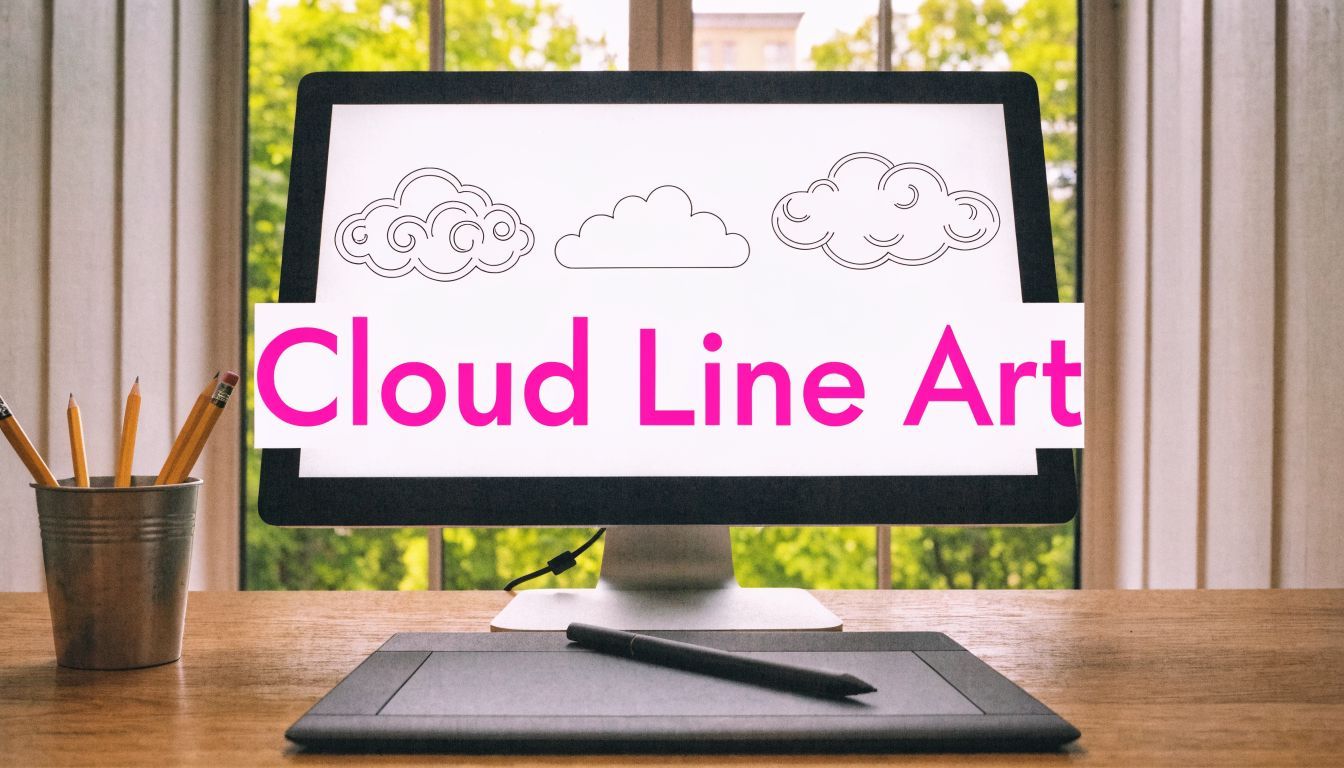
Master Cloud Line Drawing: AI Creation & Export Guide

Ryan Bennett • April 25, 2026
Effortlessly create stunning cloud line drawing assets in bulk. Learn AI prompt templates, batch settings, & vector exports for any project.
You probably need cloud line drawing assets for something real, not for a sketchbook exercise. A weather icon set that has to look consistent across an app. A classroom printable that can't include messy gray shading. A branding board where every cloud needs the same visual language, even though each variation should still feel distinct.
That’s where most workflows break. Drawing each cloud by hand takes time. Downloading stock vectors gives you a pile of mismatched line weights, awkward licensing terms, and styles that don't belong together. Generating one decent image with AI is easy enough. Generating a clean, usable, production-ready set is where the actual work starts.
The fastest workflow is the one that treats cloud line drawing like a system. You start with prompt structure, move into batch generation, clean the outputs in bulk, then export for the format the project needs.
Why Cloud Line Drawings Are Essential Design Assets
Cloud line drawings solve a strange number of commercial design problems. They work as app icons, sticker packs, logo concepts, lesson materials, social graphics, packaging accents, and coloring pages. They can look playful, technical, dreamy, minimal, or editorial without changing the basic subject.

The practical advantage is consistency. Once you lock the right line style, cloud shapes become modular assets. You can reuse the same visual family across onboarding screens, print worksheets, a product label, and social templates without redrawing from scratch.
Where manual workflows usually fail
The old workflow usually looks like this:
- Stock hunt first: You search libraries for “cloud outline,” “cloud icon,” and “cloud doodle,” then spend more time rejecting assets than using them.
- Patchwork editing: One icon has rounded corners, another has sharp points, another uses a thicker stroke, and now you’re fixing style mismatches manually.
- Late-stage cleanup: You only notice export problems after placing the art into a layout. Lines are too thin for print, or too decorative for UI use.
That’s why cloud line drawing works best when you build in batches, not one-offs. A batch mindset forces consistency earlier.
A method with older roots than most people realize
This isn’t a new creative idea. In 1785, Alexander Cozens published A New Method of Assisting the Invention in Drawing Original Compositions of Landscape, introducing a blotting method for systematically generating compositions depicting natural settings from cloud-like forms. His work treated cloud drawing as a generative tool, which is a useful historical parallel to prompt-based image creation today, as described in this MIT ACT discussion of clouds in art and computing.
Practical rule: Treat clouds as a shape system, not as isolated illustrations. That’s what makes bulk generation useful.
For production work, the value isn't in one beautiful cloud. It's in having a library of clouds that all belong together. When you approach cloud line drawing that way, AI stops being a novelty and starts acting like a real asset pipeline.
Crafting the Perfect Cloud Line Drawing Prompts
Most bad outputs come from vague prompts. “Simple cloud drawing” sounds clear to a person, but it leaves too much room for the model. You need to define subject, style, and output constraints in the same prompt.
The easiest way to think about it is the same way designers sketch forms with overlapping cloud-like shapes before committing to final edges. That layered process is conceptually similar to how modern AI responds to stacked descriptive keywords, as noted in this cloud sketching tutorial reference.
Build prompts in three layers
Start with the actual cloud type or scene.
- Subject layer: fluffy cumulus cloud, wispy cirrus streaks, cartoon storm cloud, repeating cloud border, cloud icon set
- Context layer: isolated symbol, coloring book page, logo concept, repeating pattern, weather interface asset
- Style layer: minimalist single line, bold contour drawing, engraved line art, kawaii outline, clean vector-style outline
Then add output control.
- Technical modifiers: black and white, no shading, isolated on white background, crisp contour lines, no background texture, uniform stroke look
- Composition cues: centered, symmetrical, lots of negative space, single subject, set of multiple distinct variations
- Cleanup language: no grayscale, no drop shadow, no photorealism, no painterly texture, no text
What works and what doesn't
A weak prompt:
- “cloud line drawing”
A usable prompt:
- “fluffy cumulus cloud, minimalist black line art, clean contour drawing, isolated on white background, no shading, no texture, children’s coloring page style”
A stronger production prompt:
- “set of distinct cloud outline illustrations, rounded cumulus forms, clean vector-style black lines, no fill, no gray, isolated on white, consistent minimalist icon style, suitable for coloring book and branding assets”
The difference is control. Good prompts don't just name the object. They define the finish.
If the output keeps drifting, the prompt usually isn't too detailed. It's too ambiguous.
Prompt templates you can actually use
| Use Case | Style | Example Prompt |
|---|---|---|
| Weather app icons | Minimal UI outline | clean cloud line drawing icon, simple rounded cloud shape, black outline, no shading, isolated on white, consistent app icon style |
| Coloring pages | Kid-friendly contour art | large fluffy cloud line drawing, thick clean black outline, no fill, no shading, simple interior space, printable coloring page for kids |
| Branding kit | Minimal logo exploration | elegant cloud line drawing, smooth continuous contour, minimal geometric balance, black on white, logo concept, no extra elements |
| Editorial illustration | Detailed ink look | dramatic cloud line drawing, layered sky forms, engraved line art style, monochrome, crisp edges, no watercolor texture |
| Social post accents | Playful doodle | hand-drawn cloud line art set, whimsical rounded shapes, clean black outlines, no background, sticker-like composition |
| Seamless patterns | Repeatable motif | repeating cloud line drawing pattern, simple outline clouds, uniform style, black lines on white, clean spacing, no shading |
| Classroom worksheets | Simple educational asset | basic cloud outline set, distinct cloud forms, clear black lines, no decoration, printable worksheet illustration |
| Packaging graphics | Soft organic accent | refined cloud line drawing, airy curved outline, minimal decorative style, black contour only, isolated on white |
When I need variations fast, I write one master prompt and swap only the use-case phrase. That keeps the visual DNA stable.
If you want help tightening rough ideas before you generate, use the free AI image prompt generator. It’s useful when you know the application but haven't translated it into visual language yet.
Prompting for batches, not single images
For one image, detail helps. For many images, repeatable language matters more. Use the same style phrase every time. Keep your exclusions consistent. Don't alternate between “minimalist line art,” “single-line doodle,” and “vector contour” unless you want the set to drift.
That single discipline saves a lot of cleanup later.
From Single Image to 100 Assets in Seconds
The biggest shift in cloud line drawing production happens when you stop aiming for one perfect output. The aim becomes a selectable batch. You want a field of options that share the same style but solve different layout needs.

A common example is a weather interface. You might need rounded fair-weather clouds, denser storm silhouettes, clouds with rain cues, and stripped-down versions for tiny UI spaces. If you make those one by one, you end up spending your time repeating yourself.
A practical batch setup
For batch work, I use one anchor prompt and a clear naming intent. Something like:
-
Define the family
- rounded cloud line drawing set
- minimalist black outline
- clean, consistent icon style
- isolated on white
-
Define allowed variation
- different silhouettes
- subtle shape diversity
- some compact, some wide
- some single-cloud, some layered-cloud forms
-
Define forbidden drift
- no shading
- no gray fill
- no background scene
- no text
- no decorative border
Then I generate enough options to curate rather than over-decide upfront.
Aspect ratio matters earlier than most people think
A cloud icon for an app grid and a cloud header for a social banner are different assets, even if the line style is identical. If you wait until export to think about aspect ratio, you'll crop away the breathing room that made the drawing work.
For bulk production, set ratios according to the final destination:
- Square formats: best for icon packs, sticker sheets, profile graphics
- Wide formats: better for headers, hero banners, presentation covers
- Vertical formats: useful for worksheets, posters, and printable activity pages
If you're producing lots of variants at once, generate with the target use in mind from the start. That preserves composition instead of forcing repairs later.
A good place to test this workflow is the bulk image generator, especially when you need many style-consistent outputs without rewriting the same idea over and over.
Selection is part of the workflow
Batch generation doesn't remove taste. It moves your effort into the right place. Instead of manually constructing every cloud, you review a broad set and keep the images that hit the brief.
I usually sort outputs into three groups:
| Keep | Fix | Reject |
|---|---|---|
| Clean silhouette, usable line weight, strong shape | Good idea but needs cleanup | Tangled lines, weak contour, style drift |
The fastest production workflow isn't the one that accepts everything. It's the one that rejects quickly.
This is the primary upgrade. You spend less time drawing duplicates and more time choosing the assets that belong in the set.
Post-Production Magic with the Batch Editor
Generation gives you raw material. Post-production gives you assets you can ship.

Many otherwise strong cloud line drawing workflows frequently become sloppy. This happens as designers generate a large batch, save everything, then open files one at a time to remove backgrounds, resize exports, and sharpen line clarity. This manual process causes speed to disappear.
Why batch editing matters
Cloud assets are usually simple, but simplicity makes flaws obvious. A faint off-white background shows immediately when you place the cloud over a colored layout. A slightly soft line looks amateur in print. In a mixed set, one inconsistent crop can make the whole pack feel unpolished.
A batch editor fixes the boring parts all at once. That’s not glamorous, but it’s what turns AI output into professional inventory.
The edits worth doing every time
I treat post-production as a checklist, not as open-ended tweaking.
- Background removal: Essential for overlays, sticker-style assets, and flexible placement in layouts.
- Uniform sizing: Keeps packs consistent across slides, social templates, storefront thumbnails, and printable pages.
- Global enhancement: Useful when the set needs cleaner separation between line and background.
- Format-specific exports: PNG for transparency, JPG for quick previews, vector-friendly references for redraw workflows.
The point isn't to overprocess. It's to standardize.
Production-ready means readable and clean
That matters even more if your cloud drawings feed into technical or manufacturing-adjacent workflows. In cloud-ready technical drawings, clarity depends on unambiguous layout and standardized output. A Werk24 article notes machine readability rates exceeding 95% in major industrial markets when drawings are prepared clearly, and cites 85% automation success when following its rules versus 50% for legacy hand-drawn scans, based on benchmark data from 10,000+ drawings. The same article also notes that clean standardized CAD exports can reach 98% success rates in those contexts, and that over-dimensioned drawings can increase processing errors by 40%. Those figures come from Werk24’s guidance on cloud-ready technical drawings.
That source is about technical documentation, not illustration. But the takeaway carries over cleanly: ambiguity kills automation. Messy files cost time.
Studio habit: If a line-art asset needs manual cleanup on every single file, the system is broken upstream.
For design teams, that means setting a quality threshold. If a batch contains nice-looking clouds with inconsistent edges, keep the strongest forms and discard the rest. Trying to rescue every output usually takes longer than generating a better batch.
What to fix in bulk and what to fix by hand
Use batch edits for:
- transparent backgrounds
- standard dimensions
- broad crispness adjustments
- export formatting
Use manual edits only for:
- logo candidates
- hero illustrations
- print covers
- assets with one small flaw in an otherwise excellent composition
That split keeps the process efficient. The batch editor should handle volume. Your hand should handle only the files worth polishing.
Integrating Your New Assets into Print and Digital Projects
A folder of cloud line drawing files isn't a finished deliverable. The job ends when those files work inside a real system: a printable book, a campaign, a brand kit, or a storefront.
Coloring books and classroom printables
For print projects, line quality is everything. Thin decorative strokes that look elegant on a screen often print too faintly for kids, worksheets, or low-ink home printers. For coloring pages, choose outputs with broad, closed contours and plenty of open interior space.
Use a simple review filter before export:
- Check closure: open loops can make coloring pages feel unfinished
- Check line confidence: avoid scratchy multi-stroke edges
- Check page balance: the cloud shouldn't float awkwardly in a sea of blank space unless that’s deliberate
- Check print contrast: black lines on white should stay decisive after PDF export
If you're packaging these into products, it's worth studying broader fulfillment decisions too. This guide on how to start a print on demand business is useful for thinking through product types, store setup, and what kind of art files translate cleanly into sellable items.
Social campaigns and digital content
Cloud line drawings are strong support assets for marketers because they can carry a theme without overwhelming copy. A week of posts can use the same cloud family across quote cards, launch teasers, carousel covers, and story backgrounds.
The key is sizing discipline. Prepare your asset set once, then create platform-ready versions with a dedicated bulk image resizer. That keeps each cloud visually consistent instead of stretching or cropping the art differently every time someone needs a new format.
A practical campaign set might include:
- square transparent clouds for feed posts
- wide cloud headers for banners
- small accent clouds for story frames
- outline clouds with extra whitespace for text overlays
Branding and visual systems
Branding work needs consistency more than abundance. You may generate dozens of cloud variations, but only a few belong in the final system. Some become logo exploration material. Others become background motifs, iconography, or packaging accents.
That logic mirrors an older scientific shift. When Luke Howard proposed the first systematic cloud classification in 1803, it transformed clouds into classifiable objects and made consistent observation possible, a milestone discussed in this history of cloud classification and the International Cloud Atlas. Branding needs the same discipline. An asset library only becomes useful when the forms are named, repeatable, and visibly related.
A strong brand library doesn't need more cloud drawings. It needs the right cloud drawings used consistently.
For agencies, the best use of AI batches is often ideation plus reduction. Generate broadly. Select narrowly. Refine the finalists for the exact medium, whether that’s packaging, digital UI, signage, or merch.
Cloud Line Drawing FAQs
How do I generate different cloud types instead of the same puffy shape every time
Use cloud type language early in the prompt. If “cloud” is the first and only noun, the model tends to default to a generic rounded form.
Try distinctions like:
- Cirrus-inspired: wispy, thin, streaked, airy, elongated cloud line drawing
- Cumulus-inspired: fluffy, rounded, clustered, soft-edged cloud outline
- Storm cloud: dense, layered, heavier lower contour, dramatic silhouette
- Decorative cloud: symmetrical, stylized, ornamental, logo-friendly outline
If the set still collapses into one shape family, ask for “distinct silhouettes” and “variation in width and massing” while keeping the same style terms.
How do I get ultra-clean lines for cutting machines or decals
The main issue is noise. Tiny artifacts, half-faded gray areas, and fuzzy line edges create problems later.
For cleaner cutting-friendly outputs, add constraints like:
- No shading
- No texture
- Solid black contour only
- Crisp edges
- High contrast
- White background
- No sketch lines
- No stray marks
Then reject anything with doubled edges or muddy contours. For cutter workflows, simplicity beats charm.
Can I turn black-and-white cloud line art into colored illustrations later
Yes, and that's usually the better workflow. Start with clean line art first. Once the shapes are strong, you can add flat fills in a graphics editor or use the line art as a clean base for recoloring.
That approach works well for:
- children’s book pages
- sticker packs
- educational posters
- social graphics
- packaging mockups
Keep one untouched black-line master set. Make colored derivatives from copies, not from the originals.
How do I keep a large batch in one artistic style
Pick one style phrase and repeat it exactly. Style drift often comes from the person prompting, not the model.
Good examples:
- “minimalist black line art”
- “cute kawaii outline drawing”
- “engraved monochrome line illustration”
- “clean vector-style contour art”
Don't rotate through near-synonyms unless you want variation. Consistency in wording creates consistency in results.
What's the best prompt structure for coloring-book clouds
Use plain language and specify what should be absent. A reliable structure is:
subject + style + print intent + exclusions
Example: “large fluffy cloud line drawing, bold clean black outline, simple printable coloring page, lots of open space, no shading, no gray, no background scene”
That formula removes most of the common problems.
Should I generate clouds isolated or inside scenes
Generate isolated first if you need reusable assets. Generate scenes only when the final product is a full illustration.
Isolated clouds are easier to:
- resize
- recolor
- layer into layouts
- mix across projects
- convert into icon sets or worksheet elements
Scene-based generation is better for book interiors, posters, or editorial compositions where the cloud interacts with a larger environment.
If you want to build a cloud line drawing library without doing the slow parts by hand, Bulk Image Generation is built for that exact workflow. You can generate large sets of style-consistent images, refine them in batches, and export assets that are ready for print, branding, and digital use.
