Poster Size Dimensions Pixels: A Guide to Perfect Prints

Ryan Bennett • December 29, 2025
Your quick guide to poster size dimensions pixels, with DPI basics, US/ISO charts, and tips for flawless prints.
If you’re planning to print a standard 24x36 inch poster, you’ll need a digital file that’s 7200 x 10800 pixels. Nailing the poster size dimensions in pixels from the start is the single most critical step to guarantee your final print is sharp, clear, and looks professional.
Your Quick Reference for Poster Dimensions in Pixels
It’s a lesson many of us learn the hard way: even the most brilliant design will look blurry and pixelated if the digital dimensions are wrong. Understanding the simple relationship between a physical poster size and its pixel count is the key to avoiding those frustrating and costly printing mistakes.
This guide is built to be your go-to resource, giving you clear, actionable numbers without the fluff. To kick things off, here’s a quick-glance table for the most popular US poster sizes, so you can grab the numbers you need and get back to designing.
Quick Reference Poster Pixel Dimensions at 300 DPI
The table below gives you the exact pixel dimensions needed for a high-quality print, based on the industry-standard resolution of 300 Dots Per Inch (DPI).
| Poster Size (Inches) | Dimensions (Pixels at 300 DPI) | Common Use Case |
|---|---|---|
| 11" x 17" | 3300 x 5100 pixels | Event flyers, small advertisements |
| 18" x 24" | 5400 x 7200 pixels | Retail displays, art prints |
| 24" x 36" | 7200 x 10800 pixels | Standard large posters, trade shows |
| 27" x 40" | 8100 x 12000 pixels | Official movie posters, collector's prints |
Using these figures ensures your final print will be crisp and professional. Whether you're designing marketing materials, creating art, or generating hundreds of visuals at once, starting with the correct poster size dimensions is the foundation for a great result.
If your workflow involves creating tons of designs, you can simplify the process with an AI-powered image generator that produces correctly sized visuals in seconds, saving you a ton of manual effort.
Understanding DPI and Its Impact on Print Quality
When you're getting a poster printed, you'll hear the terms DPI and PPI thrown around a lot. People often use them interchangeably, but they're actually two different things. Getting this right is the key to a sharp, professional-looking print and is fundamental to calculating your final poster size dimensions in pixels.
What's the Difference Between DPI and PPI?
Think of it this way: one lives on your screen, and the other lives on paper.
PPI (Pixels Per Inch) is all about the digital image on your monitor. It's the number of tiny square pixels crammed into one inch of your screen. A standard web image, for example, is usually 72 PPI. It looks perfectly fine on a display, but if you try to print it, you'll be in for a blurry surprise.
DPI (Dots Per Inch), on the other hand, is a physical printing term. It measures how many microscopic dots of ink a printer physically lays down in a one-inch line on the paper. The more dots, the smoother and crisper the image. Fewer dots? You get a blocky, pixelated mess.
Why 300 DPI is the Gold Standard for Printing
For any high-quality print job, from posters to brochures, 300 DPI is the undisputed industry standard. At this resolution, the ink dots are so tiny and packed so closely together that our eyes can't distinguish them individually. Instead, we see a smooth, continuous image with sharp details.
Could you get away with less? Maybe. For a huge banner that's only ever seen from across a street, 150 DPI might pass. But for a poster that people will see up close, anything less than 300 DPI is a gamble that usually ends in visible pixelation.
Here's a simple analogy. Imagine you're making a mosaic:
- 72 DPI is like using big, clunky bathroom tiles. From a distance, you can make out the picture, but up close, all you see are the individual tiles.
- 300 DPI is like using tiny, intricate glass tiles. The pieces blend together so seamlessly that the image looks sharp and detailed, even when you're standing right in front of it.
When you set your design file to 300 DPI in a program like Photoshop or Canva, you're essentially telling it to pack enough pixel data into the file to support a high-density print. This ensures your poster size dimensions in pixels are large enough to translate from screen to paper without losing quality.
Bottom line: Always start your design at 300 DPI. It’s the single most important step you can take to guarantee your poster prints with professional clarity.
Standard US Poster Sizes and Pixel Requirements
While the rest of the world often defaults to the ISO "A" series, the United States sticks to its own set of standard poster sizes, each with a specific job to do. Getting the dimensions right is step one, but knowing the exact pixel requirements is what separates a blurry, amateur print from a sharp, professional one. Nailing the poster size dimensions pixels from the get-go will save you a world of headaches, reprints, and wasted money.
For any designer, artist, or marketer, having a quick-reference guide for this stuff is a lifesaver. It takes all the guesswork out of setting up your canvas, whether you’re whipping up a small flyer for a local gig or designing a massive one-sheet for a film festival.
US Poster Sizes Converted to Pixels
Think of this table as your cheat sheet. It breaks down the common US sizes and gives you the pixel dimensions you need for web use (72 DPI), a decent standard print (150 DPI), and the high-quality stuff you'd get from a commercial printer (300 DPI).
| Size Name | Dimensions (Inches) | Pixels at 72 DPI (Web) | Pixels at 150 DPI (Standard) | Pixels at 300 DPI (High-Quality Print) |
|---|---|---|---|---|
| Tabloid / Small | 11" x 17" | 792 x 1224 pixels | 1650 x 2550 pixels | 3300 x 5100 pixels |
| Medium Poster | 18" x 24" | 1296 x 1728 pixels | 2700 x 3600 pixels | 5400 x 7200 pixels |
| Large Poster | 24" x 36" | 1728 x 2592 pixels | 3600 x 5400 pixels | 7200 x 10800 pixels |
| One-Sheet (Movie) | 27" x 40" | 1944 x 2880 pixels | 4050 x 6000 pixels | 8100 x 12000 pixels |
Just remember this chart when you're setting up your files, and you'll be in great shape.
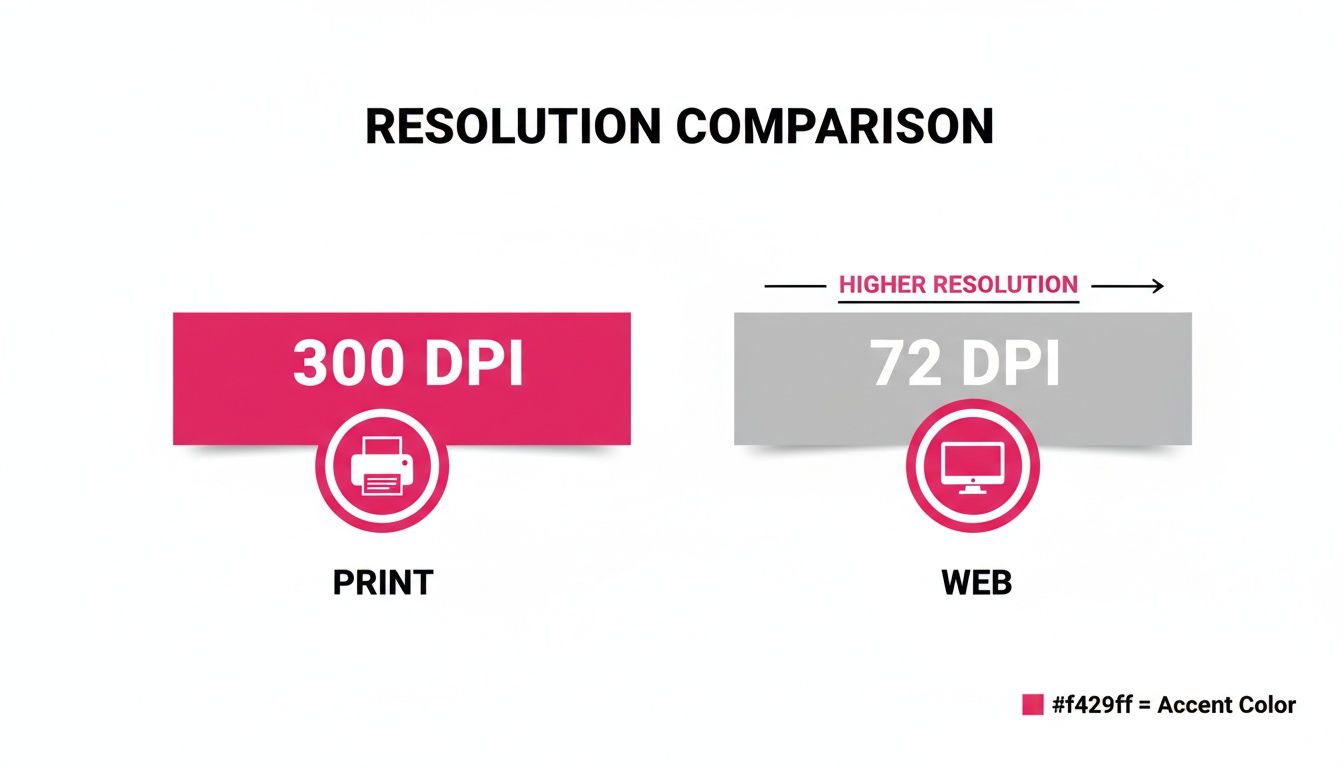
As you can see, a print-ready file at 300 DPI is packed with way more pixel data than a standard web image at 72 DPI. That's exactly why an image you pull from a website looks so blocky and pixelated when you try to print it.
Common Use Cases For US Sizes
Each of these sizes has its own natural habitat out in the wild.
-
11x17 (Tabloid): This is your go-to for street-level marketing. Think flyers on a coffee shop bulletin board, posters in a shop window, or promoting a band's upcoming show. It’s small, effective, and perfect when space is tight.
-
18x24 (Medium): This one is a real workhorse. It's a popular choice for art prints, special promotions inside a retail store, and smaller, more focused trade show displays. It's big enough to get noticed but won't completely dominate the room.
The 24 x 36 inch poster, however, is the undisputed king. Measuring 609.6mm x 914.4mm, it translates to a massive 7200 x 10800 pixels at 300 PPI—the gold standard that keeps your design looking crisp, even when viewed from 10-20 feet away. This size has been a staple in the printing industry since the mid-20th century, and industry reports show it still makes up over 60% of all large-format poster orders in the US. It really took off during the trade show boom of the 1980s, when everyone realized it struck the perfect balance between high visibility and practical portability. You can find more cool history about standard poster sizes and their history on wheatpasteposters.com.
Pro Tip: Seriously, always, always confirm the final print size with your client or printer before you start designing. Trying to resize a finished project is a recipe for distorted graphics, fuzzy text, and a whole lot of rework.
And finally, we have the iconic 27x40 inch "One-Sheet." This is the official standard for movie posters you see lighting up the lobbies of cinemas everywhere. Its tall, commanding presence is specifically designed to grab your attention in a crowded, bustling space.
International ISO Poster Sizes A-Series Dimensions
If you're designing for anyone outside the US, you need to know about the ISO A-series. It’s the universal standard for paper sizes basically everywhere else in the world. Unlike the imperial system, the A-series is built on a clean, logical metric system that makes scaling a breeze.
The whole system is brilliantly simple. It starts with A0, a massive sheet of paper with an area of exactly one square meter. Every other size in the series—A1, A2, A3, and so on—is just the previous size folded in half along its longest side. This gives every single A-size paper the exact same aspect ratio (1:1.414), which is a huge advantage for designers. It means you can scale your artwork up or down the entire series, and it will fit perfectly without any awkward stretching or cropping.
A-Series Dimensions and Pixel Requirements
Here’s a quick reference table with the pixel dimensions you’ll need for the most common A-series poster sizes. Whether you’re prepping for a high-end print job or just a quick web mockup, these numbers will get you started right.
| Size Name | Dimensions (mm) | Dimensions (Inches) | Pixels at 72 DPI (Web) | Pixels at 150 DPI (Standard) | Pixels at 300 DPI (High-Quality Print) |
|---|---|---|---|---|---|
| A4 | 210 x 297 mm | 8.3" x 11.7" | 595 x 842 pixels | 1240 x 1754 pixels | 2480 x 3508 pixels |
| A3 | 297 x 420 mm | 11.7" x 16.5" | 842 x 1191 pixels | 1754 x 2480 pixels | 3508 x 4961 pixels |
| A2 | 420 x 594 mm | 16.5" x 23.4" | 1191 x 1684 pixels | 2480 x 3508 pixels | 4961 x 7016 pixels |
| A1 | 594 x 841 mm | 23.4" x 33.1" | 1684 x 2384 pixels | 3508 x 4961 pixels | 7016 x 9933 pixels |
Common Applications for ISO Sizes
From office documents to massive advertisements, each A-series size has its own place in the design world.
- A4 (210 x 297 mm): This is the global workhorse. Think business letters, official documents, and small flyers you’d see tacked onto a bulletin board.
- A3 (297 x 420 mm): A fantastic choice for event posters, charts, and presentations. It's double the size of A4, so it’s big enough to grab attention but not so large that it feels out of place indoors.
- A2 (420 x 594 mm): You'll often see this size used for professional art prints, window displays in shops, and marketing posters at conferences or trade shows.
- A1 (594 x 841 mm): When you need to make a big impact, A1 is a go-to. It's perfect for large-scale advertisements, architectural plans, and big, bold visuals for presentations.
Global Design Tip: If you know a project might be printed in both the US and internationally, try designing for the A-series sizes first. It's often much easier to adapt an A4 design to a US Letter size than the other way around, usually with just minor cropping.
Iconic Movie Poster Dimensions for Theatrical and Fan Art
When you step outside the world of standard art prints, you find that cinema has its own legendary set of dimensions. For decades, the undisputed king of movie promotion has been the 27 x 40 inch poster, better known as the "One-Sheet." Its tall, commanding presence was designed specifically to grab your attention in a crowded movie theater lobby.
This iconic size, measuring 685.8mm x 1016mm, is Hollywood's secret weapon. To print it properly, you need a massive high-resolution file: 8100 x 12000 pixels at 300 PPI. It’s been the go-to since the 1930s, promoting blockbusters from Gone with the Wind to today's biggest hits. You can dig deeper into Hollywood's favorite poster size at thomasgroupprinting.com.
Essential Movie Poster Pixel Dimensions
If you're an artist creating fan art or a marketer designing promotional materials, sticking to these industry standards is crucial for an authentic feel. Here’s a quick breakdown of the pixel requirements for common movie poster formats at 300 DPI.
- One-Sheet (27" x 40"): 8100 x 12000 pixels
- Bus Stop / Subway (40" x 60"): 12000 x 18000 pixels
The One-Sheet is still a huge collector's item and the default choice for high-quality fan prints. Film buffs instantly recognize its unique 27:40 aspect ratio.
Designer's Note: When you're wrestling with files this big, make sure your computer has enough RAM to handle the pixel count without slowing to a crawl. A flawless, high-quality export is non-negotiable to keep every detail sharp.
The much larger Bus Stop format needs an even bigger pixel count to stay crisp, especially since people will be viewing it up close. Both sizes require you to start with super high-resolution source images to avoid any pixelation. For anyone in entertainment marketing or graphic design, mastering these specific poster size dimensions in pixels is key to producing professional work that honors the cinematic tradition.
How to Calculate Custom Poster Pixel Dimensions
Standard sizes will get you pretty far, but it's only a matter of time before a client comes to you with a completely custom request. Don't sweat it. Calculating the right poster size dimensions in pixels for any print job is actually quite simple once you know the magic formula.
The math is straightforward: just multiply the physical size in inches by the Dots Per Inch (DPI) you’re aiming for. Do this for both the width and the height, and you’ll have the exact pixel dimensions you need for a crystal-clear print.
The Formula: (Dimension in Inches) x (DPI) = Required Pixels
Putting the Formula Into Practice
Let’s walk through a real-world example. Say a client needs a custom 20-inch wide by 30-inch tall poster. They’ve asked for a standard-quality print, so we'll use 150 DPI.
Here’s how you'd break down the calculation:
- Figure out the Width:
- 20 inches (Width) x 150 DPI = 3000 pixels
- Figure out the Height:
- 30 inches (Height) x 150 DPI = 4500 pixels
Boom. Your design canvas needs to be set up at 3000 x 4500 pixels. This ensures the final print comes out looking sharp and professional, not like a blurry mess. This simple multiplication works for any size, whether you start with inches, centimeters, or millimeters—just be sure to convert to inches first before you do the math.
Pro Tip: Always, always double-check your aspect ratio before you get too deep into the design. A mismatched ratio is a fast track to stretched, distorted, or awkwardly cropped artwork. If you need a quick sanity check, use an online tool like this free aspect ratio calculator to make sure your pixel dimensions line up perfectly with the final print size.
While this guide is focused on posters, the core ideas behind pixel dimensions and resolution are universal. The same principles are critical when you're optimizing image sizes for web pages on an e-commerce store. The math is the same whether you're sending something to a printer or a screen.
Key Print Concepts for Professional Results
Getting the pixel dimensions right is a huge first step, but a few other print concepts are what really separate an amateur poster from a professional one. If you want your design to look exactly as you planned when it comes off the printer, you have to get familiar with bleed, safe margins, and aspect ratio.
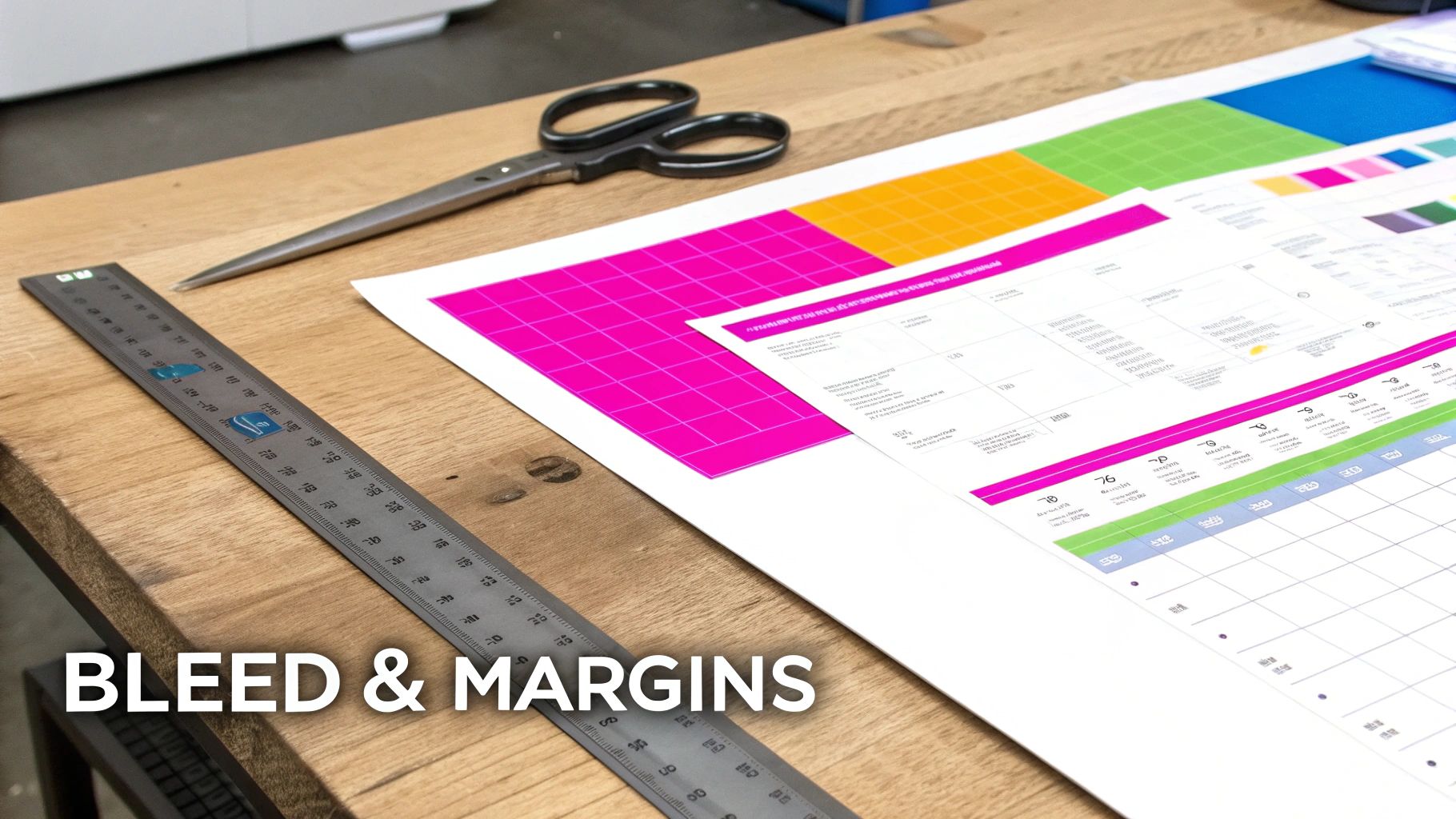
These concepts are your best defense against common printing mistakes, like those annoying white borders or having important text trimmed off. Once you master them, you’re in full control of the final printed piece.
Understanding Bleed and Safe Margins
Ever seen a print with that thin, accidental white sliver along one edge? That’s what happens when a design is missing a bleed.
-
Bleed is the part of your design that stretches beyond the final trim line of the poster. Industrial paper trimmers are incredibly precise, but not always 100% perfect. Adding a bleed ensures your background color or image goes all the way to the absolute edge, eliminating any risk of those ugly white borders. The industry standard is to add a 0.125-inch (or 1/8th of an inch) bleed on all four sides.
-
Safe Margin is basically the opposite of a bleed. Think of it as an inner safety zone that keeps your most critical content—like text, logos, or key faces—away from the trim line. Placing everything important inside this boundary guarantees it won't get accidentally chopped off during trimming. A standard safe margin is also 0.125 inches from the inside edge of the final poster dimensions.
The Importance of Aspect Ratio
Aspect ratio is simply the proportional relationship between an image's width and its height. You'll see it written out as a ratio, like 2:3 or 16:9.
For instance, a classic 24x36 inch movie poster has a 2:3 aspect ratio. This just means that for every 2 units of width, there are 3 units of height. Sticking to the correct aspect ratio is absolutely critical when you're resizing your artwork, because failing to do so will distort it. Nobody wants a stretched or squished design—it instantly ruins the quality.
Key Takeaway: Always figure out the final poster's aspect ratio before you start designing. If your source image or artwork has a different ratio, you'll need to crop it thoughtfully instead of just stretching it to fit.
For larger projects, businesses often bring in specialized equipment to handle the volume and size. When it's time to scale up production, many will explore wide format printer leasing options to get the right hardware in place. And if you're dealing with a ton of images that all need to be adjusted to a specific ratio, a powerful bulk image resizer can automate the entire process, saving you a massive amount of time and effort.
Got Questions About Poster Dimensions? We’ve Got Answers.
Even with all the charts and calculators in the world, a few key questions always seem to pop up right when you’re about to hit “export.” Getting these details right can be the difference between a poster you’re proud of and one that’s a costly disappointment. Let’s clear up some of the most common sticking points.
What Happens If My Image DPI Is Too Low for My Poster Size?
This is a classic and painful mistake. If you use a low-DPI image for a big poster—say, a 72 DPI graphic pulled from a website for a 24x36 inch print—the outcome is going to be rough. The final print will look blurry, pixelated, and just plain unprofessional.
It happens because the printer has to stretch a small number of pixels over a huge physical surface. Each pixel becomes visibly massive, leading to that blocky, fuzzy look we all dread. For a sharp, professional print that looks great up close, you absolutely have to start your design at 300 DPI at its final print size. No shortcuts.
Can I Just Convert a Low-Resolution Image to 300 DPI?
Technically, yes, software like Photoshop lets you change the DPI value from 72 to 300. But this doesn't magically add detail that isn't there. The software is forced to guess what the new pixels should look like in a process called "upsampling." More often than not, this leaves you with an image that looks soft, artificial, and blurry.
Think of it like trying to turn a grainy, old phone photo into a billboard-sized masterpiece just by changing a number in a settings box. It’s not possible. The original data has to be there from the start. While some modern AI upscaling tools can do a surprisingly decent job, nothing beats starting with a native, high-resolution file for professional work.
What Is the Best File Format for Printing Posters?
When you’re ready to send your file off to the printers, they’ll almost always prefer a PDF, TIFF, or sometimes a high-quality JPEG.
- PDF (Press Quality): This is the industry standard for a reason. A press-quality PDF is like a locked box—it embeds all your fonts, images, and layout info into one self-contained, reliable file. What you see on your screen is exactly what the printer gets.
- TIFF: This is your best bet for preserving maximum image quality. TIFFs use lossless compression, which means zero detail is lost when you save the file. They’re bigger files, but worth it for art prints or photography.
- JPEG: A JPEG can work, but only if you save it at the absolute highest quality setting (like a "12" in Photoshop). Just remember, JPEGs use lossy compression, which throws away a tiny bit of data each time you save.
The golden rule? Always check with your printing service first. They’ll tell you exactly what format they want.
Which Matters More: Aspect Ratio or Pixel Dimensions?
It’s a trick question—they’re both equally critical. One without the other is a recipe for failure.
- Aspect ratio is the proportional shape of your poster (like 2:3 or 4:5). Getting this right ensures your design doesn’t get stretched, squished, or cropped in weird ways.
- Pixel dimensions are the raw data—the total number of pixels that make up the image within that shape (e.g., 7200 x 10800 pixels). This determines how sharp and detailed the final print will be.
Your workflow should be: First, lock in the correct aspect ratio for your poster size. Then, make sure you have enough pixels packed into that shape (i.e., 300 DPI) to guarantee a high-quality print.
Tired of juggling aspect ratios, DPI, and pixel math for every single visual? Bulk Image Generation uses powerful AI to create hundreds of images to your exact specifications in seconds. Just describe what you need, and let the platform handle the styling, composition, and correct dimensions for any project—from social media campaigns to print-ready posters.
