A Guide to Creating Images With Motion That Captivate Audiences

Ryan Bennett • March 8, 2026
Learn how to create captivating images with motion. This guide covers AI-powered workflows for cinemagraphs, GIFs, and animated overlays for social media.
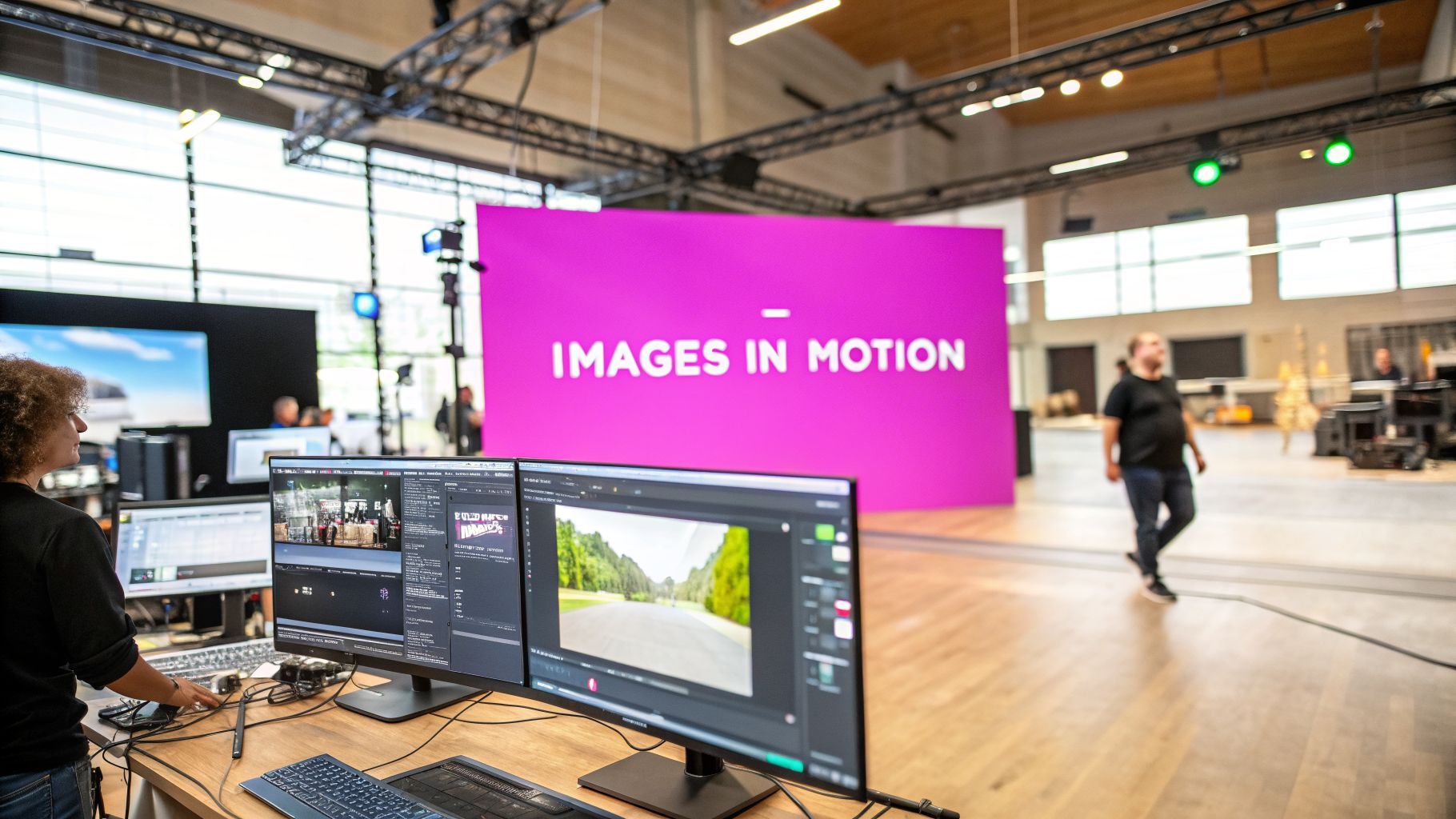
Images with motion are your secret weapon for stopping the scroll. We're talking about static photos that have been given a touch of life with subtle, looping animations. This could be anything from an elegant cinemagraph, a fun animated GIF, or even an immersive 3D-like parallax effect. The idea is simple: add a spark of movement to make your visuals impossible to ignore.
Why Your Visuals Need a Spark of Motion

Let's be honest, the digital world is oversaturated with static images. In an endless feed, a flat, motionless picture just doesn't have the power to make someone pause. It's a simple fact of human nature: our eyes are instinctively drawn to movement. It’s a survival trait from our past that now dictates what grabs our attention online.
This is where images with motion come in, giving you a serious edge. Think about a standard photo of a coffee cup. Now, picture that same photo, but with steam gently rising in a perfect, seamless loop. Suddenly, it’s not just a product shot; it's an experience. You can almost feel the warmth. That tiny bit of life is what makes all the difference.
The Power of Subtle Animation
You don't need to produce a full-blown video to make an impact. In my experience, the most effective motion images are the ones with subtle, tasteful animations that feel intentional and sophisticated.
To give you a quick overview, here are the main types we'll be diving into, what they're best for, and why they work so well.
Quick Guide to Motion Image Types
| Motion Type | Primary Use Case | Key Benefit |
|---|---|---|
| Cinemagraphs | High-end product ads, website banners | Creates an elegant, premium feel with isolated movement. |
| Animated Overlays | Social media posts, atmospheric content | Adds mood and context without distracting from the main subject. |
| Parallax (2.5D) | Website hero sections, immersive storytelling | Gives a sense of depth and dimension, making visuals more engaging. |
Each of these techniques offers a unique way to tell a story and capture attention in a crowded feed.
The financial upside is real, too. The motion graphics market, which is the engine behind images with motion, was valued at USD 6.9 billion in 2024 and is on track to hit USD 11.39 billion by 2032. This isn't just hype; it's backed by data showing motion can boost engagement by up to 48% compared to static visuals. You can dig into the latest business trends in motion design to see just how big this is getting.
The goal isn’t just to make things move; it's to direct the viewer’s eye and evoke an emotion. A simple, well-executed animation tells a story that a static image cannot.
Starting with a Strong Foundation
Every great motion image starts with a high-quality base asset. Before you even think about adding animation, you need a striking, well-composed photograph. This is where AI image generation has become a game-changer.
Instead of booking a photographer and spending hours on a photoshoot, you can generate a whole library of stunning visuals in minutes. This gives you a fantastic pool of images to choose from, all ready for the animation stage. In this guide, I'll walk you through exactly how to do it.
Before you even think about adding motion, you need a solid visual foundation. This is where AI image generation completely flips the script. Forget endless scrolling through stock photo sites or the headache of organizing a photoshoot—you can now create a whole library of custom visuals tailored exactly to what you need.
Let’s use a real-world example. Say you're handling the social media for a new, cozy coffee shop. The goal is to generate a bunch of different images that you can later turn into engaging animations for your feed. You’ll want various angles, moods, and shots to keep things from getting stale.
Moving Beyond Basic Prompts
The secret to getting great images from an AI isn't just typing in "coffee." You need to think like a photographer and describe the entire scene. Give the AI the context it needs, and it will deliver visuals with depth and quality you can actually use.
Think about describing the whole picture. I always consider a few key things:
- Subject and Setting: What’s the hero of the shot, and where is it? "Steaming latte on a rustic wooden table" is miles better than just "coffee."
- Lighting and Mood: How should the scene feel? Try adding phrases like "warm morning light filtering through a window" or "cozy, dim lighting with a single spotlight on the cup."
- Angle and Composition: How is it framed? Use photographer’s terms like "top-down flat lay," "close-up shot," or "wide angle showing the entire cafe corner."
- Style: What’s the vibe? You can ask for a "photorealistic," "cinematic," or even a "vintage film look."
When you combine these elements, you can generate a ton of assets that are ready for animation. If you're looking for a shortcut, exploring an AI image generator with predefined styles can be a massive help to get you started.
A Practical Example: Coffee Shop Prompts
Let’s apply this to our coffee shop scenario. With just a handful of detailed prompts, we can batch-create a fantastic set of images. Here’s what that might look like in practice.
| Prompt Example | Visual Goal | Potential for Motion |
|---|---|---|
| A top-down flat lay of a latte with intricate foam art, next to an open book and glasses on a dark wood table. | Create that classic, studious coffee shop vibe. | Animate steam rising from the latte or add a subtle page-turning flicker to the book. |
| A close-up shot of espresso being poured into a cup, with rich crema forming. Soft, warm lighting. | Capture the dynamic action of coffee being made. | This is perfect for a seamless loop of the espresso pouring. |
| A wide shot of a cozy cafe corner with a velvet armchair, a small table with a coffee cup, and a plant. Morning light streaming in. | Establish the atmosphere and ambiance of the shop. | Animate dust motes dancing in the sunbeam or a gentle sway of the plant's leaves. |
Using this approach, you can generate dozens of unique images in minutes. It’s a huge time-saver and leaves you with a deep well of content. You’ll have a fantastic pool of assets perfect for creating all kinds of images with motion.
The goal isn’t just to create one perfect image, but to build a versatile library. Having options with different lighting and compositions gives you the creative freedom to produce a wide range of captivating motion content later on.
Honestly, this initial asset generation is the most important part of the whole workflow. When you start with a strong, diverse set of AI-generated visuals, you’re setting yourself up for success. You get to skip the most tedious part of the creative process and jump straight into the fun part—adding that spark of motion.
Alright, you’ve generated a whole library of incredible AI images. Now for the fun part: making them move.
One of my favorite ways to add a touch of magic to a static image is by creating a cinemagraph. If you haven't seen one, think of it as a living photograph—a high-quality image where just one small part moves in a subtle, endless loop.
It’s not a full-blown video. It's that moment of surprise when you see steam rising from a still coffee cup or a candle flickering in an otherwise frozen room. This technique adds a sophisticated, premium feel to anything from product mockups to atmospheric website heroes.
How to Spot the Perfect Image for a Cinemagraph
First things first, you have to pick the right image from your AI-generated collection. Not every picture will work. I’ve learned that the best candidates have a solid, static composition with a single element that looks like it should be moving.
Here’s my personal checklist when I’m scrolling through options:
- A Strong, Still Anchor: The main subject of the photo needs to be perfectly motionless. This is what makes the subtle movement so captivating.
- Something with Natural Motion: I look for things that move in a predictable, loopable way. Think steam from a hot drink, a flickering flame, water dripping, or leaves rustling in the wind.
- A Clean, Uncluttered Scene: The simpler the background, the easier your life will be. Trying to isolate and animate one element in a super busy scene is a recipe for a headache.
This is a pretty straightforward overview of how you can take an idea and turn it into a whole set of visuals that are ready to be animated.

It all starts with your prompt. The AI then uses that to generate a library of images, which gives you a fantastic starting point for any motion project.
My Go-To Cinemagraph Workflow
Once I’ve picked my hero image, it's time to get technical. The basic idea is to lay a short video clip of the moving element (like steam) over your static image and then use a mask to "paint" the motion into place. You can do this with pro tools like Adobe Photoshop or even simpler apps like CapCut.
Let's say I want to animate the steam coming from one of those AI-generated coffee cups.
I’d import the static image and a short video clip of steam (you can find stock clips or even shoot one yourself). Then, I'll put the video layer right on top of the image, line it up perfectly, and add a layer mask. By painting on that mask, I can reveal the moving steam just over the cup while everything else stays completely still.
The secret to a cinemagraph that doesn't look janky is a perfect, seamless loop. Make sure the last frame of your video clip flows right back into the first. Most editors have tools for this, like crossfading or reversing a clip to get that smooth "boomerang" effect.
Fixing Common Cinemagraph Problems
You’ll probably run into a few snags on your first couple of tries. It's all part of the process. Here are a couple of common issues I see and how I usually fix them.
-
Jittery or Awkward Loops: This is almost always because the video clip doesn't loop seamlessly. My go-to trick is to find a solid 2-3 second segment of the video where the motion is nice and consistent. I copy it, reverse the copy, and stick it right after the original. This creates a perfect forward-and-backward loop every time.
-
Massive File Sizes: Cinemagraphs can get heavy, which is a killer for website speed. Whenever you can, export your final file as an MP4. An MP4 can be up to 90% smaller than a GIF and looks way better.
-
Obvious Mask Edges: If you can see a hard line between the moving and static parts, it ruins the illusion. Always use a soft-edged brush when you're painting your layer mask. This feathers the edges and helps the motion blend in naturally.
The demand for visuals like this is exploding. The Motion Design Software Market, valued at USD 807.72 million in 2023, is set to hit USD 1,533.96 million by 2032. This growth shows just how critical images with motion are for modern marketing.
Ultimately, getting good at cinemagraphs is all about practice. You start to develop an eye for what will work and what won't. The more you play around, the more second-nature it becomes. If you're looking to turn your static pictures into more dynamic content, learning how to create animation from images is a fantastic skill to have in your back pocket.
Crafting Animated GIFs and Parallax Effects
Beyond the subtle loop of a cinemagraph, there are other ways to add motion that can stop the scroll and tell a quick, compelling story. Two of my favorites are old-school animated GIFs and the slick parallax effect. They both add a dynamic flair to your visuals but get there in completely different ways.
Animated GIFs are perfect for short, punchy animations that loop an action or emotion. Parallax, on the other hand, creates a sophisticated illusion of depth, making a single static image feel like a 3D scene. Let’s get into how you can create both using the assets you've already generated.
Building Animated GIFs from Image Sequences
The classic animated GIF is far from dead; it’s just evolved. Instead of grabbing some low-quality clip from a movie, you can create a high-resolution, custom GIF that perfectly fits your brand’s look and feel. Once you get the hang of it, the workflow is surprisingly straightforward.
The whole idea is to generate a series of images showing a progression of movement and then stitch them together. Think of it like a digital flipbook.
My process for this involves a bit of creative prompting:
- Generate the Keyframes: I start by creating the first and last images in the sequence. For example, I might prompt an image of a "character sprite standing still" and another of a "character sprite in a mid-jump pose."
- Fill in the Gaps: Next, I use image-to-image features or just tweak my prompts to create the "in-between" frames. A prompt like "character sprite crouching, preparing to jump" works perfectly to create that transition.
- Stitch Them Together: Finally, I import the image sequence into a GIF maker or a tool like Photoshop. I arrange them in order, set the timing between frames (usually around 0.1-0.2 seconds works well), and export.
For game developers or animators, this technique is a game-changer. You can see how this scales for more complex projects by learning how to build a complete AI character sprite sheet.
Faking Depth with the Parallax Effect
The parallax, or 2.5D, effect is one of my go-to techniques for website hero images and high-impact social media posts. It takes a single flat image and makes it feel dimensional and immersive by animating different layers at different speeds. It’s a fantastic way to add a premium feel to your visual storytelling.
To pull this off, you need an image with a clear subject and a distinct background. A shot of a person standing in front of a landscape or a product on a table is perfect.
The magic of parallax comes from separating the foreground from the background. Once they are on separate layers, you can move them independently to create a believable sense of depth. Moving the background slightly more than the subject creates a cool, cinematic drift.
A Simple Parallax Workflow
Creating this effect is way less complicated than it sounds. You definitely don’t need to be an animation expert to do it.
Here’s a quick breakdown of how I approach it:
- Isolate Your Subject: First things first, you have to carefully cut the main subject out from the background. Most modern editing software has AI-powered "Select Subject" tools that make this incredibly easy.
- Rebuild the Background: Once the subject is gone, you’ll have a hole in your background layer. Use content-aware fill tools to intelligently patch this area. This will give you a complete, clean background image to work with.
- Animate the Layers: Now for the fun part. With the subject and background on separate layers, you can add subtle motion in a video editor. I usually scale up both layers slightly and add keyframes to create slow, opposing movements. For instance, I'll have the background drift slowly to the left while the subject drifts slightly to the right.
This technique adds a subtle, captivating movement that makes any image more engaging. If you want to dive deeper, you can explore resources on how to make moving wallpapers, since many of the same principles apply.
The market for these skills is exploding. The 2D animation software market, a key driver behind images with motion, surged from USD 35.6 billion in 2022 and is projected to hit USD 92.9 billion by 2030. For marketers, this trend highlights a shift toward blending handcrafted feels with AI speed to capture audience attention, as you can discover in these 2D animation trend breakdowns. Mastering these simple animation techniques now puts you way ahead of the curve.
How to Export Your Motion Images for Peak Performance

You’ve done the creative work and brought your static images to life. But the job isn't finished until they load fast and look flawless on every screen. This final step—exporting—is what separates a beautiful piece of art from a high-performing piece of content.
Before you even think about hitting "Export," here's a pro-tip that has saved me countless hours: use a batch editor. Applying the same color enhancements, resizing, or sharpening effects to an entire sequence of animated frames at once is a game-changer. An AI-driven tool like the one built into Bulk Image Generation can polish an entire set of cinemagraphs in one go, ensuring everything looks consistent and professional.
With your assets prepped, it’s time to export for the real world.
Choosing the Right Format
This is where your content's future is decided. The format you pick dictates file size, visual quality, and whether it even plays at all. After years of experimenting, I've found it boils down to three main choices: MP4, GIF, and WebM. There's no single "best" option—it all depends on where your content will live.
-
MP4: This is my go-to for almost everything. An MP4 delivers stunning video quality at a tiny fraction of a GIF's file size. I've seen short, looping cinemagraphs come out up to 90% smaller as an MP4. That’s a massive win for your website's loading speed.
-
GIF: The old reliable. GIFs are universally supported and auto-play everywhere, from social media to email clients. While they’re limited to 256 colors and create much larger files, they're still the simplest choice for short, punchy animations where video support is questionable.
-
WebM: This is the modern, open-source format from Google. WebM files offer even better compression than MP4s, but support isn't quite universal yet (looking at you, older Apple devices). It's an excellent choice for websites where you can provide an MP4 as a fallback.
My rule of thumb is simple: if the platform supports auto-playing, looping MP4s (like Instagram, Facebook, and modern websites), use an MP4. I only fall back to a GIF when I absolutely have to.
Optimal Export Settings for Popular Platforms
Every platform has its own secret sauce for compressing media, and if you don't feed it the right ingredients, your beautiful motion images will come out looking like a pixelated mess. Starting with the right export settings is non-negotiable.
To take the guesswork out of it, here is the quick reference table I use to get crisp, high-quality results across the web and on social media.
This quick reference table will help you export your images with motion for the best quality and performance across major social media platforms and websites.
| Platform | Recommended Format | Max Resolution | Key Tip |
|---|---|---|---|
| MP4 | 1080x1920 (Reels/Stories) | Keep loops short (3-8 seconds) and use the H.264 codec. Instagram compresses heavily, so always start with the highest quality possible. | |
| MP4 | 1080x1080 (Square Feed Post) | Facebook loves auto-playing MP4s. Stick with the H.264 codec for the best quality on looping motion posts. | |
| X (Twitter) | MP4 or GIF | 1280x720 (Landscape) | An MP4 will look significantly better. If you must use a GIF, remember the upload limit is 15MB on the web. |
| Website | MP4 & WebM | Match Your Container Size | For hero sections, serve both formats to cover all browsers and optimize load times. And always, always compress your video file! |
This table should get you most of the way there, but don't be afraid to test a few variations to see what works best for your specific content.
Compression Without Compromise
The final piece of the puzzle is compression. I can't stress this enough. An uncompressed motion image can easily top dozens of megabytes, which is a death sentence for page speed and will have users bouncing before your animation even loads.
For example, a 5-second cinemagraph I exported at 1080p started at a hefty 25MB. After a quick run through a video compression tool, I got it down to under 2MB with no noticeable drop in quality.
This step is absolutely critical. It ensures your images with motion are an asset that enhances your site, not a liability that slows it down. Play around with the quality settings to find that perfect sweet spot between a small file size and a sharp, beautiful final product.
Bringing Your Brand to Life with Motion
So, we've walked through the nitty-gritty of turning a flat, static image into something that actually breathes. From subtle cinemagraphs to those cool parallax effects, the path from still to motion is a lot clearer now. The best part? You really don't need a Hollywood-level animation budget to make content that stops the scroll.
The real game-changer is using a solid set of AI-generated visuals as your creative base. This lets you skip hours of setup and jump straight to the fun part: adding that final touch of movement. It's all about getting comfortable enough to play around with these tools.
Remember, the most effective motion is often the most subtle. A gentle loop of steam or a slow drift in the background can be enough to stop a user's scroll and make your brand memorable.
Whether you're a marketer trying to bump up your engagement metrics or a founder looking to give your brand a more polished feel, the tools are ready and waiting. It's the perfect time to start tinkering.
If you want to make sure these dynamic visuals perfectly match your brand's style, check out our guide on creating content with a brand kit-based image generator.
Frequently Asked Questions
When you start turning static images into moving art, a few questions always seem to come up. It's totally normal to think about software costs, giant file sizes, and figuring out which animation style even makes sense for your brand.
I've been there. Let's tackle the most common hurdles you'll face.
Do I Need to Buy Expensive Software?
Absolutely not. It's easy to assume you need a monster program like Adobe After Effects to get professional results, but that’s not the case anymore. The real trick is using the right tools in the right order.
The workflows I’ve outlined here are all about efficiency. We use AI to generate the stunning base images—the hardest part—and then pop them into free or cheap editors like CapCut or any number of online GIF makers to add the motion. The magic starts with a great image, and that's where AI gives you a massive head start.
How Do I Keep My File Sizes from Getting Huge?
This is a big one, especially for web performance. Nobody wants to wait for a massive file to load. For cinemagraphs or any short loop, your best friend is the MP4 format. If the platform you're posting on supports it, always choose it over a GIF.
An MP4 file can be up to 90% smaller than a GIF of the same quality. It also gives you way better color. This is a non-negotiable win for page speed.
Keep your animations short and sweet. A loop of 3-8 seconds is the sweet spot to grab attention without creating a beast of a file. Also, be selective. Only animating one or two key elements in your image will make a huge difference in the final file size.
Which Type of Motion Is Best for My Business?
There’s no single right answer here—it all comes down to your brand’s voice and what you're trying to achieve with a specific piece of content.
Here’s a quick breakdown from my own experience:
-
Cinemagraphs: These just scream sophistication. They're perfect for creating a high-end, premium vibe. I use them for luxury goods, premium services, or even an atmospheric banner on a boutique hotel or coffee shop website.
-
Animated GIFs: These are your go-to for grabbing attention and showing some personality on social media. They're great for a quick product demo, a funny reaction, or just making your brand feel more human and less corporate.
-
Parallax Effects: If you want to pull someone into a scene, this is how you do it. A parallax hero image on your homepage or an immersive social media post creates a sense of depth that makes people stop and look.
My best advice? Just start making them. Create a few different types of images with motion for your brand and see what your audience responds to. The data will tell you what works.
Ready to stop the scroll and create stunning visuals that move? Bulk Image Generation lets you generate hundreds of high-quality base images in seconds, giving you the perfect starting point for any animation project. Start creating for free at bulkimagegeneration.com.
