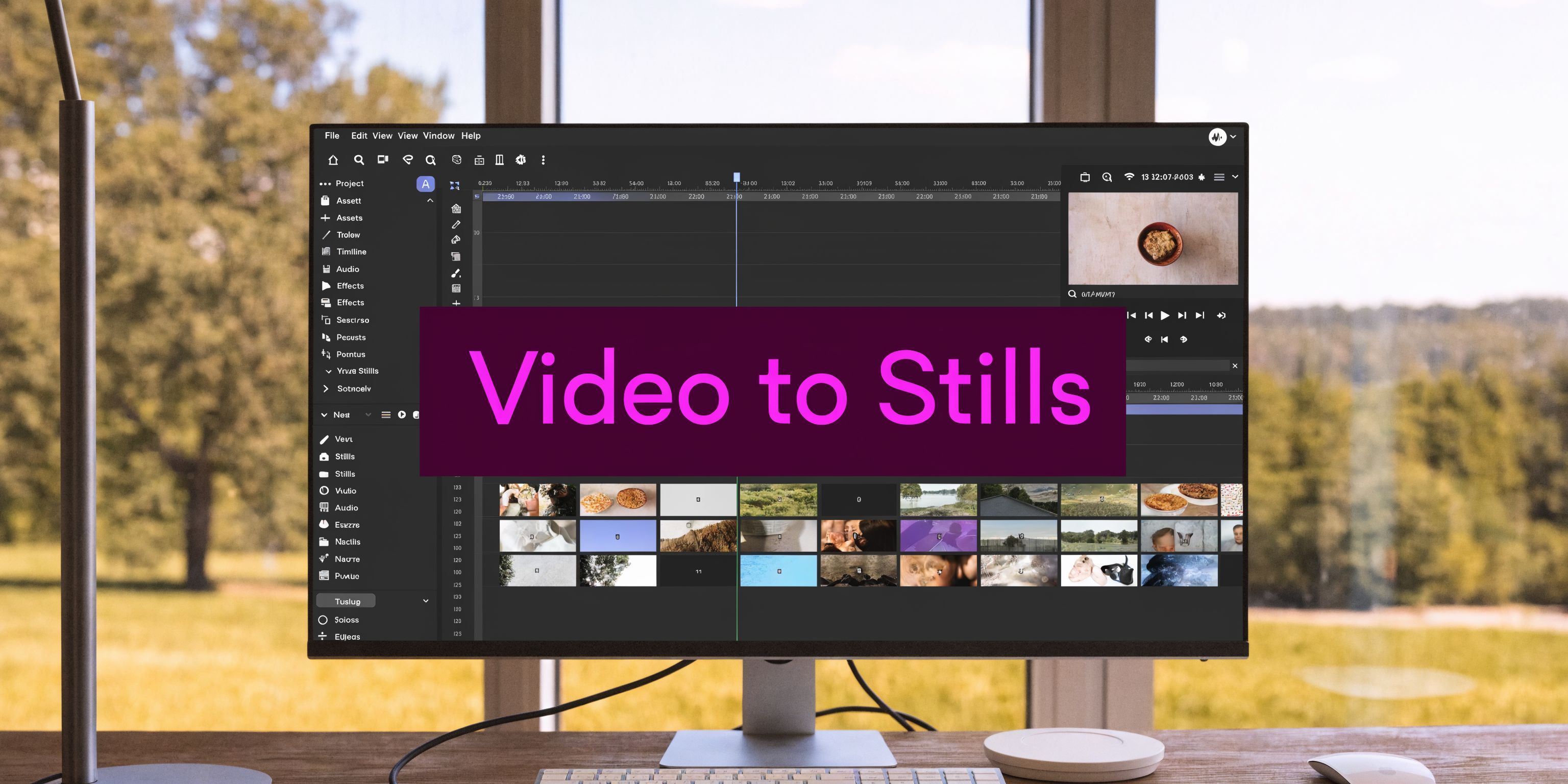
Images from Video: A Guide to High-Quality Stills in 2026

Ryan Bennett • April 8, 2026
Learn how to get high-quality images from video using manual tools, bulk automation, and AI. A step-by-step guide for marketing, social media, and more.
You already know the pain point. You have a strong video, maybe a product demo, testimonial, tutorial, or behind-the-scenes clip, and all you need is one clean still. Then another. Then ten more for social, email, thumbnails, landing pages, and internal decks.
That is where the workflow breaks. Scrubbing a timeline for screenshots feels simple until you do it every week. It is slow, inconsistent, and lands you with frames that are slightly blurry, oddly cropped, or caught mid-expression. The better approach is to treat video as a source library for images from video, not as a single finished asset.
Why Your Video Content is an Untapped Image Goldmine
A single shoot contains far more usable visual material than many organizations ever publish. A customer interview can produce a thumbnail, quote graphic, speaker portrait, reaction shot, and supporting social images. A product walkthrough can yield feature stills, website visuals, and comparison graphics. The waste happens in post-production, not production.

The reason this matters goes beyond convenience. A 2023 TechSmith study found that employees process visual information 60,000 times faster than text, and workers using visual instructions such as images or video were 67% more effective, with an average annual productivity gain of 25 hours per employee (Convince & Convert). When you can pull strong visuals from footage quickly, you remove a bottleneck that touches design, marketing, training, and publishing.
The primary bottleneck is not filming
Many organizations assume they need more design output. They need better extraction.
If you record in high resolution with deliberate framing, your video already contains:
- Thumbnail options that match the exact scene and lighting of the final edit
- Campaign support images for ads, blog headers, and email blocks
- Brand-consistent visuals because they come from the same shoot
- Evergreen stills for later repurposing
Manual screenshotting hides the opportunity because it turns a reusable asset library into a scavenger hunt.
Why this shift changes your content economics
Thinking in images from video changes how you plan shoots. You stop asking, “Do we have a photo for this?” and start asking, “Which moment from the footage says it best?”
That shift helps in practical ways:
| Need | Traditional approach | Video-first approach |
|---|---|---|
| Social post image | Separate design request | Pull a frame or batch from the source footage |
| Product still | Dedicated photo shoot | Extract from demo or turntable video |
| Quote card visual | Stock image search | Use the actual speaker’s frame |
| Multi-platform content | Create each asset separately | Derive many assets from one recording |
A good video shoot should produce more than one deliverable. If it does not, the problem is usually the extraction workflow.
Foundational Frame Extraction Techniques
Before automating anything, it helps to understand the hard way. Manual extraction teaches you what makes a frame usable: sharpness, timing, facial expression, motion, crop, and output resolution.

Built-in tools are fine for one-off grabs
If you need one image from video, built-in apps can do the job.
On Mac, QuickTime lets you scrub through footage and capture a screen-based frame. On Windows, Photos or Clipchamp can handle basic exports. These options are quick, but they are not ideal for batch work because they offer limited control over cadence, scene detection, and consistency.
Use them when:
- You need a single reference image
- The footage is short
- You do not need repeated output from the same source
Skip them when the task is campaign-scale.
Editors give you precision
Adobe Premiere Pro and DaVinci Resolve are better when quality matters. You can move frame by frame, check scopes, export stills at full sequence resolution, and compare similar moments before saving.
Precision video analysis, such as viewing content frame by frame, becomes useful here, especially when timing matters for reactions, gestures, or product detail shots. A practical guide to that process is Vidito’s article on precision video analysis, such as viewing content frame by frame.
Professional editors work best when you care about exact moment selection. They are less efficient when you need dozens or hundreds of stills.
FFmpeg is the baseline for repeatable extraction
If you want repeatability, FFmpeg is the starting point. It removes clicking from the process and lets you extract frames at intervals or according to a pattern.
A common starting approach is interval-based extraction, but uniform sampling has a known downside. In FFmpeg workflows, temporal aliasing can create artifacts in 15-25% of videos with uniform motion, and one recommended fix is adaptive GOP analysis instead of naive uniform sampling. For key moment detection, TransNetV2 has achieved a 96.5% F1-score in scene change detection (Frontiers in Imaging).
That matters because evenly spaced frames are not always meaningful frames.
What manual workflows still do well
Manual methods are useful when the selection criteria are subjective.
For example:
- Brand expression matters: A founder’s expression in a hero image may need human judgment.
- Product detail is subtle: Tiny reflections, button states, or hand placement require a careful review.
- The output count is small: If you need three perfect stills, manual export can be faster than setting up automation.
For formatting after extraction, it helps to calculate final crops before you start exporting alternate versions. A simple aspect ratio calculator prevents the common mistake of choosing a beautiful frame that falls apart when cropped for vertical, square, and horizontal placements.
Manual extraction teaches taste. Automation handles scale. You need both, but not for the same job.
The Modern Workflow AI-Powered Bulk Image Generation
The old method asks you to find usable frames one by one. The modern method asks the system to surface, clean, and organize them for you.
That is the genuine upgrade. Not “faster screenshots.” A proper bulk workflow turns raw footage into a set of ready-to-use image assets with far less manual sorting.

What the better workflow looks like
A practical AI-assisted pipeline follows this sequence:
- Scene-aware intake: The system checks for cuts, visual changes, and pacing shifts.
- Frame candidate selection: It pulls likely strong frames instead of exporting every possible moment.
- Quality filtering: Blurry, redundant, or low-value frames are removed.
- Batch enhancement: The remaining images are prepared for actual use, not left as raw captures.
- Delivery by use case: Assets are organized for social, ads, ecommerce, or editorial.
This is what separates extraction from production. You are not collecting frames. You are building publishable assets.
Why keyframe detection beats brute force
Brute-force extraction creates volume, but not usefulness. You end up with folders full of near-duplicates, transitional frames, and moments no designer wants to touch.
A smarter workflow looks for visual distinction and relevance. Scene-change detection, image quality checks, and semantic filtering matter more than raw output count. In practice, this means fewer files to review and a higher chance that each file is worth keeping.
The biggest win is decision reduction. Instead of reviewing a flood of frames, you review a shortlist.
Generative transformation changes the job
There is also a second lane that many basic tutorials ignore. Sometimes the best result is not an extracted frame at all. It is a new image derived from the source footage.
That can be useful when:
- The source frame is close, but not polished enough
- You want alternate backgrounds or compositions
- You need many visual variants for a campaign
- The footage provides strong visual reference but weak still quality
This matters for social teams especially. One talking-head clip can become a set of stylized quote visuals, branded campaign stills, or promo graphics built from the source scene. If your output is social-first, a tool built for bulk social media image generation fits this model better than a traditional editor.
What works and what usually fails
The strongest AI workflows do a few things well:
| Works well | Usually fails |
|---|---|
| Selecting visually distinct moments | Dumping every nth frame into a folder |
| Filtering obvious blur and redundancy | Expecting raw exports to be publishable |
| Applying edits in batches | Opening each image in a separate app |
| Organizing by use case | Mixing thumbnails, product stills, and social crops in one pile |
What fails most is pretending extraction is the whole task. It is not. Extraction is just the handoff point between footage and image production.
If your process still ends with “export frames and sort them later,” you have only moved the bottleneck, not removed it.
Where this saves the most time
The time savings show up in repetitive content systems.
A creator with weekly tutorials can turn each video into:
- thumbnail options
- blog images
- lesson handouts
- community post visuals
A small business can take one product video and create:
- homepage stills
- social promos
- marketplace images
- ad variants
That is why AI-powered images from video are not just a convenience feature. They solve a packaging problem that manual editing never solved well.
Streamline Editing with AI Post-Production
Extracted frames are rarely finished. They need cleanup, formatting, and consistency before they are usable across real channels.
People lose time at this stage. They jump from one app for background removal, another for resizing, another for retouching, and then repeat the sequence across a batch.

Start with isolation and cleanup
Background removal is one of the most impactful edits in batch post-production. It lets you turn a frame into a product card, quote graphic, hero visual, or ad creative without rebuilding the image manually.
Advanced workflows rely on segmentation models. SAM has achieved 94% IoU for background removal on complex datasets, and InsightFace has reached a 97% FID score on FFHQ for realistic face swapping in creative workflows (Acclaim Media).
The practical takeaway is not the benchmark itself. It is that automated isolation and identity-based edits are now good enough to be part of professional asset production when used carefully.
Resize in batches, not one image at a time
The second major time sink is formatting for different placements. A frame that works in a 16:9 blog layout may break in a vertical story crop.
Batch resizing solves that. Instead of exporting and recropping every image manually, use a tool built for bulk image resizing so you can create square, vertical, and horizontal versions in one pass.
A simple sequence works well:
- Pick the master frame set you want to keep.
- Apply global cleanup such as crop normalization, contrast balancing, and background work.
- Export format variants for each channel.
- Review exceptions only, such as faces near the edge or text overlays that need repositioning.
That last step is important. Batch systems save the most time when you reserve human review for outliers.
Creative edits need rules
Face swaps, stylization, and visual consistency tools can help, especially when campaign creative needs a uniform look. But these edits only work if you set rules around them.
Use them for:
- alternate versions of approved creative
- template-based campaigns
- controlled brand systems
Avoid them when authenticity is the point, such as documentary testimonials or trust-sensitive customer content.
For property marketers, travel brands, and listing teams, polished stills from walkthrough footage can dramatically improve reuse. If that is your space, BrightShot’s guide on Master Real Estate Video Editing is a useful companion because the same footage often needs to serve both video and still-image roles.
Batch post-production works best when you define a repeatable finishing stack. Remove background, normalize crop, resize for platforms, then review only the problem files.
The editing stack that tends to hold up
A dependable post-production stack includes:
- Selection edits first: remove weak frames before touching anything else
- Subject isolation next: background removal, mask cleanup, or cutouts
- Format conversion after that: resize for feed, story, ads, web
- Creative treatment last: style passes, text overlays, swaps, composites
That order matters. If you stylize or retouch before narrowing the set, you waste effort on images no one will publish.
Practical Use Cases and Best Practices
The value of images from video becomes obvious when you map the workflow to actual publishing needs. The same extraction process serves different goals depending on what the business needs from the footage.
Social media teams
A testimonial video can become a week of visual content if you pull the right moments.
Use the source footage to create:
- a thumbnail with the speaker’s strongest expression
- quote cards paired with frames where the subject looks engaged
- carousel slides showing setup, reaction, and outcome
- short promo visuals for stories and reels cover images
The key practice is to extract around meaning, not just visual sharpness. The best social still is often the frame that matches the line being promoted.
Ecommerce and product marketing
A rotating product video is often more useful than a rushed photo session if lighting and framing are controlled.
Pull frames where:
- the product profile is clean
- labels are readable
- reflections are minimal
- hands or props support scale without blocking detail
For ecommerce, consistency matters more than artistic variation. Keep backgrounds, angles, and crop logic aligned so the final image set feels intentional.
Education, tutorials, and explainers
Instructional video is packed with still-image opportunities. A software demo can produce step graphics. A classroom recording can produce recap visuals. A craft tutorial can become printable process images.
This is one area where the value is especially clear because people scan visuals faster than blocks of explanation. Good stills reduce friction for learners and help teams reuse lesson content across formats.
Game development and creative production
Gameplay footage, animation tests, and environment flythroughs can all feed image generation workflows.
Useful outputs include:
- mood board references
- promotional stills
- pose references
- environment snapshots
- marketplace banners
Here the best practice is curation. Do not export everything. Choose moments that communicate form, atmosphere, or action clearly.
The strongest use case is not “getting an image.” It is turning one production effort into a reusable visual system.
Best practices that hold up across use cases
Some rules stay consistent no matter the industry:
- Shoot with stills in mind: leave headroom, avoid frantic camera motion, and protect key details.
- Flag moments during editing: good timestamp notes make later extraction much easier.
- Separate archive from publishable assets: keep raw extractions out of the delivery folder.
- Build naming conventions early: campaign names, aspect ratios, and use-case tags prevent chaos later.
The teams that get the most from images from video are not the ones with the fanciest tools. They are the ones with a repeatable system.
Troubleshooting Common Image Quality Problems
Most bad results do not come from extraction alone. They come from weak source footage and basic tools that treat every frame as equally usable.
Motion blur is the most common issue. The fix is selection first, not sharpening first. Pull frames from moments where movement slows, direction changes, or the subject settles. Sharpening can help, but it cannot fully rescue a frame with no recoverable detail.
Low light creates a different problem. Basic brightening often lifts noise and makes skin, textures, or product surfaces look worse. A better workflow uses selective enhancement so shadows open without flattening the whole image.
Low resolution is where many tutorials fail. They tell you to resize, which stretches the problem. The harder but better approach is reconstruction-based upscaling. That matters because a 2025 Stack Overflow survey found that 68% of developers building machine learning datasets from video struggled with image quality from basic extractors, and the same source notes that emerging integrations with models like Flux 1.1 can upscale batches of video frames into print-ready images using natural language prompts, cutting editing time by an estimated 50% (Mixilab).
Use a simple triage rule:
- Keep as-is when the frame is sharp and well-lit
- Enhance when the image is good but needs cleanup
- Rebuild or replace when blur, compression, or darkness have destroyed too much information
The mistake is assuming every source frame deserves saving. Some should be fixed. Some should be regenerated. Some should be discarded.
If you are done wasting time on timeline scrubbing, scattered editing apps, and weak screenshots, try Bulk Image Generation. It gives you a faster path from footage to usable image sets, with AI-assisted generation, batch editing, resizing, and enhancement built for high-volume creative work.
