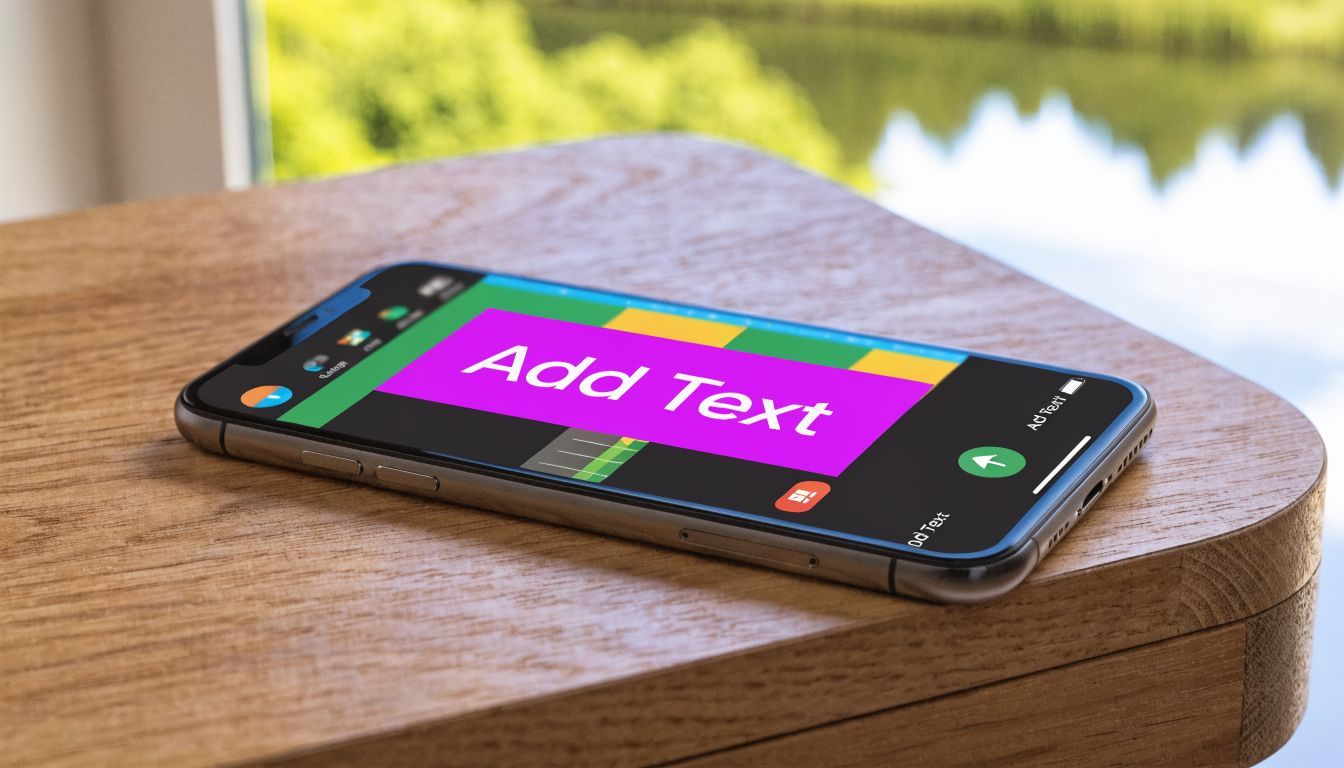
Learn to add text to videos iphone: 2026 Guide

Ryan Bennett • April 23, 2026
Learn how to add text to videos iphone using built-in apps like iMovie & Photos, or advanced tools like CapCut in 2026. Get pro tips for styling & captions!
You’ve probably done this before. You shoot a solid clip on your iPhone, trim it, post it, and then wonder why it feels flat once it hits Instagram Reels, TikTok, or a client deck. The footage is fine. The problem is often that the video asks too much from the viewer too quickly.
Text fixes that.
The right text overlay can stop the scroll, explain the point before audio even matters, and make a simple iPhone video look intentional instead of rushed. The catch is that not every iPhone text tool is built for the same job. Apple’s built-in options are fast, iMovie is better for controlled edits, and third-party apps are where you go when you need speed plus trend-friendly effects.
If your goal is to add text to videos iphone without wasting time trying the wrong app first, the best approach is to match the tool to the outcome. A quick product label needs one workflow. A polished lower-third for a tutorial needs another. Burned-in captions for a social clip usually need something else entirely.
Why Adding Text to Your iPhone Videos Is a Game Changer
A lot of iPhone videos fail in the first second because they don’t answer the viewer’s immediate question: why should I keep watching? Text does that job faster than voiceover.

For creators, marketers, teachers, and small businesses, text overlays aren’t decoration anymore. They carry the hook, reinforce the message, and make the video usable in silent viewing environments. If you script videos first, pairing that workflow with a tool like mobile text-to-speech support can also help you preview pacing before you burn captions into the final edit.
The business case is strong. According to Wyzowl’s 2026 video marketing figures, adding text overlays to video increases engagement by 80% on average. The same source says 68% of viewers will watch a branded video to the end if it has captions, compared to 12% without, with marketing ROI boosted by an estimated 49%.
That lines up with what happens in feeds. The viewer sees motion first, then reads, then decides whether the clip deserves sound. If your message only exists in audio, you lose people before they ever hear it.
What text does better than visuals alone
- Stops the scroll: A short headline at the top of the frame tells people what the clip is about immediately.
- Clarifies context: Product demos, tutorials, and testimonials often need labels, names, or steps on screen.
- Supports accessibility: Captions and readable overlays help people who are watching muted or who need text support to follow along.
- Improves retention: Text gives viewers a second channel for understanding the message.
Practical rule: If the first line of text doesn’t make sense with audio off, rewrite it before you publish.
The biggest shift is mental. Once you stop treating text as an afterthought, your editing decisions get better. You write shorter hooks, place text more deliberately, and choose tools based on what the video needs, not what happens to already be on your phone.
Using Apple's Free Tools for Quick Text Edits
If you need a result in under a minute, start with Apple’s own tools. They aren’t the best for flashy edits, but they’re good enough for labels, simple annotations, and low-pressure social posts.

Use Photos when the text can stay static
The Photos app is the fastest route when you just need to stamp a name, location, price, or short note onto a video. This is the method I’d use for a one-off clip sent to a customer, a draft for internal review, or a casual post where production value doesn’t matter much.
The workflow is simple:
- Open the video in Photos.
- Tap Edit.
- Open Markup.
- Add a text box.
- Type your text, move it, resize it, and save.
That’s the good news. The limitation is just as important. Photos is best for simple overlays without dynamic effects, and that’s exactly why it feels restrictive once you try to do anything timing-sensitive or brand-driven. If your text needs to appear at a specific moment, animate, or follow the rhythm of speech, Photos becomes frustrating fast.
Where Photos works well
A short list of good use cases:
- Watermarks: Add a business name or creator tag in a corner.
- Basic labels: Name a product, identify a speaker, or mark a location.
- Proofing: Show a client where future text should go before moving into a real editor.
Where Photos falls apart
- No real animation control
- No caption-style timing
- No layered text storytelling
- Limited polish for marketing content
Keep using Photos only if the text can stay on screen without changing. The moment timing matters, move on.
Clips is better when you want playful text fast
Apple’s Clips app sits in a strange middle ground. It’s more expressive than Photos and much less controlled than iMovie. That’s not a flaw. It’s the point.
Clips works best for creators who want animated text, social-friendly energy, and a quick assembly process without touching a detailed timeline. If you’re making a classroom recap, a behind-the-scenes snippet, or a lightweight promo, Clips can get you there faster than a traditional editor.
A few strengths make it useful:
- Live titles and stylized text: Better for personality than Photos.
- Faster experimentation: You can test looks without committing to a heavy edit.
- Good for casual social posts: Especially when the content is short and informal.
My take on Apple’s free stack
Here’s how I’d choose between the two:
| Tool | Best for | Main weakness |
|---|---|---|
| Photos | Static labels and fast one-off edits | Almost no timing or motion control |
| Clips | Fun social videos with light animation | Harder to make look polished or branded |
If you’re new to add text to videos iphone workflows, these free tools are worth using first because they teach the basics. You learn where text should sit, how much text is too much, and why readability matters. But once you care about timing, consistency, or brand style, you’ll outgrow them quickly.
Mastering Text in iMovie for Polished Videos
iMovie is where iPhone editing starts to feel deliberate. It’s still approachable, but now you’re working on a timeline instead of dropping text on top and hoping it lands in the right place.

For business explainers, lesson clips, talking-head content, and product walk-throughs, iMovie is the strongest free option on the iPhone. It gives you enough structure to make text feel synced, intentional, and clean.
The iMovie workflow I trust
Start by creating a new project and importing your video. Once the clip is in the timeline, tap the clip and open the T icon for titles.
According to VideoProc’s iMovie on iPhone guide, iMovie on iOS 18+ gives you over 28 title templates and pinch-to-zoom timeline control for frame-accurate placement with ±1/60s precision. The same source notes that syncing text to audio beats using waveform view has shown a 25% engagement lift in A/B tests.
That level of placement control is why iMovie matters. You’re no longer guessing where the text should start and stop. You can place it where a sentence begins, where a beat drops, or where a product enters frame.
A practical editing sequence
I keep the process tight:
-
Trim the clip first
Don’t add text before the pacing is locked. If you trim later, your overlays can drift out of sync. -
Choose the closest title template
Don’t fight the template library. Pick one that’s already near your intended look, then adjust text content and duration. -
Zoom into the timeline
This is where iMovie becomes useful instead of merely free. Fine timing on a phone screen is hard unless you zoom in. -
Match text to speech or action
If someone says the product name, the text should appear right there, not half a second later. -
Export and review once on the phone itself
Text that looked fine in edit mode can feel too small or too low once exported.
Templates that usually work
Not every title option in iMovie is worth using. A few tend to hold up better:
- Lower Third: Good for names, roles, locations, or product identifiers.
- Standard title overlays: Useful for short hooks and short step labels.
- Typewriter-style effects: Fine in moderation for tutorials or storytelling, but easy to overuse.
If you’re building content for different placements, a quick aspect ratio calculator for social video formats helps before you commit to positioning text too close to edges.
A polished video usually looks restrained, not feature-packed. One clean lower third beats three competing text styles every time.
What beginners get wrong in iMovie
The most common mistake is treating text like a sticker instead of part of the edit. The result is desync. A title lingers after the speaker has moved on, or it appears before the visual cue arrives.
Another issue is overloading the frame. iMovie can make you feel more capable, which is great, but it also tempts people to add too much copy. On a phone screen, long blocks of text look like friction.
My rule for polished mobile edits
Use text for one of three jobs only:
| Job | What it should do | Best iMovie use |
|---|---|---|
| Hook | Make the viewer stay | Opening title in first seconds |
| Context | Explain what’s on screen | Lower third or short label |
| Reinforcement | Repeat the key point | End card or summary phrase |
If a text element doesn’t do one of those jobs, cut it.
When iMovie is the right answer
iMovie is the sweet spot when you want:
- More control than Photos or Clips
- No extra app cost
- A cleaner, more professional finish
- Reliable timing for education or marketing
It’s less ideal if you want auto-captions, trend-heavy animations, or a huge text style library. That’s where third-party apps pull ahead. But for polished, free, timeline-based work on an iPhone, iMovie still punches above its weight.
Unleashing Creativity with Third-Party Video Apps
Third-party apps exist for one reason. They remove the ceiling you hit in Apple’s tools.
If iMovie helps you make a clean video, apps like CapCut help you make a video that looks native to modern social platforms. That difference matters. Clean isn’t always enough when the platform rewards motion, rhythm, fast captions, and more stylized text behavior.
Why creators move beyond built-in tools
The strongest example is CapCut. As noted in this CapCut and mobile editing overview, CapCut launched globally in 2020 and offers over 400 text styles, animations, and auto-transcriptions. The same source says it captured 28% of the mobile video editing market by Q4 2025, and that 72% of TikTok videos feature overlaid text to boost retention.
That lines up with real-world use. Built-in tools can label. Third-party apps can style, animate, auto-caption, and keyframe with enough precision to make the text part of the storytelling.

The actual trade-offs
This isn’t a simple “third-party is better” argument. It depends on the job.
| Tool type | Strength | Weakness | Best for |
|---|---|---|---|
| Photos | Fastest possible text add | Bare-bones control | Static labels |
| iMovie | Clean timeline editing | Limited text variety | Polished explainers |
| Third-party apps | Trend-driven effects and automation | More options can mean more clutter | Social campaigns and branded content |
What third-party apps do better
A few capabilities change the workflow completely:
-
Auto-transcription and subtitle generation
This saves a lot of manual typing for talking-head content. -
Keyframes for text movement
You can move captions, create reveal effects, or make text follow the framing. -
Bigger style libraries
Better when the brand wants energy, motion, or platform-native visual language. -
Custom font support in some apps
Useful if brand consistency matters more than whatever the app includes by default.
CapCut for fast social production
CapCut is the best choice when speed and style matter equally. It’s especially strong for:
- hook text at the top of vertical videos
- karaoke-style captions
- animated emphasis words
- pop-up labels on product demos
- repurposing one clip into multiple social edits
Its weakness is also obvious. Because it makes stylized text easy, people overdo it. Too many animations, too many font changes, too many highlighted words. The result can look less professional, not more.
The best third-party edits usually use advanced features sparingly. Viewers should notice the message first, not the effect library.
PowerDirector and other alternatives
Some editors prefer PowerDirector because it balances polish with flexibility. If your work leans more professional than trend-driven, that kind of app can feel less chaotic than CapCut. It’s often a better fit for product videos, business promos, and tutorials where the text should enhance the edit instead of dominate it.
Which app I’d choose by goal
If you’re deciding quickly, this is the simplest filter:
- Need a watermark or simple note today: use Photos.
- Need a free polished explainer: use iMovie.
- Need captions, motion, and social-first style: use CapCut or another advanced editor.
- Need branded, controlled, multi-layer storytelling: choose a third-party app with stronger font and keyframe controls.
For add text to videos iphone work, that’s a key shortcut. Stop asking which app is “best” in general. Ask which one matches the kind of video you’re making.
Pro Tips for Text That Grabs and Holds Attention
Good text design has less to do with fancy animation and more to do with restraint. Most weak mobile edits fail because the text is hard to read, placed badly, or written too long for the screen.
Start with hierarchy, not decoration
Viewers should know what to read first, second, and last. That means one dominant line, one supporting line if needed, and enough spacing so the frame doesn’t feel crowded. If you want a solid refresher on the underlying design logic, this guide to mastering visual hierarchy in graphic design is worth reading because the same principles apply directly to vertical video.
A practical hierarchy for iPhone video usually looks like this:
- Primary line: the hook or headline
- Secondary line: brief context
- Tertiary text: speaker name, brand tag, or CTA
If all three lines compete equally, none of them wins.
Make readability non-negotiable
A stylish font over a busy background is one of the fastest ways to tank comprehension. Use contrast aggressively. If the background is unpredictable, add a text box, shadow, blur panel, or darker overlay behind the words.
A key weakness in many tutorials, as noted in this accessibility gap discussion, is that they focus on style but don’t provide guidance on WCAG compliance for text overlays. The same source highlights the importance of readability for viewers with color blindness or other visual impairments.
That matters more than most creators think.
My accessibility checklist
- Use high contrast combinations: Light text on a dark field, or dark text on a light field.
- Avoid color-only meaning: Don’t rely on red versus green alone to separate ideas.
- Choose simple fonts: Clean sans-serif fonts usually survive compression and small screens better.
- Keep text short: Shorter lines reduce cognitive load and improve scan speed.
- Leave breathing room: Don’t pin text against screen edges or UI-heavy zones.
Accessibility usually improves performance anyway. Easier text gets read by more people, faster.
Placement matters more than people expect
Keep the most important text away from corners where platform buttons may overlap. On vertical video, the bottom area is often the worst place for essential copy because captions, usernames, and controls can fight for space.
When I’m editing for Reels or TikTok, I prefer placing the hook in the upper third, then using mid-frame or slightly lower placements for support text only when the background stays quiet. If the footage is busy, I’d rather reduce text quantity than force more copy into the frame.
Common Questions About Adding Text to iPhone Videos
A few questions come up once you’ve handled the basics. These are the problems people run into when they want the video to feel less homemade and more intentional.
How do I make text look professional without a solid background box
Use contrast in layers. First try white or near-white text over a slightly darkened part of the frame. If that’s not enough, add a subtle shadow or soft translucent panel behind the text. The mistake is jumping straight to a heavy opaque box for everything.
For client work or branded promos, I usually keep background panels short and tight around the words instead of stretching a banner across the frame. It looks cleaner and preserves more of the footage.
Can I use custom brand fonts on iPhone
Usually yes, but this depends on the app. Built-in Apple tools are more limited. Third-party editors are the better choice when a brand team insists on a specific typeface.
The workflow is normally straightforward:
- Install the font on the iPhone if the app supports system font access.
- Open the video editor and add a text layer.
- Choose the imported font from the text styling menu.
- Export a short test first to confirm spacing and readability.
Custom fonts look great in brand decks and ad creatives, but some don’t hold up well on small screens. I always test the smallest likely display before approving them.
What export settings work best for social uploads
Keep it simple. Export at the platform’s intended shape and avoid adding extra compression steps by bouncing files between apps. If you edit vertically, export vertically. If the text looks borderline small during editing, it will usually look worse after upload.
When the goal is accessibility, also think about whether your text should be burned into the video or uploaded as separate captions where the platform allows it. If you need a broader primer on caption behavior across publishing environments, this article on how to turn on closed captioning is a helpful companion.
How do I create karaoke-style or word-by-word captions
Third-party apps often surpass Apple’s tools. Use an editor that supports auto-caption generation plus per-word or per-phrase highlighting. Generate captions first, then manually clean them up. After that, apply a highlight style to the active word or phrase.
The key is restraint. Karaoke captions work when the speech is central and the pacing is clear. They get exhausting when every sentence flashes with equal intensity.
Can I pull text from an image or screenshot and reuse it in a video
Yes, and it’s useful when you’re repurposing quote cards, slides, product screenshots, or scanned notes into video overlays. A tool like an image to text converter for quick extraction can speed up that step so you’re not retyping everything manually.
That’s especially handy for educators turning lesson slides into short videos, or social teams rebuilding static graphics as motion content.
If you’re producing lots of visual assets around your videos, not just the videos themselves, Bulk Image Generation is worth a look. It’s especially useful when you need social graphics, campaign images, branding variations, or creative assets at scale without spending hours in manual design workflows.
