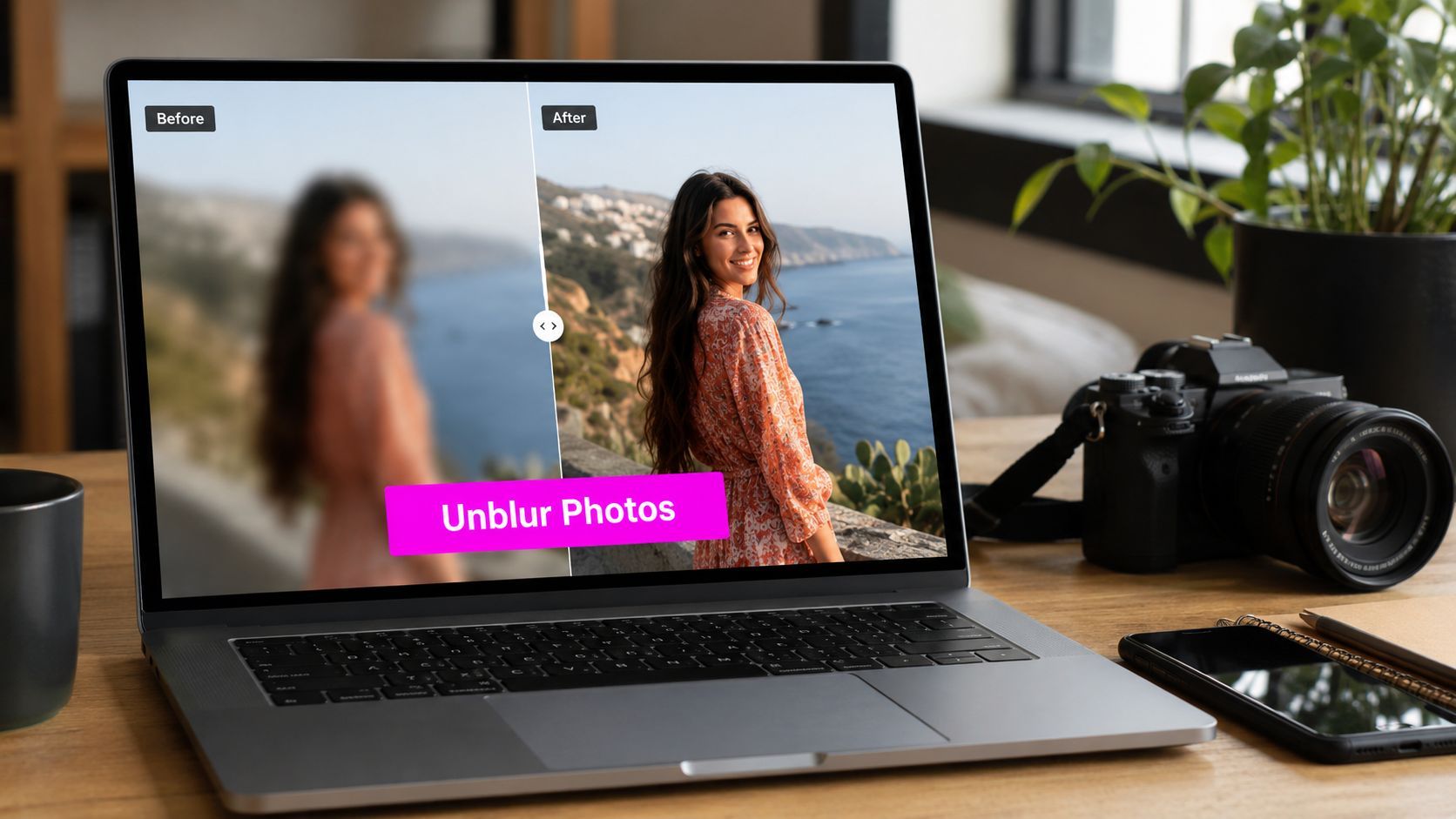
10 Best Unblur Photo Apps for 2026

Ryan Bennett • May 23, 2026
Tired of blurry photos? Discover the best unblur photo app for you. We review 10 top AI tools for mobile and desktop to rescue your out-of-focus images in 2026.
You captured the shot at the exact right moment. The smile landed, the product looked clean, the group finally stopped blinking. Then you zoomed in and saw it. Slight blur, soft edges, mushy detail. That kind of miss is maddening because the photo is almost usable.
A few years ago, that image probably went in the discard pile. Now, a good unblur photo app can rescue more than expected, especially when the problem is mild focus softness, motion blur, low resolution, or an old compressed file that needs careful enhancement. The trick is choosing the right tool for the job, because some apps sharpen well, some upscale well, some restore faces aggressively, and some fake detail in a way that falls apart the second you look closely.
That distinction matters. Adobe's own guidance around image unblurring is useful because it reflects a reality buyers need explained more often: blur type matters, and heavily blurred text, facial features, and fine patterns often can't be faithfully recovered from the available pixels alone with a one-click tool (Adobe Express unblur guidance). If you need clean ecommerce imagery after the rescue step, AdStellar AI product photo editing is a practical next stage in the pipeline.
The list below is built around workflow, not hype. If you need a fast mobile fix, start there. If you need desktop control, batch output, or safer results for client work, skip straight to the pro tools.
1. Google Photos – Photo Unblur

Google Photos is the fastest recommendation I give people who already live inside the Google ecosystem. If your photos are already backed up there, using Photo Unblur feels frictionless. You open the image, test the correction, and decide in seconds whether it helped or made the file look crunchy.
That matters more than people think. For social teams, internal comms, school staff, and small businesses, the best unblur photo app is often the one they'll use right away, not the one with the deepest controls.
Where it fits best
Google positions its editing suite inside the broader Photos workflow, with AI-led tools built directly into the editing experience (Google Photos editing tools). I like it for images that are slightly soft, phone photos with mild motion, and older library shots that need a quick second chance before posting.
What it doesn't give you is much granular control. If the app pushes sharpness too far or if the blur is uneven, you don't have the same room to fine-tune masks, edge behavior, or noise handling that you'd get on desktop.
- Best for quick fixes: Social posts, event photos, internal newsletters, and lightweight content production.
- Best when speed matters: You can test a save-or-delete decision quickly without exporting to another app.
- Less suited to critical files: Product close-ups, receipts, screenshots, and identity images need more scrutiny.
Practical rule: If the file contains text you need to read or a product surface you need to present accurately, don't trust a one-tap result without zooming in hard.
One useful workflow is to rescue in Google Photos first, then move the selected keepers into a downstream content prep step such as a bulk image resizer for delivery formats. That keeps the mobile fix fast while avoiding messy export prep later.
2. Topaz Photo (formerly Topaz Photo AI)

If Google Photos is the fast answer, Topaz Photo is the serious answer. This is the tool I'd point a marketer, product photographer, or agency retoucher toward when the image matters enough to spend real processing time on it.
Topaz has built its reputation around AI sharpening, deblurring, denoising, and upscaling in one desktop environment. That combination is why it stays relevant. In practice, blur rarely arrives alone. You usually get softness plus noise, or low resolution plus bad light, or motion plus ugly compression.
Why pros keep it in the stack
Topaz Photo works on macOS and Windows and sits squarely in the pro desktop category (Topaz Labs Photo tools). The biggest advantage is that it treats recovery as a pipeline, not a single slider. You can let the app analyze the image, then pull back on whatever looks overcooked.
That flexibility is what separates it from most consumer apps. With portraits, you can often recover enough edge separation to make a shot usable. With product images, you can tighten outlines and preserve materials better than most one-click mobile tools.
- Strong use case: Product photography, campaign assets, event photography, and older files headed for print.
- Main trade-off: It asks more from your hardware and from your patience.
- Watch for artifacts: Hair, eyelashes, repeated textures, and tiny typography can start looking synthetic if you push too hard.
I also like it for teams thinking beyond today's edit queue. If you're tracking how AI tools are changing creative production, the broader AI image generation trends reshaping workflows make this kind of integrated enhancement software easier to justify in a modern stack.
Topaz is excellent when the image is recoverable. It's not magic when the pixels are gone.
3. Adobe Lightroom (and Photoshop/ACR)

Adobe's strength isn't that it has the most dramatic one-click unblur result. Its strength is that it gives you a safer, more controlled workflow when you need to preserve color, file history, and brand consistency.
That makes Lightroom and Photoshop Camera Raw a better fit for teams already managing large libraries, approved assets, campaign variants, and retouch rounds. You can combine sharpening, denoise, masking, and machine-learning enhancement without breaking the rest of your process.
Best for brand-safe editing
Adobe highlights Super Resolution as part of its enhancement workflow, aimed at increasing usable detail and output flexibility before further edits (Adobe Lightroom Super Resolution). In real-world use, that means Lightroom often works best when your image is not destroyed, just under-resolved or slightly soft.
This is also where restraint pays off. Lightroom can make a file look clearer without screaming “AI touched this.” For ecommerce, editorial, and campaign work, that natural finish is often more valuable than the most dramatic before-and-after.
- Choose Adobe if: You already use Creative Cloud, need non-destructive editing, or want asset management in the same workflow.
- Skip it if: You want an instant miracle on a badly motion-blurred photo.
- Use it well by pairing tools: Start with noise control, then selective sharpening, then export-specific output sharpening.
For stock-friendly or licensing-sensitive teams, it's also worth understanding how AI-generated images interact with Adobe Stock workflows, because restoration and generation now sit closer together than many creative teams expect.
4. Pixelmator Pro

Pixelmator Pro is the pick for Mac users who want a capable editor without signing up for another subscription. It doesn't pretend to be a forensic deblurring lab. What it does offer is a clean Apple-native editing experience with smart machine-learning features that are good enough for a lot of practical work.
That distinction matters. A lot of users looking for an unblur photo app don't need the deepest specialist model. They need a tool that can improve softness, reduce noise, upscale sensibly, and let them keep moving.
The sweet spot for Apple-centric workflows
Pixelmator Pro combines ML-powered enhancement with a polished Mac editing environment (Pixelmator Pro). It feels faster to use than many heavier desktop apps, especially when your edits include more than blur correction. Crop, cleanup, selective sharpening, export, done.
I'd choose it for web graphics, blog imagery, social campaigns, internal brand assets, and moderate print work. If your files are only a bit soft, Pixelmator often gives you enough recovery without dragging you into an overly technical workflow.
- Big advantage: Fast native Mac experience.
- Real limitation: It's less specialized for ugly motion blur or difficult focus misses.
- Strong pairing: Works well when blur correction is only one step among cleanup, object repair, and resize.
If your work happens on a Mac and you hate bloated software, Pixelmator Pro is easy to keep in rotation.
5. Luminar Neo – Supersharp AI

Luminar Neo is for people who want visible results quickly but still want more say than a mobile app allows. It sits in that middle zone between casual and pro. You get AI-led controls, visual sliders, and an all-in-one editor that can tackle sharpening, denoise, upscale, and a lot of related cleanup.
For creators who don't want to bounce between three programs, that's appealing.
Good when you want guided control
Skylum presents Luminar as a broader creative editor, and Supersharp AI is one of the tools that makes it relevant for blur recovery (Luminar Neo). I've found this type of app works best when the image is valuable but not mission-critical enough to justify a slower pro retouch path.
Portraits benefit more than technical images here. Lifestyle content, creator headshots, travel photos, and hero social images respond well because viewers forgive a little interpretation as long as the image looks clean and engaging.
If your audience reads the image emotionally rather than analytically, Luminar Neo can be a very efficient choice.
- Best fit: Creator content, marketing visuals, portraits, and mixed-use image editing.
- Possible issue: Some users find all-in-one apps less predictable across different machines and licenses.
- What to watch: Push too far and skin, hair, or micro-texture can start losing realism.
I wouldn't use Luminar first for receipts, documents, or catalog product detail. I would use it happily for a soft founder portrait that needs to look polished before a press kit update.
6. ON1 Photo RAW (with Tack Sharp AI)

ON1 Photo RAW makes sense for photographers and small creative teams who want one program that handles organizing, editing, denoising, and moderate focus recovery. It isn't the first name most casual users think of for an unblur photo app, but it's a practical option when you want one environment instead of a patchwork of plugins.
Its Tack Sharp AI tool is most useful on images that are close. Slight softness, modest focus drift, or files dulled by noise reduction are all fair game.
Better for balanced recovery than miracle saves
ON1 positions Photo RAW as a full editing platform with AI-assisted features, including sharpening and noise control (ON1 Photo RAW). That integrated approach is the reason to choose it. You're not buying a specialist deblur box. You're choosing a workflow hub.
For batch-heavy users, that matters. Wedding photographers, school photographers, event shooters, and in-house content teams often need a “good enough and consistent” result across many files more than they need the absolute strongest rescue on one frame.
- Works well for: Real-world photography where blur, noise, and output prep overlap.
- Less ideal for: Extreme motion blur or badly missed focus.
- Why people stick with it: Cataloging plus editing in one place saves time.
The best ON1 results usually come from moderation. Use Tack Sharp AI to restore crispness, then stop before edge halos and brittle texture show up.
7. MyHeritage Photo Enhancer

MyHeritage Photo Enhancer is a niche recommendation, but it's a strong one if your main problem is old family portraits, scanned yearbook pages, or historical group shots where the face matters more than the background.
That focus is exactly why it works. Many general enhancers spread their effort across the whole frame. MyHeritage prioritizes recognizable portrait recovery, which makes the before-and-after feel more emotionally satisfying on family images.
Where face-first enhancement wins
MyHeritage offers its Photo Enhancer as part of a broader family-photo restoration toolkit (MyHeritage Photo Enhancer). If the person in the photo is the point, it can do a good job of making the image feel alive again.
That said, this style of enhancement needs careful expectations. Face-focused tools can improve clarity and legibility, but they can also drift toward synthesized detail. For personal memory-keeping, many people accept that trade. For commercial use, I'd be much more cautious.
- Best use case: Genealogy, old portraits, reunion slideshows, memorial projects.
- Weak spot: Background objects, clothing textures, and scene detail may still look soft.
- Not my first pick for business: Product edges, signage, or composite assets need a different tool.
If your goal is “make grandma's old portrait look clearer on a phone screen,” this is a strong candidate. If your goal is “recover accurate detail everywhere,” it isn't.
8. Remini

Remini helped establish the prevailing expectations for a consumer unblur photo app. The category itself grew out of mobile AI photo enhancement tools built around sharpening, upscaling, and restoration rather than true recovery of missing image detail, and Remini became a concrete milestone by promoting one-tap fixes for blurry photos, sharper out-of-focus pictures, and improved resolution and clarity (Apple App Store listing for Unblur AI Photo Enhancer, which reflects the category's mainstream consumer framing).
That history explains why Remini is still so popular. It promises speed, simplicity, and dramatic portrait rescue on a phone. For a lot of users, that's exactly enough.
How to use Remini without wrecking the photo
Remini is available through its app presence and is primarily associated with fast face restoration and old-photo enhancement on mobile (Remini on the App Store). The app is strongest on selfies, portraits, profile photos, and sentimental images where “clearer and more flattering” matters more than strict accuracy.
A practical workflow looks like this:
- Start with the cleanest original: Use the highest-resolution version you have, not a screenshot of a screenshot.
- Run one enhancement pass only: Reprocessing an already enhanced file often compounds fake texture.
- Zoom into eyes, teeth, and hair: That's where face-restoration apps usually reveal synthetic detail first.
- Export and stop: Don't sharpen again in another app unless the result remains soft.
“If the person looks better but less like themselves, the app went too far.”
Remini is useful. It's also one of the clearest examples of the line between enhancement and invention. For social avatars and personal memories, many users are fine with that. For anything factual or client-facing, inspect closely.
9. VanceAI – Image Sharpener/Enhancer

VanceAI appeals to a different kind of user. Instead of asking you to guess which slider to move first, it offers blur-type-oriented modes. That's smart, because blur isn't one problem. Motion blur, lens blur, soft focus, low resolution, and compression all behave differently.
For non-technical users, mode-based guidance is often more useful than a professional-looking panel full of controls.
A practical online option for mixed blur problems
VanceAI provides sharpening and enhancement tools through web and desktop access (VanceAI). I like this style of product when someone wants to test solutions quickly without caring about GPU specs or a full editing suite.
There's another reason this category matters right now. A broader proxy for demand comes from image-sharing behavior. Future Market Insights projects the global photo sharing market to grow from USD 5,299.9 million in 2026 to USD 9,032.0 million by 2036 at a 5.5% CAGR, with AI-powered editing tools cited as a growth driver (Future Market Insights photo sharing market projection). That aligns with tools like VanceAI, where the goal is fast repair and publish, not slow perfectionism.
- Good match for: Bloggers, creators, students, and small teams needing browser-based enhancement.
- Useful feature logic: Different blur modes can help users avoid random trial and error.
- Main downside: Cloud processing means you need to think about file sensitivity before upload.
If the image is personal, regulated, client-owned, or confidential, ask the privacy questions first. Convenience is great until governance matters.
10. HitPaw Photo Enhancer ("FotorPea")

HitPaw Photo Enhancer is a consumer-friendly desktop option for people who want obvious enhancement models without digging through advanced controls. It's the kind of software that works well for casual business users, solo creators, and anyone who wants side-by-side previews before committing.
That low-friction design is a real selling point. Not everyone wants a pro retouching workflow just to salvage a soft image.
Easy for quick desktop cleanup
HitPaw presents its photo enhancement tools around simple model choices and one-click improvements (HitPaw). In practice, that makes it more approachable than deeper desktop editors. You can test face enhancement, denoise, low-light cleanup, and general unblur behavior without much training.
This kind of app also fits where the market is moving. The closest adjacent signal is the broader photo editing software segment, which Coherent Market Insights estimates at USD 2.50 billion in 2026, rising to USD 3.50 billion by 2033 at a 5.0% CAGR (Coherent Market Insights photo editing software market). That suggests unblur tools work best as part of integrated editing pipelines, not as isolated gimmicks.
For professionals handling lots of images, the lesson is simple:
- Use bulk tools for triage: Separate mildly soft files from severely broken files first.
- Standardize by image type: Portraits, products, screenshots, and documents need different enhancement rules.
- Keep one “safe” export preset: It's better to deliver slightly soft than obviously invented.
HitPaw is a reasonable casual choice. Just verify the exact edition and features before buying, because naming and packaging can vary.
Top 10 Unblur Photo Apps, Feature Comparison
| Tool | Core features | Target audience | Key strengths | Pricing / Access |
|---|---|---|---|---|
| Google Photos – Photo Unblur | One‑tap unblur, AI enhance, integrated edits (Magic Eraser, Portrait Light) | Social managers, small teams, mobile users | Fast, integrated where photos already live; minimal learning | Free with Google account; feature availability varies |
| Topaz Photo | Sharpen/deblur models, denoise, upscaling, Autopilot, batch | Pro photographers, agencies, print workflows | Industry‑leading detail recovery; strong deblur and batch support | Subscription (desktop; GPU‑intensive) |
| Adobe Lightroom / Photoshop / ACR | Super Resolution, raw enhance, noise/sharpen controls, asset mgmt | Creative teams, brand pipelines, studios | Color‑safe, non‑destructive workflows; ecosystem integration | Subscription (Adobe Creative Cloud) |
| Pixelmator Pro | ML Super Resolution, intelligent denoise, object repair, RAW support | Mac users, freelancers, hobbyists | Polished native Mac experience; one‑time purchase | One‑time purchase (macOS only) |
| Luminar Neo – Supersharp AI | Supersharp AI, Noiseless, Upscale, focus stacking, background removal | Creators seeking preset‑friendly editor | Easy sliders, all‑in‑one creative tools | License/membership (feature tiers vary) |
| ON1 Photo RAW | Tack Sharp AI, NoNoise AI, Resize AI, cataloging | Photographers needing RAW editor + asset mgmt | Balanced deblur/denoise with integrated catalog | Perpetual license or subscription options |
| MyHeritage Photo Enhancer | Face detection, face sharpen, colorization, simple upload | Genealogy enthusiasts, family archivists | Excellent face enhancement for historical photos; web‑based | Freemium / paid features (web & app) |
| Remini | One‑tap face restoration, old photo repair, mobile/web | Casual users, social posts, quick fixes | Fast viral‑friendly results, mobile‑first | Freemium with subscriptions/in‑app purchases |
| VanceAI – Image Sharpener | Mode‑based deblur (motion, lens, soft), upscaler, cloud processing | Non‑technical users, bulk online fixes | Mode presets for common blur types; no local GPU needed | Credit‑based / subscription (cloud) |
| HitPaw Photo Enhancer (FotorPea) | Face/detail models, denoise, 1‑click unblur, side‑by‑side preview | Casual users, quick desktop fixes | Simple UI, preset models, high‑resolution output | One‑click workflows; one‑time/subscription licenses |
Finding Clarity: Which Unblur App Is Right for You?
The best unblur photo app depends on the job, not the app store ranking. If you need a fast social save on your phone, Google Photos or Remini is often enough. If you're handling campaign assets, product imagery, or client work where details need to hold up under scrutiny, desktop tools like Topaz Photo and Adobe Lightroom are the smarter picks.
The biggest mistake people make is asking one question when they should be asking three. First, what kind of blur is this. Second, how accurate does the result need to be. Third, how many images do I have to process. Once you answer those, the field narrows fast.
For quick mobile workflows, convenience wins. Google Photos is great when the image is already in your library and just needs a fast lift. Remini is strong when the subject is a face and the goal is a better-looking portrait, not strict pixel fidelity. Those are rescue tools, not evidence tools.
For desktop work, control wins. Topaz Photo is the most compelling choice here when you need stronger recovery and can spend more processing time. Lightroom is the safer choice when you care about non-destructive edits, consistent color, team workflows, and staying inside an established brand pipeline. Pixelmator Pro is the clean Mac option if you want quality without a subscription. Luminar Neo and ON1 Photo RAW both make sense when you want one broader editor that also handles sharpening and denoise well enough for everyday commercial work.
Two issues deserve more attention than they usually get. One is realism. As noted earlier, some enhancement tools can increase apparent sharpness without faithfully reconstructing lost details. That's especially important for text, ID images, screenshots, receipts, and product surfaces where invented detail is worse than visible softness. The other is privacy. App listings in this category often emphasize speed and one-tap enhancement while leaving processing location, storage, retention, and training-use questions underexplained, which is a real concern for personal photos and client assets (App Store example showing the consumer app format in this category).
If you're still unsure, start with a free trial and test the same image in two or three tools. Use one portrait, one product shot, and one text-heavy file. Zoom in. Compare edges, skin, lettering, and texture. The winner usually reveals itself fast.
And if you want a broader shortlist beyond this category, this guide to AI photo editors is a useful companion read.
If your workflow doesn't stop at rescue and you also need to generate, resize, clean up, and standardize visuals at scale, Bulk Image Generation is worth a close look. It's built for marketers, agencies, educators, and small businesses that need high-volume image production without spending all day in traditional editing software.
